
You plug a familiar thumb drive into your laptop, wait for the folder to appear, and get nothing. Instead, Windows asks you to format the drive, or the USB shows up with the wrong capacity, or it connects for a moment before disappearing. That sinking feeling is understandable, especially when the drive holds family photos, schoolwork, client files, or an important presentation.
The good news is that an inaccessible USB drive doesn't automatically mean the files are gone. The most important decision happens before you download a recovery tool: stop using the drive and avoid actions that write new data. With a careful diagnosis, you can decide whether software is suitable or whether a Singapore recovery specialist should handle the device.
Table of Contents
- When Your USB Drive Suddenly Stops Working
- Quick Diagnostic Checks Before You Try Anything
- Safe DIY Recovery Steps for Logical Failures
- Professional Recovery Options and What They Involve
- Choosing the Right Recovery Path for Your Situation
- Data Security and Responsible Disposal After Recovery
When Your USB Drive Suddenly Stops Working
A failed USB drive often gives little warning. One day, it opens normally. The next, your computer displays “USB device not recognised” or “You need to format the disk before you can use it.” A connector may have snapped inside a laptop bag, the file system may have become corrupted, or the flash controller may no longer be translating the stored data correctly.
These failures aren't identical, and the recovery path depends on the fault. Singapore specialists commonly classify USB problems as logical, connector, controller, or NAND-related, then begin with the least invasive option before moving towards direct flash-chip work, as described in this local USB recovery workflow.
The first few minutes matter
If the drive still appears and you can open some folders, don't browse through every file or start copying randomly. Every additional operation can place stress on an unstable device, and saving recovered files back to the same USB can overwrite information you still need.
Practical rule: If the files matter, unplug the USB once, keep it aside, and plan the next step before reconnecting it.
Avoid these common reactions:
- Don't format the drive: A format can alter the file structure and make later recovery more difficult.
- Don't keep reconnecting it: Repeated attempts can worsen a controller or connector fault.
- Don't run repair utilities immediately: A repair process can modify the original media before you understand the failure.
- Don't save recovered files to the USB: Use another healthy drive or your computer's internal storage instead.
If you want broader context on why files become inaccessible, myhalo's guide to the causes of data loss and data recovery is a useful starting point. For now, treat the USB as an original evidence source, not as an ordinary folder.
Quick Diagnostic Checks Before You Try Anything
Start with checks that observe the drive without changing its contents. You're trying to answer one question: does the computer see a healthy storage device, a damaged connection, or only a malfunctioning controller?
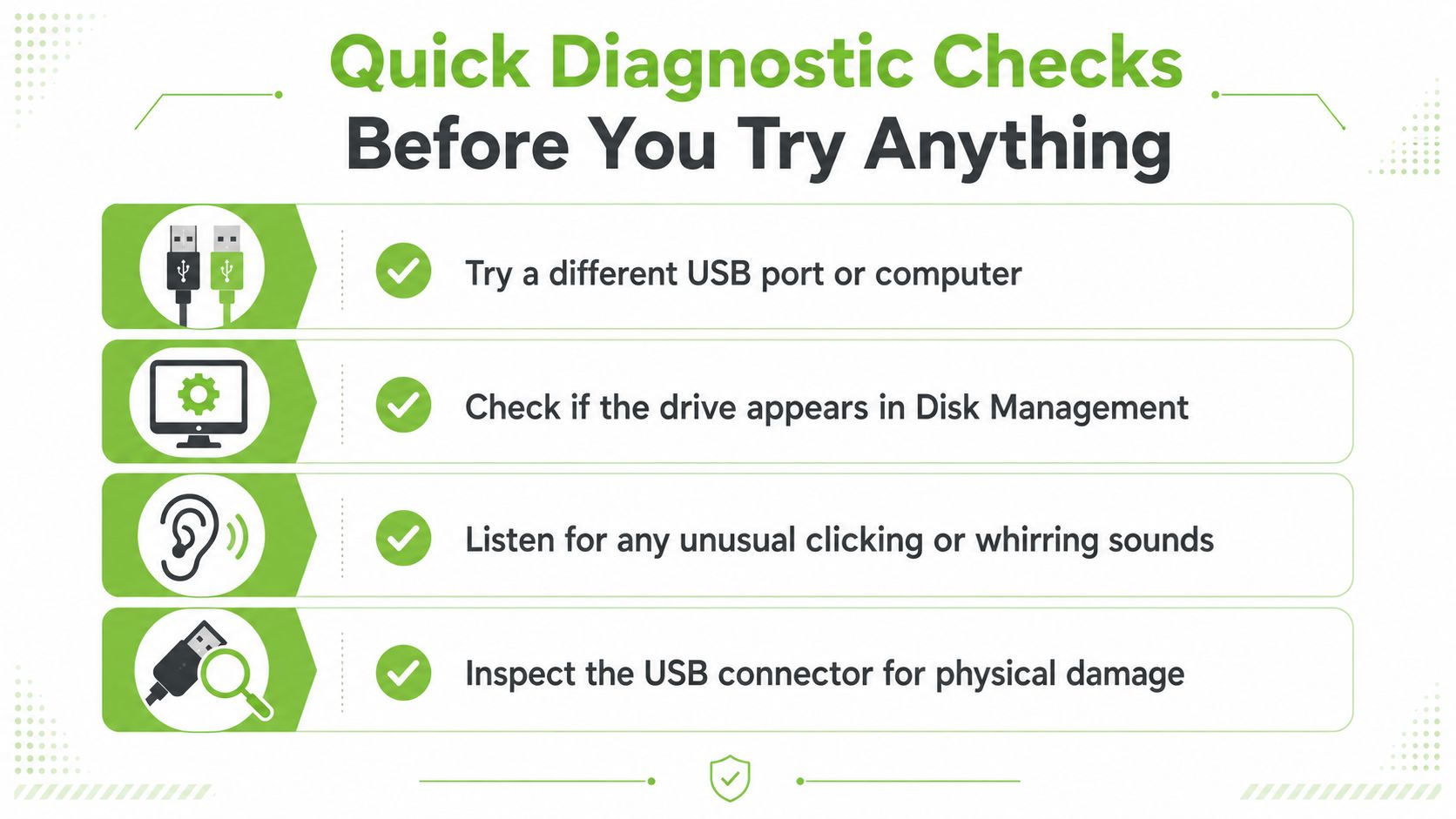
Work through the checks in order
Try another USB port. Use a port directly on the computer rather than a hub or adaptor. A loose hub, damaged port, or power issue can imitate a dead drive.
Test another computer. If the USB works elsewhere, the original computer may have a driver, port, or operating-system issue. If it behaves identically, the fault is more likely to be on the drive itself.
Inspect the connector carefully. Look for a bent metal plug, a cracked casing, or movement where the connector meets the circuit board. Don't straighten or open it with household tools. A physically damaged connector may need controlled repair before the device is powered again.
Check whether the drive is detected. In Windows, look in Disk Management. On macOS, check Disk Utility or System Information. Detection alone doesn't prove that the data is readable. A drive that appears with no usable partition, an incorrect capacity, or a generic device name may have a controller or flash translation problem.
Listen and observe. USB flash drives don't contain spinning platters, so clicking or whirring usually points to the computer, an attached enclosure, or another device rather than the flash drive itself. Watch for repeated connect-and-disconnect sounds, freezes, heat, or an LED that behaves unusually.
Match the symptom to the likely fault
A drive that opens but shows missing folders may have a logical failure, such as deleted directory information or corruption. A drive that isn't detected at all may have a connector, controller, or power problem. A drive that reports the wrong size deserves caution because the operating system may be communicating with the controller without receiving reliable information from the NAND flash, the memory where files are stored.
This classification matters because local specialists use a staged workflow. They may attempt non-destructive connector repair or controller access before considering chip-off recovery, where the NAND is read directly. You can also review these simple steps to recover deleted files if the drive is physically intact and the problem clearly began with accidental deletion.
Safe DIY Recovery Steps for Logical Failures
DIY software is most appropriate when the USB remains physically intact, is consistently detected, and the problem looks logical. Examples include accidental deletion, a simple format, or a file system that no longer mounts correctly. It isn't the right first move for a drive that disconnects, reports the wrong capacity, becomes unusually hot, or has visible connector damage.
Preserve the original before scanning
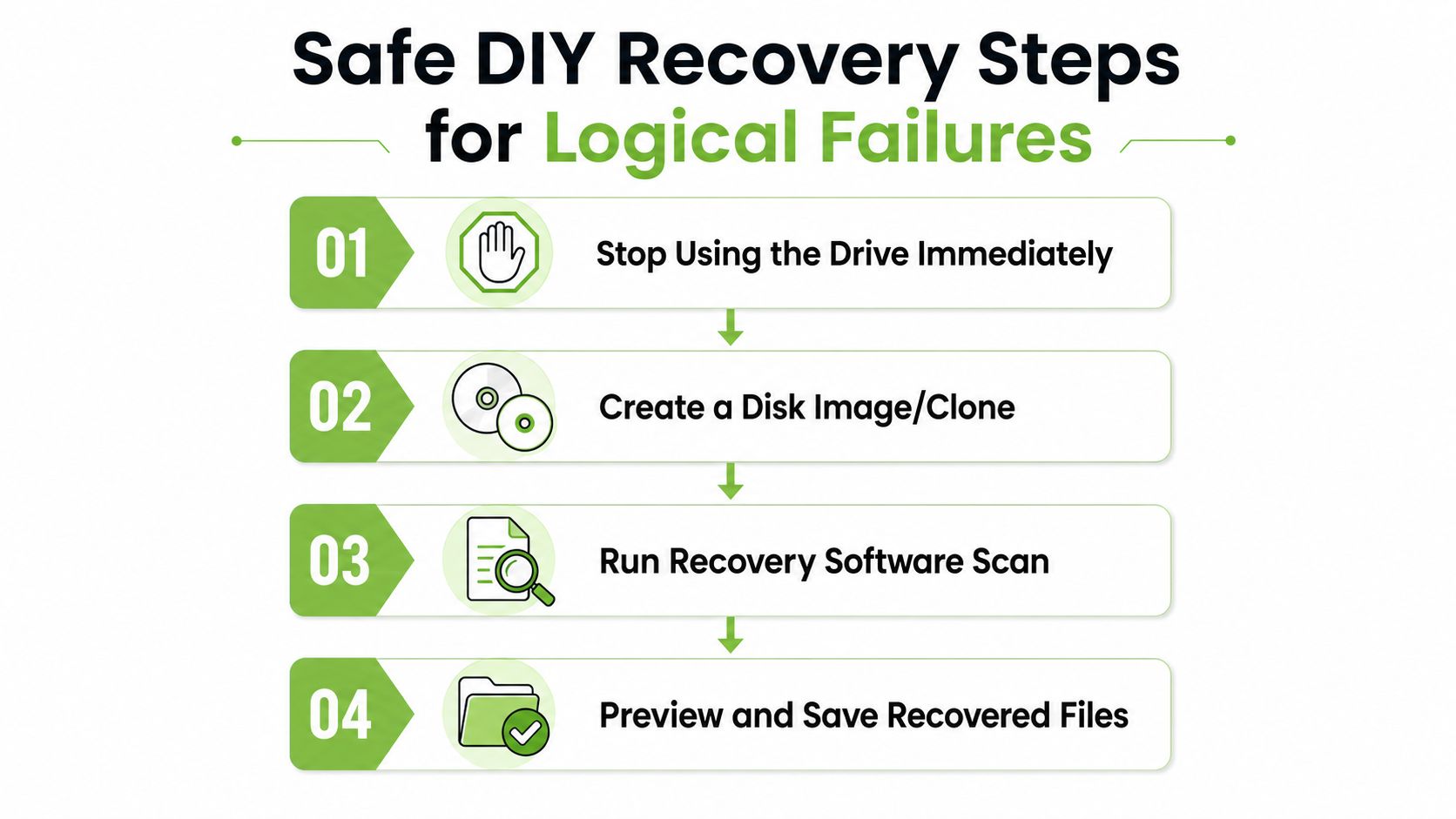
The safest workflow is to create a byte-level image, sometimes called a sector-by-sector clone, and scan that copy rather than the original USB. An image captures the readable contents in a separate file or replacement drive, so you aren't repeatedly interrogating the damaged original while testing different recovery settings.
A practical sequence looks like this:
- Stop using the USB. Disconnect it after confirming the basic symptom.
- Prepare separate storage. The destination must have enough room for the USB's full capacity and must not be the source drive.
- Create an image with a reputable tool. Use software designed to handle read errors and unstable media, rather than a basic drag-and-drop copy.
- Scan the image. Use a well-reviewed recovery application, such as a recognised file-recovery utility, and preview the results before exporting them.
- Save files elsewhere. Choose a healthy internal drive or a separate external drive.
A normal file copy often stops at the first unreadable area. Imaging tools can be more useful because they focus on preserving what can still be read, but the process still isn't risk-free if the USB is failing electrically.
Know when software has become unsafe
Stop the scan if the USB repeatedly disconnects, produces I/O errors, freezes the computer, or causes the recovery application to hang. Don't respond by changing file-system settings, repeatedly restarting the scan, running CHKDSK, or formatting the device. Those actions can write to the original media and reduce the information available to a specialist.
Encrypted USB drives need extra care. Recovery software may locate encrypted fragments without being able to reconstruct usable files, particularly when the encryption depends on a working controller, password, or proprietary security process. Keep the password and any recovery key safe, and tell the specialist that encryption is involved before authorising repairs.
Stop signal: A drive that becomes less stable during a scan isn't asking for more software. It needs a controlled assessment.
Professional Recovery Options and What They Involve
Professional USB recovery starts with diagnosis, not a generic “restore” button. A technician identifies whether the failure involves the connector, controller, NAND flash, or file system, then selects the least destructive method that can access the stored information.
A snapped connector may need careful board-level repair before the USB can communicate again. If the device is detected but unreadable, the specialist may examine the controller. It determines how flash memory appears to the computer, so recovery may require interpreting its mapping rather than searching only for familiar file names.
When direct NAND reading becomes necessary
If the controller has failed, the device reports an incorrect capacity, or the USB cannot communicate normally, chip-off recovery may be considered. The NAND flash chip is removed and read directly with specialist equipment. Monolith devices are harder to handle because the flash package and controller can be integrated into a compact structure. They require specialised access rather than straightforward chip removal.
Raw NAND reading does not open a normal folder structure. Flash storage uses wear-levelling, which spreads writes across memory cells. Recovery software must reconstruct that arrangement and may need to process XOR transformations and ECC, or error-correction data, before rebuilding the file system. The technician then extracts files and checks whether they open correctly.
Singapore provider data reports that more than 85% of USB recovery jobs result in data retrieval, with about 90% of those recovered cases fully retrievable (source: USB flash-drive recovery service data). Those figures describe one provider's service results, not a guarantee for every device or fault. The same source gives an indicative S$150 to S$600 range, depending on the fault class.
USB recovery methods at a glance
| Fault Type | Recovery Method | Success Rate | Indicative Cost (SGD) |
|---|---|---|---|
| Logical failure | Image-based recovery and file-system reconstruction | Included in the provider's overall USB retrieval data above | Within S$150 to S$600, depending on diagnosis |
| Connector damage | Non-destructive connector or board repair | Varies by device condition | Within S$150 to S$600, depending on fault class |
| Controller or NAND issue | Controller access, chip-off, or monolith recovery | About 88% in separate Singapore service data | Within S$150 to S$600, depending on complexity |
| Severe physical damage | Specialist hardware recovery and direct extraction where possible | Lower than less severe scenarios | Assessed case by case |
The table's separate flash benchmark and pricing context come from the provider information cited above. They should not be treated as a promise. A specialist can assess whether recovery is sensible by considering the file value, the device's stability, and the condition of the memory.
For a local option, myhalo's data recovery centre in Singapore can be considered alongside other qualified providers. Its Save Data service is relevant when a failed USB contains files worth preserving, while its wider zero-e-waste approach also addresses repair and responsible device handling.
Choosing the Right Recovery Path for Your Situation
The right choice depends less on the word “USB” and more on the symptom, the value of the files, and how much risk you can accept. A student may be able to try a cautious image-based scan for deleted notes on a stable drive. An SME handling client records should usually avoid experimenting on the original media, particularly if the drive is unstable or encrypted.
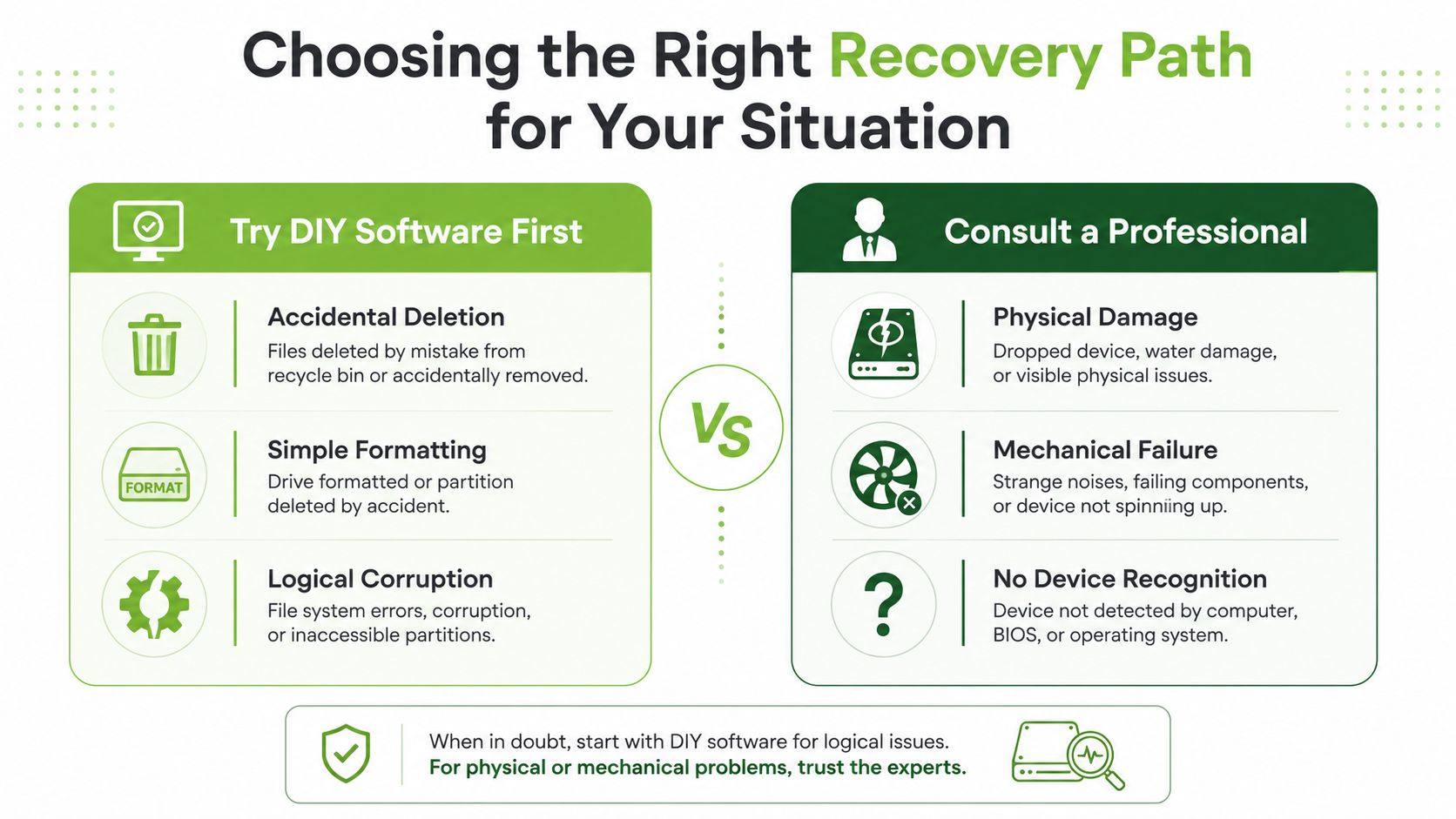
Use the symptom as your decision point
| What you see | Sensible first path | Why |
|---|---|---|
| Accidental deletion, with the drive stable and readable | DIY image and software scan | The storage hardware may still be functioning normally |
| Simple formatting, with consistent detection | Image first, then software recovery | You need to preserve the current state before searching for files |
| Logical corruption, but no physical warning signs | Cautious professional or DIY image workflow | The file system may be damaged even though the memory is accessible |
| Bent, loose, or snapped connector | Specialist assessment | Further plugging can worsen the board or connector |
| Wrong capacity or repeated disconnection | Specialist recovery | These signs can indicate controller or NAND trouble |
| No device recognition on multiple computers | Specialist assessment | Software can't scan media the computer can't reliably access |
| Encrypted USB containing business or personal records | Specialist handling | Authentication and controller behaviour may affect what can be recovered |
The trade-off is straightforward. DIY recovery can be convenient and may suit a logical fault, but it demands patience and a separate destination drive. A general repair shop may help with a connector, yet a specialist data-recovery lab is better positioned when the controller, NAND, or file-system reconstruction is involved.
Local searchers asking about data recovery USB in Singapore often want this exact distinction, but much of the available coverage focuses on promotions or broad troubleshooting rather than a symptom-by-symptom decision guide, as reflected in Singapore-focused recovery content. That gap matters because time spent trying unsuitable tools can increase risk, especially when the device is already unstable.
Choose based on the files, not only the device
For replaceable files, a careful DIY attempt may be reasonable if the USB passes the checks above. For irreplaceable photos, confidential client material, examination work, or encrypted records, preserving the original should take priority over saving a service fee. Tell the recovery provider what happened, what you already tried, and whether the files contain personal or regulated information.
Data Security and Responsible Disposal After Recovery
Recovering the files solves only half of the problem. The USB may still contain personal information, deleted fragments, cached documents, or business records, so handing it to someone else or placing it in an electronics collection box without a data plan can expose information you thought was gone.
Singapore's IMDA guidance is clear that deleting files, emptying the recycle bin, or reformatting a device isn't sufficient for personal-data disposal. Organisations should use dedicated overwriting software, specialised destruction hardware such as degaussers, or physical methods that make the storage device unrecoverable, as set out in the IMDA personal-data disposal guidance.
Sanitisation and destruction are different
Sanitisation means securely deleting or erasing data from electronic rewritable media when the device will be reused. Destruction means physically disposing of the storage media when secure deletion isn't possible or the device is being retired. Singapore's PDPC guidance makes this distinction, while government ICT policy recognises sanitisation for hardware storing data at rest and physical retirement methods such as shredding or incineration.
For organisations, the process should be documented. The aim isn't merely to make the folder look empty. It's to apply a method proportionate to the sensitivity of the information and retain evidence that the media was handled responsibly. You can review myhalo's guidance on secure data destruction before reusing, trading in, or retiring the USB.
Responsible handover: Recover the files to a separate location, decide whether the USB will be reused, then arrange secure erasure or certified destruction before it leaves your control.
The myhalo Promise
A zero-e-waste lifestyle should feel practical, not stressful. myhalo's Safe Data approach supports privacy-conscious handling, while Declutter your e-clutter helps homes and offices move unused technology towards responsible reuse, recovery, or recycling. That keeps the focus on both sides of the problem, Save Data when files matter and secure disposal when the hardware no longer does.
Your precious files and memories matter to us. Whether you need to protect your privacy with Safe Data or rescue lost files with Save Data, myhalo's caring team is right here to help. Visit myhalo to arrange support for your USB recovery, secure data handling, or responsible device next step.