
You've reset your phone before selling it, or wiped a laptop before a repair. Then comes that sinking feeling: the family photos, work documents or WhatsApp messages weren't backed up after all. Before you download a recovery app, pause. The next thing you do can affect what's still recoverable.
Data recovery after factory reset is sometimes possible, but it isn't the same job on every device. Start by separating files that might remain on the storage from copies saved elsewhere. That also makes it easier to decide whether to recover, repair or safely let go of old tech without compromising your privacy.
Table of Contents
- Whether a Factory Reset Really Erases Your Files
- Recovery Tools Worth Trying and What They Can Reach
- How to Attempt Recovery Step by Step
- When Recovery Fails and When a Lab Is Worth It
- What Secure Forensic Recovery Costs and What to Ask
- Protect Your Data and Choose Your Next Step
Whether a Factory Reset Really Erases Your Files
A factory reset doesn't always mean your files are recoverable, and it doesn't automatically prove secure destruction either. The result comes down to the storage, encryption and reset method.
On a properly encrypted iPhone or iPad, a completed full erase destroys the encryption keys needed to access the previous user data. Think of the key as the only way to open a scrambled filing cabinet. The contents may leave physical traces, but without that key, ordinary recovery software can't turn them into readable photographs.
Modern Android phones with file-based encryption follow a similar principle. Older or unencrypted Android devices need a different assessment because readable fragments may remain. For both platforms, cloud copies are separate from on-device recovery: an erased phone doesn't necessarily mean an erased iCloud or Google account.
Singapore's IMDA guidance on electronic data disposal explains why ordinary deletion and reformatting shouldn't be treated as proof that information has been removed from the storage medium.
Recovery odds after a factory reset by device and storage
These are practical assessments, not measured success rates. The more optimistic entries assume the files haven't been overwritten and the media remains readable.
| Device or storage | What the reset does | Recovery odds | Why |
|---|---|---|---|
| iPhone or iPad with passcode | A completed full erase destroys encryption keys | Very low for on-device data | Old encrypted data is unreadable without the keys; iCloud copies may survive |
| Modern Android with file-based encryption | A correctly implemented full reset removes or replaces encryption keys | Low for on-device data | Google Photos or Drive copies may remain accessible |
| Older or unencrypted Android | May clear file references without securely erasing every block | Moderate to high where remnants survive | Unencrypted blocks can retain fragments until overwritten |
| Laptop hard drive (HDD) | A basic reset may remove references and reinstall the system | Moderate to high for untouched areas | Magnetic blocks can retain old content until overwritten |
| Laptop SSD with TRIM enabled | Can mark old blocks for internal clearing | Low after clearing | TRIM and the controller's cleanup process limit recoverable remnants |
| SD card or SIM card | Ordinarily leaves card contents outside the reset | High for intact, readable contents | Cards need separate handling; SIM cards don't normally hold your photo library |
| Cloud backup (iCloud, Google, Microsoft) | Doesn't erase the separate backup | High if the backup exists and account access works | You restore an existing copy rather than reconstruct erased storage |
Reset and cryptographic erasure aren't interchangeable
Cryptographic erasure means making encrypted information inaccessible by securely removing its usable keys. A setup screen alone doesn't demonstrate that this happened correctly.
If you're preparing a device for resale, our guide to secure data destruction explains the disposal side of the decision. If you're trying to rescue files, check the storage type and available backups before assuming the worst.
Recovery Tools Worth Trying and What They Can Reach
Recovery software takes two main approaches. File-table recovery uses surviving records to rebuild a directory of files, sometimes retaining names and folders. File carving searches storage for recognisable file patterns, which can retrieve photographs or documents without their original names or folder structure.
The PDPC's disposal guidance explains the underlying opportunity: deleting a file can remove its visible reference without immediately destroying all its underlying content. That's why software sometimes works on readable, unencrypted storage, but it doesn't mean every reset phone is recoverable.
Match the tool to the remaining evidence
| Tool or restore option | Where it fits | What it can reach | Main limitation |
|---|---|---|---|
| PhotoRec | Windows, macOS and Linux | Carves recognisable files from accessible storage or disk images | Names and folder structure may be lost |
| TestDisk | Windows, macOS and Linux | Examines partition structures and supports some filesystem recovery | Repair operations can alter the source, so work on a copy |
| Recuva | Windows | Straightforward scans of accessible hard drives and memory cards | Doesn't bypass encryption or undo overwritten data |
| Disk Drill | Windows and macOS | Scans supported drives and previews potential recoverable files | Preview doesn't guarantee every file is complete |
| Google Photos and Drive restore | Android-related account recovery | Photos and files already saved in the account | Can't restore something that was never uploaded |
| iCloud backup restore | iPhone and iPad | Data included in an available backup | Backup contents and timing determine what returns |
PhotoRec and TestDisk are free, open-source options. Recuva has a free basic version, while Disk Drill offers scanning with paid recovery options; check the current edition's limits before committing.
What software won't fix
A tool can't reconstruct useful plaintext from encrypted blocks when the necessary key has been securely destroyed. Nor can a deeper scan reverse completed SSD clearing or overwritten content.
Be cautious when an app asks you to root a phone, modify its bootloader or install itself on the affected storage. Those changes can alter the very evidence you're trying to preserve.
Buying rule: Check account restores first. For suitable disks, scan an image with a free tool, then consider paying only when the preview shows useful, readable files.
A thumbnail is encouraging, but open a recovered sample before treating the job as successful. Some tools find file headers even when the rest of the document or photograph is incomplete.
How to Attempt Recovery Step by Step
The safest order protects the original device before chasing results. Work only on your own device or with the owner's permission, and avoid experiments that change its security settings.
The NIST mobile-device security guide specifically warns that factory resets don't clear SIM or SD-card contents. Keep those separate from your assessment of the phone's internal storage.
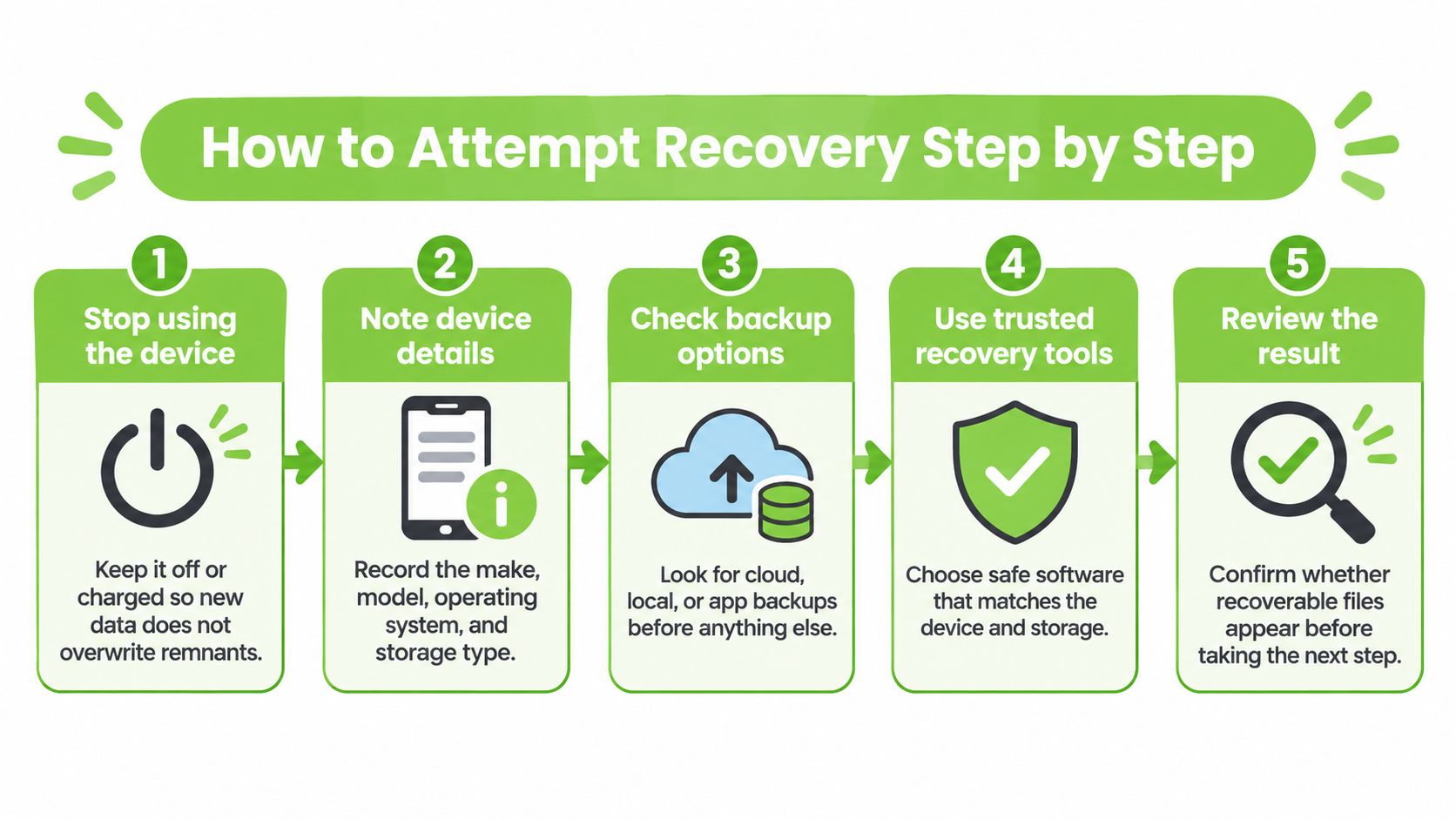
Use this visual as a quick reminder while following the more detailed steps below.
Preserve first, recover second
Stop normal use. Don't install apps, take photos or run another reset. If it's already off, leave it off; if an encrypted phone is still on, seek advice before changing its power state, and never charge a wet or overheating device.
Record the make, model, operating system, storage type and exact reset method. Note whether encryption was enabled and what you've done since the reset, because those details help distinguish a backup-restoration job from a storage-recovery attempt.
Check accounts from another device. Look in iCloud, Google Drive, Google Photos, OneDrive, WhatsApp backups and computer synchronisation folders. Confirm the account, backup date and actual contents before starting a restore that could replace newer information.
Remove accessible SIM and SD cards safely, following the device's removal procedure. Label them and examine them independently rather than assuming they share the internal storage's condition.
Image suitable laptop or external storage onto another drive. A full disk image is a working copy of the readable storage, allowing repeated scans without repeatedly accessing the original. Don't force this on a failing drive or try to defeat a phone's security controls to obtain one.
Run recovery software against the image, or use a properly write-blocked source where appropriate. A write blocker prevents the computer from making changes to the original; preview representative files before launching a large recovery.
Save recovered files elsewhere. Choose a different physical drive, not another folder on the affected disk. Saving onto the source can overwrite content that the software hasn't recovered yet.
Open sample photographs, videos, spreadsheets and documents, then keep separate copies of the verified results. Record what's missing or damaged so you don't confuse a large recovered folder with a complete recovery.
The most damaging DIY mistake is installing recovery software on the affected drive and saving the results back onto it.
Know what a useful result looks like
Success means readable files, not just a long list of filenames. Check that photographs open at usable resolution, videos play beyond the opening frame, and work documents contain the expected pages or worksheets.
Original names and thumbnails are helpful, but carved files may need manual sorting. Keep an untouched recovery output folder and organise a separate copy.
For Android-specific backup and device considerations, use our Android data recovery guide. If you can't access the phone or the storage shows physical symptoms, stop before turning a recoverable problem into a more difficult one.
When Recovery Fails and When a Lab Is Worth It
You've run a scan and found nothing useful. That result doesn't tell you whether the files were securely erased, the tool couldn't access the right storage, or the hardware stopped responding. Another scan isn't automatically the right next move.
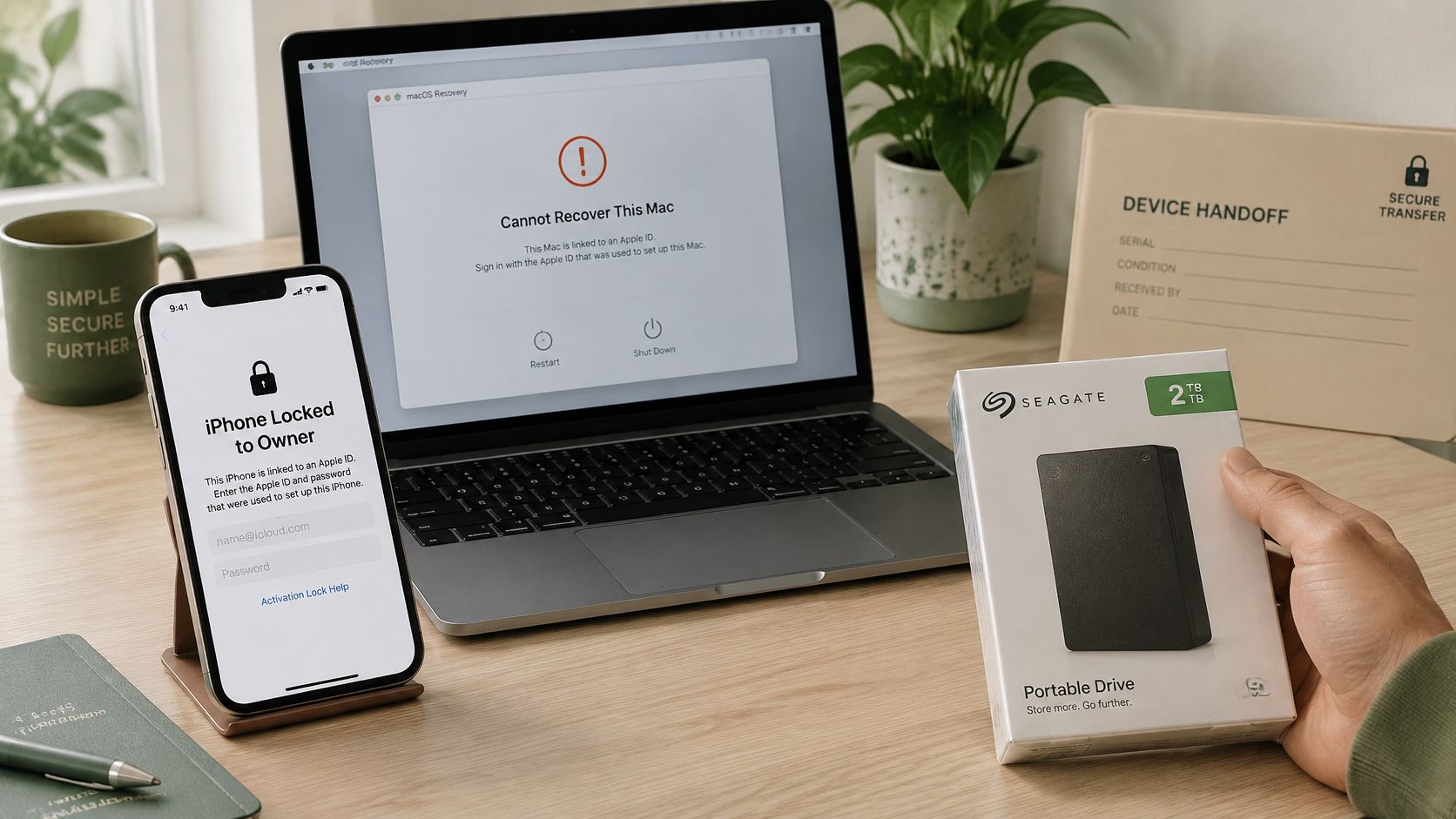
A lock screen and an external drive can look like similar access problems, but they need different handling.
Stop points that matter
- Locked phone without its passcode or account: Use legitimate account recovery and ownership support. There's no universal safe software bypass, and a lab can't promise to overcome modern encryption.
- Water damage: Disconnect power and stop charging. Repeated power-on attempts can worsen electrical damage before a technician assesses the board.
- Device won't boot: Don't keep restarting or reinstalling the operating system. Preserve its present condition for diagnosis.
- SSD returns an empty scan: Completed TRIM-related clearing may leave nothing useful for conventional software. Seek an assessment rather than buying another licence on hope alone.
- Hard drive clicks, disconnects or becomes unusually hot: Power it down. Repeated scans can put additional strain on failing mechanical components.
- Heavy use after reset: Tell the technician what was installed or copied. Overwritten information can't be recovered by using more expensive equipment.
When specialist work earns its cost
A lab is worth considering when the storage is physically damaged, the missing files are irreplaceable, or business and legal requirements demand controlled handling. A failed DIY attempt may justify assessment, but a lab cannot reverse actual overwriting or restore a destroyed encryption key.
For corporate devices, the NIST media-sanitisation framework distinguishes Clear, Purge and Destroy, and emphasises verification. That distinction helps prevent a recovery request from being confused with a disposal instruction.
A suitable specialist should preserve the original where technically possible, work from an image and document custody and findings. At myhalo, we strictly adhere to ISO-certified data management processes when handling customers' devices. If you're unsure what's wrong, tell our repair team what's happening so we can help identify the right solution.
Keep these access and hardware limits in mind when viewing recovery demonstrations.
Our guide to online data recovery options can help you distinguish remote assistance from work that requires physical access to the device.
A failed attempt can mean the easy route has closed, not that every recovery route has closed. Confirmed overwriting or secure key destruction is a different outcome.
What Secure Forensic Recovery Costs and What to Ask
Get a written assessment and quote, not a price based only on the words “factory reset”. There isn't a reliable published Singapore-wide post-reset recovery price benchmark to use as a standard here.
The work changes substantially between restoring an accessible backup, imaging a healthy hard drive and stabilising damaged storage. Device type, storage fault, imaging requirements, requested files and reporting needs can all affect the scope.
Take this checklist to the counter
Does a diagnostic fee apply? Ask whether it remains payable if nothing useful is recovered, and distinguish assessment charges from recovery charges.
What will the written report contain? It should identify the device, describe the work authorised and explain the outcome clearly enough for you to understand what remains missing.
How will the files be returned? Confirm the handover method, who can access the results and when working copies will be securely removed, subject to any agreed retention or legal requirements.
Will the original storage be protected from writes? For an evidence-sensitive case, clarify whether imaging and a chain-of-custody record form part of the agreed work.
How is success defined for this case? Ask for an explanation based on the device, reset state and file types rather than one generic percentage. Recovering unrelated fragments isn't the same as retrieving your missing accounts spreadsheet.
Will you receive an explanation before invasive or additional work starts? Agree on the approval point so you can decide whether the next stage is worth its cost.
Compare the outcome, not just the headline fee
A cheap scan that returns unusable files may offer less value than a careful diagnosis that establishes the technical limit. Equally, you shouldn't pay for specialist hardware work when the files are already available in an accessible backup.
A clear written quote gives you room to decide calmly. It should separate what the provider will attempt from what it can reasonably promise.
Protect Your Data and Choose Your Next Step
A factory reset and cryptographic erasure are not the same. A reset may leave recovery plausible on some devices, while cryptographic erasure makes encrypted data inaccessible by removing the key. What matters is the device, its storage and whether the erasure can be verified.
Triage matrix before a device leaves your hands
| Device case | Action | Why |
|---|---|---|
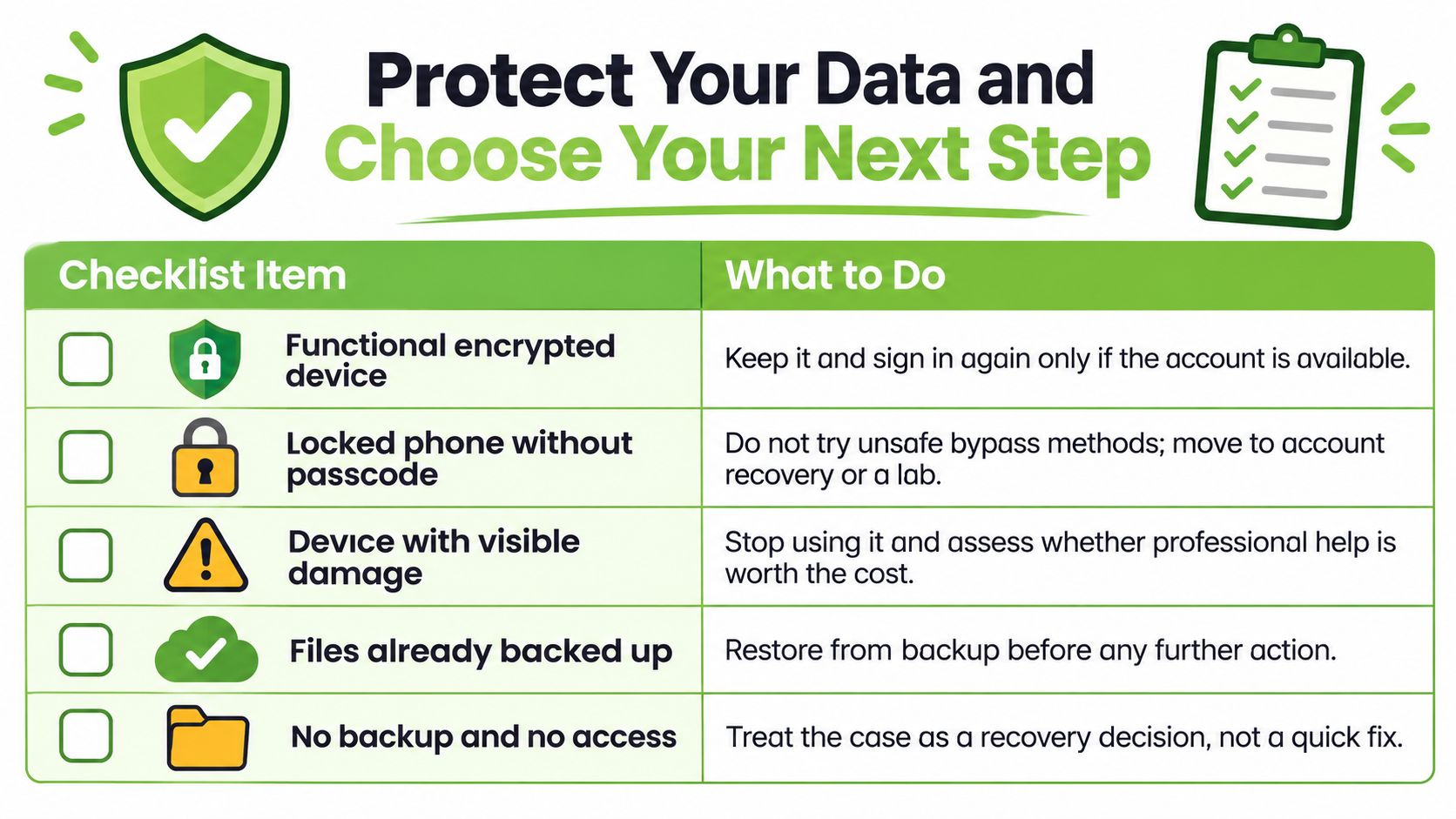
| Functional encrypted phone or laptop | Reset, confirm key erasure and verify the result | Supports safe reuse without unnecessary disposal |
| Working HDD or SSD with sensitive data | Use a method suited to the storage technology, then record and verify the result | Creates a documented outcome |
| Failed, damaged or unverifiable drive | Isolate and document it; seek specialist advice before disposal | Inaccessible areas cannot be cleared by ordinary software |
| SIM or SD card | Remove and handle separately | A device reset does not clear these media |
An HDD overwrite procedure should not automatically be applied to an SSD. Magnetic degaussing is not a solution for flash storage. Choose a method suited to the device and confirm what the verification can establish.
The PDPC's secure disposal guidance covers secure handling through disposal. Physical destruction can be appropriate when a sanitisation result cannot be established, but it sacrifices the chance to reuse otherwise functional equipment.
A useful certificate records the serial number, method, date, operator and outcome. Keep the verification result and any exceptions with the asset record. A document that only says “wiped” gives little detail about what was done.
Under Singapore's PDPA protection obligation, organisations must make reasonable security arrangements to protect personal data, including against unauthorised disposal and loss of storage media. Passing equipment to a recycler or buyer does not automatically remove the organisation's responsibility.
Choose a path you can finish safely
Try a controlled DIY restore when the files are available through an account you can access, or when healthy, readable storage can be imaged. Stop if the device shows signs of physical damage, disconnects unexpectedly or asks for access you do not understand.
Choose specialist assessment for failing storage, sensitive business records or irreplaceable files. If overwriting may have occurred, ask for a realistic feasibility assessment. No lab can promise to reverse every reset or overwrite.
Choose sanitisation and responsible reuse or disposal when recovery is no longer needed. Confirm that you have retained required records and resolved any legal hold before authorising irreversible work.
Unused devices can also carry data and lose value while they sit in a drawer. Decide whether each one needs recovery, sanitisation, repair, resale or responsible disposal, then record that decision.
Use this checklist to turn an uncertain drawer full of devices into clear next actions.
Make the next reset less stressful
Before a future reset, open important files from your backup to confirm they are there. UpTime Web Hosting explains what off-site backup actually means, including keeping a copy away from the original equipment.
For a repeatable routine, use this data recovery and backup guide.
Before handover, finish these checks:
- Separate the cards: Remove SIM and SD cards and decide their own recovery or sanitisation path.
- Verify your copies: Check cloud backups and open important files.
- Resolve account access: Sign out and remove ownership locks only after recovery and retention needs are settled.
- Identify the asset: Record the serial number and chosen action.
- Keep the evidence: Retain the sanitisation certificate and verification outcome where applicable.
myhalo describes itself as a zero e-waste sustainability platform for upcycling, rescuing and reloving devices conveniently, safely and responsibly. Its ISO-aligned data management processes support careful handling, while repair, reuse and parts recovery can keep devices useful when it is safe to do so.
Your files and memories matter. myhalo's Data Recovery service can assess what may still be retrievable after a factory reset. Secure data management and destruction, with certificates on request, can help when an old device is ready to leave your hands. Tell myhalo your device model, what happened and which files you need, so the team can help you choose a sensible next step.