
You're standing in the kitchen with a phone dripping beside the sink, or staring at a laptop that refuses to wake up just before a deadline. Perhaps an external drive has started clicking, as though it's trying to tell you something you don't want to hear. The fear is immediate because your photos, work files, messages, and business records may be trapped inside one small piece of hardware.
That's where data recovery and backup become two connected lifelines. A recent backup can restore what you've already copied, while a recovery process may salvage files that no backup captured. Panic won't repair a failed drive, but preparation gives you options. The practical path is to understand both services, build a routine you'll maintain, practise restoring files, and close the lifecycle responsibly when a device retires.
Table of Contents
- The Moment Everything Disappears
- What Backup and Recovery Actually Mean
- Backup Types and the 3-2-1 Rule Explained
- Building a Backup Routine You Will Actually Keep
- Recovery Scenarios and How They Really Play Out
- Restore From Backup or Call a Professional
- The Final Chapter of Your Data Lifecycle
- Your Data Safety Checklist and Next Steps
The Moment Everything Disappears
Water damage rarely arrives with a warning. One careless movement sends a phone into a sink, the screen goes dark, and the instinct is to keep pressing buttons. A laptop may fail on a deadline morning without a sound, while an external drive can begin clicking after years of carrying family photos or client folders. In each case, the gut-drop comes from the same realisation: the device was being used as the only place those files existed.

The first lifeline is a backup, a separate copy stored somewhere safer than the original. If it's recent and intact, you can restore the files without touching the damaged device. The second is data recovery, a careful attempt to retrieve information from a device when the original copy is deleted, corrupted, inaccessible, or physically damaged.
What to do before panic takes over
Stop using the affected device. Continuing to power on a wet phone, repeatedly restarting a failing laptop, or scanning a clicking drive can make the situation harder for a recovery specialist. Don't format the storage, install recovery software onto the same drive, or save new files where deleted data might still be recoverable.
Singapore organisations have had good reason to treat preparation seriously. An EMC Global Data Protection Index study reported that data loss and downtime cost Singapore businesses over US$1 billion in a 12-month period, while 66% of firms experienced data loss or downtime during that year. The same reporting found that the average business suffered more than three working days of unexpected downtime, and many organisations lacked complete plans for big data, mobile, and hybrid cloud environments. The Business Times report on Singapore's data-loss and downtime exposure provides the historical context.
A sensible plan doesn't promise that devices will never fail. It makes the next decision obvious when they do. You'll need a copy that can be restored, a recovery route for anything missing from that copy, and a safe way to retire hardware without leaving personal or business data behind.
What Backup and Recovery Actually Mean
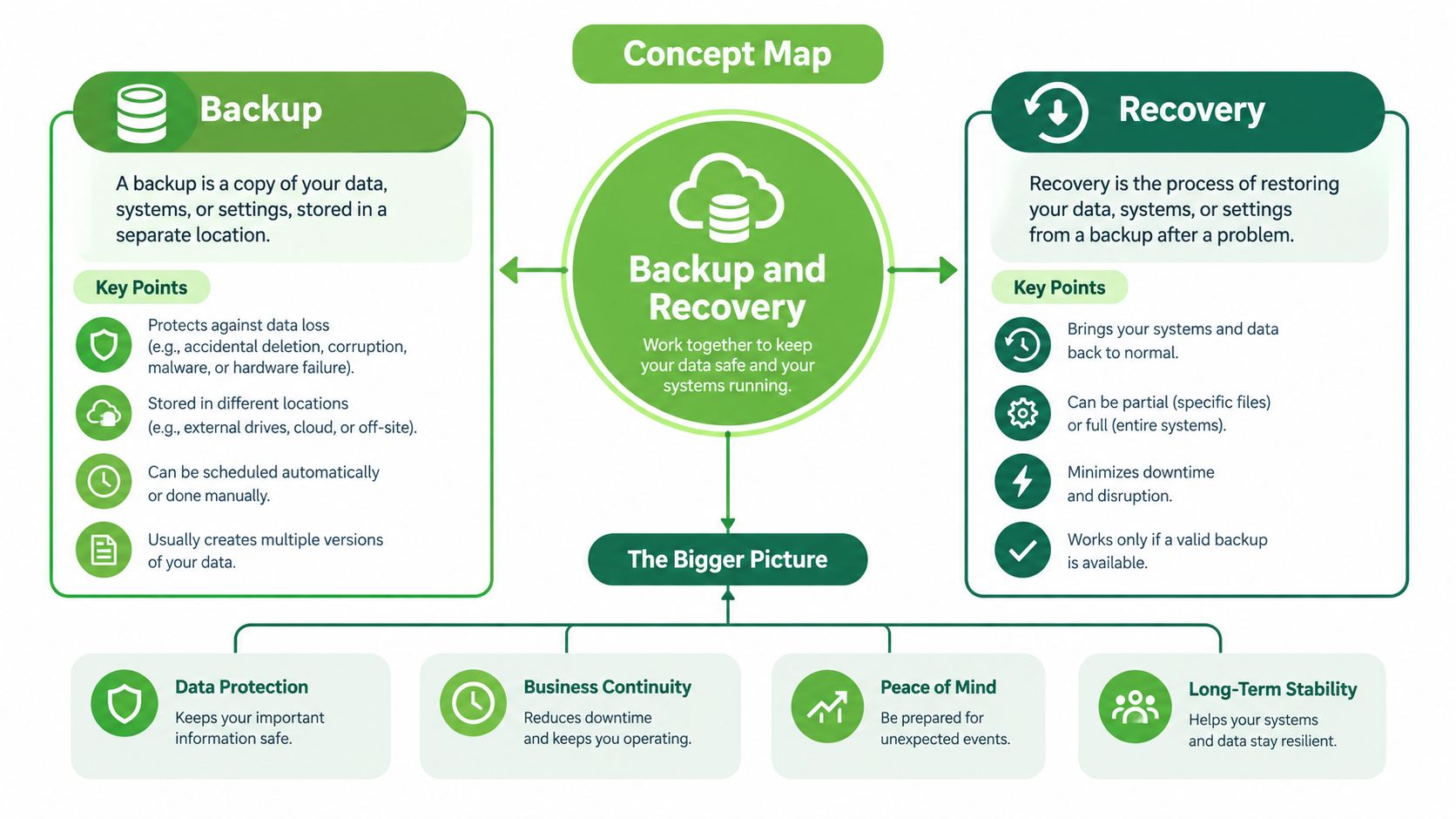
Backup is the planned act of copying data to a place where it can survive a problem affecting the original. That might mean copying a laptop to an external drive, synchronising photos with a cloud service, or using a managed system for business files and device settings.
Recovery begins after access has been interrupted. It may involve restoring a folder from version history, rebuilding a computer from a backup image, or having a specialist examine damaged storage. Backup prepares for loss. Recovery restores what remains available, or attempts to retrieve what no usable backup contains.
A rescue rehearsal for your files
Backup works like a fire drill paired with an emergency kit. You prepare the kit before trouble starts and practise finding it. Recovery is the response after the alarm, when you assess the damage and use whatever safe equipment is available.
The two processes cover different situations:
- Accidental deletion: A versioned backup may restore an earlier copy. If deletion happened before a usable backup ran, recovery software or a specialist may be needed.
- Hardware failure: A backup can move your work to another device. If the failed drive holds the only copy, a recovery lab may need to examine the storage hardware directly.
- Ransomware: An offline copy can remain outside the reach of malware targeting network-accessible files. Restore to a clean installation, since an infected system may re-encrypt restored files. The Singapore Police Force and CSA advisory on Akira ransomware explains this risk.
- Theft or physical damage: An offsite copy protects against losing both the device and its location. Without a usable copy, or when storage has suffered water, impact, or electrical damage, recovery becomes more difficult.
A reliable data lifecycle connects prevention, recovery, and eventual disposal. It asks more than whether a backup finished. Can you locate the right version, restore it safely, and continue working if the original device never returns? When hardware retires, the final step is also responsible disposal, so personal or business data does not remain on equipment passed to someone else.
Backup Types and the 3-2-1 Rule Explained
A backup plan should spread risk instead of placing every copy in one basket. The 3-2-1 rule sets a practical structure: keep three copies of important data, use two different media types, and store one copy offsite or offline. The goal is simple. One failure should not remove every usable version.
Cloud backup keeps a copy away from the home or office and may preserve earlier file versions. It still relies on account security, recovery credentials, and internet access. An external drive can restore files quickly, but leaving it beside the laptop means the same theft, flood, or fire may affect both devices.
An offline or air-gapped copy stays disconnected except during updates or checks. That separation limits ransomware's reach when malware targets network-accessible storage. A hybrid arrangement combines local speed, cloud or offsite protection, and a disconnected copy. Each layer handles a different part of the data lifecycle, from prevention to recovery when the original device fails.
| Backup Type | What It Protects Against | Ransomware Resistance | Restore Speed | Best Fit |
|---|---|---|---|---|
| Cloud | Device loss, local damage, older file versions | Depends on account controls and isolation | Often convenient, subject to connectivity | Individuals and teams needing offsite access |
| External drive | Accidental deletion and device failure | Limited while connected | Fast for local restores | Home users and small offices |
| Offline copy | Network compromise and ransomware spread | Stronger because it's disconnected | Fast once located and connected safely | Anyone with irreplaceable files |
| Hybrid | Several failure types through layered copies | Strongest when one layer is offline or immutable | Balances local and remote recovery | SMEs and organisations with business-critical data |
The table shows why one medium cannot cover every risk. A cloud copy may be available from another location, while a local drive can shorten restoration time. An offline copy adds separation when connected systems are compromised.
Practical rule: A backup is only valuable if you know where it lives, who can access it, and how you'll restore it on a clean device.
For teams evaluating secure data backup for SMBs, Finchum Fixes IT's guide to small-business cloud backup solutions offers a way to compare storage, access, and operational fit. Plan the restore as carefully as the copy itself, then retire old hardware responsibly so the data lifecycle ends without leaving readable information behind.
Building a Backup Routine You Will Actually Keep
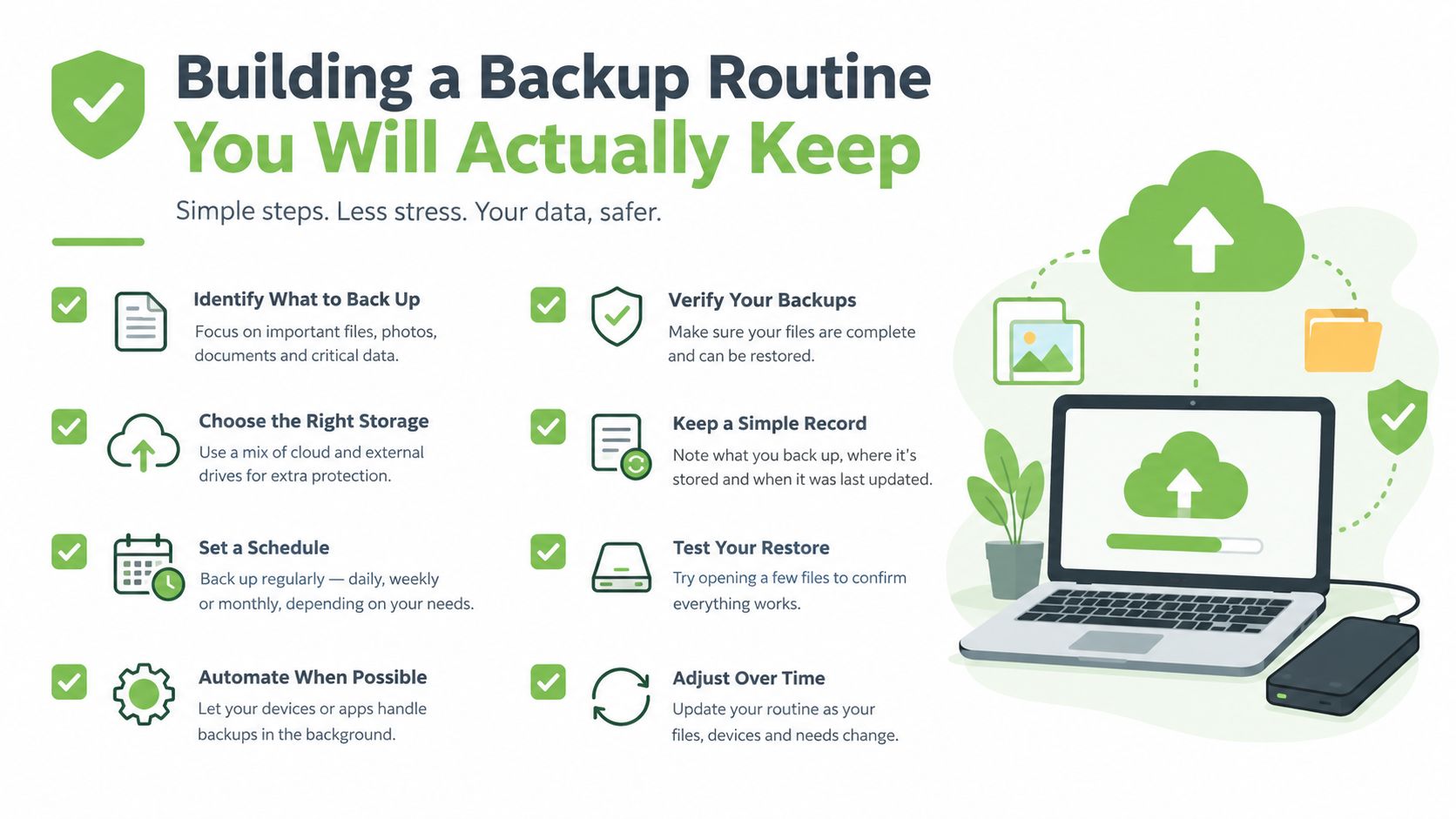
A backup routine works best when it becomes part of an existing habit, not a task you vaguely intend to complete later. Singapore government ICT guidance says important data and systems should be backed up at least every day, stored in a secure separate location, tested regularly, and protected from modification or deletion for a defined retention period. Singapore's government ICT control guidance sets out that baseline.
Your weekly check
Choose a fixed time, such as the first workday morning or a quiet weekend afternoon. Confirm that cloud synchronisation completed, the external drive received its scheduled copy, and an offline copy is stored away from the primary device. For a business, check that laptops, phones, servers, shared folders, and cloud applications are included, not just the office desktop.
Use a password manager for backup accounts and turn on multi-factor authentication. Enable device-level encryption so a lost laptop or phone doesn't expose its contents, and encrypt backup media as well. PDPC guidance recommends offline essential ICT backups, automation where feasible, restricted access, encrypted media, and designs that match business recovery point and recovery time objectives. The PDPC guide to data protection practices for ICT systems explains these controls.
Your monthly proof
A backup dashboard showing green ticks isn't proof that restoration will work. Once a month, open a random document, photo, or project file from each backup location. For a business, test a small folder first and document who performed the restore, what was recovered, and which steps worked.
- Label each drive: Write its purpose, date range, and the person responsible for rotating it.
- Schedule idle-time backups: Let devices copy data when they're charging or not being used.
- Separate recovery instructions: Keep a short restore guide on a card in a drawer, not only inside the system that may fail.
- Review retention: Keep personal data only as long as there's a clear need, while preserving records required for legitimate business, legal, or operational purposes.
For a straightforward personal workflow, CTF Mobile Phones & Computer Repairs' guide to backing up computer files offers another practical reference. You can also compare routines with myhalo's guidance on how often to back up your data.
Recovery Scenarios and How They Really Play Out
A designer empties the recycle bin while tidying a project folder, one day before a client deadline. The cloud service retains version history and deleted files, so the designer restores an earlier copy, checks the layout, and continues working.
The decision that helped: the important folder had recoverable versions stored elsewhere. The laptop's current storage was only one copy, not the whole safety net.
A photographer in Bali connects a portable SSD and hears unfamiliar clicking before the drive disappears. A recent external-drive copy protects most of the active library, while an offsite copy preserves earlier work if the travel bag is lost. One shoot was never replicated, so recovering it requires specialist help. A backup cannot restore files that were never copied.
Ransomware changes the order of operations
A small accounting firm discovers that its working systems and connected storage have been encrypted. Its offline backup is still intact because it was not mapped as a network-accessible drive. The firm isolates affected systems, rebuilds clean installations, checks the offline copy, and restores essential operations within 24 hours.
The useful preparation was keeping a disconnected copy and knowing where restoration belonged. Singapore Police Force guidance warns about clean installation because malware can re-encrypt restored files if the environment remains compromised.
Singapore's breach situation makes this sequence relevant. The PDPC's Singapore's Data Breach Report 2023/24 reports that cyber incidents were the leading cause of data breaches, rising 41% within the reporting period, while ransomware accounted for 62% of those cyber-incident cases.
The decisive test isn't whether a backup exists. It's whether someone can restore the right files without reintroducing the original problem.

If an external drive fails, further handling can make the outcome worse. Before trying software, review myhalo's guide to recovering data from an external hard drive to understand which signs call for a controlled assessment. Recovery is part of the same lifecycle as backup: prevent loss with copies, restore carefully when prevention fails, and avoid turning one damaged device into several damaged copies.
Restore From Backup or Call a Professional
Start with three questions. Is there a usable backup, how recent is it, and does the storage hardware still function? Then ask how important the missing files are. A replaceable download, a client database, and irreplaceable family photos deserve different decisions.
| Situation | Best Next Step | Why |
|---|---|---|
| A recent, verified backup exists | Restore to a clean or replacement device | You have a known copy and can avoid stressing the failed hardware |
| No backup, but the device still works normally | Stop unnecessary use and assess recovery options | New writes can overwrite deleted data |
| The drive clicks, grinds, or vanishes | Power it down and seek specialist advice | Repeated attempts may worsen physical damage |
| The phone or laptop has water damage | Keep it off and arrange controlled assessment | Power can complicate damage to affected components |
| Ransomware has affected systems | Isolate, investigate, rebuild cleanly, then restore | Restoring into an infected environment can repeat the damage |
| Data is sentimental or business-critical | Consider professional recovery earlier | The cost of a failed DIY attempt may be permanent loss |
When DIY recovery becomes risky
Recovery software can help with ordinary logical deletion, but it should never be installed on the drive containing the missing files. Stop if the device becomes unusually hot, produces mechanical noises, repeatedly disconnects, shows severe corruption, or asks to be formatted. SSDs also manage deleted data differently from traditional hard disk drives, so a promising-looking scan doesn't guarantee a successful result.
Before handing over hardware, document the serial number, the last working state, what happened immediately before failure, and which files matter most. Tell the provider whether the device contains personal, client, financial, or confidential information, and ask about confidentiality terms or a non-disclosure agreement.
For Singapore consumers and IT teams weighing those options, myhalo's data recovery service provides a route for assessing inaccessible devices before replacement. A professional shouldn't promise files that may no longer be recoverable, but they can help you avoid destructive guesswork.
The Final Chapter of Your Data Lifecycle
A device can look empty after a reset and still hold recoverable business contacts, client documents, browser sessions, or login tokens. Retiring that device without securing its storage repeats the same lifecycle mistake as skipping backup. Returned employee laptops, formatted hard drives, and unencrypted SSDs need a planned handover before they are exchanged, recycled, or redeployed.
Singapore's PDPC disposal guidance treats this as a data-protection task. Personal data should be securely deleted, erased, or destroyed before storage media leaves its current use. The PDPC guidance on disposing of personal data provides practical support for making disposal part of the same lifecycle as backup and recovery.
Match the method to the media
- Certified on-site shredding: Physically destroys drives where an organisation needs controlled handling and clear evidence of destruction.
- Degaussing: Uses a magnetic field to disrupt data on suitable magnetic media. It does not suit every modern solid-state device.
- Cryptographic erasure: Removes encryption keys from an SSD or another encrypted device, provided full-disk encryption was active and the process was controlled properly.
- Documented physical destruction: Establishes a clear endpoint for tapes or media that should not be reused.
The right method depends on the storage technology, encryption status, reuse plan, and evidence your organisation must retain. A quick format is not the same as secure erasure, just as a failed restore is not the same as a tested backup.
Financial institutions face further expectations. MAS technology risk guidance covers backup frequency, retention, storage mechanisms, secure destruction, encryption, offline or offsite storage, and irrevocable deletion of confidential data before media or endpoint devices are disposed of or redeployed. The MAS Technology Risk Management Guidelines are particularly relevant to regulated organisations.
For an SME with multiple assets, a documented chain of custody and destruction certificate can simplify audits, client questions, and internal approval. Learn about certified processes in myhalo's guide to secure data destruction. myhalo's Safe data programme is an ITAD-aligned option for secure handling and certificates on request, while its wider lifecycle approach supports repair, reuse, and responsible device retirement.
Your Data Safety Checklist and Next Steps
Keep this checklist somewhere visible, perhaps above the desk where you charge your laptop or manage office devices. It turns a broad concern into small decisions that someone can verify.
- 3-2-1 copies: Maintain three copies, across two media types, with one copy offsite or offline.
- Restore test: Schedule a weekly check of one representative file or folder.
- Offline rotation: Move or rotate a disconnected copy so it isn't permanently attached to the network.
- Ransomware rehearsal: Decide who isolates systems, who contacts support, and who approves restoration.
- Encryption at rest: Protect laptops, phones, external media, and backup stores with encryption where supported.
- MFA protection: Use multi-factor authentication on backup and cloud accounts.
- RPO and RTO: Write down how much recent data you can tolerate losing and how quickly essential work must resume.
- Password manager: Store recovery credentials securely, with an agreed emergency access process.
- Device inventory: Record who has each laptop, phone, drive, server, and retired asset.
- Disposal partner: Choose a secure destruction provider before decommissioning day arrives.
The continuous loop
Backup: Prevent avoidable loss with separate, protected copies.
Recovery: Restore what exists and seek controlled specialist help for what doesn't.
Destruction: Close the lifecycle by removing data before the device is reused, sold, or dismantled.
That loop matters for both a family photo library and a company managing employee laptops. Singapore's recent ransomware reporting shows why recovery capability needs to be tested, not assumed. A 2025 Singapore ransomware survey reported that only 46% of organisations used backups to restore data, down from 58% in 2024, while 53% of attacks involved encryption and only 53% fully recovered within a week. The same reporting found that 22% took one to six months to recover. Frontier Enterprise's Singapore ransomware survey report highlights the gap between having backups and using them successfully.
myhalo's Save data programme can support consumers and IT teams considering backup, recovery, and damaged-device decisions, while Safe data addresses certified end-of-life destruction. A little discipline today can spare you from standing over a dead laptop tomorrow, wondering whether the only copy of your work has disappeared.
Your precious files and memories matter to us. Whether you need to protect your privacy with Safe data or rescue lost files with Save data, myhalo's caring team is right here to help. Reach out through myhalo today and take the next safe step for your devices and your data.