

Your coffee tips, your elbow catches the mug, and suddenly there's liquid spreading across the keyboard of the MacBook that holds your work, your photos, and tomorrow's deadline. It's a horrible, frozen second, and we know the urge that follows. You want to press the power button just once to check if it's still alive. Please don't. That one hopeful restart is often what turns a cleanable spill into a serious MacBook liquid damage repair job.
Take a breath. A spilled MacBook isn't automatically finished, and it isn't automatically fine either. You're really making a lifecycle decision now, not just drying a laptop. The right outcome might be repair, data recovery first, or, if the numbers don't work, responsible recycling that keeps the device out of landfill. We'll walk through that choice calmly, step by step, with your files, your budget, and our shared zero e-waste goal in mind.
Table of Contents
- First Ten Minutes After a MacBook Spill
- Check What Your MacBook Is Showing
- Warranty, AppleCare and Who Pays
- Keep Your Data Safe and Prevent the Next Spill
- Repair Costs and Turnaround Times
- Repair or Replace? A Lifecycle Decision Guide
- Confirm Your Route Before You Book
First Ten Minutes After a MacBook Spill
Power isolation comes first, drying experiments come last. Liquid and electricity together drive short circuits and corrosion, so your job in these first minutes is to remove power and stop the spread. Work through these steps in order, and don't skip ahead to testing.
What to Do Right Now in Order
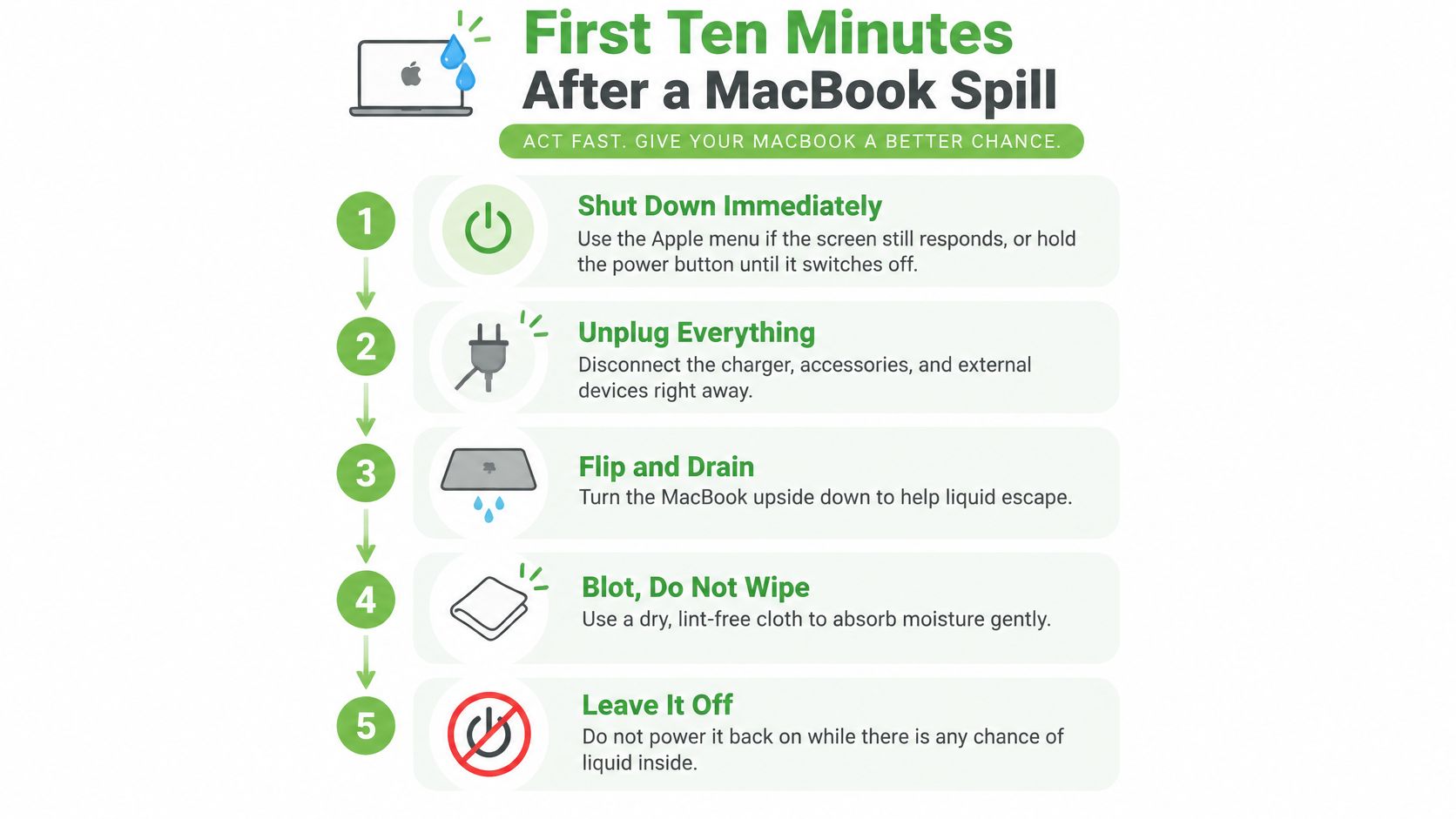
Shut it down at once. Use the Apple menu if the screen still responds normally. If it doesn't, hold the power button until the MacBook switches off completely.
Unplug everything. Disconnect the charger and any USB-C accessories, drives, and docks. Leave the lid roughly where it is rather than snapping it shut and trapping liquid against the screen.
Resist the test boot. Don't press keys to see if they work and don't try starting it again. Each attempt sends power through wet contacts and can push a small problem across the logic board, the main circuit board that runs the machine.
Flip and drain. Turn the MacBook upside down in a gentle tent shape so liquid drains away from the keyboard and ports. Blot, don't wipe, the outer surfaces with a dry, lint-free cloth, because wiping spreads sugary or salty residue into new corners.
Write down what happened. Note the liquid type, whether it was water, coffee, a soft drink, or saltwater, roughly how much spilled, and which corner it hit. Plain water and sweet coffee behave very differently inside a chassis, and your technician will ask.
Photograph and record. Take clear photos of the keyboard, ports, and base, and find the serial number printed on the underside. Intake should include photographs, the serial number, model identifier, and a customer-authorised data-preservation decision before opening the unit, as set out alongside Apple Singapore's repair terms and conditions.
Leave it off to air-dry. Set it in a ventilated room away from heaters and direct sun. You're buying time safely here, not curing anything, because surface dryness says nothing about residue under the keyboard.
Here's a simple visual reminder you can keep open while you work through those first minutes.
The Two Mistakes That Cause the Most Harm
Rice doesn't rescue a MacBook. It can't draw moisture out of a sealed chassis, reach corrosion forming on board contacts, or remove sugar and salts. Grains and dust can also work into ports, and the days you spend waiting are the days corrosion spreads.
A hairdryer or heat gun makes things worse, not better. Hot air can warp plastics, push liquid deeper, and bake residue onto components. Controlled drying happens after a technician disconnects the battery, inspects the keyboard, ports, display connectors, and power rails under magnification, and tests for shorts before applying power.
A MacBook that looks dry on the outside can still be wet and corroding inside. Off, unplugged, and booked in beats dry-looking and switched on.
I would book a technician before any power-on test, every time. Even a Mac that seems fine tonight can short tomorrow or develop faults next week as residue reacts with air and current. Fast, calm action now is the cheapest favour you'll ever do this machine.
Check What Your MacBook Is Showing
A black screen with no fan noise and no chime is the symptom to respect most. That silence usually isn't a flat battery. It often points to a short on the logic board or a damaged power rail, and every retry risks widening that damage. If you see it, stop troubleshooting and book a board-level diagnosis.
Work through what you can observe from the outside only, without opening the MacBook or plugging it in to test. You're gathering clues for the technician, not proving the Mac still works.
| Symptom | Likely cause | Next step |
|---|---|---|
| Black screen, no fan noise or chime | Possible short on the logic board or power rail | Stop, do not retry, book board-level diagnosis |
| Keys dead or sticking | Liquid under the keyboard or corroded keyboard connector | Book keyboard inspection and residue check |
| Screen flickering or showing lines | Display cable or connector damage | Inspect display connector and panel |
| Battery swelling or not charging | Battery damage or charging-circuit fault | Stop charging, do not puncture, replace battery |
| Trackpad unresponsive | Liquid on trackpad cable or controller | Check trackpad connector |
| Running hot, loud fans or slow | Developing corrosion or sensor fault | Check cooling and logic board |
| Starts but files missing or errors | Storage fault or logic board issue | Preserve data before any repair |
| No visible symptoms yet | Corrosion may still be developing | Still book a check; symptoms can appear days later |
Reading the Quieter Signs
Sticky keys tell a clear story. Liquid has usually travelled under the keycaps or reached the keyboard connector, where dried sugars keep attracting moisture long after the surface feels dry. Flickering or lines on screen point somewhere else entirely, toward the display cable or its connector, which sits in the path liquid takes through the hinge area.
Heat is the sneaky one. A Mac that still works but runs hot, loud, or strangely slow may be developing corrosion or a sensor fault that hasn't become a visible failure yet. Fans working harder than usual after a spill aren't a good sign you got away with it, they're a reason to get the inside looked at.
Treat a swollen battery as a hard stop, not a warning. Don't charge it, don't press on the bulging case, and never puncture it. Swelling or a refusal to charge points to the battery or charging circuit, and that's a hands-off, technician-only situation.
One clean-looking keyboard shouldn't reassure you, because corrosion can take days to show itself as a dead key, a flickering screen, or a sudden shutdown. The absence of symptoms is not a clearance. If anything beyond a faint smell or a dry keyboard appears on that table, stop checking and book the diagnosis.
Warranty, AppleCare and Who Pays
Let's get the disappointing part out of the way. You will almost certainly pay for a spill. In Singapore, Apple's Mac repair and service page sits alongside terms under which Apple's standard one-year limited warranty and AppleCare Protection Plan exclude damage caused by liquid exposure. Apple states that liquid damage is treated as accidental damage rather than a manufacturing defect, so a MacBook exposed to a spill generally requires a paid repair unless the device has AppleCare+ for Mac.
The Two Cases That Surprise Owners
AppleCare+ helps, but it isn't free repair. It adds accidental-damage protection, yet repairs remain subject to a service fee and applicable tax. Check that you bought AppleCare+ rather than the older Protection Plan, and confirm the expiry date, before you assume coverage.
Working now doesn't change the claim later. A MacBook can power on after a spill yet still develop corrosion or component failure weeks afterwards. That later failure is still liquid damage, not a new manufacturing fault, so it doesn't become a warranty claim just because time passed. A good assessment identifies liquid exposure separately from ordinary hardware failure right at intake.
Earlier third-party repairs or modifications can also change your outcome. Disclose them before authorising diagnostics, along with anything you've already tried at home. A technician who's told the full story quotes you accurately the first time, which saves everyone an awkward second conversation.
Your Coverage Checklist Before You Approve Anything
- Serial number: Find it on the underside of the MacBook or your original packaging, it's the key to every coverage lookup.
- Proof of purchase: Dig out the receipt or order email so dates aren't argued from memory.
- AppleCare status: Confirm the exact plan name and expiry, then ask for the accidental-damage fee in writing before work begins.
- Spill note: Bring your record of what spilled, how much, and when, it helps separate liquid damage from unrelated faults.
Keep Your Data Safe and Prevent the Next Spill
A MacBook that still opens after a spill can hold months of work, and those files can matter more than the board. Before anyone opens the machine, agree which path you have authorised and put that choice in a written intake record. Data privacy during diagnostics is part of the job, not a footnote.
Three Diagnostic Paths to Agree Upfront
Repair with no data access. The technician cleans and tests boards and components, and never opens your files or accounts. This suits most straightforward repairs.
Functional testing with your password. Some checks, such as confirming the keyboard, Wi-Fi, and storage under your user account, may need you to log in. Ask for minimal-access testing, only what the check requires, ideally with you present or approving each step.
Data recovery with separate approval. Copying files off a failing machine is a different job from repairing it, and it needs your explicit sign-off first. If you are weighing that route, our guide to choosing a data recovery service for Mac explains what a careful process looks like.
Recovered files should be encrypted in transit, then returned to you or destroyed on your request once you have confirmed receipt. A repaired Mac can still leave duplicate copies, signed-in accounts, or an unclear chain of custody if nobody checks. A laptop that powers on is not a safe outcome until that chain is closed.
I would treat file access as its own decision, separate from whether the hardware is worth saving. If the data is the valuable part, recovery can stand alone, and the machine can later go to a reuse or part-harvest path instead of a full repair. Either way, the intake note should say who may see the drive, what gets copied, and what is wiped afterwards.
Three Habits That Prevent a Repeat
- Back up with Time Machine: Keep an external drive plugged in at your desk so backups happen without willpower. A current backup turns a future spill from a data emergency into a repair decision.
- Sign out before handover: Log out of banking, email, and sensitive accounts before any device leaves your hands for service.
- Give drinks their own territory: Use a lidded cup, and keep it away from the keyboard and trackpad side entirely. If you carry your MacBook between home, office, and campus, the HYDAWAY tips for keeping gear dry are a handy read on separating liquids from the kit you would rather keep safe.
Desk rule: If you must have a drink while you work, put it on the far side of the desk, well out of elbow and arm's reach of the keyboard.
Repair Costs and Turnaround Times
A light spill that needs cleaning and a couple of corroded connectors is a different job from a logic board diagnosed part by part. A 2026 Singapore guide to laptop water damage lists liquid-damage cleaning plus component repair at S$250–550, with an estimated turnaround of 3–7 days. Treat that as a planning range for a typical clean and component job, not a fixed price for your Mac.
How to Read These Figures
| Repair or service | Cost in Singapore |
|---|---|
| Liquid-damage cleaning plus component repair | S$250–550 |
| Battery replacement | Written quote after diagnosis, model confirmed first |
| Screen replacement | Written quote after panel and connector inspection |
| Keyboard replacement | Written quote after residue and connector check |
| Logic board repair | Written quote after board-level diagnosis |
| Data recovery (priced separately) | Separate written quote before any copying begins |
Cleaning alone sits at the lower end of that range. Battery, screen, and keyboard replacements usually cost more because the parts sit on top of cleaning and corrosion treatment. Logic board repair tends to take the longest. The board needs diagnosis under magnification before anyone can say which components failed.
Data recovery is priced separately from board repair. If the files matter, ask for both quotes before you approve either one. During diagnosis, ask whether the bench only inspects the hardware or also opens your files, and who can see the drive while it is on the bench. A repair quote that approaches the price of a working replacement is a pause, not an automatic yes. Weigh the bill against how much those files are worth, and against whether the Mac is still worth keeping once the data is safe. A breakdown of how much MacBook Pro repair costs lets you compare a written quote with typical MacBook Pro jobs.
Three Questions That Make Any Quote Clear
- Is diagnosis included? Confirm whether the inspection fee is inside the quoted price or added on top.
- Does it cover corrosion treatment? A wipe-down and a proper residue removal with controlled drying are different jobs at different prices.
- When does the clock start? Ask whether turnaround runs from drop-off or from your approval of the quote, because parts ordering often waits for your yes.
Line two quotes up on those three answers and on the parts being replaced. The cheaper quote that skips corrosion treatment, or starts its clock a week later, often costs more in the end. I would take the written, itemised quote over a friendly verbal estimate.
Repair or Replace? A Lifecycle Decision Guide
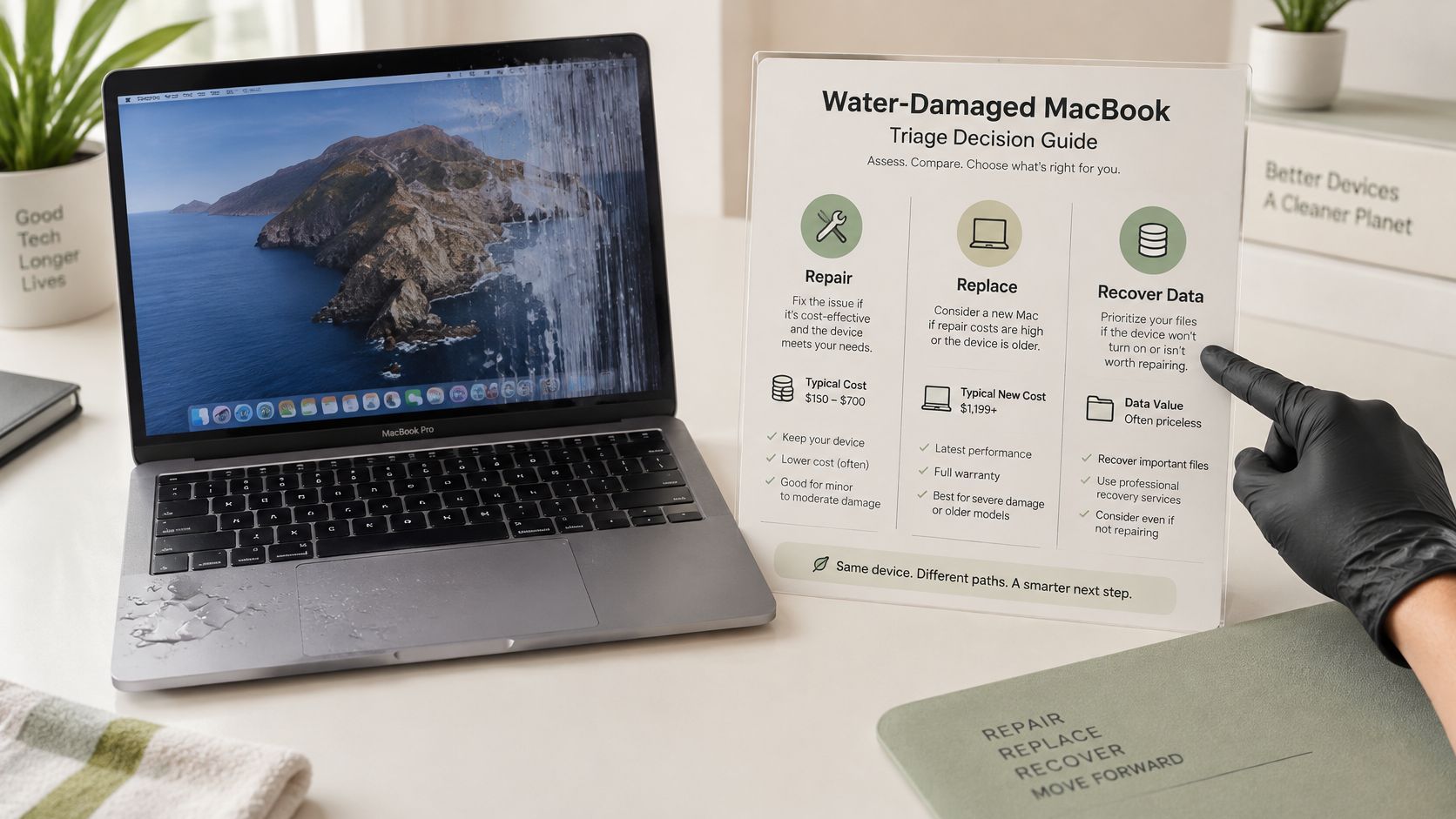
A MacBook that powers on again isn't always a win, and a dead one isn't always a loss. The cheapest-looking outcome can be the wrong one once you weigh the repair bill, the value of your data, and what the device is still worth as parts or resale. That's the honest heart of a good repair or replace decision.
Put the written quote, the files, and the residual value on one page before anyone spends.
| Situation | Repair worth it? | Likely route |
|---|---|---|
| Under AppleCare+ with a cleanable spill | Usually yes | Authorised repair with the covered fee |
| Older model, repair quote near replacement cost | Usually no | Certified resale or parts harvesting |
| Board dead, storage soldered to board, data critical | Maybe, after recovery | Data recovery first, then decide |
| Unrepairable, no safe data path | No | Regulated e-waste collection point |
| Repair quote below replacement cost, data not critical | Usually yes | Authorised repair after written quote |
On newer Macs, storage can be soldered to the logic board, so you cannot lift the drive out the way older machines allowed. A dead board is a data-recovery job first and a repair question second. That order protects the files you cannot replace. Before any power-on or heat, ask who can see the drive during diagnosis and whether recovery stays separate from a repair you may still decline. Privacy belongs in the decision, not after the invoice.
Diagnostic fees belong in the same maths. Apple may charge when liquid spill, submersion, or an earlier unauthorised repair means the service cannot be completed. Ask whether that fee applies to your Mac, and whether it is credited if you go ahead, before you approve anything.
When repair stops making sense, responsible routes remain. Under Singapore's e-waste management system, regulated collection began on 1 July 2021 under an Extended Producer Responsibility approach, and public three-in-one bins take ICT items only when they fit a 500 mm by 250 mm slot, so check the size before dropping off a laptop. Computers and laptops also go through designated channels when a bin is the wrong fit. Our guide on whether a broken MacBook is worth repairing or selling works through that trade-off in more depth.
This short video walks through the same triage thinking visually, which helps if the table feels abstract right now.
The Three-Question Test
- What is the written repair quote? Use the number after diagnosis, including any fee that is not credited if you walk away.
- What is your data worth? Irreplaceable work or family photos can justify recovery spending that the hardware value alone would not.
- What is the device worth as parts or resale? A working screen and healthy components retain value even when a full repair does not.
I'd spend on recovering files you cannot replace before paying to revive a board that still costs more than the Mac is worth.
Confirm Your Route Before You Book
You've done the hardest part already, which is stopping, thinking, and not pressing that power button. Now confirm your route in this order. Power down and keep it off, document the spill, book a diagnosis, check your coverage, then decide between repair, data recovery, or recycling based on real numbers rather than hope.
How We Can Help at myhalo
Our MacBook repairs include battery replacement, screen replacement, keyboard replacement and logic board repair, which covers the components liquid most often reaches. Beyond the fix itself, myhalo offers Data Recovery, Repair & Rescue and e-Xtender Subscription as additional repair services, so your files and your machine's future lifespan get proper attention too. Our Safe data programme protects your privacy through the process, while Save data focuses on rescuing the memories and work files stored on a failed device.
If the honest answer turns out to be that your Mac isn't worth saving, we'll tell you that kindly and clearly. A device that can't be repaired economically can still move through certified resale, parts harvesting, or regulated recycling, keeping its materials in use and out of landfill. That's our whole Convenient, Safe, Responsible promise in action, and it's how a bad morning still ends with a good outcome for you and for the planet we share.
Act within the first hour and let a technician see the Mac before anyone powers it on.
Not sure what's wrong with your device? That's completely normal after a spill, as the main issue is happening under the keyboard where it can't be seen. Customers unsure of the problem can tell myhalo what is happening, and our repair team will help find the right solution. If you'd like help choosing where to take it, our advice on finding a reliable source for Apple MacBook Pro repair is a good place to start.
Your precious files and memories matter to us, and we'd love to help you keep them. So here's your one concrete action for today. Write down what spilled, roughly how much, and where it landed, keep the MacBook switched off and unplugged, and make the call to book your diagnosis before you do anything else. Every hour you save now is an hour corrosion doesn't get.
Your precious files and memories matter to us, and we're right here to help you protect them. Whether you need caring MacBook liquid damage repair, privacy-first help from our Safe data team, or file rescue through Save data, visit myhalo today and let's find the safest, most stress-free route for your Mac together.