
It's late, your iPhone is hovering at 3%, and you plug it in. Nothing. No icon, no chime, no little lightning bolt. You try the cable again, wiggle it, flip the connector round, try a different socket, and the screen stays stubbornly black.
Before you start pricing a replacement, slow down. A phone that won't charge is one of the most misdiagnosed problems in the shop, and the fix is often cheaper than the panic suggests. Work through the checks in the order below, safety first and backups second, and you'll spend nothing until you know what's wrong.
Table of Contents
- Work Out Why Your iPhone Won't Charge
- What to Do If Your iPhone Got Wet
- Protect Your Photos and Logins Before Testing Anything
- Test Cables and Power Before You Touch the Port
- How to Clean a Charging Port Safely
- When to Stop DIY Fixes and Book a Repair
- Decide Whether to Repair or Retire Your iPhone
Work Out Why Your iPhone Won't Charge
A phone that won't charge is not automatically a phone that's finished. Charging faults and battery faults look almost identical from the outside: both give you an intermittent icon, a percentage that slides backwards while plugged in, or no response at all. The difference shows up under test, not under your thumb.
It helps to know how common this is. An analysis of more than 1,900 smartphone repairs found charging ports were involved in roughly 6% of cases, while battery and other power-related faults accounted for 15% (State of Phone Repair in Singapore report). So a dead port is a real, regular repair category, just not the dominant one. Singapore doesn't publish an official iPhone-only breakdown of port failures, which is why you should treat any claim that charging ports are the "most common" iPhone repair here with a raised eyebrow.
The practical takeaway is simpler: a non-working port can be compacted lint, a damaged connector, corrosion, a bent contact, a tired cable or adapter, or a deeper charging-circuit fault. Each has a different price tag, so diagnosis comes before replacement.
Match the symptom to the cause
| Symptom | Likely cause | First move |
|---|---|---|
| Cable clicks in but no charging icon | Lint or a faulty cable | Clean the port, then try a known-good cable |
| Charges only at certain angles | Bent pins or loose debris | Test with another cable; book an inspection if it persists |
| Wireless charging works, wired does not | Connector or port damage | Stop forcing the cable; arrange a professional check |
| Charging stops after a few minutes | Faulty accessory or overheating | Try another adapter and let the phone cool |
| Liquid warning appears | Moisture in the port or cable | Follow the drying steps and do not charge |
| Charges but battery drains fast | Battery wear rather than the port | Check Settings, Battery, Battery Health |
| No response after 30 minutes | Battery or logic board | Use a known-good setup, then book a diagnostic |
Find the row that matches what you're seeing and start there. If more than one fits, start with the cheapest explanation, which is almost always the cable.
What to Do If Your iPhone Got Wet
The single most important action is to stop charging immediately. Unplug the cable at both ends, not just the wall. Apple blocks charging and accessory connections while moisture is detected at the connector, the cable ends or the accessory itself, and that block protects the phone rather than annoying you (Apple on liquid detection).
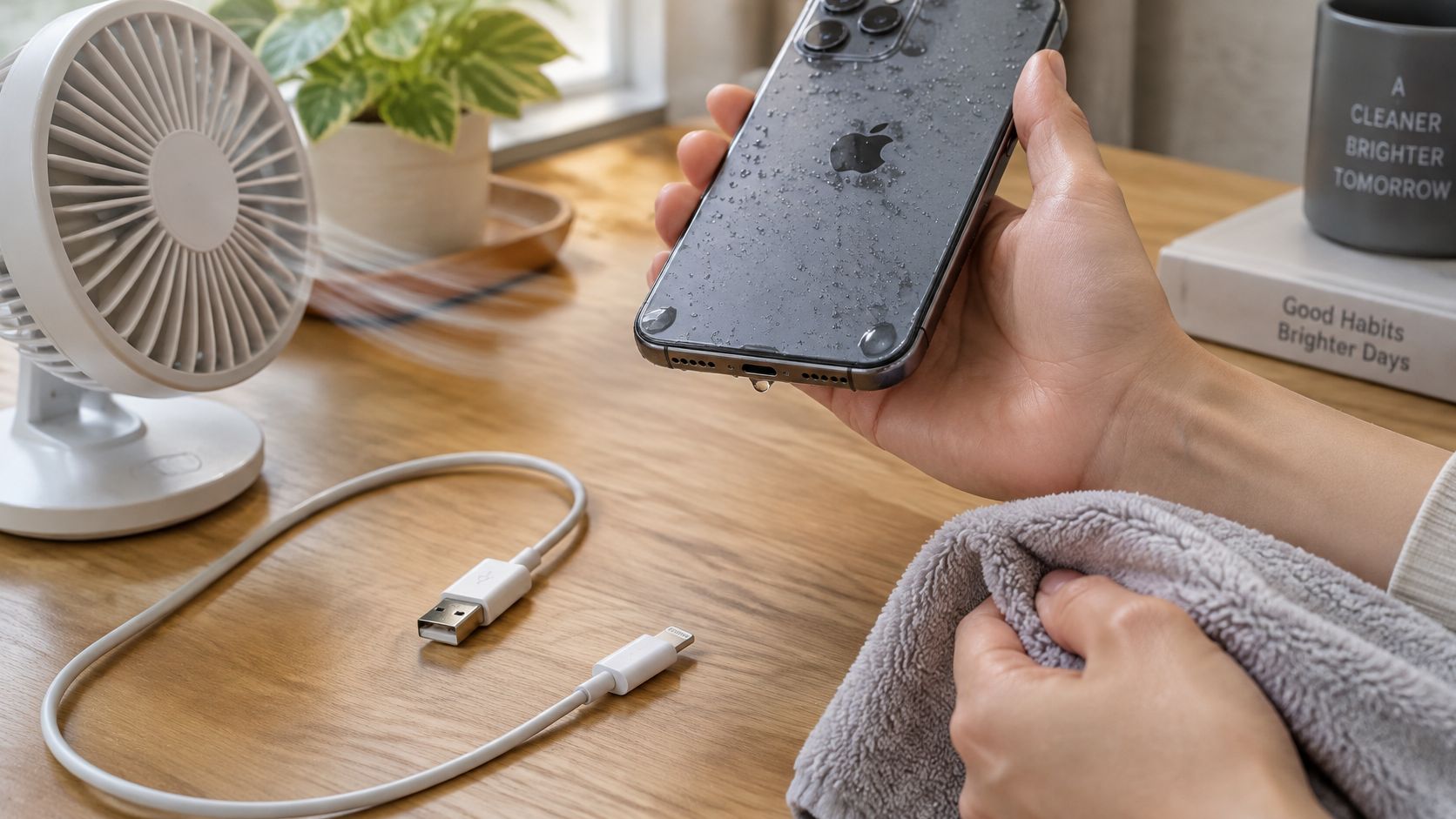
From there, treat it as a controlled drying job, not a reset problem:
- Hold the phone connector-down and tap it gently against your palm. Gravity plus a light tap moves droplets out of the opening; shaking it hard does nothing useful.
- Leave it in a dry spot with airflow, away from hairdryers, radiators and direct sun. Heat pushes moisture deeper and softens the adhesive seals.
- Wait at least 30 minutes before the first retest. A repeat alert means moisture is still there. Full drying can take up to 24 hours, so patience is part of the procedure.
- Don't poke anything into the port and skip the rice. Apple warns against inserting objects and against compressed heat, and rice leaves abrasive dust behind that damages contacts.
In Singapore's humidity, moisture can sit under the cable pins even when the phone looks bone dry. So test with a second cable before you blame the phone. Note the time, what liquid was involved and whether the cable alone triggers the warning, because that record saves a technician guesswork later.
If the phone stays unresponsive after proper drying and a cable swap, stop applying power. Water damage that reaches the board needs microscope inspection, not another charging attempt, and repeated power-ups on a wet board can turn a cleanable fault into a dead logic board.
Protect Your Photos and Logins Before Testing Anything
Do this while the phone still turns on, because every test from here could end in a repair, a trade-in or a recycling decision, and you don't want a flat battery deciding that for you.
- Back up to iCloud. Settings, your name, iCloud, iCloud Backup, then Back Up Now. If you're on Wi-Fi and have the space, this is the fastest route. Our walkthrough on backing up an iPhone covers the computer-based option if you'd rather keep a local copy.
- Move your authenticator apps. Check that your banking, email and work codes can be reached on another device, and save the recovery codes somewhere that isn't the phone that won't charge.
- Write down which accounts depend on this number or this device. A dead phone shouldn't be able to lock you out of your own email.
- Top up wirelessly if your model supports it and the port is the only fault. Keep the charge short, and stop if the phone feels warm.
Back up first, test second. A repair you can undo beats a repair you can't.
Once the backup is done, you can clean, swap and probe with a clear head, because your precious files and memories are already somewhere safe.
Test Cables and Power Before You Touch the Port
Accessories cause more charging failures than ports do. Rule them out before anything goes near the connector, and change one variable at a time so you can read the result.
- Fit a known-good, compatible cable and plug the iPhone in directly. Skip extension leads, hubs and multi-port adapters for now. If charging starts, your old cable was the fault and you're done.
- Swap the wall adapter, then the socket. Check the adapter for bent pins and a loose fit. If the phone charges on a different brick, the brick failed, not the phone.
- Restart the iPhone and give it 30 minutes. A discharged battery can take several minutes to show any sign of life. Judging it after 60 seconds produces false alarms.
- Inspect both cable ends for kinks, fraying and bent contacts. Retire anything damaged. A cable that only works when you hold it at an angle is already failing, and unstable connections generate heat.
Now read the pattern. One cable failing while another works means the cable is the problem. Every known-good cable and adapter failing points at the port or connector assembly. Wireless charging that works while wired charging doesn't is the clearest signal of all, because the battery and charging circuit are fine and only the wired path is broken.
Bench rule: if the fault follows the cable from phone to phone, it's the cable. If it follows the phone from cable to cable, it's the phone.
For the newer USB-C iPhones, cable quality matters more than people expect. A charge-only cable, an underpowered brick or an ageing connector will all make a healthy phone look broken. Our USB-C charging guide explains which cable and charger combinations deliver power to an iPhone, so you're not testing with equipment that was never going to work.
If an accessory swap fixed it, stop here and enjoy your evening. If not, move on to cleaning.
How to Clean a Charging Port Safely
Compacted pocket lint is a frequent reason an iPhone charging port stops working, and it can be simple to remove when it is near the opening. Each time you plug in, loose lint can get pressed farther into the port, preventing the connector from seating fully. The result may be slow or intermittent charging, or a connection that drops with slight movement.
Apple recommends powering off the iPhone, checking the connector for debris, and using a clean, dry, soft-bristled, non-metallic brush to brush away from the opening (Apple's iPhone cleaning guidance).
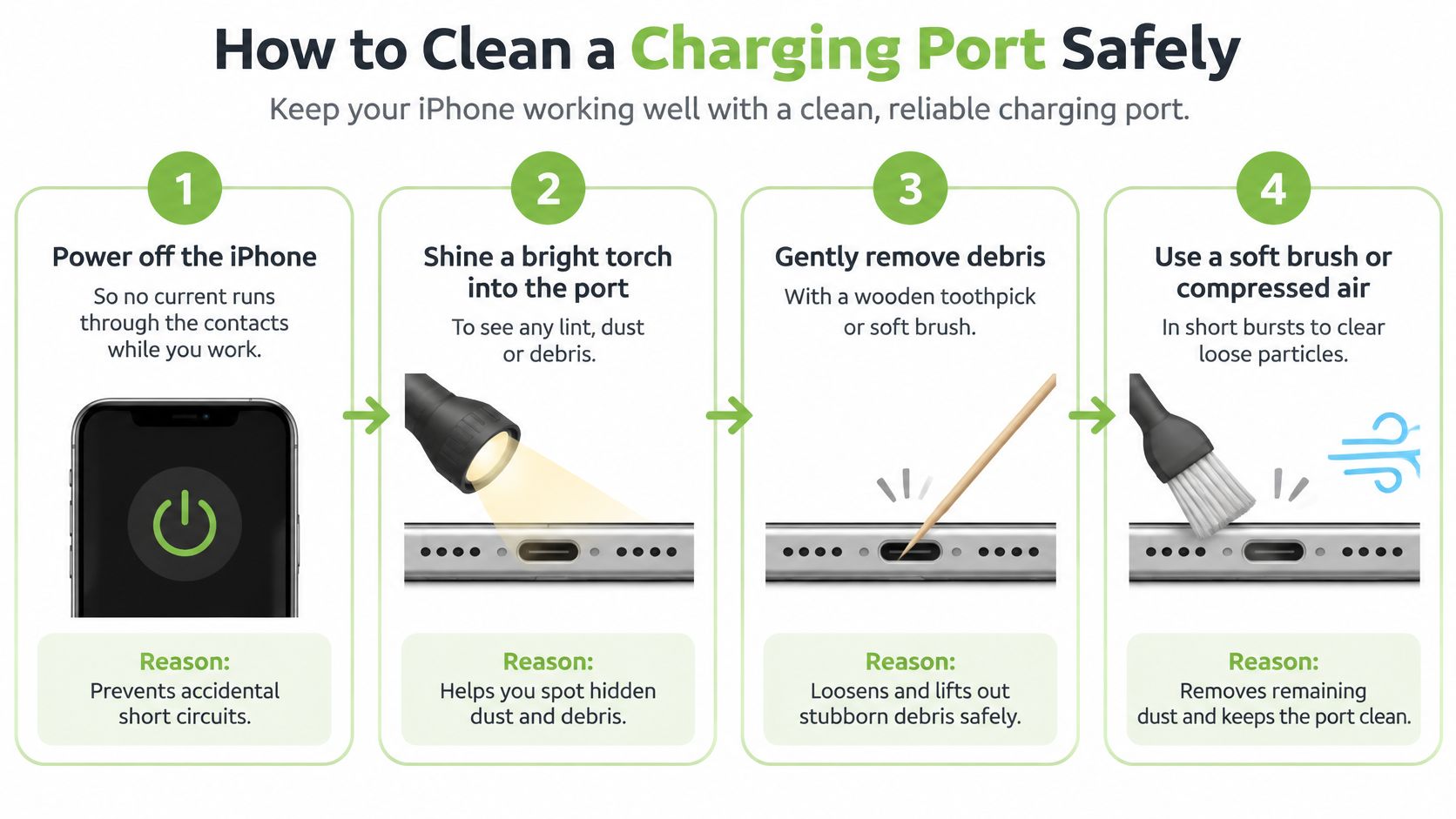
- Power the iPhone off. This reduces the risk of contacting live components while cleaning.
- Shine a bright torch into the port. Look for grey or bluish fuzz, especially near the back. Debris can be hard to spot without direct light.
- Use a soft-bristled brush to loosen debris gently. Brush outward, lifting material from the port rather than pushing it farther inside.
- Check after each pass. Repeat gently, but stop if debris remains after two or three attempts. Reaching deeper can damage the port.
- Power the iPhone back on and retest with the cable you have already confirmed works.
Keep these items out of the port:
- Metal tools, including pins, paperclips, SIM ejectors and needles. They can scratch contacts or break inside the port.
- Cotton swabs and paper towels. They may leave fibres behind.
- Bleach, hydrogen peroxide and other cleaning products. Avoid putting liquids or chemicals on the contacts.
- A damp brush. Moisture can turn dust into a paste that is harder to remove.
Lint can be difficult to see without a torch. If you see compacted debris, brush gently and work outward.
If you would rather watch the cleaning method, this clip demonstrates the steps.
Make one careful attempt, then reassess. If the port still does not respond, stop cleaning and seek help rather than trying to dig debris out with a pin.
When to Stop DIY Fixes and Book a Repair
DIY has a finish line, and it's easier to spot than people think. A charging fault isn't always the port either: Apple lists damaged cables, bent adapter pins, loose wall connections, unsupported accessories and underpowered adapters as causes, and points to service when debris removal, accessory and outlet tests, restarting and adequate charging time have all failed (Apple support on iPhone not charging).
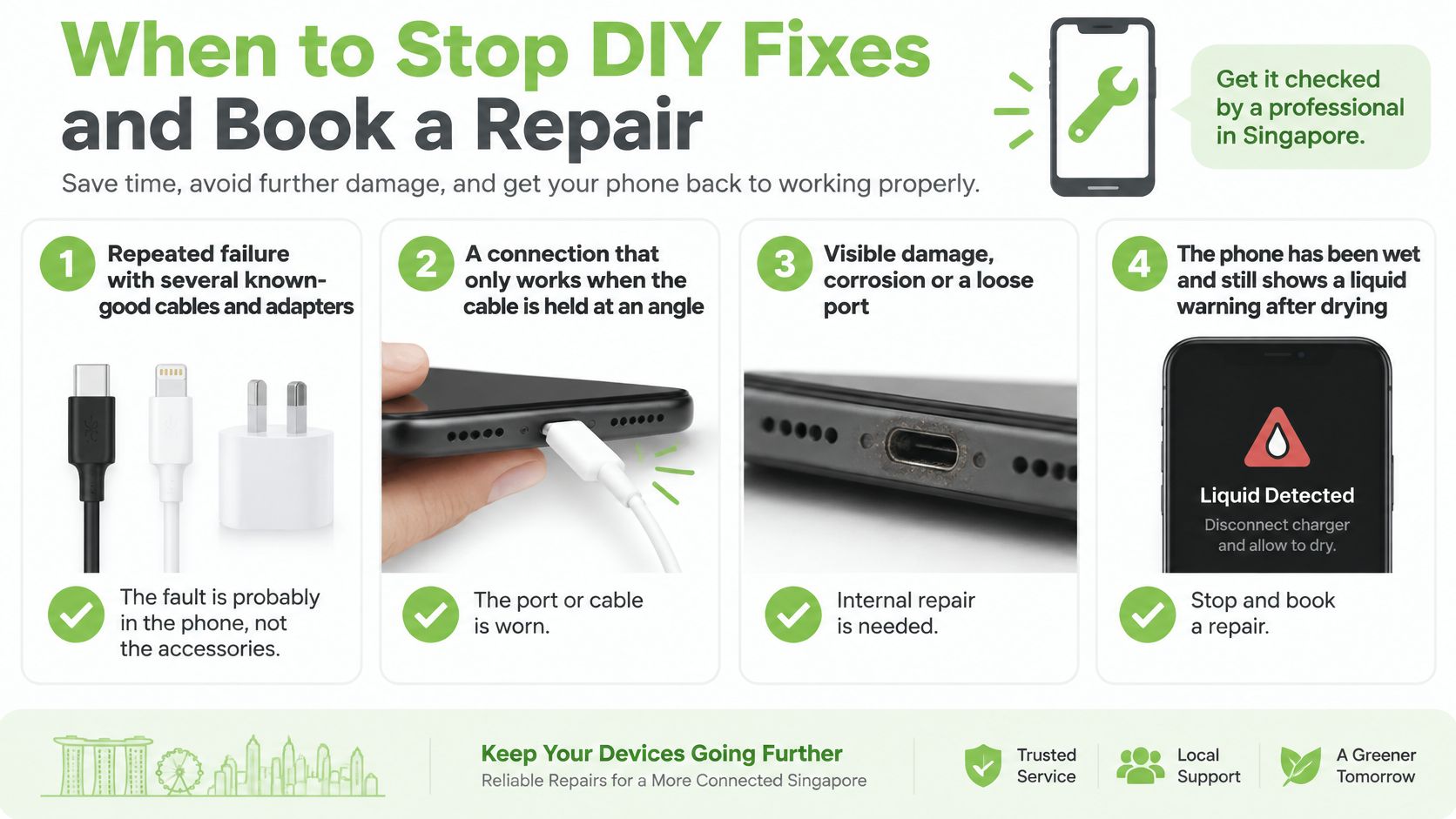
Treat any of these as your stop signal:
- Repeated failure across several known-good cables and adapters. The fault lives in the phone.
- A loose or intermittent connection that only works when the cable is held at an angle, or pulls out with no click. That's connector wear or a bent contact.
- A port that stays dead after a careful clean and full drying. Lint and moisture are now ruled out.
- Heat, a burnt smell, discolouration or a swollen battery. Stop charging at once.
Reaching that point isn't a personal failure, and you're in good company. Repair provider data reported by CNA found repair jobs in Singapore rose 46% between 2023 and 2025, with charging-port work among the common jobs local phone retailers handle (Channel NewsAsia).
If you've tested three known-good cables and the phone still won't charge, the next useful test needs magnification, not force.
Before you go in, write down the model, when the problem started, everything you tried and whether liquid was ever involved. That note lets a technician start where you stopped instead of repeating your afternoon. For a sense of what a proper phone repair shop should check before quoting, it's worth knowing what good practice looks like.
Then leave the cable alone. Forcing a plug into a worn connector bends contacts and cracks solder joints, turning a cleaning job into a port replacement.
Decide Whether to Repair or Retire Your iPhone
Repair is the option people skip too quickly, and the environmental case for it in Singapore is unusually strong. The National Environment Agency reports the country generates more than 60,000 tonnes of electrical and electronic waste a year, roughly 11 kilograms, or about 73 mobile phones, per person. An NEA-commissioned study also found 60% of residents either didn't know or weren't sure how to recycle e-waste, and Singapore's regulated e-waste system only began on 1 July 2021 (National Environment Agency).
So the most resource-efficient move remains keeping a working device working. For an iPhone whose only apparent fault is a charging connection, that usually means cleaning, a port assembly replacement, a battery test or board-level repair.
There's a time factor too. A 2025 report found Singapore residents replace smartphones about every 2.7 years, against a global average of 3.5 years (The Peak). If you're already near the end of that cycle, a cheap port fix still buys you months of use, which is months of not manufacturing a new handset.
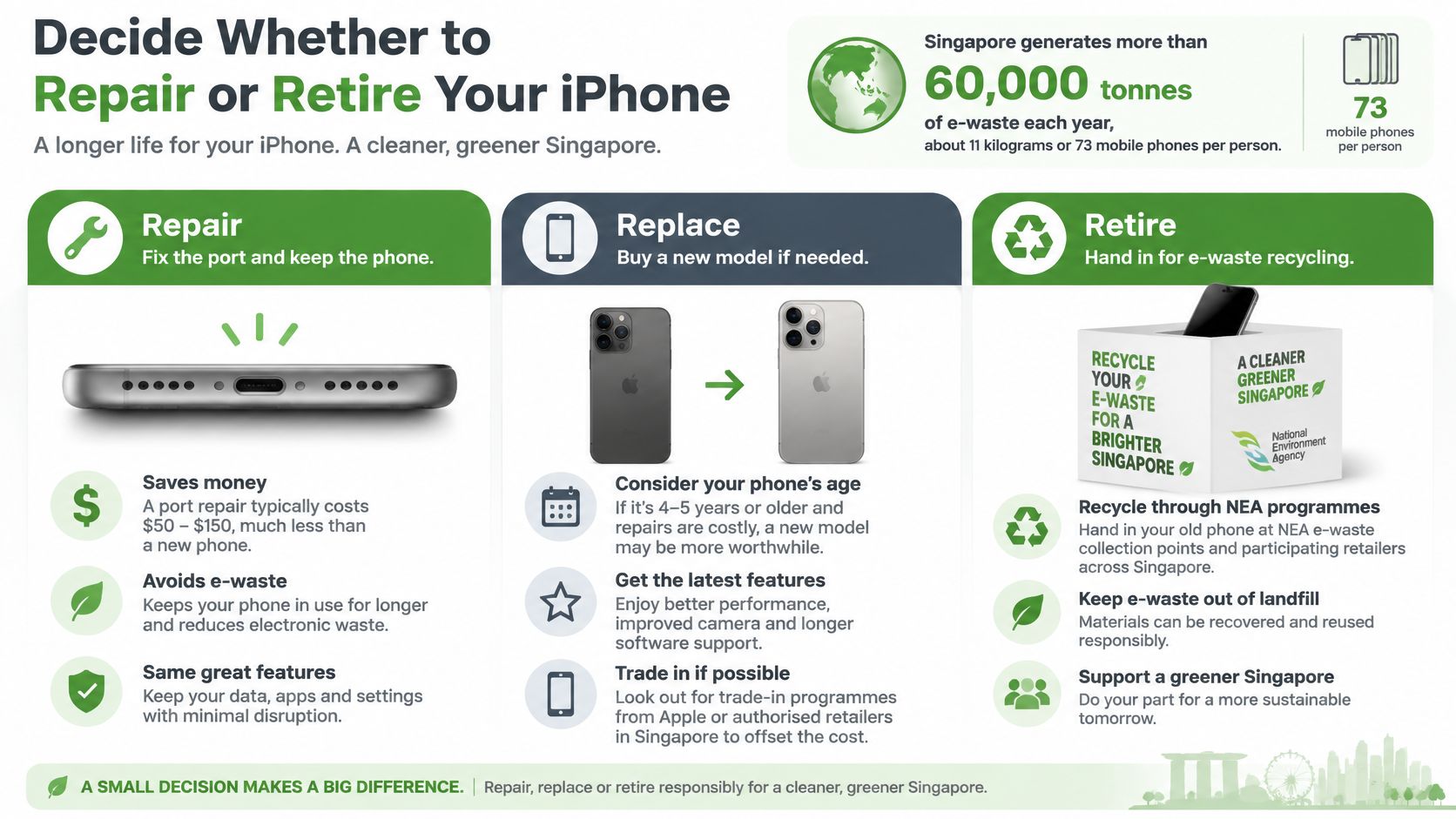
Weigh the three paths against the fault you found, not against how the phone feels on a bad night:
| Path | Best when | First step | Environmental effect |
|---|---|---|---|
| Repair | Dirty or damaged port, worn battery or loose connector | Back up data, then book a diagnostic | Keeps the phone in use and defers the footprint of a replacement |
| Trade-in or resale | Repair costs approach the phone's value | Erase data securely before handing it over | The phone is reused rather than discarded |
| Recycle or harvest parts | Board damage or corrosion makes restoration impractical | Erase data, then use the regulated e-waste system | Materials are recovered through responsible recycling |
My recommendation follows the fault, not the calendar. A port fault, a worn battery or a loose connector is worth repairing, because the rest of the phone is intact and the repair preserves both its usefulness and its resale value. Trade-in makes sense when the quote for repair creeps towards what the handset is worth, and only after secure data erasure so your photos and logins don't travel with the device. Recycling or parts recovery is the honest answer when corrosion or board damage means restoration would cost more than the phone delivers.
myhalo repairs iPhone charging ports as part of its iPhone repair work, which also covers screens, batteries and back glass. If you're not sure what's wrong, you can describe what the phone is doing and the repair team will help find the right solution rather than selling you a part you don't need.
Whatever you choose, your data comes first, and a phone that won't charge today is very rarely a phone that's finished.
If your iPhone still won't take a charge after a clean and a cable swap, myhalo repairs iPhone charging ports alongside screen, battery and back glass work, and the first step is always a diagnostic that tells you what's failing before anything gets replaced. We test the port, the connector and the battery, back up what matters to you, and give you a straight answer on whether repair, trade-in or responsible recycling is the better call. Visit myhalo to book a diagnostic at Bugis Junction or Sim Lim Square, or to get an instant trade-in quote online if repair no longer adds up.