
Your MacBook is sitting on the desk, its screen stubbornly black. You've tried the charger, pressed the power button, and started thinking about the thesis draft, family photos or invoices you might have lost. Take a breath. A MacBook that won't start doesn't automatically mean its files are gone, but what you do next matters.
Before anyone erases the computer or removes components, check what's failed and whether you still have the credentials needed to access your data. The safest approach puts your files first, not a quick repair.
Table of Contents
- Why Your Dead MacBook's Data Is Worth Saving
- Diagnose Your Dead MacBook by Symptom
- Check Backups and Passwords Before Any Repair
- How to Revive a Dead Mac Without Erasing It
- Recovering Files from the Storage Itself
- Keeping Your Data Private During Recovery
- Choose Your Next Step for a Dead MacBook
Why Your Dead MacBook's Data Is Worth Saving
Say your MacBook stopped waking up just before you needed to submit a project. The laptop might be replaceable, but the latest draft, handwritten research notes and photographs inside it aren't so easily replaced. That's why data recovery and hardware repair are different jobs, even when they involve the same device.
This is a familiar household concern in Singapore. The Infocomm Media Development Authority's household access figures show that 80.73% of resident households had access to a laptop or notebook in 2024. A failed laptop can interrupt school, work and family life all at once.
The terms that matter
You don't need to become a technician, but a few terms will help you make informed decisions:
- SSD: The solid-state storage where your documents, photographs and applications live.
- FileVault: Apple's built-in encryption protection, which requires an authorised password or recovery method to access your files.
- Revive Mac: A firmware repair option for compatible Macs that's designed to preserve their data. Firmware is the low-level software that helps the computer start.
When you're trying to recover data from a dead MacBook, getting it to switch on is useful only if that also preserves access to the files you need. An erased Mac that boots perfectly hasn't solved the original problem.
Your priority: Preserve the only copy before authorising changes to it.
No honest assessment can promise a fixed result without understanding the fault. Recovery depends on the damage, encryption and available backups. Start with the symptoms, gather backups and credentials, consider a safe revival, then assess storage recovery, privacy and the device's next use.
Diagnose Your Dead MacBook by Symptom
Use this symptom-to-cause table to decide whether a basic check is sensible or whether it's safer to stop handling the Mac.
Dead MacBook symptoms and first safe moves
| Symptom | Likely cause | First safe move |
|---|---|---|
| No response, no chime, screen stays dark | Flat battery, faulty charger or logic board fault | If there's no liquid damage, swelling or unusual heat, charge for 30 minutes with a known-good charger and cable, then test an external display |
| Fan runs or lights flicker, but the screen stays black | Display, backlight or cable fault | Connect an external monitor through USB-C with a compatible cable or adapter; a visible desktop points towards the display path |
| Apple logo with a progress bar that stalls | Failed macOS update or corrupted startup disk | Stop repeated restarts and assess whether the revival procedure applies |
| Flashing question mark folder | Startup disk not found or not readable | Don't erase or reinstall; check whether Recovery detects the storage |
| Drop damage, cracked display or liquid spill | Broken connectors, short circuit or board corrosion | Power off, don't charge, and arrange a professional assessment promptly |
| Battery swollen, hot or smelling burnt | Battery failure | Stop charging, keep away from heat and seek professional handling; don't puncture or press the battery |
| Locked login, forgotten password or Apple Account locked | Authentication barrier, not necessarily failed storage | Use Apple's account recovery options and stop guessing passwords |
Interpret the clues carefully
These are starting points, not diagnoses. A black screen can hide a working computer, while a flashing folder doesn't prove that the storage has physically failed.
The charging check applies only to an otherwise undamaged Mac. After a spill, follow the precautions in our MacBook liquid damage guidance rather than plugging it in to see whether it has dried out.
Photograph the device and write down what happened before the failure. Include an interrupted update, a fall, a spill, unusual heat or intermittent shutdowns, because that sequence helps a technician avoid unnecessary testing.
A working external display suggests a screen-related hardware fault rather than lost storage. Battery and charging faults can also prevent startup while leaving files intact, so don't assume a silent Mac needs storage extraction.
Check Backups and Passwords Before Any Repair
A recent backup can change this from a delicate recovery job into a straightforward restoration. Check from a separate, healthy device, so you don't need to keep starting the faulty Mac.
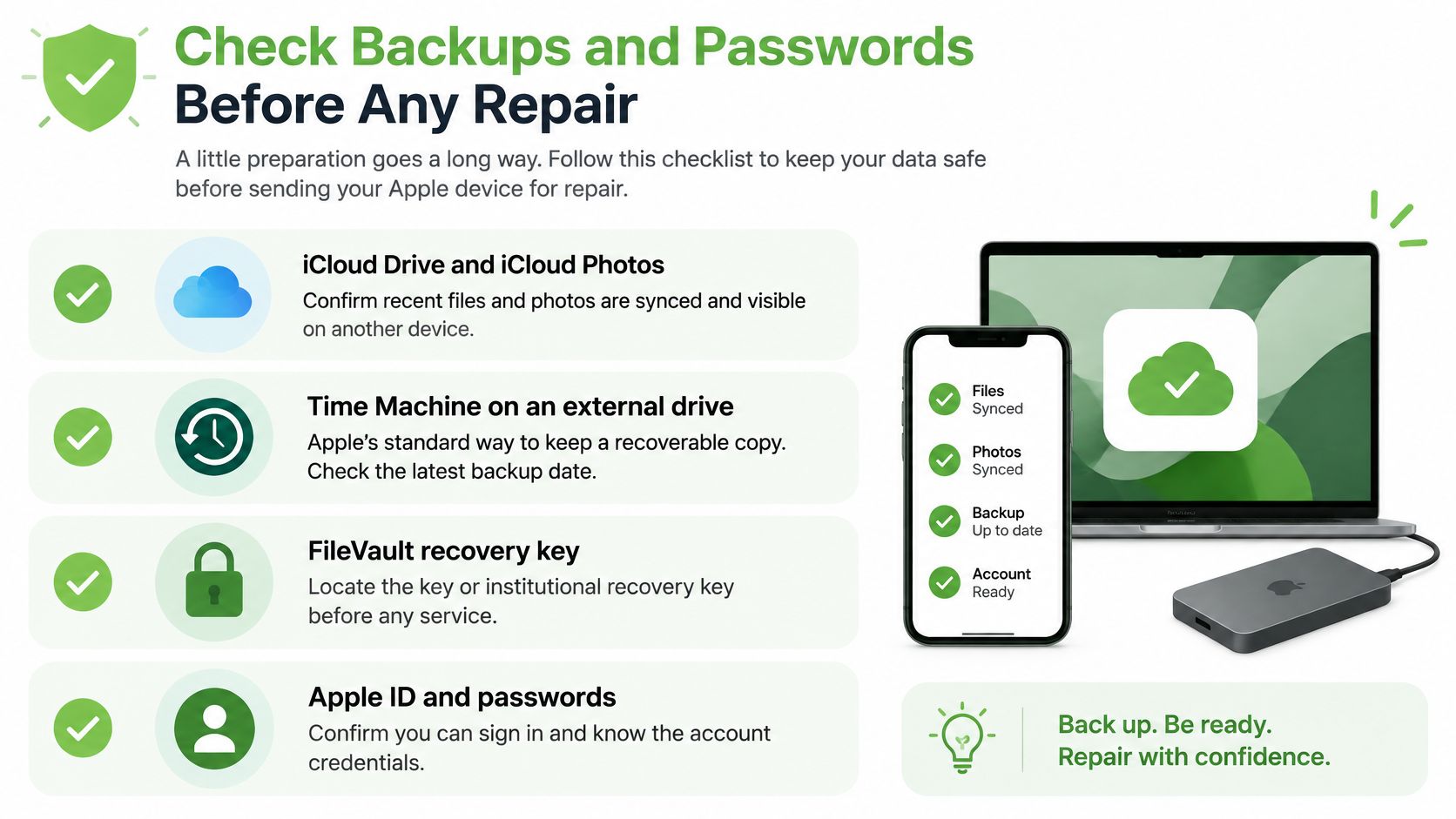
Use this checklist to gather what you need before handing anything over.
Find the files first
- iCloud Drive and iCloud Photos: Sign in from another device and open the specific documents and photographs you need. Don't assume every folder was synchronised.
- Time Machine: Locate the external backup drive and check its latest available backup. Apple's Singapore macOS support guidance identifies Time Machine as the standard route for automatic Mac backups to external storage.
- Manual copies: Check external SSDs, USB drives and your NAS, a storage device shared over your network.
- Work or school storage: Look in organisation-managed cloud folders and contact IT before arranging independent work on a managed Mac.
A folder bearing the right name isn't enough. Open important files and confirm that they contain the latest changes, especially if a deadline or customer record is involved.
Gather access details and physical items
Keep the Mac login password, an administrator account and password, and the FileVault recovery key available securely. Confirm that you can access your Apple Account and the trusted device used to approve sign-ins; for a managed Mac, ask IT whether it holds an institutional recovery key.
Also gather the original charger and cable, serial number and purchase proof for warranty or repair enquiries. Record where the credentials are stored without placing passwords on a label attached to the laptop.
Our data recovery and backup guide explains how those routes differ. If a complete, recent and readable backup exists, you can stop pursuing recovery from the failed storage and restore onto a suitable new or repaired Mac.
How to Revive a Dead Mac Without Erasing It
Some compatible Macs stop starting because their firmware needs attention. A revival may help in that situation, but it isn't a remedy for liquid damage, a dangerous battery or physically failed storage.
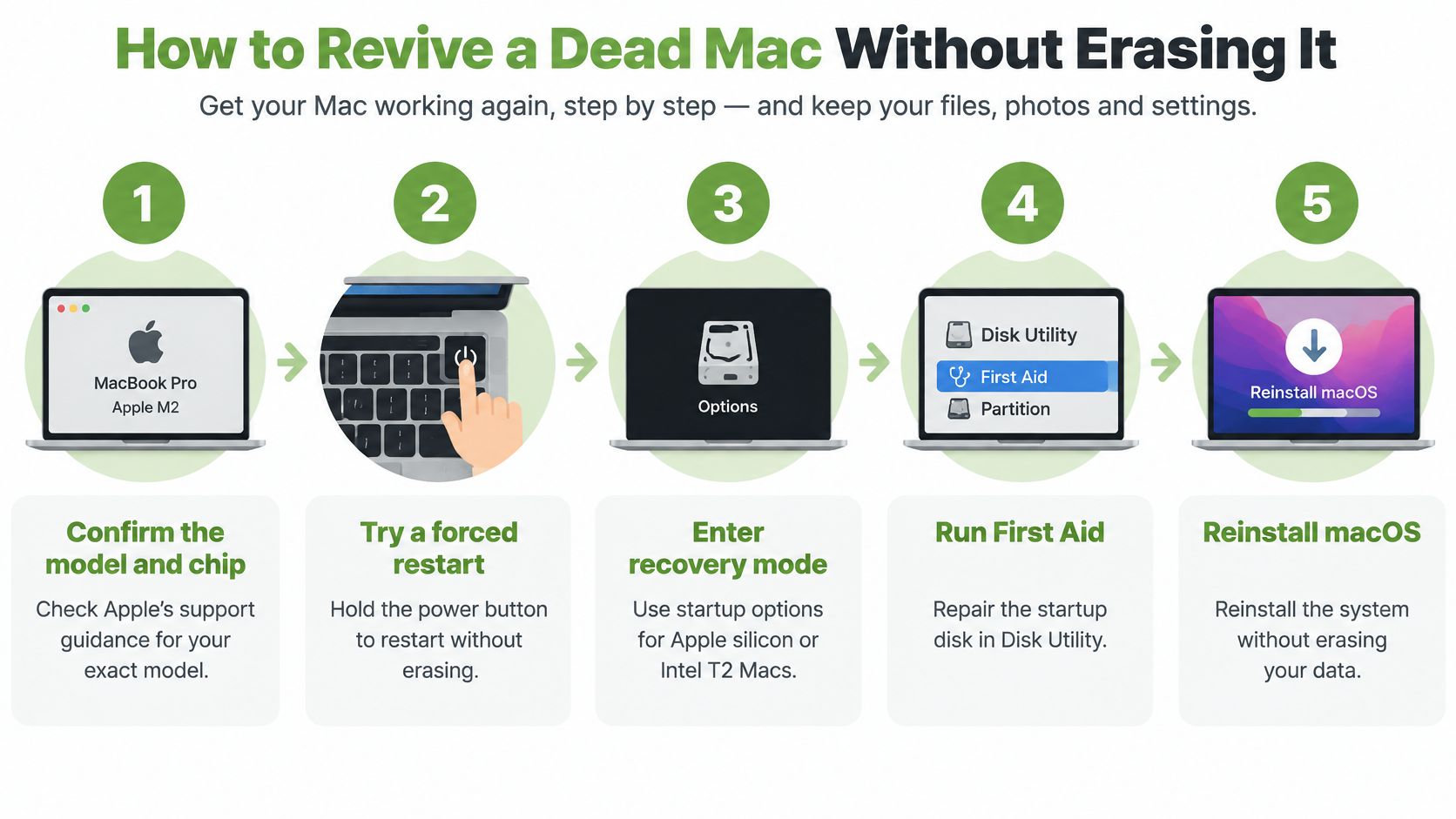
The visual below offers a general recovery overview. For irreplaceable files, don't treat First Aid or reinstallation as steps to attempt on the only copy, and don't confuse ordinary Recovery with firmware revival.
Follow the non-erasing route
Confirm the model and chip. Firmware revival applies to Apple silicon Macs and Intel Macs with a T2 Security Chip. Intel Macs without T2 follow a different path, starting with macOS Recovery after backup and password checks, not this procedure.
Prepare the assisting Mac. Apple's firmware revival instructions call for another Mac running macOS 14 or later, internet access and about 60 GB of available storage for the firmware download and extraction. Don't begin with an assisting computer that lacks the required setup.
Choose a data-capable USB-C cable. A cable that charges a device isn't necessarily suitable for transferring data. Follow the model-specific connection instructions rather than assuming any cable or port will work.
Connect the Macs and enter the required firmware mode. Follow Apple's exact port selection and button sequence for the affected model. This firmware recovery state, commonly called DFU mode, isn't the same as opening normal startup options.
Select Revive Mac, not Restore Mac. Revive is designed to repair firmware without erasing user data, while Restore erases the affected computer. If the available option is unclear, stop rather than clicking through a warning.
Copy your important files once access returns. Prioritise irreplaceable documents and photographs on separate storage before updates or further troubleshooting. Don't use a successful startup as a reason to run Disk Utility First Aid on the only copy.
Stop if revival fails or the Mac becomes unstable again. Repeating the process won't diagnose a damaged board or SSD. Preserve the original device and seek an assessment focused on extracting data.
A successful revival gives you an opportunity to save files. It doesn't prove the Mac is reliable enough for continued use.
If you're using a video demonstration, match every action to your model and keep the written procedure beside you.
Recovering Files from the Storage Itself
“Just remove the SSD” sounds reassuring, but it can be the wrong advice. Apple's FileVault guidance explains that Apple silicon and T2-equipped Macs encrypt data automatically, and valid credentials or a cryptographic recovery key are needed to access protected data.
The important distinction is whether the original hardware must participate in accessing the files, not whether someone can remove a component.
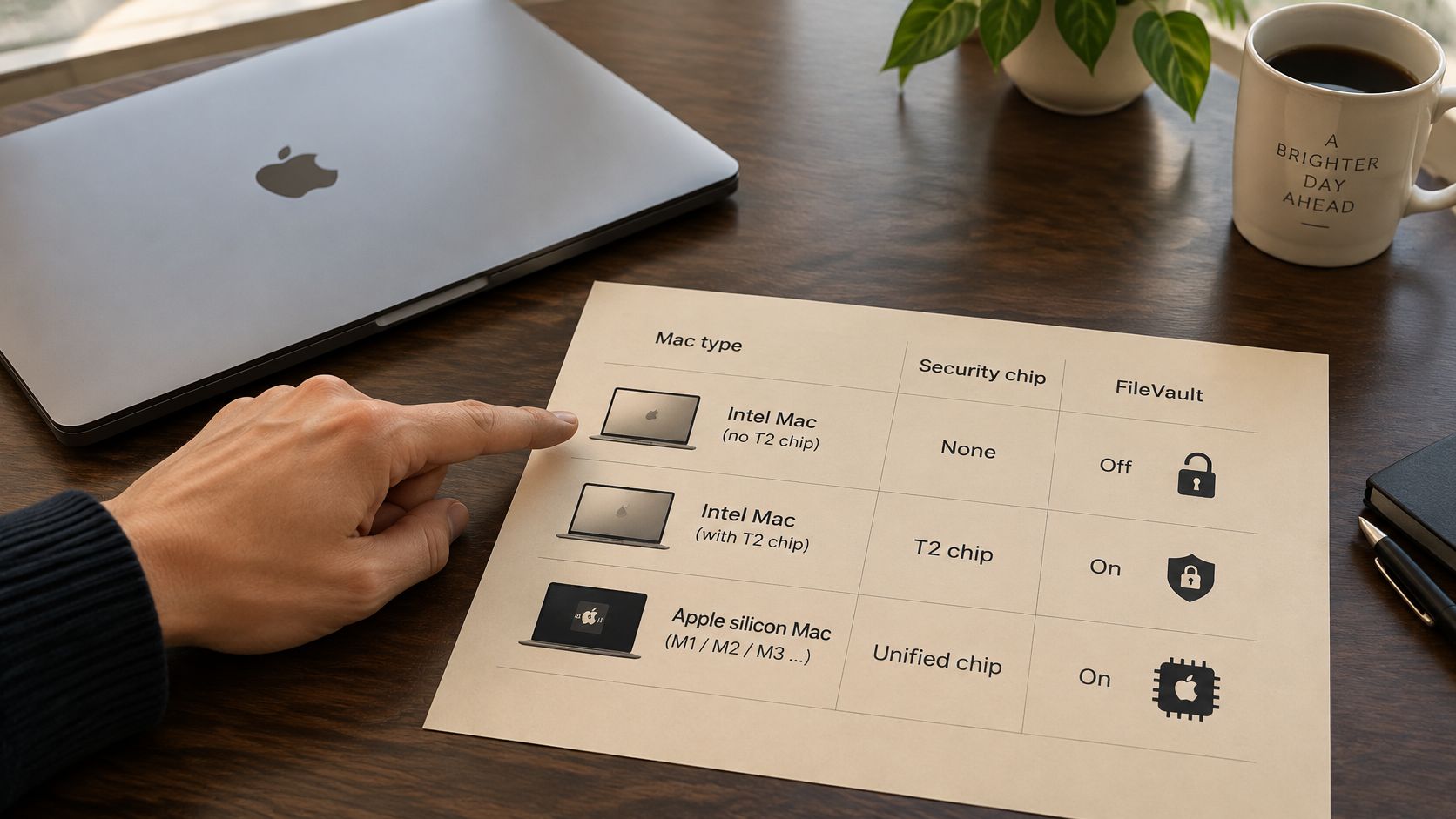
Which storage recovery route fits your Mac
| Mac type | Encryption status | Can removing the drive help? | Realistic first move |
|---|---|---|---|
| Intel Mac without a T2 chip, FileVault off | Not encrypted by default | Sometimes, where the drive is removable and a compatible adapter exists | Image the drive read-only before opening files |
| Intel Mac with a T2 chip | Encrypted, with hardware-linked keys | Usually no; credentials alone don't replace functioning original security hardware | Assess revival or original-board repair |
| Apple silicon Mac | Encrypted automatically; SSD commonly soldered to the board | Usually no | Assess firmware revival, then specialist board-level work if needed |
| Any Mac with FileVault turned on | Access protected by an authorised password or recovery method | Only where valid credentials and the required hardware remain available | Locate the recovery key or authorised recovery route |
Preserve a readable source
Modern Macs can expose separate system and data volumes. Apple's Intel Recovery instructions describe selecting a volume and authenticating with an administrator account, so finding a system volume alone doesn't establish where your documents are.
Check whether the correct data volume is detected without erasing or repartitioning it. Where feasible, a specialist should create a sector-level image, a detailed copy onto separate storage, and work from that rather than repeatedly reading the original.
Request a read-only acquisition process, an itemised diagnosis and hash values, digital fingerprints used to check copy integrity. Our SSD data recovery explanation provides further context for storage-specific problems.
Judge usable files, not promises
No benchmarked Singapore-specific success rate for dead MacBook recovery is established by the public guidance cited here. Evaluate the proposed route instead: backup restoration, logical recovery from readable storage, or physical recovery involving damaged hardware.
Ask for a written distinction between filenames found and files successfully opened. Seeing Family Photos in a directory listing isn't the same as recovering photographs you can view.
Keeping Your Data Private During Recovery
Your login password and FileVault recovery key deserve the same care as the files they protect. Don't give them to an unknown technician without written confidentiality terms and a documented chain of custody, meaning a record of who holds the device and why.
Privacy also depends on what happens to working copies. Before approving access, agree on which folders may be examined, where recovered files will be delivered and how temporary copies will be handled.
A careful handover should make those boundaries clear.

Keep control during the handover
- Record the device: Note its serial number, visible condition, supplied accessories and the reason for handing it over.
- Identify each handler: Keep a copy of the intake record and ask whether another workshop or specialist will receive it.
- Limit credential sharing: Agree on a secure way to provide necessary access. Don't send passwords through an unsolicited message.
- Contain suspected compromise: If ransomware or account compromise is suspected, disconnect networks and external storage, and restore recovered material only onto a clean system. For an organisation-owned Mac, involve IT immediately.
Our guide to online data recovery can help you consider access and transfer risks before allowing remote assistance.
Erasure comes after recovery
The Personal Data Protection Commission's ICT systems guide advises secure wiping, sanitisation or destruction before exchange or disposal, including cryptographic erasure by removing the full-disk-encryption key. That's a retirement step, not something to attempt while you still need the files.
On a dead Mac, request a verified sanitisation method appropriate to its condition rather than assuming a factory reset is possible. Deleting an account or forgetting a password isn't proof that cryptographic erasure has occurred.
If you can't establish who will handle the device and how access will be controlled, don't hand it over.
Choose Your Next Step for a Dead MacBook
Choosing the right route for a dead MacBook
| Your situation | Best route | Why it fits |
|---|---|---|
| Complete recent backup exists and the Mac can boot | Restore from backup and stop recovery attempts | Avoids unnecessary hardware work when the Mac is otherwise stable |
| Dead display, battery or keyboard, storage looks healthy | Hardware repair, then copy files off | Restores access without moving storage |
| Logic board fault with FileVault turned on | Specialist board-level assessment that preserves access to encryption keys | Unnecessary dismantling or replacement can remove the recovery path |
| Storage has physically failed, no backup, files matter | Professional data recovery assessment with a written outcome | Specialist intervention may be the remaining option, without a guarantee |
| Data not needed and device beyond repair | Verified data erasure, then licensed recycling | Protects privacy before material recovery |
When professional recovery is worth considering
Paying for an assessment makes sense when the files are irreplaceable, there's no usable backup, or the Mac repeatedly fails after access returns. Undetected storage needs diagnosis, although that symptom alone doesn't prove physical failure; clicking from an older mechanical drive is another reason to stop testing, while an SSD has no moving parts to click.
Request a quoted diagnosis before work begins, a read-only image where technically feasible, and a statement of which files opened. Weigh that proposed cost against the value of the missing material, not the resale value of the laptop.
Recover, then decide its future
Immediate recycling isn't always the responsible first move. As reported in The Straits Times' coverage of Singapore's e-waste system, the Ministry of Sustainability and the Environment says data-bearing devices sent to licensed recyclers must undergo sanitisation and physical dismantling before recycling.
We repair MacBooks with battery, screen, keyboard and logic board issues, and offer Data Recovery, Repair & Rescue and e-Xtender Subscription. If you're unsure what's wrong, tell our repair team what happened and which files matter most, and we'll help find the right solution.
A data-focused repair may allow later reuse, while an unrecoverable device can still follow a documented, responsible retirement route. You don't have to decide everything before getting a careful assessment.
Your precious files and memories matter to us. Visit myhalo with your MacBook and symptom notes to discuss Save data recovery or Safe data secure handling and destruction when you're ready to retire it. Once you've saved what matters, our Declutter your e-clutter programme can help you take the next step towards a zero e-waste lifestyle that's convenient, safe and responsible.