
That old laptop in the drawer probably contains more than dust. It may still hold browser sessions, work documents, saved passwords, school records, or family photos. If you've delayed a trade-in because you're worried about a data leak, you're not being overly cautious. You're right to treat the handover seriously.
The good news is that how to prepare a laptop for trade-in is a manageable process. Back up what matters, remove your digital identity, sanitise the storage properly, document the condition, and choose the right path for the device. Done well, you protect your privacy, give the laptop a better chance of reuse, and keep usable electronics away from unnecessary disposal.
Table of Contents
- Why Preparing Your Laptop Matters Before Trade-In
- Backing Up Your Data and Signing Out of Accounts
- Understanding the Data-Sanitisation Gap
- Cleaning and Documenting Your Laptop Condition
- Deciding Between Repair and Selling As-Is
- Packaging and Handing Over Your Laptop
- Your Complete Trade-In Readiness Checklist
Why Preparing Your Laptop Matters Before Trade-In
Handing over a laptop also means handing over its storage. Singapore's Personal Data Protection Commission says organisations should securely delete, erase, or destroy electronic personal data before storage media is redeployed, exchanged, or disposed of. It calls this process sanitisation, and the outcome should no longer identify or relate to a person. (PDPC guidance on disposing of personal data)
Deleting visible files is not enough. Browser sessions, recovery details, autofill records, and remnants of stored data may remain. A factory reset helps prepare the laptop, but it is not proof of verified erasure, especially on an SSD. SSDs manage storage differently from traditional hard drives, so ordinary deletion may leave data in areas the operating system no longer shows.
Singapore's operational requirements reinforce this distinction. Licensed e-waste recyclers must permanently erase or destroy data on data-bearing devices before disposal. Channel NewsAsia's coverage of laptop recycling and data sanitisation describes processes that can include dismantling laptops, removing HDDs and SSDs, degaussing hard drives, and shredding SSDs. The practical standard is clear: back up first, reset the laptop, then ask the receiving service how it verifies sanitisation.
The practical rule: prepare the laptop yourself before handover, then request a clear explanation of the sanitisation process.
Condition also affects the responsible next step. A working laptop with acceptable performance is usually better suited to repair or resale, while a device with serious faults may need recycling. Extending a usable laptop through repair or resale supports a zero e-waste approach more directly than sending it straight for material recovery.
Platforms like myhalo offer traceable sanitisation alongside trade-in, reducing guesswork around data handling. At the Bugis Junction counter, use the laptop's real condition and likely value to choose between repair, resale, or responsible recycling.
Backing Up Your Data and Signing Out of Accounts
Start with preservation, not deletion. Once you reset or sanitise the laptop, recovering forgotten files becomes difficult or impossible, so make a backup you can open before wiping anything.
Build a backup you can test
Use one or more of these approaches:
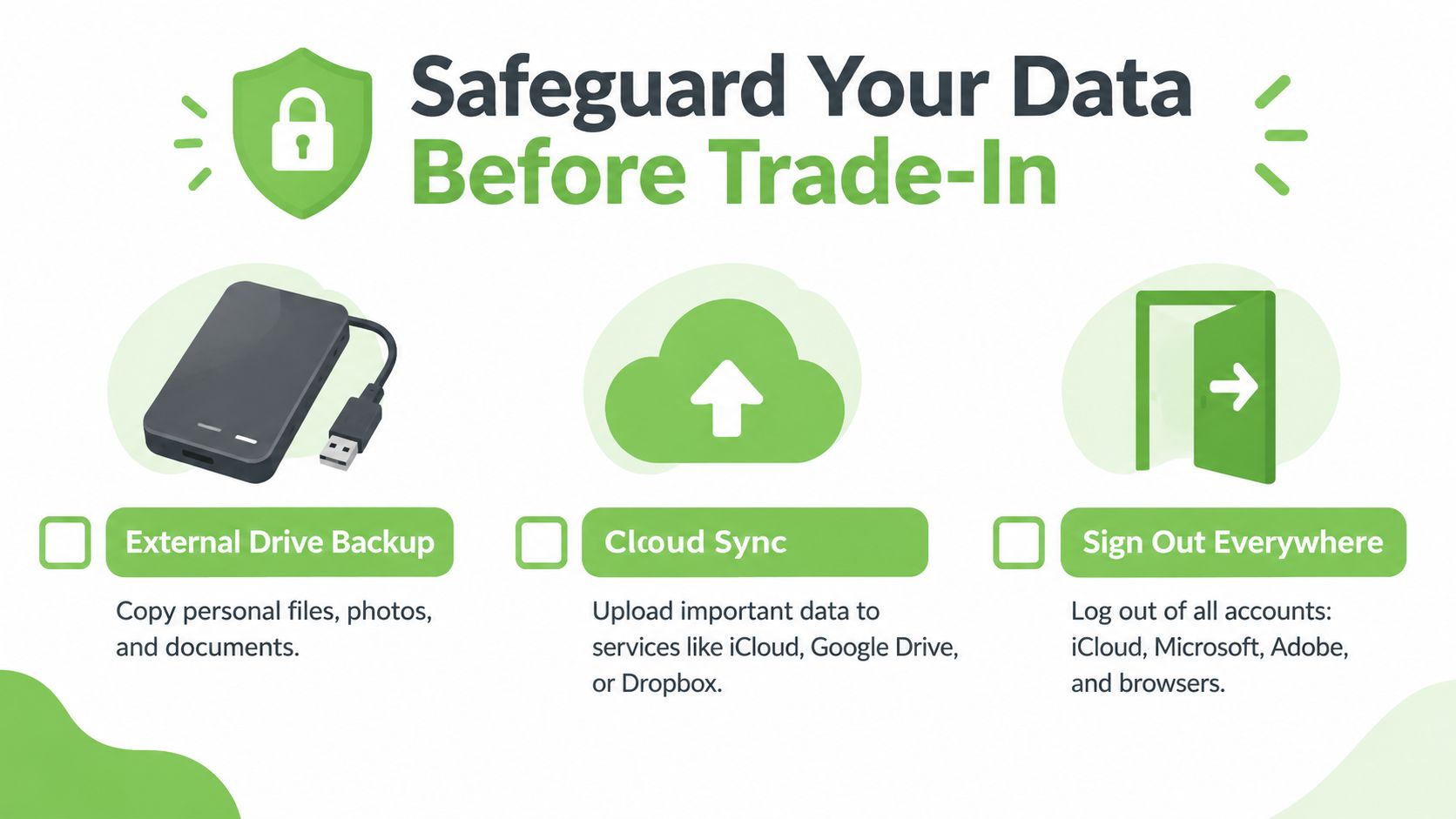
- External drive: Copy photos, documents, downloads, desktop files, project folders, and locally stored app data to an external HDD or SSD. Open several files from the backup to confirm they work.
- Cloud storage: Sync important folders to iCloud Drive, Google Drive, OneDrive, or Dropbox. Wait for syncing to finish instead of assuming the files have uploaded.
- Manual transfer: Move essential folders to a replacement computer over a trusted network or storage device. Check browser bookmarks, email archives, messaging exports, and specialist software projects separately.
- Application data: Look beyond visible documents. Password-manager vaults, accounting files, editing libraries, game saves, and locally stored mail may sit in less obvious folders.
Singapore guidance for data-bearing devices specifically calls for backing up locally stored files and app data, running a factory reset on Windows or macOS, and ensuring the laptop is fully signed out before handover. (Singapore e-waste preparation guidance) For related backup habits, see this practical guide to backing up an iPhone, especially if your laptop and phone share cloud accounts.
Remove your digital connections
On Windows, sign out of your Microsoft account, OneDrive, Microsoft 365, Adobe Creative Cloud, password managers, browsers, and any work or school management tools. Remove the laptop from your Microsoft account's device list where applicable.
On macOS, sign out of Apple ID and iCloud, disable Find My Mac, deauthorise media services, and remove the Mac from your Apple account. Also sign out of Google, Microsoft, Adobe, Dropbox, Slack, Teams, Zoom, and your browser profile.
Don't forget access controls:
- Biometrics: Remove Windows Hello fingerprints or facial recognition data, and delete Touch ID fingerprints on a MacBook.
- Firmware locks: Clear BIOS or UEFI passwords so the next owner isn't blocked from accessing the machine.
- Security chips: If present, clear the Windows TPM only after confirming your recovery keys and backups are available.
- Browser sessions: Sign out, remove saved payment details, and check that synchronised passwords and bookmarks are no longer tied to the device.
HP's Singapore laptop-selling checklist recommends backing up data, deauthorising accounts, using secure erase rather than relying only on a factory reset, and choosing Windows Reset this PC, Remove everything, and fully clean the drive where available.
Before moving on, restart the laptop and confirm it reaches the setup screen without asking for your account, firmware password, or recovery credentials.
Understanding the Data-Sanitisation Gap
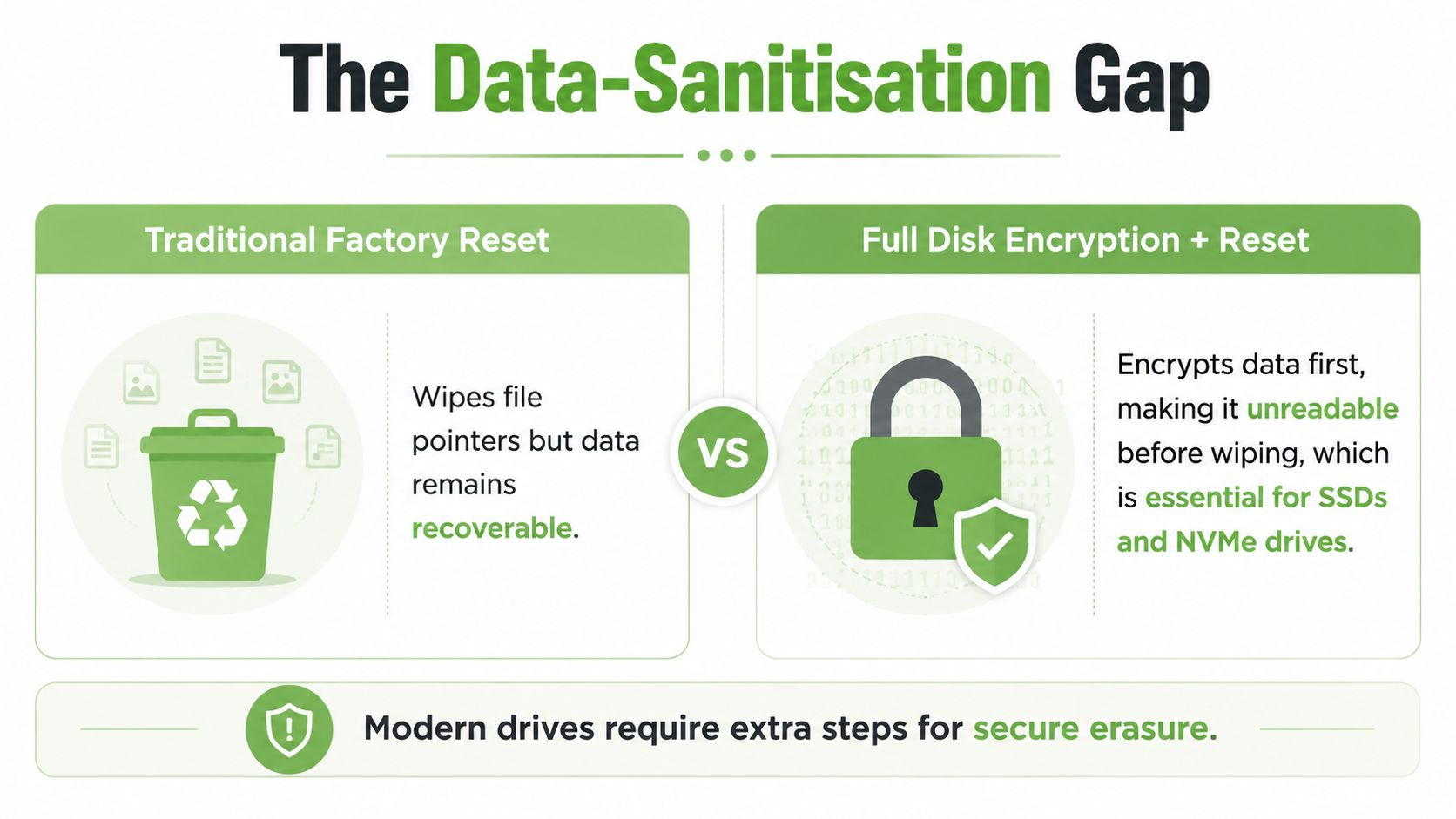
A factory reset can leave a laptop looking new while failing to prove that personal data has been securely erased. Treat it as a handover step, not as evidence of complete sanitisation.
Traditional hard drives and SSDs require different methods. Overwrite software can replace data on an HDD, while degaussing can disrupt its magnetic storage. Reformatting or deleting partitions on an SSD or NVMe drive may leave information in areas controlled by the drive's firmware. Use secure erase, encryption-key wiping, or another method designed for solid-state storage.
What Singapore guidance accepts
The IMDA disposal guide for personal data explains that simply deleting stored personal data is insufficient. It identifies three recognised routes:
- Overwrite software: Use dedicated software to overwrite selected files or the entire drive.
- Degaussing: Apply specialised hardware to magnetic media, such as a traditional hard drive.
- Physical destruction: Crush, drill, or shred the storage device when reuse is unsuitable or stronger security is required.
Choose the method according to the storage type and the laptop's next use. A reusable machine needs a secure process that preserves its drive. A faulty drive, or one containing highly sensitive information, may be better suited to physical destruction and recycling.
Why a reset still matters
A reset removes your operating system profile, gives the assessor a clean starting point, and lowers the chance of handing over an active session. It does not equal verified erasure.
The missing piece is proof. “Reset complete” does not show which method ran, whether it covered the full drive, or whether verification succeeded. Ask the receiving provider how it handles reusable, faulty, and high-security storage. For a practical explanation of the difference, read this guide to secure data destruction.
Even if a licensed recycler will sanitise the laptop after collection, back up your files and reset the machine before handover. Responsibility and chain of custody change once it leaves your hands, while condition checks begin during receiving.
Ask for evidence: A useful erasure certificate should identify the device, state the erasure method, record the verification method and date, identify the technician, and confirm that sanitisation completed.
Cleaning and Documenting Your Laptop Condition
A clean laptop is easier to assess, but cleaning won't hide a cracked hinge, swollen battery, failing drive, or missing charger. Prepare the machine to look cared for, then describe its condition accurately.
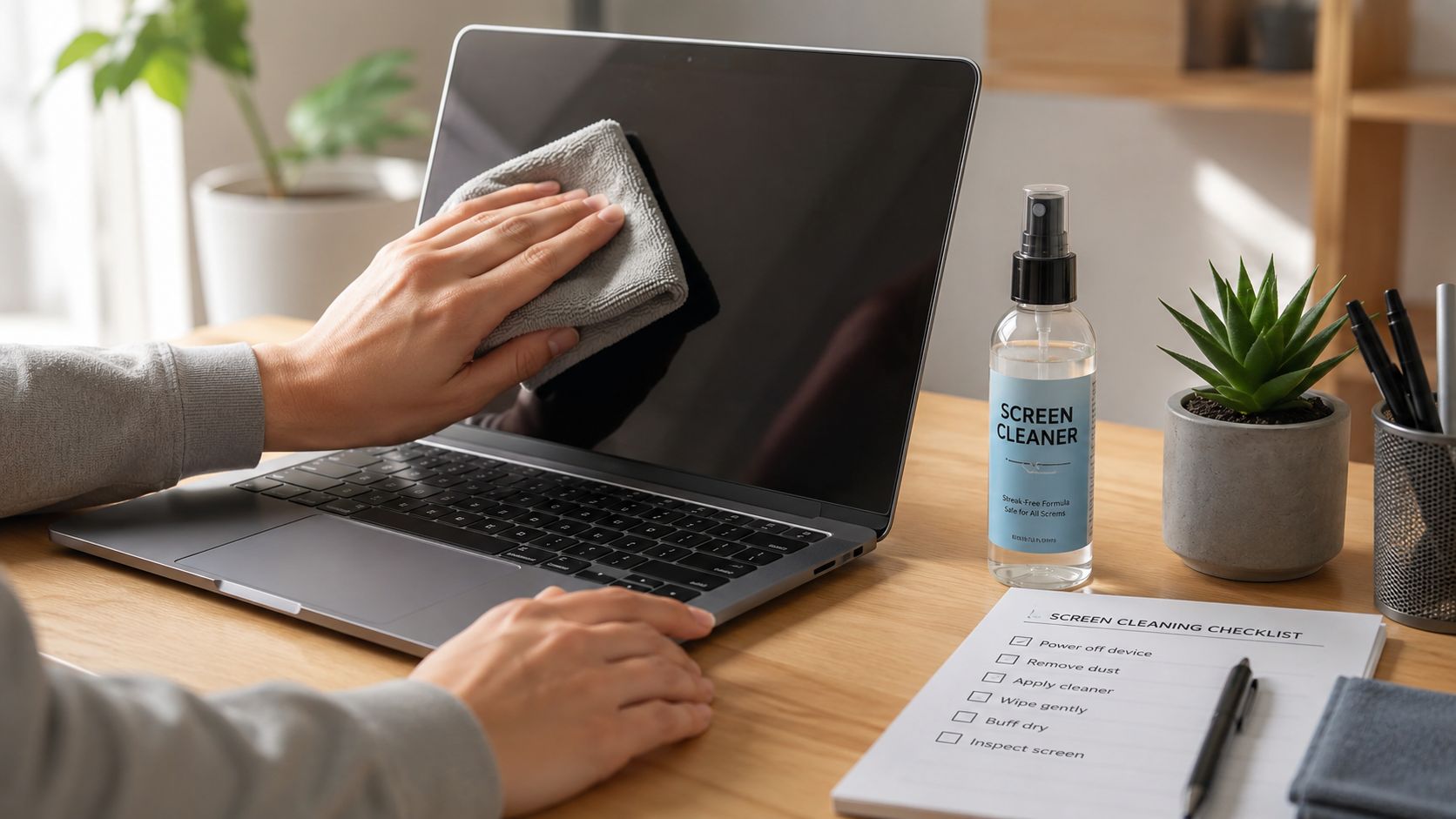
Switch it off, unplug it, and disconnect removable accessories. Use a dry microfiber cloth for dust, and apply a small amount of suitable screen cleaner to the cloth rather than spraying directly onto the display. Avoid abrasive products, excess liquid, household glass cleaner, and anything that could damage coatings or enter ports.
Clean the areas assessors notice
- Display: Wipe gently in straight passes. Don't press hard on LCD panels.
- Keyboard: Remove loose debris carefully, then wipe key surfaces and the palm rest.
- Chassis: Clean fingerprints from the lid and base without soaking seams.
- Ports: Remove visible lint without forcing tools into connectors.
- Ventilation: Clear surface dust so the laptop can breathe during testing.
The same controlled approach works for other personal items. If you're also tidying a vehicle before selling it, these expert car interior cleaning tips offer useful guidance on choosing suitable materials and avoiding damage.
Create a condition record
Photograph the laptop before handover. Take clear images of the lid, screen, keyboard, base, ports, hinges, charger, and any visible damage. Capture the serial number and model details, but don't publish those images publicly.
Write down issues such as battery wear, dead pixels, keyboard faults, overheating, charging problems, cosmetic scratches, dents, missing rubber feet, or a failing drive. Include the charger and any original accessories you have, then separate items that aren't required.
Use device documentation guidance to keep your photos and notes organised. Accurate records help you compare the quoted condition with the assessed condition and make mismatches easier to discuss.
Avoid spending heavily on cosmetic repairs before a trade-in. Cleaning costs little and can improve presentation. A major casing replacement or screen repair may not return its full cost through a trade-in offer, so get an assessment before authorising work.
Deciding Between Repair and Selling As-Is
The right choice depends on whether the laptop can return to reliable use, not whether it can look newer for a day.
A worn battery is a common example. If the laptop works well while plugged in, disclose the battery condition and request an as-is assessment first. If a replacement battery is affordable and the device is otherwise desirable, repair may support reuse, but don't assume the trade-in increase will repay the repair.
An SSD upgrade requires the same discipline. More storage can make a laptop more useful to a buyer, but an upgrade only makes sense if the device supports it and the cost fits the likely resale outcome. Ask for a value estimate before buying parts.
Use this decision filter
| Device condition | Sensible first choice | Why |
|---|---|---|
| Fully functional, clean, with charger | Trade in or resell | Reuse usually preserves more value than material recovery |
| Functional but worn or cosmetically marked | Sell as-is after disclosure | Avoid repairs that may not improve the offer enough |
| Slow, damaged, or unreliable | Request diagnostics first | A targeted repair may restore reuse, but the quote should lead |
| Faulty drive or high-security storage | Secure sanitisation and responsible recycling | Physical destruction may be appropriate where reuse isn't safe |
| Broken beyond economical repair | Upcycle or recycle | Parts may still support other devices |
For screen damage, compare the repair estimate with the likely improvement in the offer. A laptop screen repair assessment can help you make that decision before paying for a replacement panel.
Singapore's disposal options reduce the hassle of the recycling route. NEA's system accepts laptops and other ICT equipment through retail collection points, ALBA bins, and doorstep collection. Since 1 January 2025, ALBA's doorstep e-waste collection has been free for large household appliances, and the government continues to remind residents to back up data and log out before recycling laptops. (Straits Times report on free bulky e-waste collection)
That convenience makes the economic choice clearer. Repair or trade in when the laptop has realistic reuse value. Choose upcycling or recycling when repair costs, security concerns, or hardware failure make resale impractical.
Packaging and Handing Over Your Laptop
A laptop can be in excellent condition when it leaves home and arrive with a cracked screen if it moves loose inside a box. If you're shipping it, shut it down fully, protect the screen and corners with soft padding, and use a sturdy box that prevents movement.
Don't place heavy objects on top of the laptop. Keep the charger separate but protected, and photograph the packed device before sealing the parcel. For more detail on protective courier packaging, this MSP Packaging buyer's specification guide explains the practical features to look for.
Prepare the handover pack
Bring or include:
- The laptop: Ensure it has completed the reset and reaches the initial setup screen.
- The required charger: Laptop, MacBook, and Microsoft Surface trade-ins require the charger for myhalo's trade-in flow.
- Condition details: Mention battery issues, damage, faults, and missing accessories upfront.
- Identity records: Keep your model and serial-number notes available for comparison.
- Sanitisation evidence: Request documentation when a secure wipe is performed.
A useful data-erasure certificate should include the device identifier, erasure method, verification method, date, technician certification, and confirmation that sanitisation completed. This is especially important for SMEs, schools, and organisations that need a clear asset trail.
You can arrange an online quote or visit myhalo at Bugis Junction, #03-25/26, or Sim Lim Square, #03-40. The assessment uses an AI-backed pricing algorithm to generate a fair, transparent quote, followed by condition checks that confirm the laptop's actual state. An online trade-in flow also offers a 7-day price lock, giving you time to complete preparation before handover.
Know what happens next
A responsible handover doesn't end with a disposal bin. Reusable devices can move towards repair and certified resale. Devices that aren't suitable for whole-unit reuse may still offer parts for harvesting and upcycling. Recycling remains the appropriate route when the hardware cannot be safely or economically reused.
myhalo's service model combines trade-in, repair, data recovery, secure data management, certified resale, and upcycling, so the next step can follow the device's actual condition rather than a one-size-fits-all disposal route.
Your Complete Trade-In Readiness Checklist
Use this checklist at home or before visiting the counter:
- Back up everything important. Copy personal files, photos, documents, app data, browser bookmarks, and password-manager information to a verified destination.
- Check the backup. Open representative files from the external drive or cloud service.
- Sign out everywhere. Remove Apple ID, iCloud, Microsoft, OneDrive, Adobe, Google, browsers, password managers, work accounts, and school accounts.
- Remove device locks. Disable Find My, Windows Hello, Touch ID, BIOS or UEFI passwords, and relevant TPM associations.
- Reset the operating system. On Windows, choose Reset this PC, Remove everything, and fully clean the drive where available. On macOS, use the appropriate erase or factory-reset process.
- Sanitise the storage properly. Treat SSD and NVMe drives differently from magnetic HDDs. A simple reformat isn't sufficient for higher-assurance erasure.
- Record the condition. Photograph the device, serial number, charger, accessories, and visible defects.
- Clean it carefully. Use a microfiber cloth and suitable products, not abrasive cleaners or excess liquid.
- Decide before repairing. Ask for an assessment before replacing a battery, SSD, screen, or casing.
- Bring the charger and request proof. Keep the handover record and ask for a sanitisation certificate with device and verification details.
Preparing a laptop this way protects your privacy and gives its materials a better chance of staying in circulation. It turns an unused device into recovered value, a reusable machine, or useful parts instead of unnecessary e-waste.
Ready to feel lighter and do good? Explore the myhalo trade-in and Declutter your e-clutter services for a convenient assessment, secure data handling, and a responsible next step for your old laptop. Visit a Bugis Junction or Sim Lim Square counter, or start online before you hand over your device.