

Your laptop probably isn't “old” yet. It's just showing the usual warning signs: the boot process drags, the keyboard feels hot, the fan sounds like it's working overtime, and the battery barely survives a meeting. In Singapore's warm, humid environment, dust, heat and charging habits can push that decline along faster than you'd expect.
The smart answer isn't automatically a new machine. How to extend laptop lifespan starts with a proper diagnosis, then targets the part causing the trouble. A clean cooling system, healthier battery, better storage or a sensible repair can keep a capable laptop useful for much longer. That matters in a country that generates about 60,000 tonnes of e-waste each year, while the national landfill capacity has been projected to reach its limits by 2035 if waste generation isn't reduced, as explained by the National Environment Agency's e-waste guidance.
Table of Contents
- The Moment Every Laptop Owner Reaches
- Battery and Thermal Habits That Buy You Years
- Software Upkeep That Stops the Slow Decline
- The Upgrade Lever SSD and RAM
- Repair Replace or Let Go A Clear Decision Rule
- Where myhalo Fits Into the Lifespan Journey
- Your Laptop Lifespan Action Checklist
The Moment Every Laptop Owner Reaches
You notice the change during an ordinary workday. The laptop that once opened before your coffee is ready now takes long enough to seem frozen. The area above the keyboard runs hot, the fan starts during basic browser work, and every meeting requires a charger.
Then a second warning appears. The battery shuts the machine down without warning, the trackpad begins lifting, or the hinge cracks whenever you open the lid. Many owners search for a replacement at this point, even though the cause may be a worn battery, restricted airflow, failing storage or bloated software.
Separate cosmetic damage from urgent faults. Scratches, worn keycaps and a marked lid are frustrating but usually harmless. A raised trackpad, bulging base or unusually hot battery needs immediate attention. Stop using the laptop if the battery looks swollen, disconnect it from power and arrange a professional inspection.
Diagnose the symptom, not the age
A slow laptop often needs maintenance instead of retirement. Back up important files first. Then check whether the drive is nearly full, startup applications have multiplied, or the machine still uses a mechanical hard disk instead of an SSD. If the memory can be upgraded, watch RAM use while your normal applications are open.
Random shutdowns require more caution. Overheating, battery failure, unstable power delivery and motherboard faults can all cause them. Cleaning the vents may resolve overheating, but it cannot make a damaged charging circuit safe.
Classify the problem before spending money:
- Maintain: The laptop runs reliably, but airflow, software or storage hygiene has slipped.
- Upgrade: The processor still handles your work, but the drive or memory is limiting performance.
- Repair: One identifiable part, such as the battery, fan, keyboard or hinge, has failed.
- Let go: Several major parts are failing, the device is physically unsafe, or repair costs no longer make financial sense.
Technician's rule: Compare repair with more than the price of a new laptop. Check the device's current resale value, the cost of a comparable replacement and the value of keeping your existing setup working.
That rule matters in Singapore, where a repair, trade-in or buyback can make more sense than immediate replacement. Regional reuse reports indicate that many laptops entering reuse channels remain serviceable, while others need only parts replacement. The regional reuse report also discusses Singapore's replacement habits for smartphones, including a 2.7-year replacement cycle compared with a global average of 3.5 years.
Test the laptop before condemning it. If it is safe, reliable and repairable, keep using it. If repair is impractical, check trade-in or buyback options before sending it for recycling.
Battery and Thermal Habits That Buy You Years
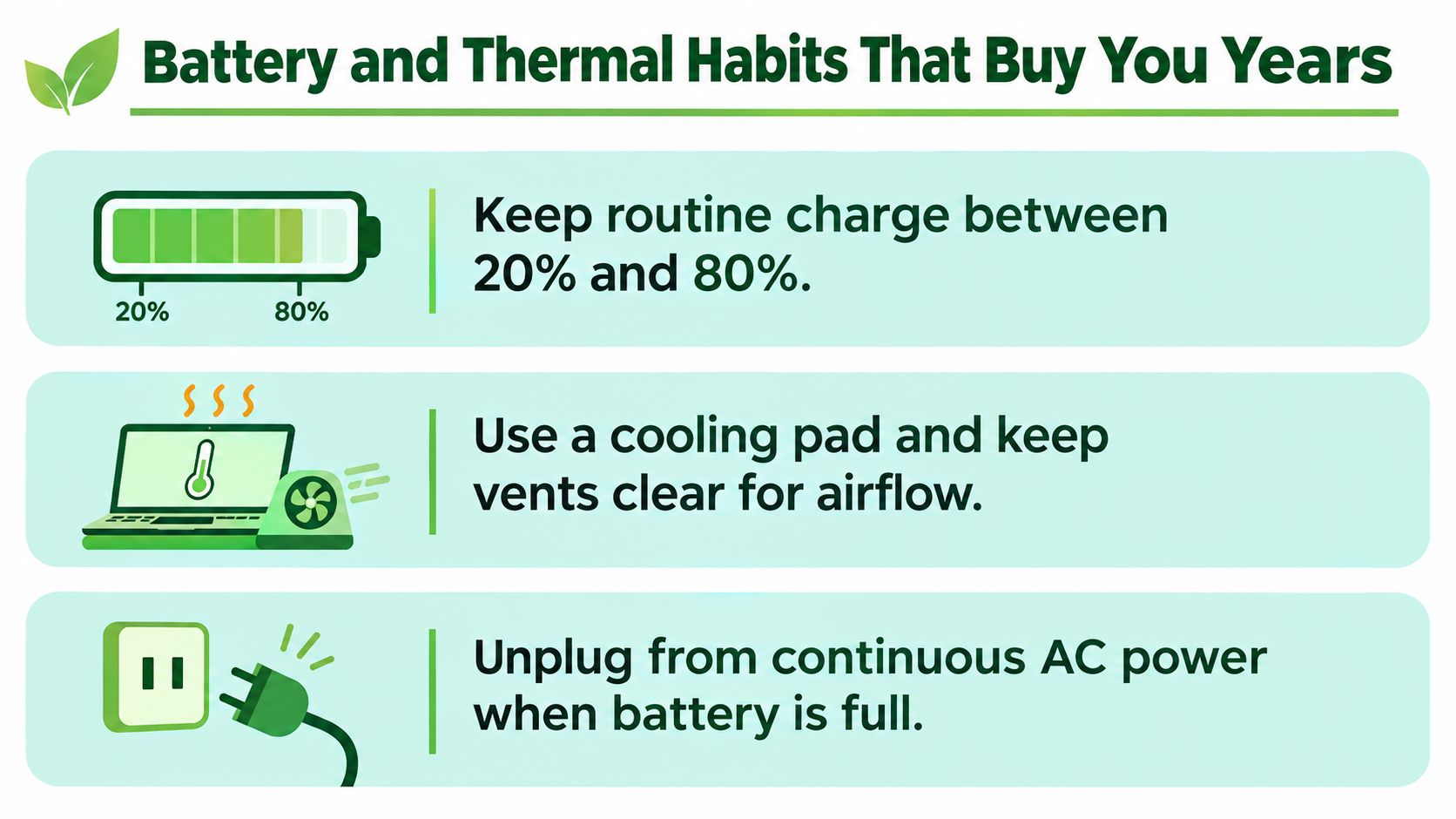
A laptop that runs hot in Singapore's humidity ages faster, especially when it stays on a bed, sofa or blocked desk. Put it on a hard, flat surface, keep every vent clear and stop treating a permanently full battery as harmless.
Make charging less stressful
For routine use, keep a lithium-ion battery roughly between 20% and 80%. Repeatedly draining it to zero, or leaving it fully charged in a hot environment, adds unnecessary stress, as described in Singapore-facing laptop battery replacement guidance. Check battery health in the operating system. Replace the pack when runtime collapses, shutdowns happen unexpectedly or the battery becomes unusually hot.
A laptop that stays plugged in should use its charge-limit setting. ASUS Singapore guidance says Battery Care Mode can cap charging at 80%, while Maximum Lifespan mode limits charging to 60% for users who remain on AC power most of the time, according to this Singapore laptop battery care reference. The same guidance says lithium-ion laptop batteries are typically rated for about 300 to 500 charge cycles and recommends discharging to 50% at least once every two weeks when the laptop stays plugged in constantly.
Do not force a battery to zero for calibration. Deep discharges should not become a daily habit. If the pack is swollen, shut the laptop down and stop using it. A swollen battery is a safety problem, not a runtime challenge.
Treat cooling as scheduled servicing
Singapore repair guidance recommends internal dust cleaning about every 18 months and thermal paste replacement about every 2 to 3 years, as outlined in laptop battery lifespan maintenance advice for Singapore. Thermal paste transfers heat from the processor to the heatsink. Once it dries, the fan works harder and the processor can reduce performance to control temperature.
Brush accessible exterior vents regularly or use low-pressure air. A cooling pad cannot fix a restricted internal heatsink. If the base remains hot, the fan sounds strained or performance falls under load, arrange cooling-system service instead of masking the symptom.
Read why laptop overheating kills performance and lifespan for the failure pattern to watch. Manufacturer tools can also show battery and power behaviour, including Apple Battery Health, Windows Battery Report, Lenovo Vantage, ASUS Armoury Crate and Dell SupportAssist.
According to Dell's Singapore support page, typical users may notice reduced runtime after 18 to 24 months, while power users may see the decline within about 18 months, as explained in its Singapore laptop battery FAQ. Monitor battery health before the problem forces an urgent repair, trade-in or replacement decision.
Software Upkeep That Stops the Slow Decline
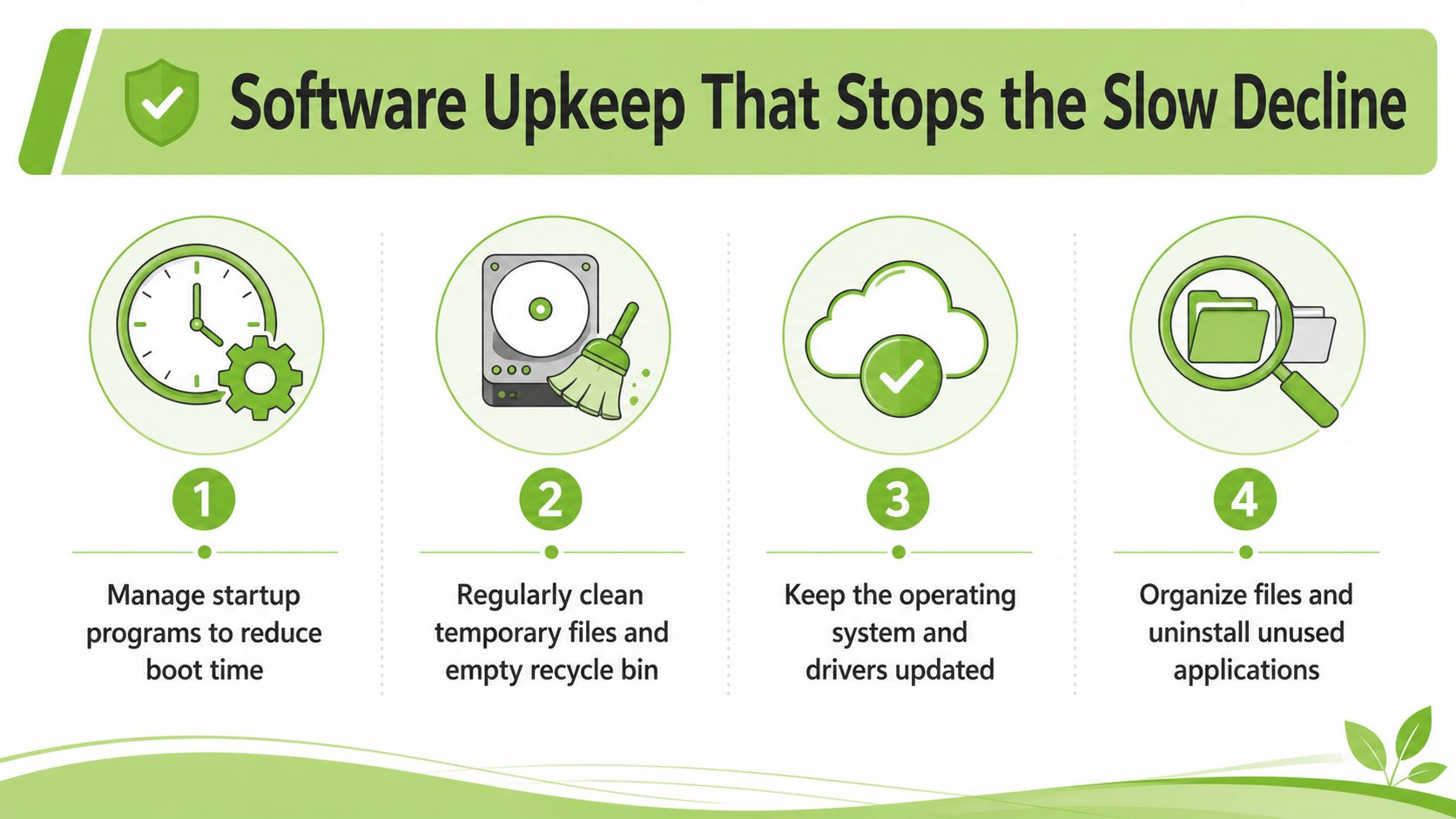
A laptop rarely fails without warning. It first becomes annoying. Startup programs accumulate, browser extensions run unchecked, storage tightens and delayed updates make routine work feel unnecessarily slow.
Set a maintenance routine instead of waiting for frustration. Back up important files before installing operating-system or driver updates, and connect the charger before a major update begins. An interrupted update can leave a struggling laptop with another problem.
Remove the invisible workload
Restart the laptop weekly rather than leaving it in sleep mode for weeks. In Windows, inspect the Startup tab in Task Manager, then remove unwanted applications through Settings and Apps. In macOS, uninstall applications through Finder and review Login Items in System Settings.
Target software that consumes resources while you are doing something else:
- Startup utilities: Disable launchers, trial tools and update assistants you do not need at boot.
- Browser extensions: Remove extensions you no longer recognise or use.
- Background applications: Close programs consuming memory while you work elsewhere.
- Temporary clutter: Clear safe temporary files and empty the recycle bin. Do not delete folders solely because their names look unfamiliar.
Keep a healthy amount of free storage for temporary files, updates and virtual memory. The exact requirement varies by operating system, drive size and workload, so treat 15% to 20% free space as a practical maintenance target rather than a universal rule. Check SSD health with the manufacturer's diagnostic tool, and keep irreplaceable files on an external drive or reputable cloud service. This laptop lifespan resource also covers storage and upkeep considerations.
Older hardware may work better with a carefully selected Linux distro for aging hardware. Choose compatibility over novelty, especially for Wi-Fi, graphics, printers and work applications. Confirm that your essential software runs before changing operating systems.
Protect the machine while you maintain it
Run a full antivirus scan, keep the firewall enabled and avoid unverified installers. Use a factory reset only after simpler cleanup has failed. It removes software clutter, but cannot repair a failing SSD, weak battery or overheating processor, and it can destroy files without a verified backup.
Verify your backup instead of assuming it works. Open or restore selected files periodically, then follow this data backup frequency guide to match backups to how often your files change. A backup that has never been tested is only a promise. In Singapore, that verification can also prevent a rushed replacement when a repair or trade-in would have been the more sensible next step.
The Upgrade Lever SSD and RAM
If a laptop still has a mechanical hard disk, the SSD upgrade is usually the first serious improvement to investigate. An SSD uses flash storage instead of spinning platters, so it can make booting, application launches and file access feel dramatically more responsive while removing a fragile moving part.
That doesn't mean every upgrade is sensible. First check the hardware. CrystalDiskInfo can show drive health on supported Windows systems, while Task Manager can reveal whether memory pressure remains high during your normal workload. If the processor is already struggling with your applications, storage alone won't turn the laptop into a new workstation.
Choose the upgrade that matches the bottleneck
An SSD makes sense when the laptop feels slow during boot, file access and application launches. RAM matters when the system becomes sluggish while many browser tabs, documents or creative applications are open. It won't help much if the core issue is thermal throttling, malware or a failing motherboard.
Before buying parts, confirm:
- Upgrade access: Some laptops have soldered RAM, meaning the memory is permanently attached and can't be replaced.
- Storage layout: A machine may have only one M.2 slot, so you'll need to clone the existing drive or reinstall the operating system.
- Part compatibility: Thin ultrabooks can use proprietary storage or unusual modules.
- Data safety: Back up first, then verify the backup before opening the chassis.
Use this SSD upgrade guide for laptops to check the installation path before ordering anything. Don't buy based on a generic product listing alone. Match the interface, physical size and supported capacity to the exact laptop model.
SSD and RAM Upgrade Payoff at a Glance
| Upgrade | Realistic Gain | Typical Cost (SGD) | Years Added |
|---|---|---|---|
| SSD replacement | Smoother booting, file access and application launches | Varies by model and capacity | Depends on condition and workload |
| RAM upgrade | Better multitasking when memory is the bottleneck | Varies by module and compatibility | Depends on workload and upgrade ceiling |
The table deliberately avoids made-up prices and promises. Singapore repair quotes vary by model, part availability and labour, and an upgrade can't compensate for a worn display, failing board or unsupported operating system. If the laptop remains stable after the upgrade, that's a strong sign you've improved its practical life without replacing the entire machine.
Repair Replace or Let Go A Clear Decision Rule
A repair decision should start with current resale value, not emotion and not the price of a shiny replacement. Find realistic buyback or resale comparisons for the exact model, storage configuration and condition. Then compare the repair quote with that value.
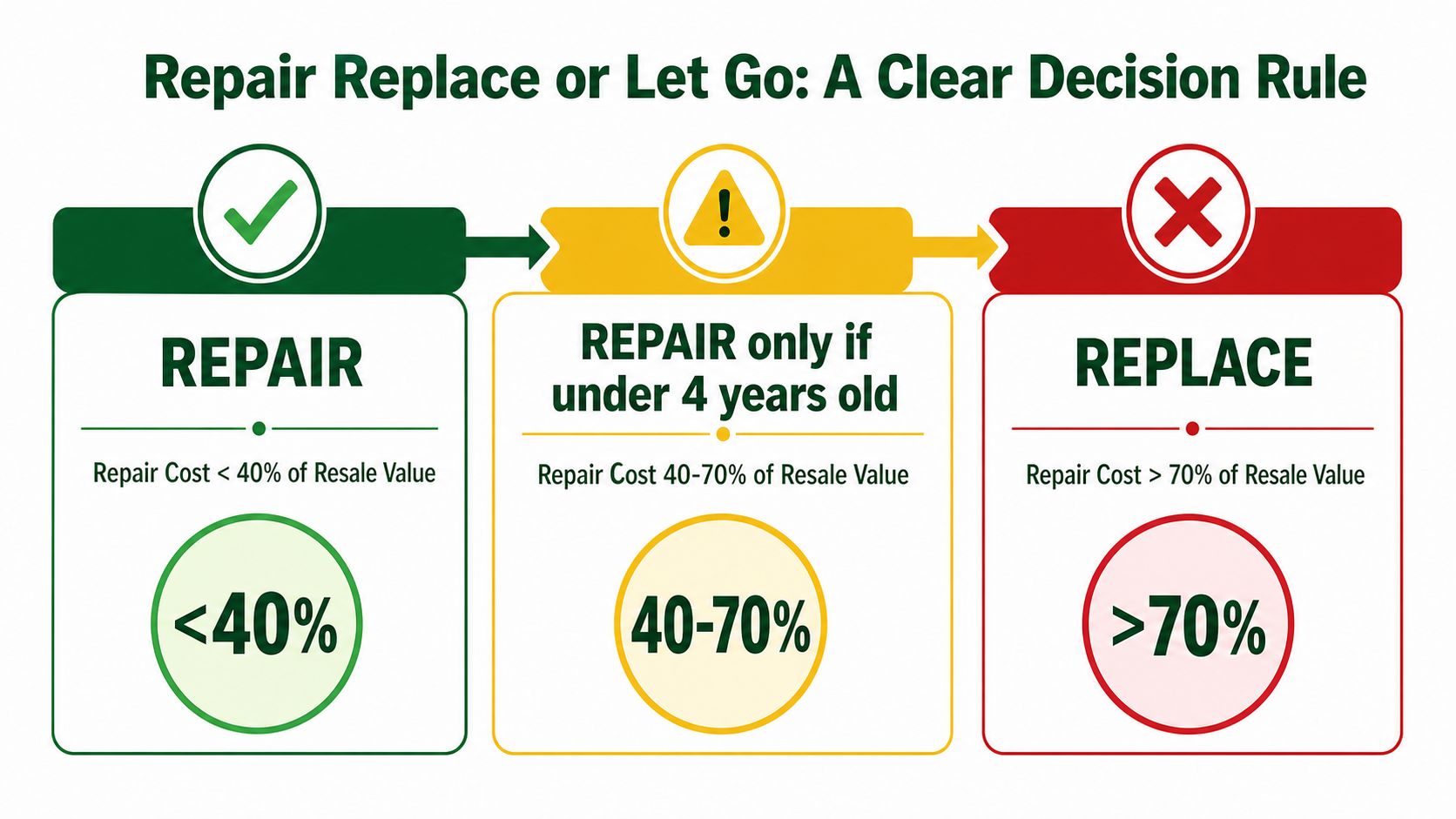
Use this rule as a practical filter:
- Repair cost below 40% of current resale value: Repair it.
- Repair cost between 40% and 70%: Repair only if the laptop is under four years old and the fault is isolated.
- Repair cost above 70%: Replace, trade in or release the device through a responsible reuse route.
Those thresholds are decision rules, not Singapore market statistics. They prevent a common mistake, spending heavily on a laptop that already has several unrelated faults.
Match the fault to the value
A battery replacement is usually easier to justify than a motherboard repair because it targets one replaceable part. A hinge or shell repair may also make sense when the display, keyboard, storage and processor remain reliable. Motherboard work deserves more scrutiny because it can cost a significant share of the laptop's remaining value and may not remove other ageing problems.
Ask the repairer for a written diagnosis, not just a verbal guess. The quote should identify the failed component, whether the replacement is new or refurbished, what testing is included and whether the repair carries a service guarantee.
The Singapore guidance on donation, resale and repair channels makes the broader responsibility clear. A laptop shouldn't go straight into general waste when donation, resale, repair or formal e-waste routes remain available.
Don't create a data problem
A factory reset isn't a complete security plan. Singapore recycling guidance and CNA reporting have highlighted concerns about laptops continuing through recycling and reuse pathways, including the need for sanitisation and hard-disk destruction to reduce data leakage risk, as discussed in this laptop e-waste guidance.
For a personal laptop, a verified secure wipe may be enough if the storage remains in the device and the recipient is trustworthy. For company equipment, school devices or a machine that's going to an unknown downstream processor, remove the drive when practical or use a documented secure-erasure service. Keep the certificate or handover record.
If the laptop has reached the wall, don't abandon it in a cupboard. The MacBook repair versus sale guide offers a useful way to think through that final choice, especially when the machine has both cosmetic and functional faults.
Where myhalo Fits Into the Lifespan Journey
A laptop can reach the point where you know something is wrong, but not what deserves fixing. You can handle routine cleaning, software housekeeping and battery checks yourself. A lifecycle service earns its place when diagnosis, data handling, valuation or the final handover becomes uncertain.
For a student whose older laptop overheats or shuts down, Repair and Rescue is the practical first move. The service should identify whether cooling maintenance can solve the problem or whether the battery or board is failing. Data recovery support also matters when the drive is unstable or files are already inaccessible.
A freelancer with a capable laptop and a stable workload may benefit from e-Xtender. Its purpose is continued upkeep, not a promise that every device should be kept forever. Use it when regular servicing and support make more sense than waiting for one large failure and then paying for a sudden replacement.
Choose the route that removes your biggest risk
- Keep and extend: Choose e-Xtender when the laptop still handles your work and structured support can keep it usable.
- Find and fix: Choose Repair and Rescue when a specific fault needs diagnosis or valuable data may be at risk.
- Release responsibly: Choose trade-in or buyback when the laptop is unreliable, no longer fits your workload or needs to leave your home without becoming an e-waste problem.
myhalo handles resale, refurbishment, parts recovery and secure data processing. Its device lifecycle services can route a device toward repair, reuse or parts recovery before recycling, with data destruction for equipment containing sensitive information.
Use the decision rule plainly. A dead machine should go to valuation or trade-in assessment before you fund several speculative repairs. A working laptop with one contained fault deserves a diagnosis first. That distinction protects your money and preserves any useful life the device still has.
A good lifecycle decision leaves you with one of three outcomes: a working laptop, a fair value offer or a documented responsible handover.
Singapore's policy direction supports repair and reuse. The Resource Sustainability Act made e-waste a formal waste priority in 2019, while the national consumer e-waste scheme had collected 4,300 tonnes by 2021, more than three times the annual amount gathered under earlier voluntary systems, according to the NEA's e-waste management information. The practical lesson is clear: extend a usable laptop, recover value from one that no longer fits, and use a documented handover when it has reached the end.
Your Laptop Lifespan Action Checklist
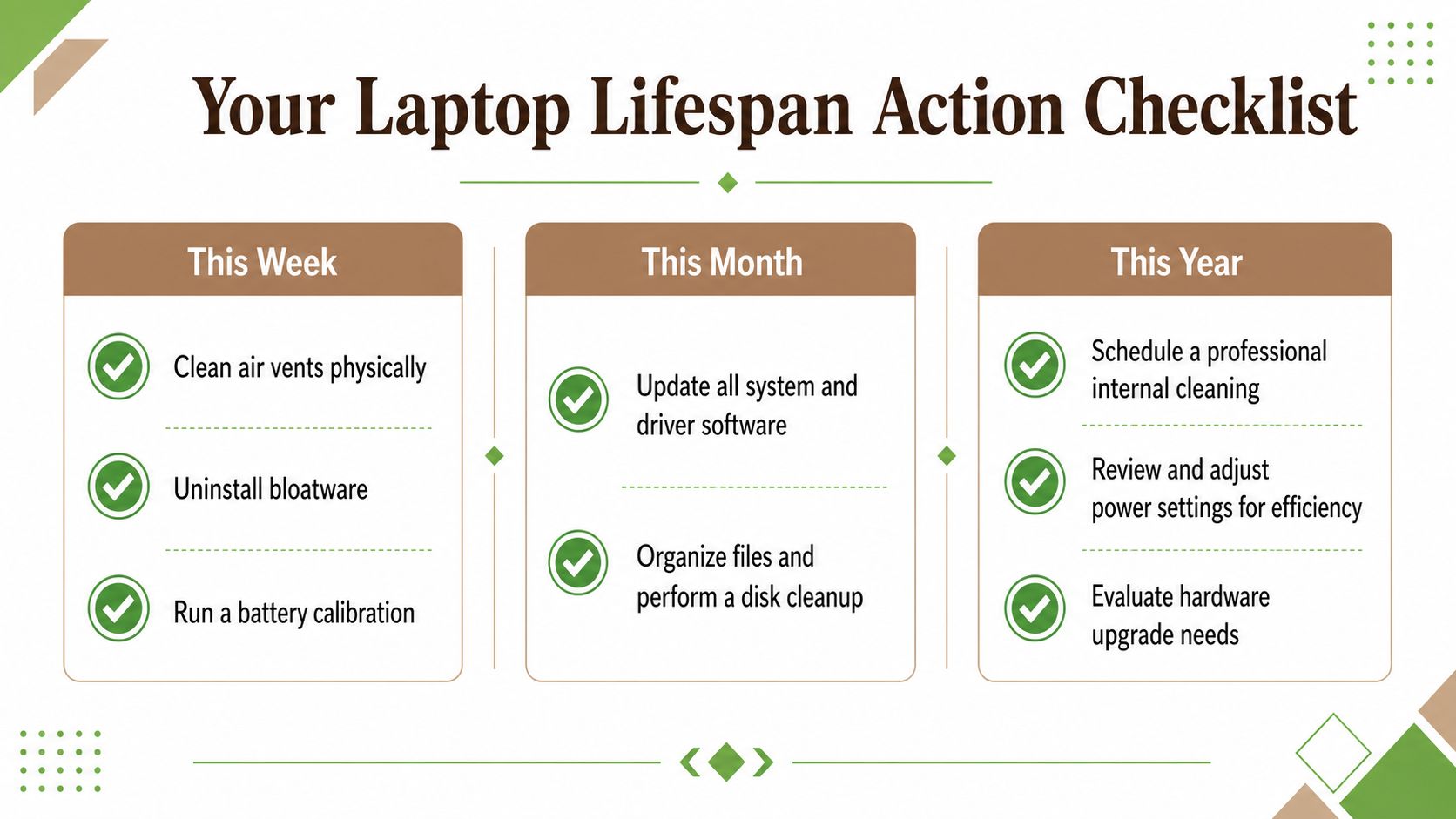
Use this checklist as a service report. Record symptoms before paying for repairs, then escalate only when the evidence points to hardware work.
This week
- Clean the airflow path: Brush accessible vents and check the fan. If the laptop stays hot during light work, arrange internal cleaning instead of hiding the problem with a cooling pad.
- Remove digital bloat: Uninstall unused applications, trial utilities and browser extensions. Review startup items so unnecessary programs do not load every morning.
- Run a battery check: Generate Windows Battery Report or review Apple Battery Health. A swollen or unusually hot pack, or shutdowns during normal use, means stop using the laptop and arrange replacement.
- Check storage health: Keep comfortable free space and run the manufacturer's SSD diagnostic. A warning or repeated file error requires a backup and professional assessment.
This month
- Update the system: Install operating-system, firmware and driver updates after backing up and connecting power.
- Verify your backup: Open important files from the external or cloud copy. A backup that cannot restore files will not protect you during hardware failure.
- Review the upgrade path: Check whether the laptop accepts an SSD or RAM upgrade. Soldered memory or proprietary storage limits the repair options and should affect your spending decision.
- Inspect charging equipment: Replace damaged chargers or cables. Intermittent power can damage charging components and cause sudden shutdowns.
- Record operating symptoms: Note fan noise, battery runtime, crashes and charging behaviour in one dated log. A clear pattern gives a technician better evidence than a vague report that the laptop feels slow.
This year
- Service the internals: If it has been around 18 months since internal dust cleaning or 2 to 3 years since thermal paste was refreshed, schedule the relevant service using the intervals in Singapore laptop maintenance guidance.
- Compare repair and release: Get a component-level quote, then compare it with realistic resale or buyback value. Choose repair when the fault is contained and the laptop still meets your workload. Seek valuation or trade-in assessment when it is unreliable, several parts are failing or repair costs approach the device's practical value.
- Check your data handover plan: Before resale, donation or recycling, choose a verified secure wipe, drive removal or documented destruction route suited to the files' sensitivity.
- Assess the workload: If the laptop is stable but applications have outgrown it, compare an SSD or RAM upgrade with a certified refurbished replacement. Singapore buyers should include repair access, trade-in value and responsible e-waste handling in that comparison.
If you plan to keep the laptop, e-Xtender can reduce ongoing support effort. For a particular fault, Repair and Rescue is the direct route. If you are releasing the device, use a trade-in, buyback or formal e-waste channel rather than leaving it unused in a drawer.
myhalo supports repair, secure data handling, trade-in and responsible reuse. The right outcome is a working laptop, a fair value offer or a documented handover.