
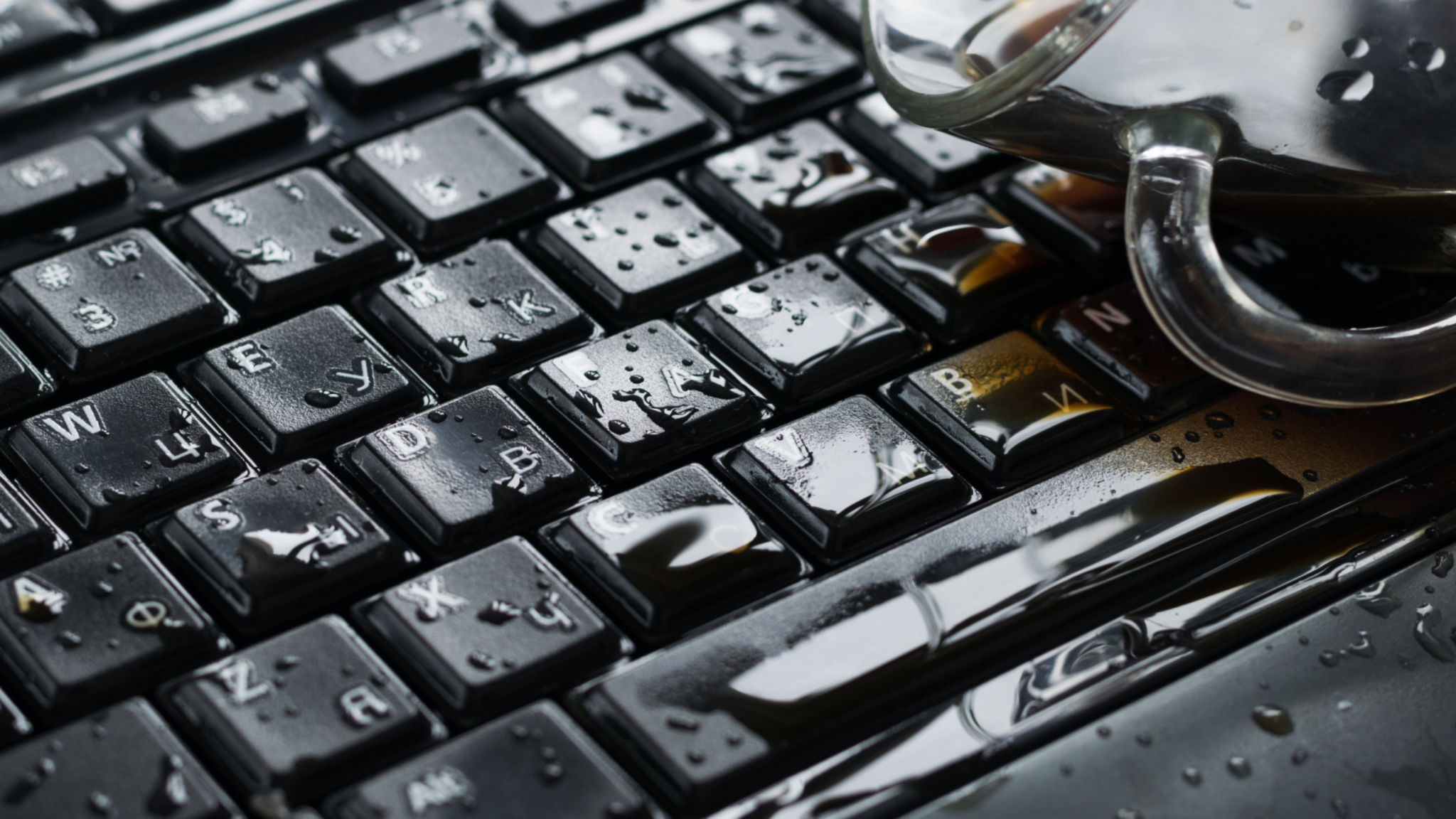
It’s a moment we all dread: the sudden splash, the frantic scramble, and then the sinking feeling as you realize you’ve spilled water on your laptop. Whether it’s coffee, water, or something stickier, liquid damage can be devastating to your beloved device. But don’t panic! This guide is here to walk you through the immediate steps to take and what you can do to potentially save your laptop from severe water damage.
Did You Spill Liquid on Your Laptop? Immediate Steps to Save It
When an accident happens and you spill water on your laptop, it’s not just about the surface getting wet. The real concern lies with the internal components. Understanding the potential impact of a spill can help you react quickly and effectively, increasing the chances of successful laptop repairs and minimizing the extent of the damage, especially if you take steps to save it. We’re here to help you navigate this stressful situation with clear, actionable advice on how to handle liquid damage repair.
The Impact of a Spill on Your Laptop
A liquid spill on your laptop can have a profound and immediate impact on its delicate internal components. The moment liquid comes into contact with the motherboard and other circuits, it can cause a short circuit, leading to instant damage. Even if the laptop appears to be working initially, moisture can lead to corrosion over time, slowly degrading the device and causing long-term issues that are much harder to resolve without professional repair. This is why Immediate steps are so crucial to prevent extensive laptop water damage, especially when it involves tap water..
Common Causes of Liquid Damage
Liquid damage to laptops often stems from everyday accidents. Perhaps you were enjoying a refreshing drink while working, and an accidental bump caused a spill. Or maybe a pet knocked over a glass of water. From a spilled cup of coffee near your keyboard to an open water bottle in your bag, these incidents are unfortunately common and can lead to significant liquid damage repair needs. The good news is that by being aware of these potential hazards, you can take steps to save your laptop from water damage and avoid the distress of laptop liquid damage.
Signs of Water Damage in Laptops
Even if your laptop appears to power on after a spill, there can be tell-tale signs of water damage that indicate a problem, making it crucial to turn it off immediately. Look out for flickering screens, unresponsive keys, unusual fan noises, or unexpected shutdowns, as these can indicate liquid damage repair needs. In more severe cases, your laptop might not turn on at all, or you might even smell a burning odor. These are all indicators that the internal components have been affected and that your laptop requires immediate attention, possibly from a professional repair service.
Immediate Steps to Take After a Spill
Did you spill liquid on your laptop? Act quickly but calmly — the right immediate steps can prevent major damage.
- Power off immediately: Hold the power button or unplug the charger to cut power and reduce short-circuit risk.
- Unplug and remove accessories: Disconnect USB devices, external drives, and any peripherals.
- Remove the battery if possible: On models with removable batteries, take it out to stop electrical flow.
- Blot, don’t rub: Use a lint-free cloth or paper towel to gently blot up excess liquid; avoid rubbing which spreads the spill.
- Position to drain: Open the laptop as far as it goes and tilt it (keyboard facing down and at an angle) to encourage draining away from internal components.
- Avoid heat and DIY hairdryers: Don’t use a hairdryer on high heat — it can warp components. Use room-temperature air or a fan if necessary.
- Dry thoroughly: Leave the laptop in a dry, ventilated place for at least 24–48 hours. For faster drying, place it near silica gel packs or in a dry-box environment (not rice).
- Do not power on too soon: Turning the laptop on while moisture remains can cause irreparable damage.
- Seek professional repair: If the laptop doesn’t power on after drying, or if you notice corrosion, sticky keys, or unusual behavior, contact a professional technician for inspection and cleaning.
Following these steps immediately after a spill increases the chances of saving your laptop. If you’re asking “did you spill liquid on your laptop?” pass this checklist along so you know what to do next.
Turn the Laptop Off
The very first and most crucial step after you’ve spilled water on your laptop is to immediately turn the laptop off. Do not hesitate, and do not try to save any work. The longer your laptop remains powered on after a liquid spill, the higher the risk of a short circuit causing irreparable damage to the motherboard and other internal components. To do this effectively, there are a couple of important actions to take:
- Quickly press and hold the power button until the laptop completely shuts down.
- If your laptop is plugged into a power source, unplug it instantly to further prevent electrical damage to your device.
This immediate action is vital for preventing widespread laptop water damage.
Turn the Laptop Upside Down
Once your laptop is completely powered off and disconnected, the next helpful step is to place the laptop upside down to aid in liquid drainage. turn the laptop upside down. This position helps to drain any excess liquid that may have seeped into the keyboard or other crevices, preventing it from penetrating deeper into the internal components. For a MacBook or an HP laptop, simply opening it fully and then inverting it can allow gravity to assist in drawing the liquid out, which is crucial for effective water damage computer recovery. This simple maneuver can significantly reduce the potential for further liquid damage and corrosion inside your device, buying you precious time for the next steps in damage repair.
Remove Excess Liquid
After you’ve successfully turned the laptop upside down, it’s time to air dry for at least a few hours. carefully remove any visible excess liquid from the exterior of your device. Gently dab the wet areas with a clean, dry microfiber cloth. Be thorough around the keyboard, trackpad, and any vents, but avoid rubbing, as this could push the liquid further into the laptop components. For areas where water might have collected, like between keys, you can use a cotton swab to absorb the moisture. Remember, the goal is to remove as much surface liquid as possible to prevent water damage and minimize the chances of a short circuit inside.
Drying and Assessing Your Water-Damaged Laptop
Using Towels and Air Drying Techniques
Once you’ve removed as much surface liquid as possible, it’s time to focus on drying your laptop thoroughly to prevent water damage to the internal components. Grab some clean, dry microfiber cloths and gently pat down every accessible surface. For areas that are harder to reach, like crevices around the keyboard or ports, you can use cotton swabs. After this, position your laptop upside down in a well-ventilated area, allowing gravity and airflow to work their magic. It’s crucial to let your laptop dry for at least 24 to 48 hours, or even longer for significant spills, to ensure all moisture evaporates.
Utilizing a Hair Dryer: Dos and Don’ts
While the thought of using a hair dryer to speed up the drying process might be tempting, it comes with a strict set of dos and don’ts to prevent further laptop water damage. The goal is to encourage airflow, not to introduce excessive heat, which can warp plastic components or damage sensitive internal components during water damage computer incidents. Patience is key; aggressive drying methods can do more harm than good in your damage repair efforts.
| Action | Guideline |
|---|---|
| DO use a hair dryer | On a cool setting, holding it at a safe distance from your device. |
| DON’T ever use a high heat setting | This can severely damage your motherboard and other delicate parts. |
How to Safely Open and Inspect Internal Components
For those comfortable with a bit of DIY, carefully opening your laptop can significantly aid in drying and assessment. Before you begin, ensure you’ve unplugged your laptop and removed the battery if it’s easily accessible.
Here’s a guide to opening your laptop and assessing the extent of the damage.
| Tool Needed | Action |
| Appropriate small screwdrivers | Gently unscrew the bottom panel of your laptop (MacBook, HP, or other brands). |
| Visual inspection | Once open, carefully inspect internal components for visible signs of water damage like corrosion or residual liquid, and consider using isopropyl alcohol for cleaning. |
This step allows for more targeted drying and helps identify components that might need a professional repair service.
Reassembling the Laptop After Water Damage
Steps to Reassemble the Laptop Carefully
After ensuring your laptop has completely dried for at least 24-48 hours and you’ve inspected the internal components for any obvious liquid damage, it’s time to reassemble, but consider consulting a repair shop if you have concerns. Carefully place all internal components back into their original positions, ensuring no cables are pinched and all connections are secure. Then, gently reattach the bottom panel, making sure all screws are tightened appropriately but not overtightened, which could strip the threads. Take your time with this process; rushing can lead to new issues. Only after reassembly should you attempt to turn the laptop on.
Identifying Damaged Components
Even after thorough drying, some internal components might still be affected by the spill water. When you first attempt to power on your laptop, observe any unusual behavior. Does the screen flicker? Are certain keys unresponsive? Do you hear strange noises? These can be indicators of specific components suffering from liquid damage. The motherboard is particularly vulnerable to corrosion from a spill, and even a small amount of residual moisture can lead to long-term issues, so consider taking it to a repair shop if necessary. Identifying these symptoms early can guide your next steps in seeking professional repair.
When to Seek Professional Help
Sometimes, despite your best efforts, the liquid damage is too extensive, or you’re simply uncomfortable performing a DIY repair. This is precisely when to seek professional help. If your laptop doesn’t power on, or if you notice persistent issues after drying and reassembly, it’s wise to take your laptop to a professional repair service. Experts in computer repair can provide a thorough water damage repair, replacing damaged internal components like the motherboard and ensuring your device is safely restored. Don’t hesitate to reach out for assistance; a professional eye can often save your laptop from becoming e-waste.