

You're staring at a laptop that worked yesterday and won't boot today, or an external SSD that doesn't appear when you plug it in. Don't panic, and don't start clicking repair tools. Data recovery on SSD drives rewards calm, early restraint far more than heroic troubleshooting. Stop, note what happened, and read this before you power the drive up again.
Table of Contents
- That Sinking Feeling When Your SSD Goes Silent
- How SSDs Actually Store Your Files
- Five Ways an SSD Can Fail
- Safe First Steps Before Anyone Touches the Drive
- DIY Software Versus a Professional SSD Recovery Service
- Mistakes That Quietly Destroy Recoverable Data
- After Recovery, Erasure, Disposal and What the Law Expects
That Sinking Feeling When Your SSD Goes Silent
It rarely announces itself politely. You open your work laptop before a meeting and get a message saying no bootable device was found. Or you plug in the portable SSD holding years of family photos and hear nothing, see nothing, find no drive letter at all. Sometimes it's smaller and crueller. A folder is there, the name is right, and the folder is empty.
That moment produces two urges, and both can hurt you. The first is to restart repeatedly and hope the drive comes back. The second is to search for a free fix and install it straight away. I understand both. I've also seen where they lead.
Two different problems hide behind one symptom
Here's the distinction that matters most, and it's the one most guides blur. SSD deletion recovery means the drive itself is healthy but files were deleted, formatted away, or lost when a partition was damaged. SSD failure recovery means the hardware or its internal software has failed, so your computer can't reach the data properly in the first place.
Those jobs have different prospects, different tools, and different urgency. A deleted file on a healthy drive may still sit in flash memory for now, because deleting a file, emptying the recycle bin, or formatting doesn't always erase the underlying data, as Singapore's PDPC guidance on disposing of personal data explains. A drive with a dead controller is a different animal entirely, and no undelete program fixes it.
Sometimes the safest recovery action is to stop troubleshooting. Doing nothing for an hour beats doing the wrong thing for five minutes.
You're not careless for being here. SSDs fail without warning, unlike the audible cues spinning disks used to give, and accidental deletion happens to careful people. What you control is what happens next. By the end of this guide you'll know how your SSD stores files, which failure you're likely facing, what's safe to try yourself, and when a Singapore specialist should take over. You'll also know what the law expects once recovery ends and the drive needs to be reused, traded in, or recycled.
That last part matters more than many realise. A drive that looks blank can still hold recoverable personal, financial, or business information. Recovery and secure disposal aren't opposites. They're two halves of handling your data properly, and the order you do them in decides whether your files survive.
How SSDs Actually Store Your Files
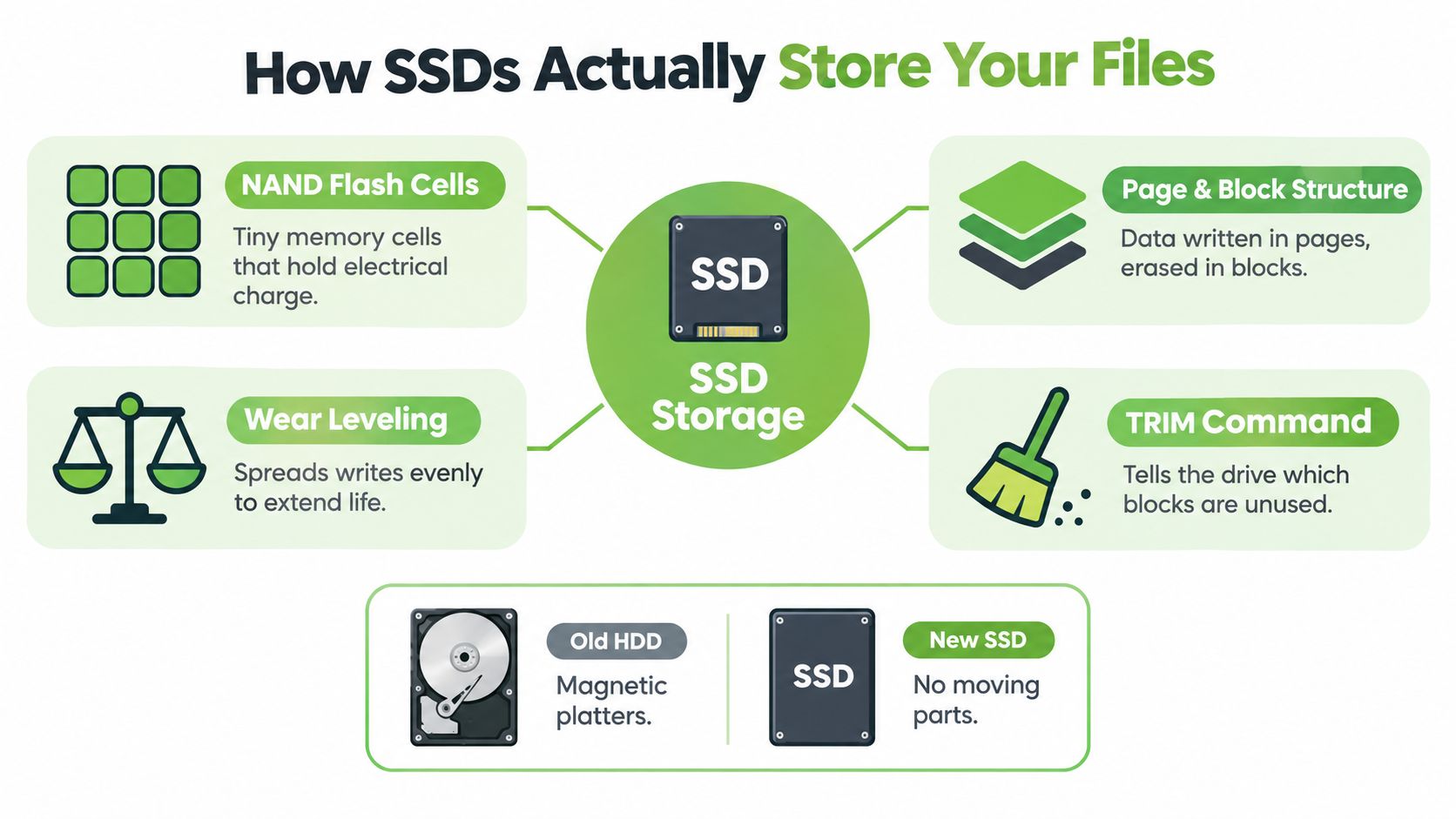
Forget everything you learned from old hard disks. An SSD has no spinning platters and no moving heads. Your files live as electrical charges inside NAND flash chips, and a small processor called the controller keeps track of where every piece sits. If you want background on how the older technology differs, this overview of the main types of hard disc is a useful starting point.
The concept map below breaks the four ideas you need into plain language.
The controller is the translator
Your computer thinks in logical addresses. It asks for block one thousand and expects your spreadsheet. The controller's flash translation layer maps that request to a physical location on a NAND chip, which might be anywhere. That mapping exists because the controller constantly moves data around for speed and longevity. Lose the controller or corrupt its mapping table, and physically intact chips become a jigsaw with no picture on the box. Ordinary recovery software can't help, because it talks to the drive through the very controller that's broken.
Wear levelling and hidden space
Flash cells wear out with use, so the controller spreads writes evenly across the drive. That's wear levelling. The drive also keeps spare cells your operating system never sees, called over-provisioning. Together they mean a simple overwrite or deletion may not touch every physical copy of your data, a point covered in this guide to PDPA compliant IT asset disposal in Singapore. For recovery, that's occasionally good news. For privacy, it's a warning you'll meet again later.
TRIM is the clock ticking against you
When you delete a file, modern operating systems send a TRIM command telling the SSD those blocks are no longer needed. The drive's garbage collection then erases them for reuse, sometimes quickly, and modern drives can pass TRIM over USB connections too, which can shrink the recovery window dramatically, as noted in this overview of portable SSD data recovery in Singapore. Add self-encryption, where the controller scrambles data with keys it holds, and you see why removing chips from a modern encrypted drive often produces unreadable fragments. Keep the original controller and any recovery keys safe. They're part of your data, even though they don't look like it.
Five Ways an SSD Can Fail
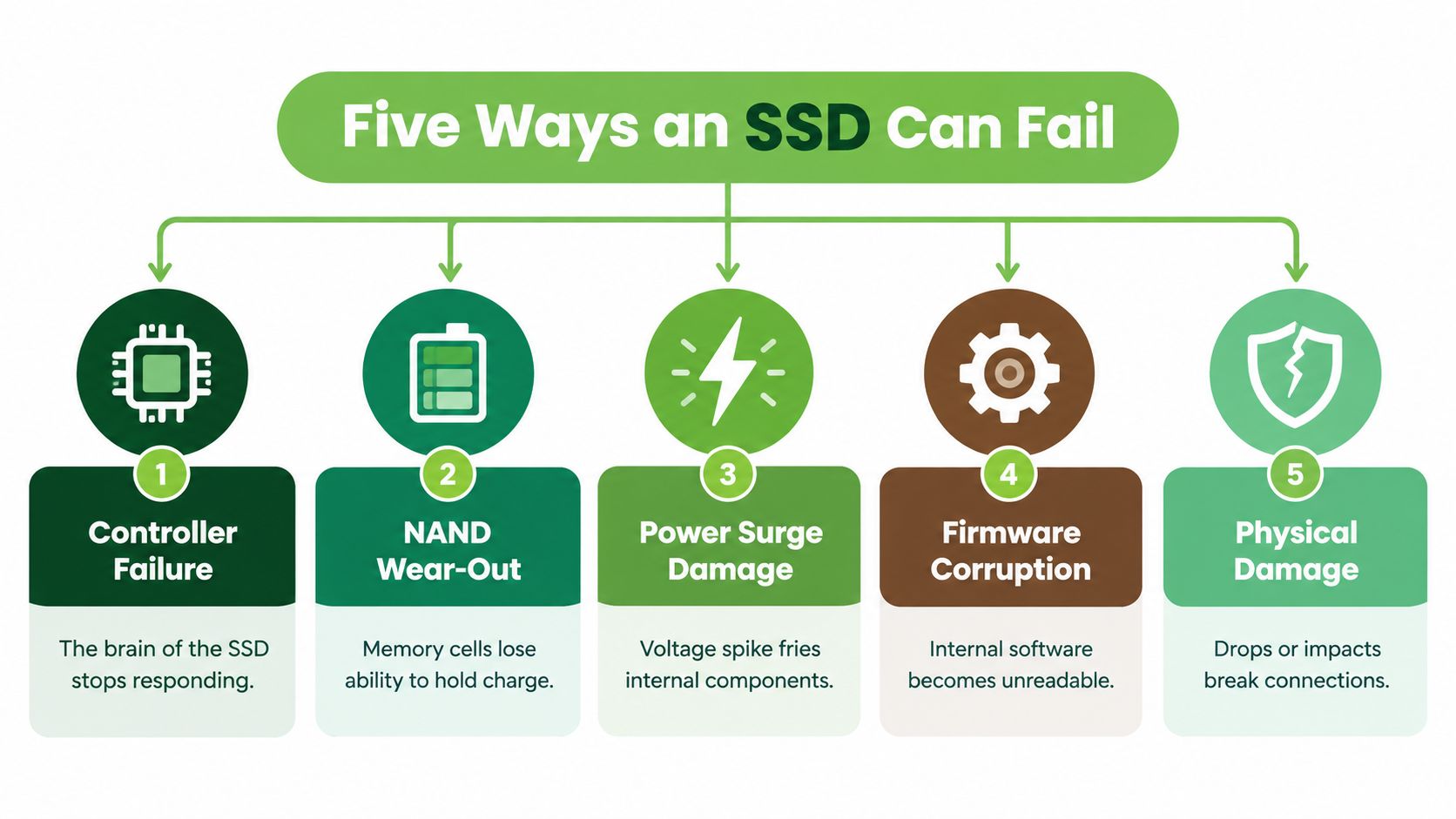
Don't guess your recovery path from hope. Match your symptoms to a failure type first. Diagnosis is a specialist's job, but describing the problem accurately gets you honest answers faster.
The diagram below summarises the five categories before we walk through them.
Logical deletion and file system corruption
Logical deletion is the simplest case. The drive works, appears normally, and reports the right capacity, but files were deleted or the drive was quick formatted. Your enemy is time and further use, because TRIM and new writes erase what's left. Act within hours, not days.
File system corruption looks scarier. The drive may show as RAW, ask to be formatted, or display garbled folders. The directory structure is damaged, not necessarily the files themselves. A healthy, responsive drive with corruption is often the best candidate for careful software work, but only on a copy, never the original. A partition that still mounts doesn't prove all recoverable data is visible, and a drive that won't mount doesn't prove the data is gone.
Electronic, controller, and NAND failure
Electronic failure means the drive won't power up cleanly, often after a surge or a failed component on its circuit board. It may freeze your machine or vanish mid-use. Software is useless here because software needs a live drive to talk to.
Controller or firmware failure is the classic silent death. The drive disappears from BIOS, reports the wrong capacity or a factory fallback name, or appears for seconds then drops offline. The NAND chips may be fine, but the translator is broken. These cases need lab tools matched to that specific controller family.
NAND damage is the hardest category. Worn or physically damaged cells produce read errors, vanishing files, and a drive that locks itself read only. Specialist extraction may still pull partial data, but nobody honest will promise a full result.
Honest rule: If the drive isn't detected, shows the wrong size, or keeps disconnecting, you're not in DIY territory anymore.
One warning cuts across all five. Singapore's Infocomm Media Development Authority notes that deleting files and emptying the recycle bin can merely hide data from normal viewing while specialised software may still retrieve it, according to IMDA guidance on destroying data on storage devices. That cuts both ways. Your deleted files may be recoverable, and so may the files on any drive you're about to hand to someone else.
Safe First Steps Before Anyone Touches the Drive
The first hour decides more outcomes than the next three days. Your job isn't to fix anything. It's to preserve options.
Start with the checklist below, then read why each step matters.
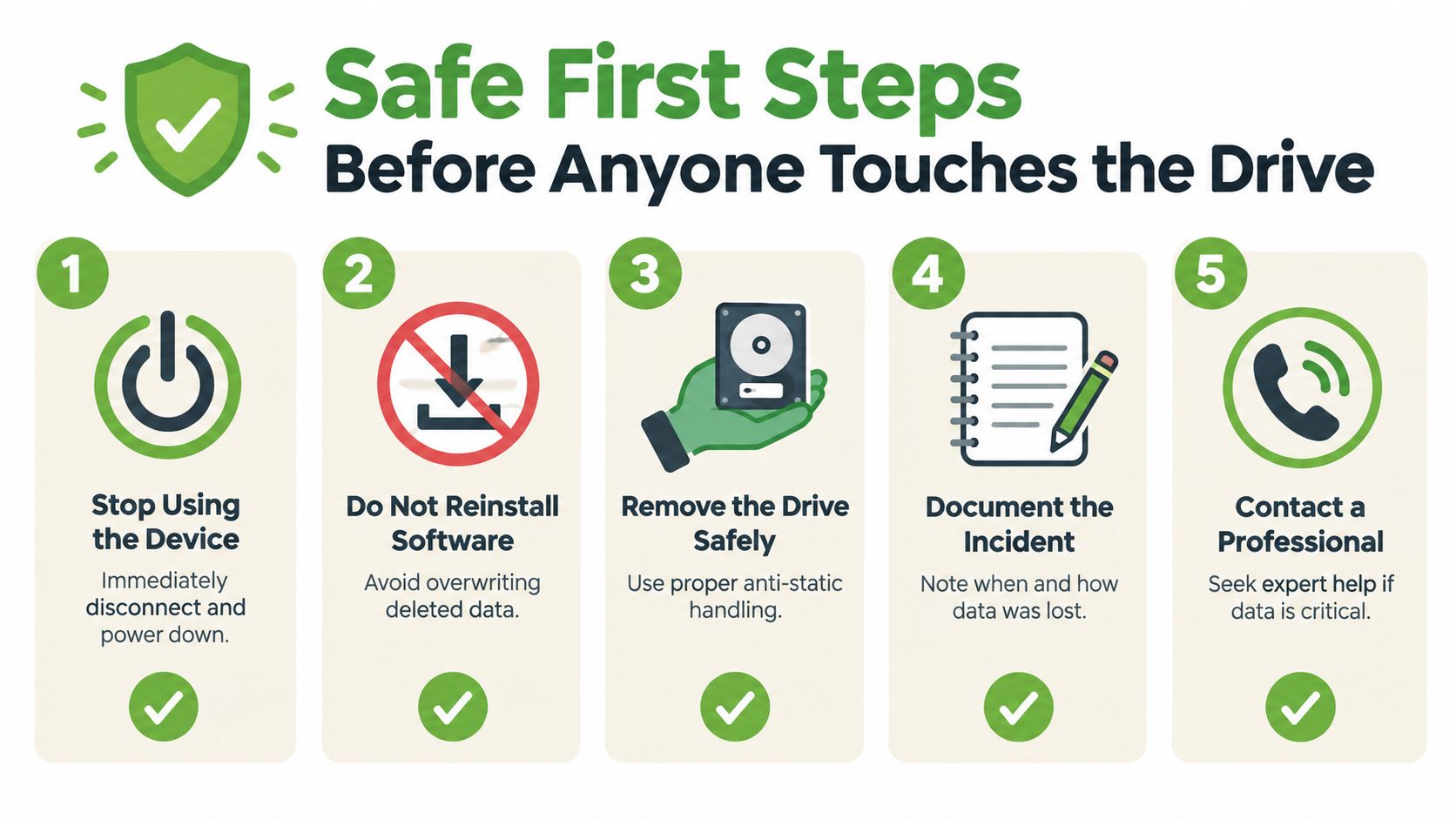
Stop using the device immediately. Power it down properly, don't keep rebooting, and don't leave a failed portable SSD plugged in while you think. Every powered minute lets TRIM and garbage collection run and puts fresh stress on an unstable controller. If the SSD is your boot drive, shut the machine down and use another device to read this.
Write down what you know. Photograph the exact error message. Note the drive's brand, model, serial number, capacity, and connector type, whether SATA, M.2, or NVMe. Record what happened just before the failure, including updates, spills, drops, or a sudden power cut. This record becomes your chain of custody, and any competent lab will ask for it. Teams handling sensitive incidents take the same disciplined, document first approach, which is why the Horus Intelligence investigation playbook is worth reading if your lost data involves a security incident rather than a simple hardware fault.
Decide which problem you have. Deleted files on a working drive, or a dead drive? Say it plainly before anyone sells you a service. Then hunt for your encryption recovery keys, including BitLocker or FileVault keys stored in a Microsoft or Apple account. Labs can't invent those for you.
Remove the drive only if you can do it safely. If you're comfortable with anti-static handling and your warranty allows it, removing the SSD stops an unstable laptop from powering it repeatedly. If you're not comfortable, leave it. A torn connector helps nobody.
The short video below walks through safe handling before a drive goes to a professional.
What a professional does differently at this stage
A controlled workflow connects the drive through a write blocker, a device that physically prevents any writes reaching it, then runs a read only diagnostic. If the drive responds, the lab creates a sector level image and works only on that image. Your original stays untouched. That's the standard you should ask any provider about, and it's the standard your own first steps should protect.
DIY Software Versus a Professional SSD Recovery Service
Three routes exist, and choosing between them is mostly about matching the route to your failure type. This overview of how data recovery online services work explains what remote assessment can and can't do before a drive is physically examined.
Comparing your options side by side
| Option | Typical Cost | Time | Best For | Risk if It Fails |
|---|---|---|---|---|
| Built in OS tools | Free | Minutes | Restoring from recycle bin or backup history | Low, if you avoid repair commands |
| Consumer recovery software | Licence fee | Hours | Deleted files or corruption on a healthy, detected drive | Moderate, scans stress a weakening drive |
| Professional recovery service | Quoted after diagnosis | Days to weeks | Dead, undetected, or unstable drives | Lowest, work happens on an image |
On pricing, keep expectations local and realistic. Logical cases in Singapore are commonly described as taking 1 to 3 days and costing approximately S$180 to S$350, while physically failing SSD and NVMe cases may take 3 to 21 days and S$450 to S$900 or more depending on severity, according to local guidance on laptop repair and data recovery costs. Anyone quoting a fixed price without diagnosing the drive is guessing with your money.
Where each route earns its place
Built in tools are fine when the file still sits in the recycle bin or a backup history. Consumer software earns its keep for deleted files on a drive that's detected, stable, and showing correct capacity, provided you install the software on a different drive and recover files to a different drive. Installing it on the same SSD overwrites the sectors you're trying to save. That's the single most common self inflicted wound I see.
Professional help is the right call for anything electronic, controller related, or firmware related. In Singapore, myhalo is one option that assesses an SSD's disk, controller, and firmware before planning recovery, which is exactly the sequence you should expect from any provider. Whoever you choose, ask three questions. Will you diagnose before quoting? Will you image before repairing? Will you show me what's recoverable before I pay in full?
Decision rule: Working drive, missing files, try carefully yourself. Missing drive, call someone.
Mistakes That Quietly Destroy Recoverable Data
Most permanent data loss I encounter wasn't caused by the original failure. It was caused by well meaning tinkering afterwards. The chart below pairs the common mistakes with the damage each one does.
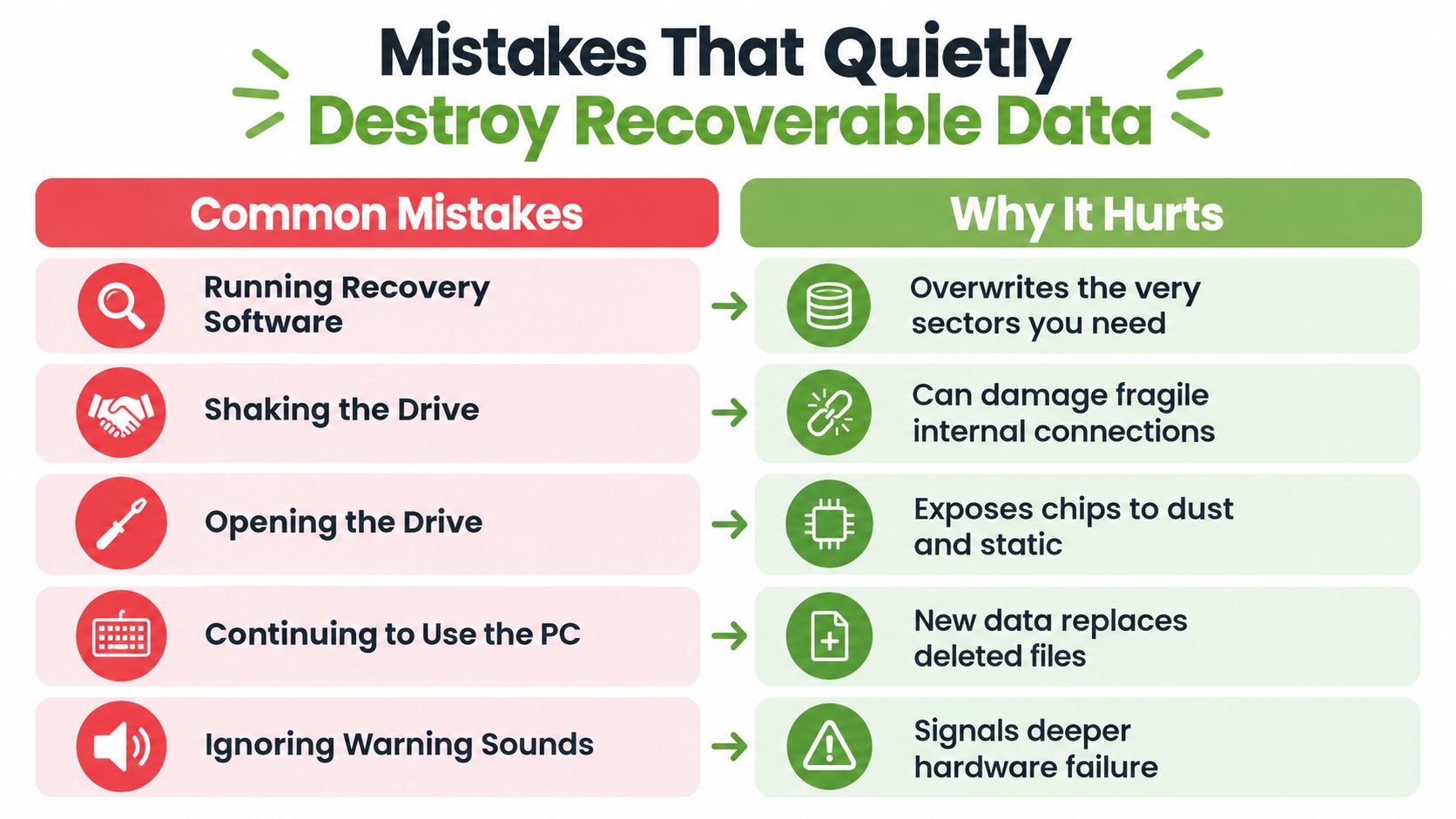
Power cycling a failing SSD tops the list. Each restart asks a struggling controller to initialise again, run its background routines again, and process pending TRIM commands again. A drive that appeared intermittently on Monday is often completely dead by Wednesday because its owner kept checking whether it had recovered on its own. It won't. Drives don't heal.
Running CHKDSK or fsck before imaging is nearly as destructive. These tools repair a file system by rewriting it, discarding structures they can't understand. On a healthy drive that's maintenance. On a drive you're trying to recover from, it's evidence destruction, and it's irreversible.
Applying firmware updates found online can overwrite the very mapping information a lab needs. Reformatting to clean up the mess invites the operating system to TRIM the entire drive. Amateur chip off attempts with a heat gun destroy pads, cook neighbouring chips, and on self encrypting drives produce scrambled data anyway, because the keys lived in the controller you've just discarded.
Free recovery tools from unfamiliar sites deserve suspicion too. Some bundle unwanted installers, some write to the target drive, and some find your files then demand payment to release them. Use reputable software from the publisher's own site, or don't use software at all.
The safer habit running through all of this is simple. Image first, experiment on the image, and keep the original untouched. The same discipline protects you long term, which is why pairing recovery with a proper backup routine matters, as this guide to data recovery and backup planning sets out. If the data matters, the cheapest next minute is usually the one where you don't touch the drive.
After Recovery, Erasure, Disposal and What the Law Expects
Getting your files back isn't the finish line. What happens to the old drive next carries legal weight in Singapore, especially for schools, SMEs, and anyone handling other people's data.
The PDPC requires organisations to ensure personal data is securely deleted, erased, or destroyed before electronic storage media is redeployed, exchanged, or disposed of, and disposal must make the data unrecoverable, as set out in PDPC guidance on disposal of personal data on physical medium. That guidance ties disposal to the PDPA's Retention Limitation Obligation under section 25. Singapore's Resource Sustainability Act regulations separately require licensed e-waste recyclers to permanently erase or destroy data on data bearing devices before reuse, recycling, disposal, or transfer, under the Resource Sustainability Act e-waste regulations.
Choosing the right endpoint for the drive
Degaussing does not work on SSDs. Flash stores data electronically, not magnetically, so a degausser does nothing useful. For a working drive, use the manufacturer's Secure Erase or Sanitize command, or cryptographic erasure where full disk encryption and key destruction can be verified, then document the verification. Reformatting or a factory reset alone doesn't clear over-provisioned areas, a point detailed in this overview of hard disk destruction and secure handling in Singapore. When logical sanitisation can't be completed reliably, physical destruction is the correct fallback. A dead drive isn't automatically a safe drive.
Sequence matters. Attempt recovery first if you need the files, verify what you recovered, then sanitise or destroy. Record the serial number, custody, method, operator, date, and verification result. The scale here is real. E-waste collected through Singapore's regulated system grew from 3,500 tonnes in February 2022 to more than 22,300 tonnes by September 2024, according to the Ministry of Sustainability and the Environment. Every one of those devices needed this decision made properly, and this explanation of secure data destruction options shows what documented erasure looks like in practice.
Your precious files and memories matter, and so does what happens to the drive afterwards. Whether you need to rescue lost data with Save data, protect your privacy with Safe data, or clear out retired devices responsibly on the path to zero e-waste, visit myhalo and let a caring Singapore team handle it with you, step by step.