

Your cursor freezes halfway through an email. You tap the touchpad again, drag your finger across the palm rest, and nothing happens. Maybe the laptop feels unusually warm, or the touchpad suddenly starts clicking by itself just before a school submission, work call, or MRT ride home. A tiny square you normally ignore has become the only thing standing between you and your files.
That panic is understandable, but a failed touchpad doesn't automatically mean your laptop's life is over. In Singapore, touchpad repair is usually handled as a component-level service, not a full-device replacement, with local listings showing MacBook touchpad replacement from S$95 to S$120, depending on the model and parts grade. Local touchpad repair pricing and coverage also shows that walk-in and repeatable repair workflows are already a normal part of the device-maintenance market.
This guide gives you a calm route from software checks to professional repair. You'll learn how to separate a settings fault from genuine damage, which home fixes are safe, how to judge repair against replacement in the Singapore market, and how to protect your data before handing over the laptop. If you want broader local options, this guide to laptop repair in Singapore is a useful starting point. You don't need jargon here, only a sensible plan.
Table of Contents
- When Your Touchpad Stops Cooperating
- Is Your Touchpad a Settings Glitch or Real Damage
- Quick Fixes You Can Try at Home
- What a Professional Touchpad Repair Looks Like
- Decide Between Repair and Replacement
- Protect Your Data Before You Hand It Over
- A Simple Plan to Get Your Touchpad Working Again
When Your Touchpad Stops Cooperating
The first move is to slow down. A touchpad that stops responding can come from a disabled setting, a driver conflict, a loose ribbon cable, a damaged module, or pressure from a swollen battery. Those faults look similar from the user's side, but they don't deserve the same response.
Start by asking what changed. Did the problem appear after an update, a spill, a drop, unusual heat, or pressure around the palm rest? Does the cursor move but refuse to click, or is the entire surface dead? Does it jump around as if someone else is controlling it? These details help a technician avoid replacing a working part.
Practical rule: Don't open the laptop just because the cursor has stopped. Confirm the simple causes first, then escalate when the evidence points to hardware.
A USB or wireless mouse can keep you productive while you investigate. It also gives you a useful comparison. If the external mouse works normally while the built-in touchpad remains erratic, the operating system is probably functioning well enough for you to focus on the touchpad connection, module, or related sensor.
Singapore repair shops commonly treat touchpad work as a same-day or short-turnaround service. Public repair guidance places many laptop component repairs across a broad S$60 to S$900 range because complexity varies widely, while touchpad jobs commonly sit in the lower hundreds when the issue is a module or connection fault. Singapore electronics-repair market information provides the wider market context.
The sensible path is simple:
- Confirm the symptom. Test movement, tapping, physical clicking, and gestures separately.
- Rule out software. Check settings, restart fully, and test in Safe Mode.
- Use an external mouse. This keeps work moving and helps isolate the fault.
- Stop when risk appears. Swelling, liquid ingress, intermittent power, or a burning smell needs professional attention.
A small fault shouldn't shorten the life of a good laptop. Let's identify the cause before spending money.
Is Your Touchpad a Settings Glitch or Real Damage
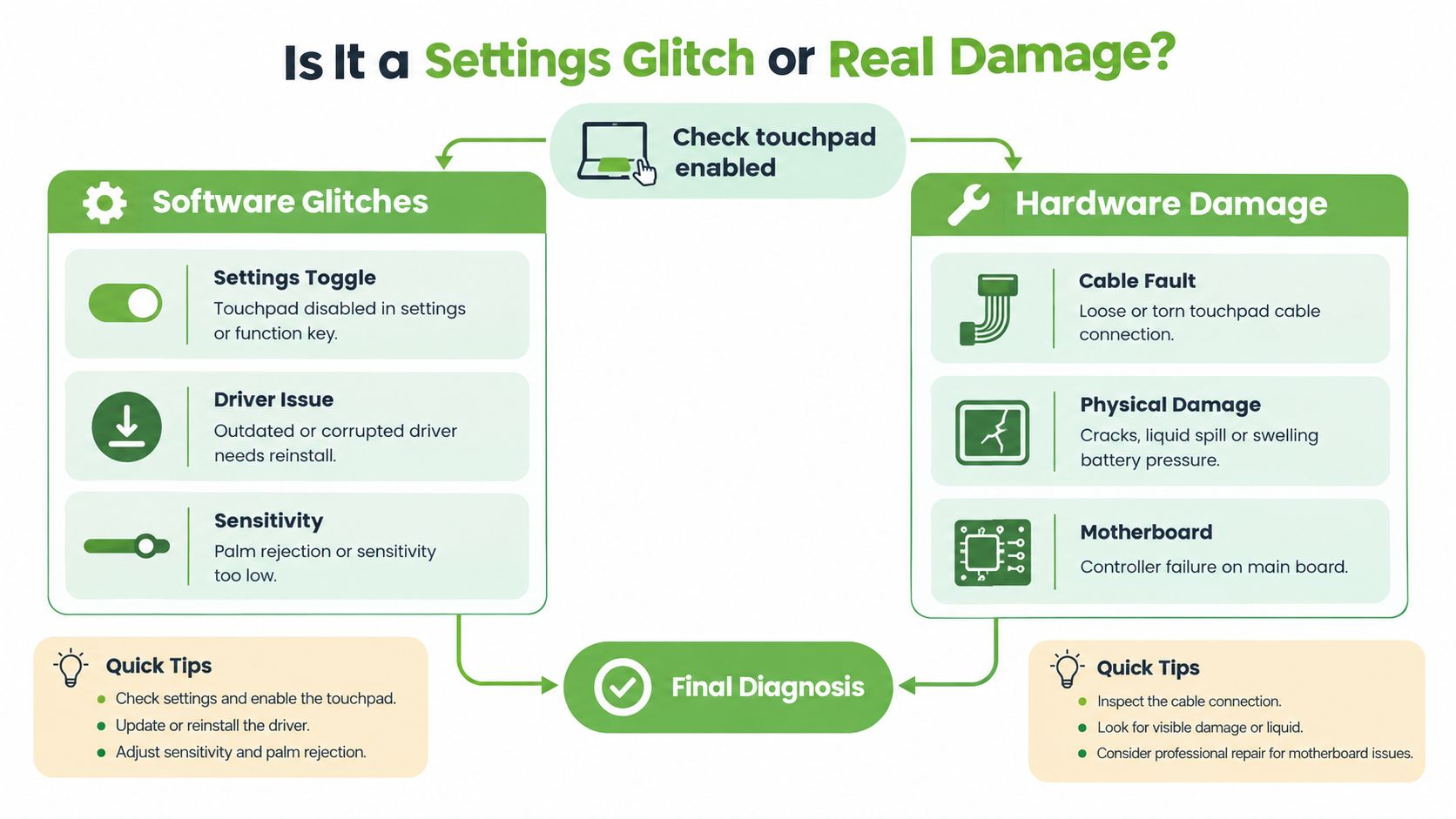
Touchpad problems usually fall into two buckets. Software faults affect how the operating system interprets input, while hardware faults involve the surface, cable, sensor, controller, or surrounding chassis.
Start with the settings
On Windows, open Settings and confirm that the touchpad is enabled. Check Device Manager for the touchpad or HID device, especially if the issue began after an update. An accidental Fn-key combination can disable the touchpad, and a system update can alter driver behaviour.
On macOS, review the trackpad settings and Accessibility options. Check whether an external mouse setting is affecting built-in input. Restart after changing anything, because a fresh boot can clear a temporary driver state.
Safe Mode is a useful separator. It loads the operating system with fewer third-party drivers and services. If the touchpad behaves normally there, investigate settings, drivers, recent software, and updates before considering a replacement. Local repair guidance also recommends checking settings, restarting, updating drivers, and testing for external-device interference before disassembly. Singapore touchpad troubleshooting guidance explains the software-versus-hardware distinction and the value of Safe Mode testing.
Use a known-good mouse
Connect a USB or wireless mouse. If it moves, clicks, and scrolls correctly while the touchpad still fails, the computer's basic input system is working. That doesn't prove the touchpad hardware is damaged, but it makes the built-in component the sensible suspect.
Look for physical clues too:
- Dead clicks: Movement works, but tapping or pressing produces no response.
- Ghost input: The cursor jumps, clicks, or drags without a deliberate touch.
- Uneven movement: A section of the surface tracks poorly.
- Mechanical change: The pad feels loose, stuck, raised, or unusually difficult to press.
If the issue disappears in Safe Mode, chase settings and drivers first. If a known-good mouse works normally while the touchpad still fails, treat it as a likely hardware issue.
For a broader diagnostic mindset, keep this computer hardware troubleshooting guide nearby. The key is not to panic. It's to collect enough evidence to choose the least invasive fix.
Quick Fixes You Can Try at Home
You can safely try a short sequence before visiting a repair counter. Work from the least disruptive check to the more technical software steps, and stop immediately if the laptop shows signs of physical danger.
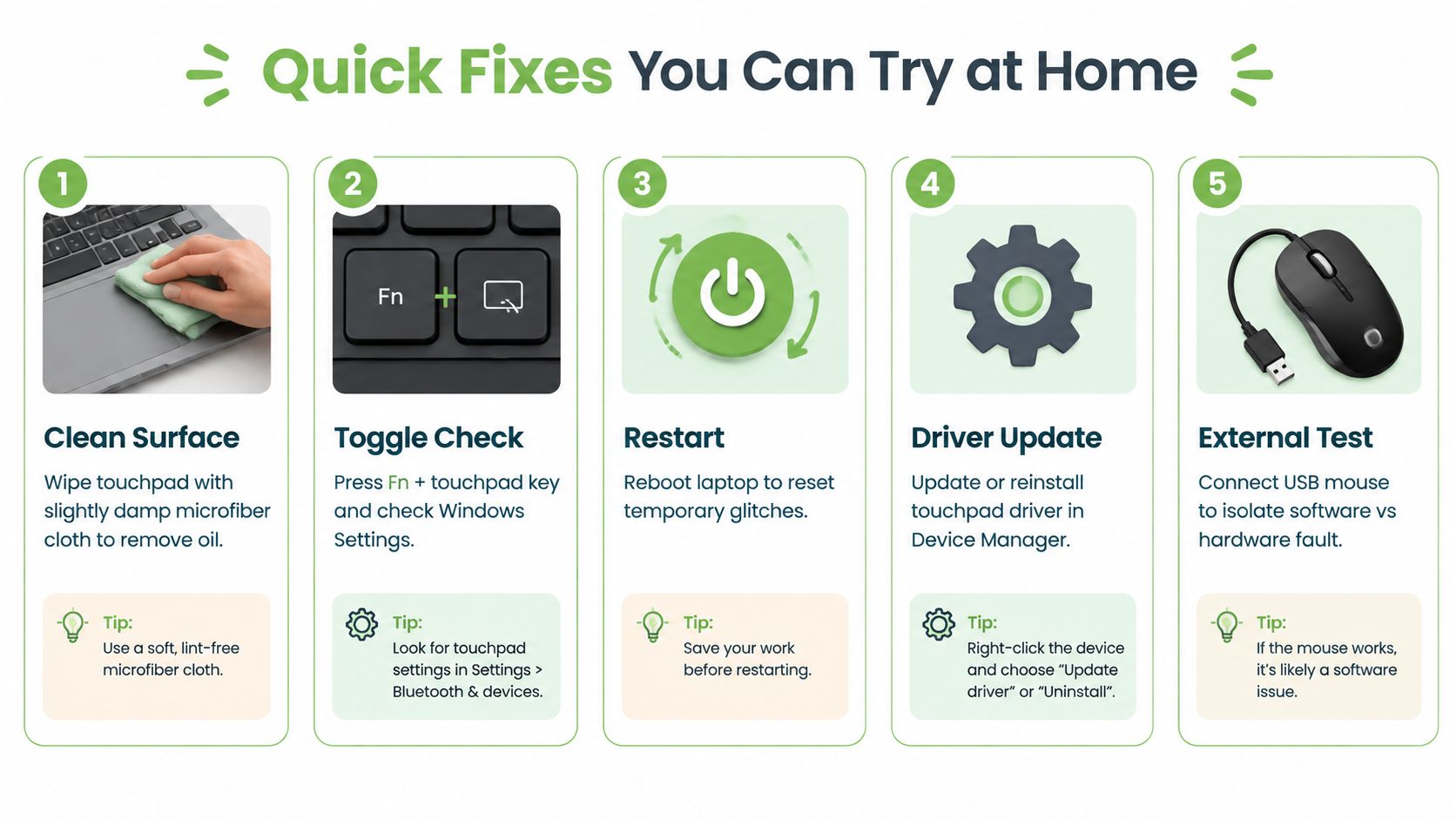
Five sensible checks
Clean the surface. Shut the laptop down if possible, then use a slightly damp microfiber cloth. Oils, dust, and residue can interfere with tracking. Don't pour cleaner onto the touchpad, and don't push moisture into its edges.
Check the toggle. Try the laptop's touchpad Fn key, then confirm the setting in Windows or macOS. Some models use a double-tap in a corner rather than an Fn combination, so look for a small indicator or consult the model manual.
Restart fully. Choose Restart or Shut Down instead of merely closing the lid. A full reboot clears temporary driver states and can restore input after a stalled update or sleep-wake problem.
Review the driver. In Windows Device Manager, update or reinstall the touchpad device. On a Mac, install available macOS updates and restart. Avoid random driver-download websites. Use the laptop maker's support page when a driver is needed.
Test with an external mouse. A working mouse lets you continue using the laptop and helps separate an operating-system problem from a touchpad-specific fault.
You can also reset touchpad sensitivity, palm rejection, and tap-to-click settings to their defaults. A third-party utility may have changed these values without making the cause obvious.
For a visual walkthrough, use the following video as a general reference, but remember that menus and hardware layouts vary by model.
Don't continue with DIY work if the palm rest is lifting, the touchpad is visibly raised, the laptop loses power intermittently, or liquid has entered the chassis. A swollen battery can press against the touchpad and create clicking or tracking symptoms. Opening that device without the right safety process can turn a repair into a bigger hazard.
If you're comfortable with careful maintenance, this DIY laptop keyboard repair guide can help you understand the difference between low-risk cleaning and invasive disassembly. For touchpad repair, the same principle applies: software checks at home, internal work by someone equipped to do it properly.
What a Professional Touchpad Repair Looks Like
A proper repair starts with diagnosis, not a replacement part. The technician should reproduce the fault, test cursor movement and clicks, check the operating system, inspect the ribbon cable and connector, and look for battery pressure, liquid residue, or a distorted chassis. That sequence separates a loose connection or software fault from a failed touchpad assembly.
A practical local workflow is to connect an external mouse, confirm whether the fault is software or hardware, verify that the touchpad is enabled, inspect and reconnect the internal ribbon cable, then recalibrate or replace the assembly if dead clicks or cursor jumps remain. Singapore touchpad repair workflow guidance also lists free diagnostics and prices from about S$95 to S$186, depending on the brand, model, and whether the job needs repair or full replacement.
What happens at the bench
The technician may start with a settings and driver cross-check before opening the laptop. A loose or poorly seated ribbon cable can cause intermittent input without requiring a new module. If the cable, connector, and settings are sound, the technician should explain the failed component and quote the replacement before proceeding.
Part quality affects feel, fit, availability, and expected lifespan. The quote should state whether the part is a genuine manufacturer component, an OEM-grade part, or a compatible alternative. Do not accept a vague “touchpad replacement” line. Ask for the part grade in writing.
For many jobs, the local benchmark is one to two hours, but the actual turnaround depends on the inspection result and whether the required part is in stock. Singapore repair diagnostic information explains that providers may diagnose first, issue a transparent quote, and confirm timing after checking the part required.
| Laptop tier | Typical fault | Price range in Singapore | Turnaround |
|---|---|---|---|
| Mainstream laptop | Settings, driver, or loose connection | Often lower than a full module replacement | Same day when no special part is needed |
| Ultrabook or MacBook | Touchpad module or palm-rest assembly | MacBook listings start at S$95 to S$120, depending on model and parts grade | Commonly one to two hours when the part is available |
| Complex or less common model | Assembly, chassis, or related component fault | Can rise within the broader S$60 to S$900 laptop component-repair range | May require a longer wait if parts must be sourced |
Before authorising work, ask these questions:
- What failed? Cable, connector, touchpad module, battery pressure, or board?
- What does the quote include? Labour, part, GST, and any diagnostic fee?
- Which part grade is used? Get the answer written down.
- What coverage applies? One local provider publishes 100 days of coverage for a repaired touchpad. Its touchpad repair service page shows why warranty wording matters.
- What happens if the fault is broader? Require contact before extra work begins.
A reliable counter should leave you with four clear answers: what failed, what will be changed, what it costs, and when the laptop should be ready. If the technician cannot explain those points, pause the repair and get another assessment.
Decide Between Repair and Replacement
Repair is usually the right first question, not replacement. A touchpad is a contained input component, and replacing the entire laptop because one input surface fails wastes money and creates avoidable e-waste. The decision changes when the touchpad is only one problem in a machine with serious age, scarce parts, or multiple faults.
Weigh the laptop, not just the part
Start with the device's condition and role. A recent MacBook, business laptop, or gaming laptop may still have useful resale value and a supported parts pipeline. An older mainstream laptop with a weak battery, damaged hinge, failing keyboard, and slow storage deserves a tougher calculation.
Singapore consumer guidance says people are more likely to repair when the repair cost is about 10% to 30% of a new appliance's price, or when the item is already under warranty. The Competition and Consumer Commission of Singapore's repair-services guidance gives that practical decision context. Apply it as a prompt, not a blind rule.
The more useful calculation is:
Repair cost ÷ the laptop's realistic current value
Use current resale or trade-in value, not what you paid years ago. A repair that looks cheap against a new premium laptop may feel unreasonable against an old machine with several other faults.
Follow this decision tree
- One fault, otherwise healthy: Repair it. A loose cable or touchpad module shouldn't end the laptop's useful life.
- Touchpad plus manageable wear: Get a quote and compare it with the machine's current value. Repair still makes sense if the rest of the laptop meets your needs.
- Touchpad plus battery swelling or liquid damage: Stop using it and request a complete inspection. The touchpad may be a symptom rather than the main problem.
- Touchpad plus motherboard or chassis damage: Be cautious. Board-level work can change the economics quickly.
- Scarce parts and repeated failures: Ask for a trade-in, certified resale, or replacement comparison before spending further.
The commonly repeated “50% rule” can be a useful warning sign, but it isn't a verified Singapore threshold and shouldn't replace a proper quote. If a repair approaches half the price of a comparable new laptop, replacement deserves serious consideration. A lower repair bill still isn't automatically sensible if the machine has another imminent failure.
My recommendation: Repair a healthy laptop with a single touchpad fault. Replace or trade in when the touchpad is one item in a cluster of expensive failures, especially if parts are difficult to source.
For unused or uneconomical devices, a responsible exit can be better than a drawer. Certified resale keeps a working laptop in circulation, while parts harvesting can help rescue another device. That is a financial decision and a zero e-waste decision at the same time.
Protect Your Data Before You Hand It Over
A touchpad repair shouldn't require a technician to browse your photos, email, cloud storage, or social accounts. The technician may need to test touchpad settings, Device Manager, gestures, or clicking, but that doesn't mean they need unrestricted access to your personal files.
Prepare the laptop
- Back up first. Copy important documents and photos to an external drive or trusted cloud service. If the laptop's condition is unstable, prioritise the files you can't recreate.
- Sign out. Log out of browsers, Google, Microsoft, Apple, Dropbox, messaging apps, and other accounts. Disable automatic sign-in.
- Encrypt the drive. Turn on BitLocker in Windows or FileVault on macOS where supported. Encryption protects stored data if the device is misplaced while credentials aren't available.
- Remove external storage. Take out SD cards, USB drives, and other media that don't need to travel with the laptop.
- Record the machine. Note the serial number, photograph the exterior, and list any existing marks or accessories.
A guest account is suitable when the technician only needs to confirm basic input and system behaviour. A temporary local user gives more control when the repair requires repeated testing, but it still shouldn't replace a backup and sign-out routine. If the laptop won't boot reliably, ask the shop what access it needs before handing over the device.
Ask for a secure intake
A trustworthy repair counter should record the device serial number, describe the reported fault, and issue a written job sheet. Ask how staff handle passwords, whether they need your login, who can access the device, and how long diagnostic data remains available. Businesses and schools should also ask for documented data-handling and chain-of-custody procedures.
Singapore reporting has highlighted cases where repair workers accessed private photos, files, and social-media accounts without consent. This CNA report on repair-shop privacy risks is a strong reminder to prepare the device instead of assuming a simple repair carries no privacy risk.
The Personal Data Protection Act context matters for organisations handling customer, student, or employee devices, but a legal reference doesn't replace practical safeguards. After repair, change passwords if you shared them, verify cloud and browser sessions, check that no unfamiliar software or user accounts were added, and test the touchpad before leaving the counter.
If a repair could expose valuable files, use this data recovery and backup guidance before making changes. Protecting your data is part of touchpad repair, not an optional extra.
A Simple Plan to Get Your Touchpad Working Again
Start with the safest checks before opening the laptop. Confirm that the touchpad is enabled, restart the device, and test it in Safe Mode. A known-good external mouse lets you keep working while showing whether Windows or macOS still accepts input normally.
If the touchpad works in Safe Mode, treat the fault as software-related. Reset touchpad settings, review Device Manager on Windows, install trusted system updates, and remove any recently added utility that changed gestures or sensitivity. A problem that disappears after third-party drivers are removed does not justify opening the case.
If the external mouse works while the built-in touchpad stays dead, jumps, or clicks inconsistently, arrange hardware triage. Ask the technician to inspect the connector, cable, battery area, and touchpad module before approving a replacement. Singapore listings commonly use one to two hours as a same-day benchmark when parts are available, but inspection findings and part supply determine the timing.
Use this checklist before booking
- Restart in Safe Mode. Record whether the touchpad behaviour changes.
- Test an external mouse. Confirm that the laptop still accepts input.
- Check physical symptoms. Stop using the laptop if you see swelling, liquid damage, unusual heat, or power instability.
- Request a written quote. Confirm the part grade, labour, warranty, and completion estimate.
- Compare value. Weigh the repair against the laptop's age, overall condition, and realistic resale value.
- Back up and secure data. Sign out, encrypt the device, remove media, and document its condition.
- Choose a vetted counter. Ask what access the technician needs and how the device will be handled.
For an older laptop, a modest repair can preserve a useful machine, while a costly replacement may make more sense if the battery, display, or keyboard is also failing. myhalo offers laptop diagnostics and repair, plus resale, buyback, upcycling, data recovery, and secure data-handling services. Its Singapore counters and online options provide one route for keeping a workable laptop in use, recovering files, or moving on responsibly.
A functioning touchpad matters because it keeps the laptop practical. Repair the failed component, protect the files inside, and choose reuse before disposal where the numbers make sense. That approach can extend the device's useful life without turning a small fault into an unnecessary replacement.
For help protecting privacy or recovering files, contact the team through this data support service.