
You're halfway through a workday when an external hard drive vanishes from File Explorer. You reconnect it, restart the laptop, and hear a faint click. The folder is still blank. That panic is understandable, but the next decision matters more than the first diagnosis.
For data recovery from a failed hard drive, the safest rule is simple: stop powering it on when the symptoms suggest physical damage. A drive may still contain your files even when the computer can't read them, but every extra attempt can reduce what a recovery specialist can retrieve. This guide gives you a Singapore-focused way to separate low-risk checks from situations that belong in a professional lab, with realistic cost, timing, and recovery benchmarks.
Table of Contents
- The Sixty Seconds After Your Drive Fails
- Reading the Warning Signs Your Drive Is Giving You
- Why the First Free Recovery Tool Is Usually the Wrong Move
- Safe DIY Checks Worth Trying Before Calling a Lab
- What Recovery Actually Costs and Takes in Singapore
- When to Stop DIY and Hand the Drive to a Professional
- From Recovered Files to Securely Retired Hardware
The Sixty Seconds After Your Drive Fails
The moment usually looks ordinary. A folder refuses to open, the drive letter disappears, or the computer freezes while copying a file. Sometimes there's a soft click, a beep, or complete silence where the normal spinning sound used to be.
A calm technician doesn't start by searching for recovery software. They stop the activity that could make the fault worse.
- Release the power button. Don't reboot repeatedly to see whether the drive comes back.
- Stop reconnecting cables. One careful connection check is reasonable, but repeated unplugging and plugging won't repair a failing motor, head, controller, or firmware.
- Shut the computer down fully. If the system is frozen, use the safest available shutdown method rather than continuing to work from the drive.
- Disconnect the drive if it's safe. Leave an internal drive untouched inside the powered-off computer if removing it requires technical work. Disconnect an external drive from power and data.
- Keep it isolated. Don't reconnect it to a networked computer or allow operating-system repair prompts to write changes.
- Record the symptoms. Write down the last time the files opened, what you were doing, whether the drive was dropped or exposed to water, and exactly what you heard.
If you need a broader reminder of what to avoid, these hard disk recovery dos and don'ts are useful before you touch the device again.
Place the drive in an anti-static bag if you have one. If not, wrap it loosely in clean packaging that protects it from knocks, but don't seal in moisture or apply pressure. You don't need a dramatic fix in this first minute. You need to preserve the drive's current condition.
Practical rule: If the drive clicks, grinds, beeps, spins down, smells burnt, or disappears from the computer, leave it powered off until someone qualified assesses it.
The first sixty seconds don't guarantee recovery, but they can prevent a recoverable failure from becoming permanent platter damage. That's why this guide keeps returning to one decision: should this drive be powered on again at all?
Reading the Warning Signs Your Drive Is Giving You
A failed hard drive rarely provides a complete diagnosis, but its behaviour gives you a useful triage signal. Treat the symptoms as categories, not as proof of one exact component failure.
Audible symptoms
Clicking, ticking, beeping, buzzing, or grinding usually points towards a mechanical or motor problem. The read/write heads may be struggling to initialise, the spindle motor may be unable to maintain rotation, or internal parts may already be touching the platter surface.
The safest first action is to power the drive down immediately. Don't tap it, shake it, place it in a freezer, or open the casing. Repeated starts can force damaged heads to travel over the same surface again.
Behavioural symptoms
A drive that vanishes during file transfers, causes the computer to freeze, reports very slow reads, or repeatedly disconnects may be developing unreadable sectors or unstable communication. A faulty cable or enclosure can create similar behaviour, so one controlled cable and port check is acceptable when the drive sounds normal.
If the drive becomes hot, slows sharply, disconnects, or starts making unusual sounds, stop the test. Continued reading puts extra demand on a device that may already be struggling.
Logical symptoms
Corrupted files, a RAW file system, a missing partition, or a prompt to format the drive can indicate a logical failure. In these cases, the hardware may still be functioning, but the file system's map no longer points to the data correctly.
The safest first action is not to format or repair the original drive. If it's stable and correctly detected, create a read-only image first. Recovery software should work against that image, not the source.
Electrical and firmware symptoms
No spin, no detection, a sudden total silence, a burnt smell, visible PCB damage, or an incorrect reported capacity suggests an electrical, controller, motor, or firmware problem. A firmware fault can make a physically intact drive appear unavailable, while a damaged PCB can stop it from communicating at all.
Here's the quick map:
| Symptom cluster | What you usually hear or see | Likely fault | Safest first action |
|---|---|---|---|
| Audible | Clicking, beeping, grinding, buzzing | Head, motor, or other mechanical failure | Power off and seek professional assessment |
| Behavioural | Disappearing, freezing, very slow transfers | Bad sectors, unstable heads, cable, or enclosure | Stop under load, then isolate the drive |
| Logical | RAW volume, corrupted files, missing partition | File-system or partition damage | Don't format, image before recovery |
| Electrical or firmware | No spin, burnt smell, wrong capacity, no detection | PCB, motor, firmware, or controller fault | Don't power cycle, don't open the casing |
The important distinction is risk. A missing folder on a quiet, correctly detected drive may allow a controlled imaging attempt. A clicking drive doesn't. Repeating the same boot or cable test won't fix the underlying fault and may turn limited damage into surface damage.
Why the First Free Recovery Tool Is Usually the Wrong Move
Searching for “free hard drive recovery” feels sensible when the files are personal and the budget is uncertain. The problem isn't recovery software itself. The problem is running it directly against a drive that's already failing physically.
A deep scan can issue thousands of reads, rebuild directory structures, and repeatedly revisit sectors that the drive can barely read. Some tools also write temporary files or recovery results if you choose the wrong destination. On a healthy drive with deleted files, that may be manageable. On a failing drive, it can keep weak heads and damaged media working until the device stops responding.
A common scenario is a drive that still identifies correctly but hangs whenever the scan reaches a damaged area. The software retries. The operating system waits. The drive heats up and disconnects. When it returns, the scan starts again or revisits the same unstable region. You haven't repaired the fault. You've increased the workload.
That's why the safer DIY principle is image first, recover second. A read-only block tool such as ddrescue can prioritise readable areas, record its progress, and leave difficult sectors for controlled retries. The image must be stored on a separate, healthy disk with enough capacity. Every later attempt, including file-system analysis and file carving, should target the image.
Recovery software is for extracting files from a stable copy. It isn't a repair tool for failing heads, seized motors, damaged PCBs, or corrupted firmware.
If you're considering whether overwritten data is different from deleted data, this explanation of why overwritten hard-drive data is difficult to recover gives useful context. The practical point is narrower here: don't let a free scan become the event that destroys the remaining readable surface.
DIY recovery isn't automatically reckless. Direct scanning of an unstable original is. If the drive clicks, disconnects repeatedly, heats up, or produces a rapidly growing number of read errors, stop the process and preserve the source for a lab.
Safe DIY Checks Worth Trying Before Calling a Lab
DIY makes sense only when it answers a simple question without stressing the drive. Is the failure outside the storage device, or does the drive itself show signs of trouble?
Start outside the drive
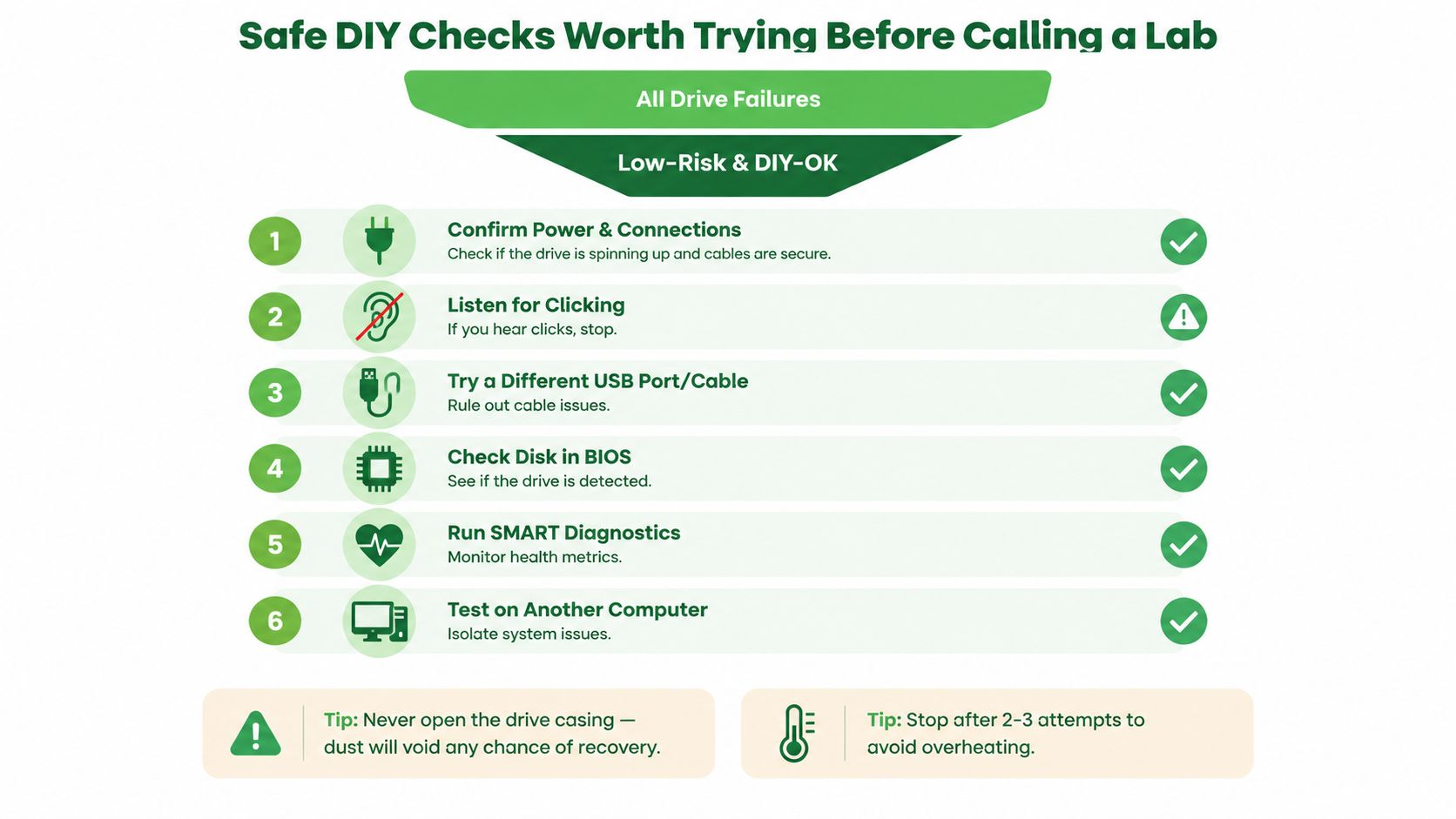
Check the power adapter, USB cable, port, and external enclosure. Try one known-good cable and one different port, preferably on another computer, but don't keep cycling through combinations if the drive makes abnormal sounds.
Listen during the first connection. A healthy-sounding spin-up with stable detection is different from clicking, buzzing, repeated spin-up and spin-down, or silence. If the sound changes, the drive heats quickly, or the computer freezes, disconnect it.
Confirm what the computer sees
If the drive appears in BIOS or the operating system with the correct model and capacity, the problem may be logical or limited to the enclosure. Don't accept an operating-system prompt to initialise or format it. A drive that reports the wrong capacity, shows as zero, or doesn't appear at all should be treated as a lab case unless a simple cable or enclosure fault clearly explains it.
SMART diagnostics can provide useful health information on a stable drive, but don't run a prolonged self-test on a device that clicks, stalls, or disconnects. The diagnostic itself makes the drive read its media.
Image before extracting
Use a read-only, sector-by-sector imaging workflow with a tool such as ddrescue or HDD Raw Copy. Save the image and its progress log to a separate healthy drive. If the source begins to slow, overheat, disconnect, or produce new sounds, abandon the attempt rather than repeatedly restarting it.
Only after a usable image exists should you try tools such as Recuva, R-Studio, or DMDE. Run them against the image and save recovered files to a different destination. These tools can help with deleted partitions, formatted volumes, and minor file-system corruption. They can't replace failed heads, repair platter scoring, free a seized motor, or correct an SSD controller fault.
For a focused walkthrough of the recovery workflow, these simple steps to recover deleted files can help when the drive is physically stable.
Never open the hard-drive casing at home. Dust and fingerprints can compromise the internal surfaces, and a board swap without transferring the drive's unique firmware data may make the situation worse. If the device fails any stop condition, the most useful DIY action is to package it safely and write down what happened.
What Recovery Actually Costs and Takes in Singapore
A failed drive can cost little to recover or require specialist hardware work. The deciding factor is the failure type, not the storage capacity. A deleted file on a stable HDD follows a different path from a clicking drive that needs cleanroom handling, while an SSD with controller damage requires another approach.
Published Singapore benchmarks provide a starting point. One local provider lists logical HDD recovery at 80–85%, untouched clicking or failed-head drives at 93%, and RAID or NAS arrays that have not been rebuilt at 95%. Its figures also place SSD logical recovery around 50%, SSD or flash controller and NAND failures at 88%, and promptly submitted water-damaged drives at up to 90% (CBL Data Recovery Singapore).
Treat these as scenario benchmarks, not promises. Repeated scans, drops, unsafe opening, and unnecessary power-ons can leave a specialist with a worse starting condition. For a clearer view of local pricing and outcomes, read this Singapore data recovery cost and success rate guide.
Price and timing by failure type
Singapore guidance places simple logical HDD recovery at about SGD 100–300, while physical damage starts at about SGD 400+. Head read/write damage is cited at around SGD 750–1,500. The same guide gives one to three days for simple logical recovery and three to seven business days for physical HDD work (Singapore data recovery pricing and timing guide).
| Failure Type | Typical Price (SGD) | Turnaround | Success Rate |
|---|---|---|---|
| Logical HDD failure | SGD 100–300 | 1–3 days | 80–85% benchmark |
| Physical HDD damage | SGD 400+ | 3–7 business days | Scenario-dependent |
| Head read/write damage | SGD 750–1,500 | 3–7 business days or longer | 93% benchmark for untouched clicking or failed-head cases |
| SSD logical failure | Provider-quoted | Case-dependent | Around 50% benchmark |
| SSD controller or NAND failure | Provider-quoted | Case-dependent | 88% benchmark |
| Unrebuilt RAID or NAS | Provider-quoted | Case-dependent | 95% benchmark |
Published Singapore FAQs show broader physical-recovery ranges of roughly SGD 700–2,500, with turnaround varying from about one to nine days according to the provider and case complexity (Singapore recovery FAQ pricing examples). Ask whether the quote covers diagnosis, donor parts, cleanroom work, imaging, file verification, and the destination storage device.
For a 1TB external HDD that suddenly stops being detected, test one known-good cable and enclosure path only if the drive stays quiet and spins normally. If it appears with the correct capacity, stop experimenting and arrange imaging or recovery from a suitable image. If it clicks, spins down, smells burnt, or remains absent from BIOS, request a physical assessment instead.
The symptom determines the likely recovery path. Urgency, obsolete donor parts, encryption, water damage, and previous DIY attempts can change the quote. Reject guarantees that ignore the failure category or promise a result before inspection.
When to Stop DIY and Hand the Drive to a Professional
Stop DIY as soon as the drive shows signs that its internal hardware can't operate safely. Don't wait for a scan to finish, and don't power it on “just once more” for confirmation.
These are professional-lab red flags:
- Clicking, beeping, scraping, or grinding: The heads or motor may be failing, and continued operation can damage the platter surface.
- Spin-up followed by silence: The drive may be unable to maintain operation or may be shutting down after internal errors.
- Burnt smell or damaged electronics: A failed PCB, surge, or melted connector needs controlled diagnosis.
- No BIOS detection: The computer can't communicate with the drive at a basic level.
- Rapidly worsening read errors: A deteriorating image attempt is a reason to stop, not to increase retries.
- Drop, flood, or power-surge history: Physical shock and contamination can create damage that ordinary software can't address.
A lab changes the process, not the laws of physics. Technicians can use controlled intake and chain-of-custody handling, cleanroom procedures for HDD internals, compatible donor parts, PCB work with firmware transfer, and specialist imaging equipment that manages unstable sectors. They can also separate the original media from the recovery work so file reconstruction doesn't repeatedly stress the source.
A quiet drive with a correct capacity, stable detection, and an accidental deletion or formatting problem may still be suitable for imaging at home. The moment physical symptoms enter the picture, that line disappears.
This short video gives a visual overview of the failure signals that should change your next step:
For handoff, power the drive down, place it in anti-static protection, and label the package with the symptoms, last known access time, and any drop, water, or surge history. Include the original cable and enclosure for an external drive when practical. A clear written description lets the lab triage the case without unnecessary power-on attempts.
From Recovered Files to Securely Retired Hardware
Recovery isn't finished when a folder opens. First, verify the recovered files on a separate healthy device. Open representative documents, photos, videos, and project files, and check whether the folder structure and filenames are usable. Don't treat a successful file listing as proof that every file is intact.
Then decide what the failed drive should become. A drive that suffered a logical problem may return to service only after a proper health assessment and secure reinitialisation. A device with unknown physical damage should not be trusted with sensitive information because it works again for a short time.
| Failure Type | Acceptable Endings | Required Step Before Disposal |
|---|---|---|
| Logical failure on a healthy drive | Reuse, resale, donation, or responsible recycling | Securely erase the data, then verify the process |
| Electronics or PCB failure | Specialist repair, parts recovery, or destruction | Confirm whether personal data remains accessible |
| Mechanical HDD damage | Specialist recovery followed by destruction or controlled recycling | Secure erasure where possible, or physical destruction |
| SSD controller or NAND failure | Specialist recovery followed by destruction | Use secure destruction when erasure can't be verified |
| RAID or NAS incident | Rebuild only after data and security review, otherwise controlled retirement | Document the disposition of every member drive |
Singapore's PDPC guidance on securing personal data on electronic media says organisations should dispose of personal data when it's no longer necessary and prevent the data from being recovered or disclosed. It recommends secure deletion, erasure, or destruction before storage media is redeployed, exchanged, or disposed of, with physical destruction when secure deletion isn't possible.
For physical media, IMDA's disposal guidance describes options including shredding, incineration, degaussing for magnetically recorded data, and physical crushing, drilling, or shredding. General e-waste collection alone doesn't prove that your old files can't be recovered, especially when the original fault is unknown.
A zero e-waste approach becomes practical. Save Data protects the files that matter, while Safe Data makes sure the retired hardware doesn't become a privacy risk. Repair, reuse, parts harvesting, and responsible destruction can sit in the same lifecycle, provided the data is secured before the hardware changes hands.
Your precious files and memories matter to us. Whether you need to protect your privacy with Safe data or rescue lost files with Save data, myhalo can help you take the next step responsibly in Singapore. Reach out before powering a suspicious drive on again, so your device has the strongest possible chance of recovery and a secure ending.