
How to convert mobile camera into webcam | myhalo
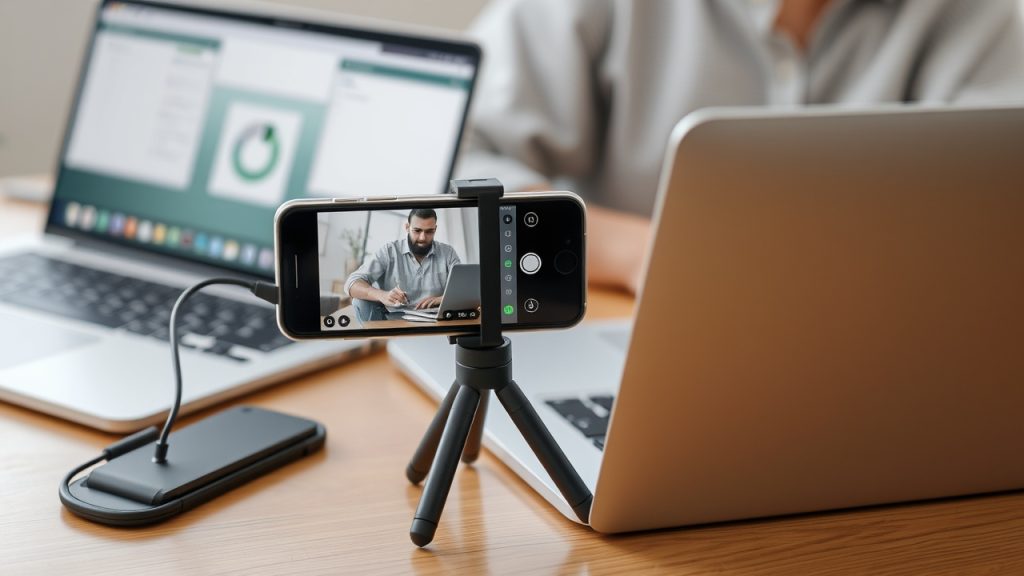
In today’s digital age, High-quality webcams are essential for effective communication, and a good webcam can significantly improve your video calls.. Learn how to turn your smartphone, whether it’s an iPhone or Android device, into a professional-grade webcam. This guide provides simple steps to use your phone as a webcam, enhancing your video call experience on any platform.
Introduction

The Rise of Remote Work and Video Calls
The shift towards remote work has amplified the importance of high-quality video communication. As webcams become a necessity for virtual meetings and online interactions, finding versatile and reliable solutions is crucial. Utilizing your mobile device offers a practical way to enhance video calls.
Why Use Your Smartphone as a Webcam?
Transforming the camera in your pocket into a webcam offers numerous advantages. Using your iPhone or Android phone provides superior video quality compared to many built-in laptop webcams, especially when using camo.. This allows you to leverage advanced camera features, ensuring professional video output for every Zoom or Google Meet session, especially with a good webcam.
Overview of the Process
Here’s how to transform your mobile device into a webcam. This guide covers several essential steps:
- Selecting the right webcam app, such as DroidCam or Iriun, can enhance your video quality.
- Installing the necessary software on both your phone and PC.
- Connecting your phone for use as a webcam for your PC can be done easily through a free version of various apps.
Understanding Your Device
Choosing Between Android and iPhone
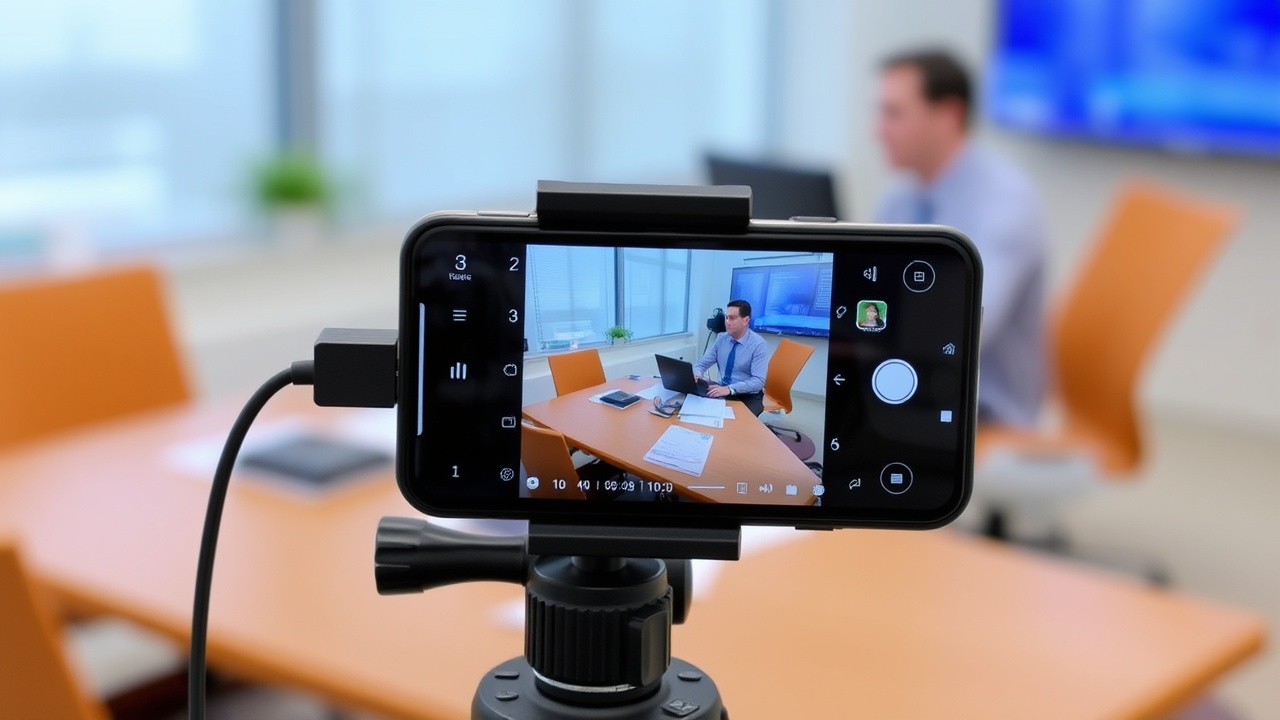
Deciding between using an Android phone or an iPhone as a webcam depends on your specific needs and preferences. Both operating systems offer unique advantages and a variety of apps to facilitate this functionality. Understanding these differences will help you select the best device for your needs.
System Requirements for Webcam Use
Before you turn your phone into a wireless webcam, ensure your device meets the necessary system requirements. This includes compatible operating systems (iOS, Android, Windows PC, macOS), sufficient processing power, and a stable Wi-Fi connection. Meeting these requirements guarantees a seamless webcam experience.
Recommended Apps for Mobile Webcam Functionality
Here are some apps that can transform your smartphone into a webcam, and popular choices include:
- DroidCam for Android
- Reincubate Camo for both iPhone and Android
These webcam app options enhance video quality and provide additional functionalities, such as portrait mode and advanced camera settings.
Setting Up Your Android Phone as a Webcam
Step-by-Step Guide Using DroidCam
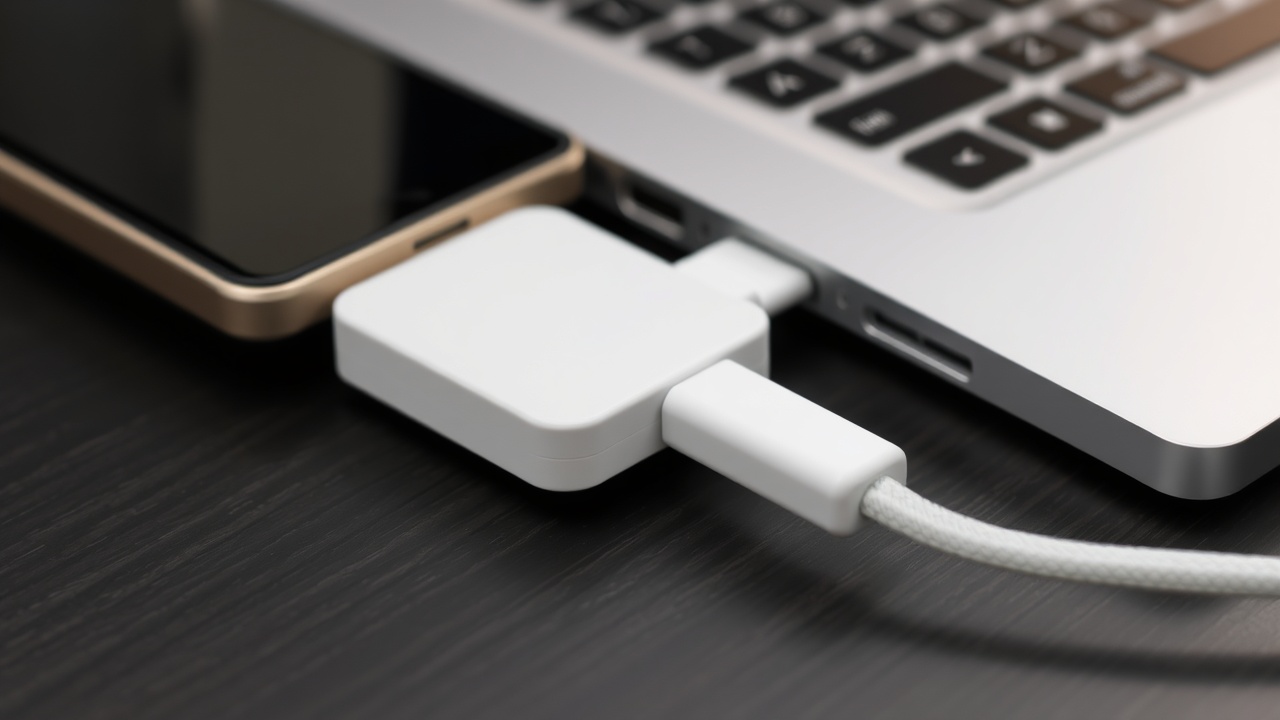
Here’s how to set up your Android phone as a webcam using DroidCam, which has a free version available. The initial steps involve getting the necessary applications:
- Download the DroidCam app on your phone from the Google Play App Store.
- Download the corresponding desktop app on your PC to set up your phone as a webcam without hassle.
After downloading, install both apps and ensure that both devices are connected to the same Wi-Fi network.
Configuring Settings for Optimal Performance
After installing DroidCam, launch the app on your phone and the app on your PC. The app on your phone will display an IP address and port number. Enter this information into the DroidCam client on your PC to connect your phone. Adjust video quality and other settings as needed.
Common Issues and Troubleshooting Tips
If you encounter issues using DroidCam, ensure both devices are on the same Wi-Fi network. Firewalls may block the connection; configure them to allow DroidCam or Iriun to pass through for seamless use. Restarting both your Android phone and PC can also resolve connectivity problems when you use your phone.
Using an iPhone as a Webcam
Recommended Apps for iPhone Users
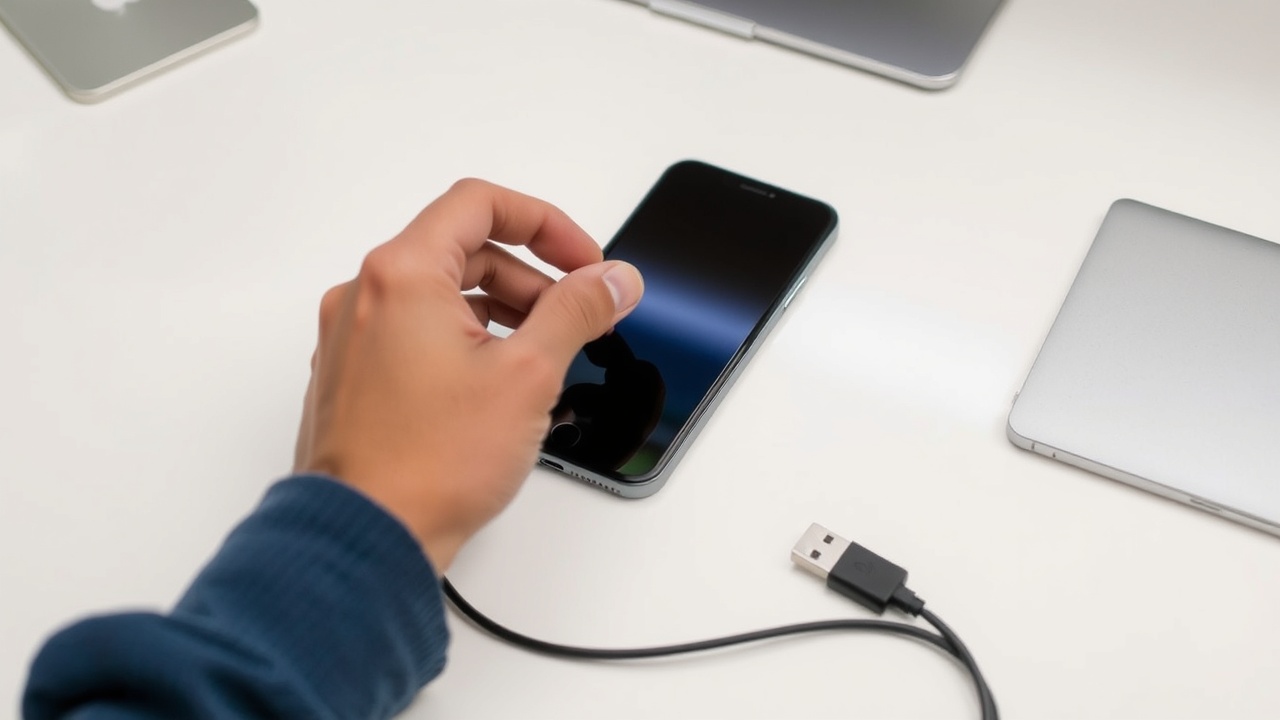
For iPhone as a webcam functionality, Reincubate Camo is a top recommendation, offering high video quality and extensive features. Another option is Continuity Camera, a built-in feature for macOS users, which lets you use your iPhone as a webcam. Choosing the right webcam app depends on your specific needs and integration preferences when you use your iPhone.
Setting Up Continuity Camera
Continuity Camera is a seamless way to use your iPhone as a webcam with macOS. Ensure both your iPhone and Mac are signed into the same Apple ID and have Bluetooth and Wi-Fi enabled. Your Mac should automatically detect your iPhone as a webcam option for video call applications.
Tips for Enhancing Video Quality
To enhance video quality when using your iPhone 13 as a webcam, ensure ample lighting and a stable Wi-Fi connection. Experiment with different angles and distances to find the most flattering setup. Consider investing in a phone stand to keep your iPhone steady during video call sessions.
Connecting Your Mobile Device to a PC
Wired vs. Wireless Connections
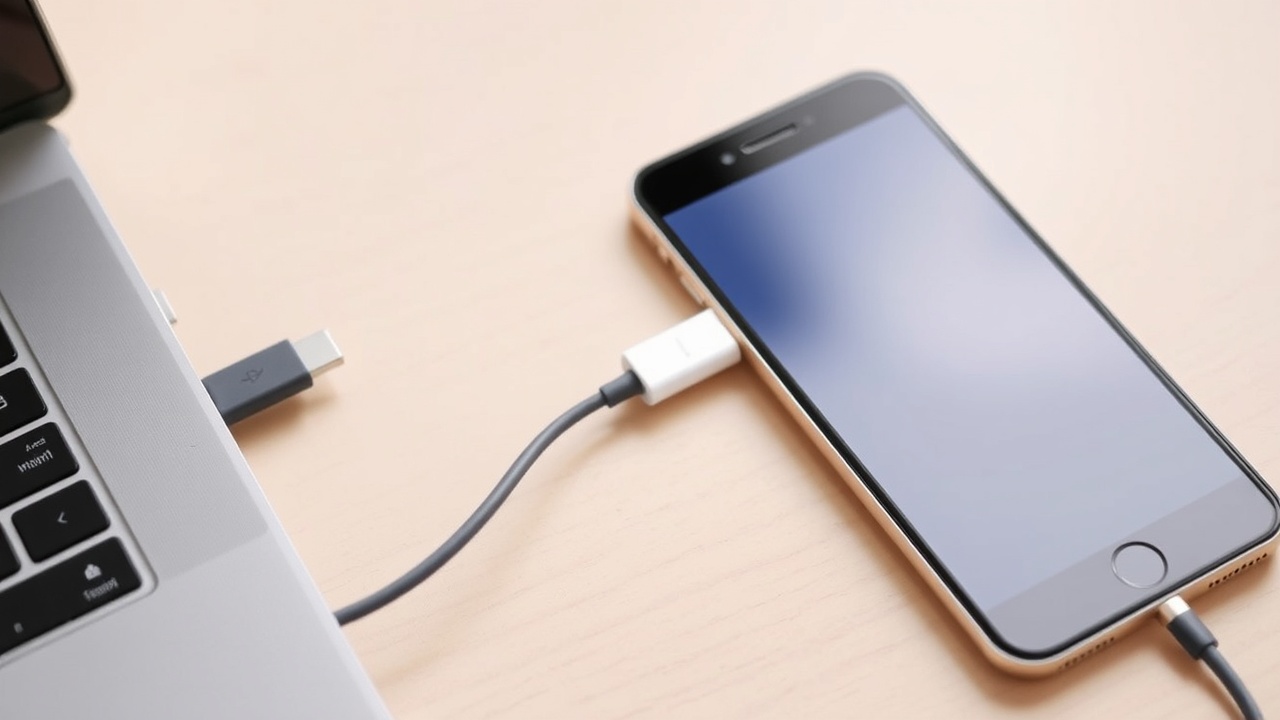
When connecting your phone to a PC for webcam use, you can choose between wired and wireless connections. Wireless connections offer convenience and flexibility, while wired connections provide a more stable and reliable connection, reducing latency and improving video quality when you turn your smartphone.
Software Options for PC Integration
Several software options facilitate the integration of your mobile device as a webcam on your PC. Reincubate Camo and DroidCam both require corresponding software on your PC to function correctly. These applications act as a bridge, allowing your computer to recognize and use your phone’s camera in your pocket.
Testing Your Setup Before a Video Call
Before joining an important video call, thoroughly test your webcam setup to preview everything and ensure it is working correctly. Open your PC’s camera settings or the video call application and verify that your mobile device is selected as the active webcam. Check the video quality and audio to avoid any last-minute issues when you want to use your phone as a webcam for your PC.
Using Your Smartphone for Video Calls
Best Practices for Zoom and Other Platforms
When participating in a video call on platforms like Zoom or Google Meet, ensure your webcam settings are optimized. Select your mobile device, whether it’s an Android phone or iPhone or Android phone, as the active camera and adjust the video quality to suit your internet bandwidth. This ensures a smooth and professional video call experience when you use your phone as a webcam without any interruptions.
Adjusting Camera Angles and Lighting
Proper camera angles and lighting are crucial for a professional video call appearance. Position your smartphone at eye level to avoid unflattering angles. Ensure adequate lighting from the front, avoiding harsh backlighting that can obscure your face. Experiment with different setups to find the most flattering and professional look when you use your phone as a webcam.
Maintaining a Stable Internet Connection
A stable Wi-Fi connection is essential for uninterrupted video call sessions. Before joining a call, test your internet speed to ensure it meets the minimum requirements for video quality. Close unnecessary applications that may consume bandwidth and, if possible, use a wired connection for a more reliable experience when you turn your smartphone into a webcam.
Additional Tips and Tricks
Enhancing Audio Quality for Calls
While high video quality is important, clear audio is equally crucial for effective communication. Use an external microphone or headset to minimize background noise and improve audio clarity. Most video call platforms offer noise cancellation settings; enable these to further enhance your audio quality when you use your phone as a webcam.
Using External Accessories for Better Performance
Consider investing in external accessories to enhance your webcam performance. A phone stand or tripod can stabilize your mobile device, ensuring a steady image. An external microphone improves audio clarity, while a ring light can provide consistent and flattering illumination when you turn your smartphone as a webcam for professional video call use.
Creative Ways to Use Your Webcam Setup
Your mobile device webcam setup can be used for more than just video calls. Use it for creating high-quality videos, live streaming, or even as a security camera. Experiment with different angles and settings to explore the full potential of your setup when you connect your phone to a PC or use it independently.
Conclusion
Recap of Key Points
This guide has covered how to turn your smartphone, whether it’s an Android phone or an iPhone or Android phone, into a versatile and high-quality webcam. By using dedicated webcam apps like DroidCam or Reincubate Camo, adjusting settings, and optimizing your environment, you can significantly enhance your video call experience.
Encouragement to Experiment with Mobile Webcam Use
Don’t hesitate to experiment with different settings, webcam apps, and accessories to find the perfect setup for your needs. Whether you’re using your iPhone or an Android device, the possibilities are endless. By exploring different options, you can discover creative and effective ways to use your phone as a webcam to enhance your communication and productivity.
Call to Action: Share Your Experience
We encourage you to try using your phone as a webcam and share your experiences with us. What webcam app did you find most effective? What tips and tricks did you discover? Share your insights in the comments below and help others turn their smartphone into a powerful communication tool, especially when on a video call.