
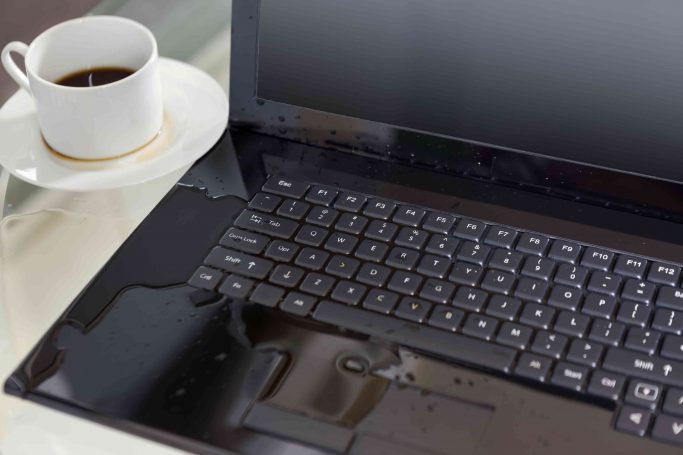
Oh no, has a water spill just happened to your beloved laptop? Don’t panic! It’s a common mishap, but one that requires immediate action. This guide is here to walk you through the crucial steps to take right after your laptop gets drenched, helping you understand the risks and significantly increasing your chances of saving your laptop from permanent damage.
Understanding the Risks of Water Spills on Your Laptop
It’s truly heartbreaking when you accidentally spill water on your laptop. Many of us have experienced that dreadful moment when liquid on your laptop threatens to turn your day upside down, especially when you spilled some water hours ago. The immediate aftermath of a spill can be a race against time, as water and electronics are notoriously bad companions. Understanding why water damage is such a big deal is the first step in knowing how to act fast and effectively to mitigate the potential harm to your precious device after you spilled water on my laptop.
How to Save Your Laptop After Water Spillage — How Water Damage Occurs
When water spills on your laptop, it can seep into every nook and cranny, reaching internal components that are incredibly sensitive to moisture and need 24 to 48 hours to dry. This isn’t just about the immediate short circuit; water can cause corrosion over time, silently eating away at delicate circuits even if your laptop seems to be working fine initially. Even a small amount of distilled water inside can lead to significant problems down the line, affecting your RAM, motherboard, and even your hard drive. The longer the water sits, the more damage to happen can occur.
Common Causes of Accidental Spills
Life happens, and sometimes, so do accidental spills. Whether it’s a knocked-over coffee cup on your keyboard, a sudden downpour catching your open bag, or just a clumsy moment with a glass of water, liquid damage to laptops is unfortunately common. These accidental spills can range from a few drops of tap water to a complete drenching of your laptop, which can lead to serious laptop repair services. Often, we don’t realize the extent of the water inside until it’s too late, which is why swift and decisive action is absolutely critical whenever you spill water on your laptop to avoid needing laptop water damage repair.
Signs of Water Damage on Laptops
Even if your laptop seems to be working perfectly fine after a spill, don’t be fooled; water damage can be insidious. Some immediate signs might include flickering screens, erratic keyboard behavior, or a laptop keyboard that simply won’t respond. won’t turn on. However, delayed symptoms like slow performance, unexpected shutdowns, or a battery that won’t hold a charge can also point to hidden corrosion from the remaining water inside. If you’ve spilled liquid and notice any of these signs, it’s time to act fast.
Immediate Actions to Take After a Spill
Powering Down Your Laptop
The very first and most critical step after you’ve accidentally spilled water on your laptop is to power it down immediately and place the laptop upside down. Every second counts when there’s liquid on your laptop immediately, as much water can lead to severe issues. Here’s what you need to do:
- Hold down the power button until the screen goes black. This is your quickest way to cut off power and prevent further damage.
- Don’t wait to properly shut down; just turn the laptop off as quickly as possible.
This swift action can dramatically reduce the risk of a short circuit to delicate internal components like the RAM or motherboard, which are highly susceptible to water damage, and save your laptop from more extensive corrosion.
Disconnecting Peripherals and Power Sources
Once your laptop is powered down, the next crucial step is to unplug everything connected to it. Disconnecting these peripherals helps to eliminate any remaining electrical current that could potentially cause further damage, especially if water has seeped into the ports. Remember, water and electronics are not friends, and any lingering power can contribute to more significant liquid damage. By unplugging everything, you’re taking another proactive step to protect your device after the unfortunate spill and allowing the laptop to dry. Specifically, you should unplug:
- The power adapter
- Any USB devices that might be affected by spilled water on my laptop should be removed immediately.
- External monitors
- And even your mouse
Removing the Battery (if possible)
If your laptop has a removable battery, this is the moment to gently take it out to prevent potential laptop water damage repair. Removing the battery completely severs the primary components of your laptop, reducing the risk of damage. power source, significantly reducing the risk of a short circuit and further water damage. This step is absolutely vital for several reasons:
- Minimizing the potential for corrosion.
- Giving your laptop the best chance of survival after a water spill means placing the laptop upside down to allow it to dry properly.
Many modern laptops no longer have easily removable batteries, but if yours does, carefully release the latch and lift it out. If you can’t remove the battery, don’t force it; instead, turn off the laptop to prevent further damage.
Drying Your Laptop Safely
Using Absorbent Materials
After you’ve successfully powered down and unplugged everything, the next step in saving your laptop from extensive water damage is to hold the power button and address the visible liquid. Gently blot away any excess water on your laptop, especially from the keyboard and screen, using a soft, lint-free cloth or paper towels. You can also try carefully tilting the laptop to allow any trapped liquid to drain out, making sure no more water gets inside. Placing the laptop on an absorbent towel can help draw out any remaining moisture. Remember, every drop of water removed lessens the risk of corrosion and helps to save your laptop.
Air Drying Techniques
Once you’ve blotted away the surface moisture, it’s time to leave your laptop to dry for at least 24 to 48 hours. Place the laptop in a well-ventilated area, ideally upside down in a “tent” shape, to allow gravity to help drain any remaining water inside. If your laptop has a removable battery, ensure it’s out. Avoid using direct heat sources like hair dryers, as extreme heat can damage internal components. Instead, you can place the laptop near a fan or use desiccant packs (like silica gel) to absorb moisture. Give your laptop plenty of time to dry completely—at least 48 to 72 hours—after hours ago I spilled some water before even thinking about turning it back on.. Patience is key to preventing further liquid damage.
When to Seek Professional Help
Even if your laptop seems to be working fine after a thorough drying, it’s always a good idea to consider professional help, especially if a significant amount of water spilled. A professional repair service can open up your laptop, thoroughly clean any residue, and check for hidden corrosion That might not be immediately apparent, especially if you spilled some water hours ago. They can identify if the RAM, motherboard, or other internal components have suffered irreversible liquid damage and recommend the best course of action to help the laptop to dry. Don’t hesitate to visit a trusted repair shop; their expertise in laptop water damage repair can often save your laptop from long-term issues and ensure it works perfectly fine for years to come.
Preventing Future Water Spills on Your Laptop
Best Practices for Keeping Liquids Away
Once you’ve successfully navigated the immediate aftermath of a water spill and your laptop seems to be working fine, it’s time to think about how to prevent such stressful incidents from happening again. Adopting some simple best practices can significantly reduce the risk of future water spills on your laptop. Always keep beverages, especially open containers of water, coffee, or soda, away from your workspace. A little distance can make a big difference! Also, avoid eating or drinking directly over your keyboard. These small, mindful changes can save your laptop from potential liquid damage and help you avoid the panic of accidentally spilled water again.
Using Protective Accessories
Investing in protective accessories is a smart way to safeguard your laptop from unexpected liquid damage and minimize the risk of spilled water on my laptop.. Consider a high-quality keyboard cover; these thin, transparent silicone covers can act as a shield, preventing liquid from seeping into your keyboard and reaching sensitive internal components like the RAM. Furthermore, a water-resistant laptop sleeve or bag can offer an extra layer of protection when you’re on the go, protecting against accidental splashes or light rain. These accessories are relatively inexpensive compared to the cost of a professional repair service, and they offer immense peace of mind, helping to save your laptop from future water spills.
Creating a Spill-Free Environment
Transforming your workspace into a spill-free zone is a proactive step that can help save your laptop from water damage.. Think about stable surfaces for your drinks; perhaps a travel mug with a secure lid is a better choice than an open glass. Designate a “no-liquid zone” around your laptop, creating a physical barrier to keep drinks at a safe distance. Keeping your workspace tidy also reduces the chances of accidentally knocking over a glass of water. By being thoughtful about your environment, you minimize opportunities for water to spill on your laptop, ensuring your device works perfectly fine and you avoid the hassle of liquid on your laptop, which can lead to laptop repair services.