
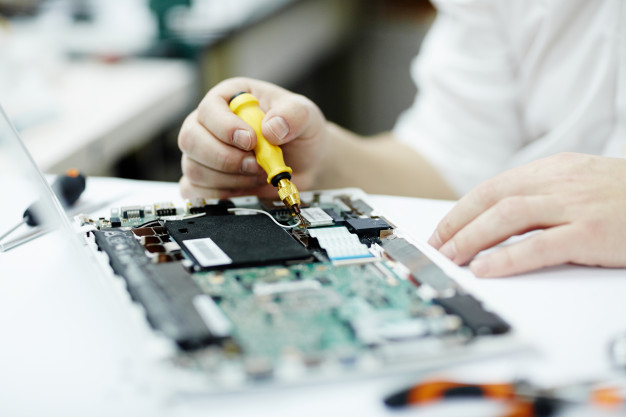
Your laptop is a daily companion, and when a common laptop problem appears, it can feel overwhelming. This friendly guide helps you troubleshoot with confidence, reduce e-waste, and fix common laptop issues safely. We’ll highlight problems and how to fix them, and when to seek professional repair.
Understanding Common Laptop Issues
Before you rush to a repair shop, learn how to troubleshoot and fix your laptop with a simple, honest plan. We’ll outline common problems, a caring troubleshooting guide, and expert tips for effective resolutions. It’s essential to recognize signs that point to hardware issues versus software glitches to address common issues effectively., saving time, money, and unnecessary computer repair.
Overview of Common Laptop Problems
From slow performance and sudden shutdowns to a flicker on the laptop screen, common laptop issues often repeat across models. The 10 most common laptop problems include malware, overheating from dust, hard drive errors, adapter faults, startup loops, and five of the most common motherboard concerns.
Why Self-Diagnosis is Important
Early self-diagnosis reduces costs and e-waste by identifying issues and how to fix them promptly. By spotting symptoms, you can decide between a quick at-home troubleshoot and a repair service. Transparent steps also help a technician at a computer repair shop resolve your laptop repair faster and cheaper.
Common Causes of Laptop Issues
Frequent culprits include clogged vents, malware, failing hard drive sectors, weak adapters, outdated drivers, and physical damage. Some stem from software, others a hardware issue like the motherboard. Calm checks help separate problems and how to repair from problems and how to fix safely.
Slow Performance: Causes and Solutions
Slow performance can make your laptop feel years older. Symptoms appear during startup, when launching apps, or browsing. Try step-by-step troubleshooting, then upgrades like an SSD and cleaning with compressed air. These caring, eco-friendly tips boost your laptop’s performance without waste.
Problem 1 — Slow Laptop Performance: Identifying Symptoms and How to Repair It
Notice long startup times, freezing apps, hot palm rest, loud fans, and tab-switching lag. The laptop may overheat, the drive may click, or malware pop-ups appear. If the laptop’s performance improves in Safe Mode, software issues can be resolved; if not, suspect a deeper hardware issue.
Common Causes of Sluggishness
Slowness often traces to Common issues include malware, limited memory, aging hard drives, bloatware, thermal throttling from dust, or underpowered adapters.. Occasionally, a motherboard sensor or driver conflict is at fault. Pinpointing causes helps you fix common laptop problems efficiently and kindly.
Effective Solutions to Boost Speed
Run malware scans, remove bloatware, trim startup apps, clean vents, and upgrade to an SSD. Keep drivers updated, and check power settings to ensure your laptop back remains efficient. If performance stays poor, visit a trusted laptop repair services technician to fix your laptop thoughtfully.
Dealing with Display Issues
When a laptop screen shows a flicker, odd colors, or goes black, it can feel alarming. This friendly troubleshooting guide will help you troubleshoot and fix display-related laptop issues, clarify whether the cause is software, hardware, or the adapter, and suggest when to seek professional repair at a computer repair shop.
Types of Display Problems
Common laptop display symptoms include You might experience flicker, dim backlight, dead pixels, ghosting, or no image despite power, which are quite common issues.. You might also see lines during startup, color shifting, or images that tear while scrolling. These common problems appear across the five of the most common laptop problems list.
Troubleshooting Display Malfunctions
Check brightness keys, toggle display output, and update graphics drivers. Boot into Safe Mode to rule out malware and driver conflicts. If the screen still flickers, gently adjust the lid angle to test the cable. Persistent failures suggest a hardware issue like the cable, panel, or motherboard.
Fixing External Display Connections
If using an external monitor, swap cables/ports, reseat adapters, verify input source, and try another display To isolate the laptop problem, hold the power button for 30 seconds to reset the device. Update GPU firmware and drivers, and power-cycle the adapter and docking station. If nothing works, a technician can diagnose port damage or motherboard faults.
Problem 1 — Laptop Overheating: Causes and How to Repair It
Overheat is a common laptop problem that quietly drags down the laptop’s performance. With patient steps, you can fix your laptop kindly and reduce e-waste. We’ll walk through signs, causes, and problems and how to fix them at home, plus when a caring repair service or laptop repair services visit makes sense.
Signs of Overheating in Laptops
Watch for Signs of battery issues include hot palm rests, roaring fans, sudden shutdowns, sluggish performance from throttling, and heat near the vent.. Games or video calls may stutter, indicating that your laptop is running slower than usual. The laptop may freeze during startup, and if the battery swells, you might need to replace the battery to resolve the issue. Consistent heat often points beyond malware to cooling or hardware issue concerns.
Common Causes of Overheating
Dust-blocked vents/heatsinks, dried thermal paste, failing fans, and underpowered adapters are typical. Heavy background apps, malware, and aging hard drive friction add strain. In rare cases, a motherboard sensor misreads temperatures, causing unnecessary throttling.
How to Repair Overheating Issues
Shut down, unplug, and clean vents with compressed air. Elevate the rear for airflow, remove bloatware, and scan for malware. Replace dried thermal paste and a worn fan if comfortable, or visit a repair shop. Consider an SSD upgrade to reduce heat from a spinning hard drive.
| Action | Purpose/Notes |
|---|---|
| Shut down, unplug, and clean vents with compressed air | Improve cooling and remove dust buildup |
| Elevate the rear for airflow | Enhance ventilation under the device |
| Remove bloatware and scan for malware | Reduce background load and potential overheating |
| Replace thermal paste and worn fan, or visit a repair shop | Restore cooling performance if you are comfortable, or seek professional help to troubleshoot common issues. |
| Consider an SSD upgrade to resolve the issue of a full hard drive. | Lower heat compared to a spinning hard drive |
Resolving the Blue Screen of Death
The Blue Screen of Death can feel scary, but with a calm troubleshooting guide you can troubleshoot and fix many causes at home. We’ll explain what the error means, how to isolate a software or hardware issue, and when a friendly repair service or computer repair shop visit is the safest path.
Understanding the Blue Screen Error
A blue screen usually appears during startup or under load when Windows halts to protect your laptop. Common triggers include faulty drivers, malware, failing drives, overheating, bad memory, or motherboard faults. Reading the stop code helps you fix common laptop issues methodically and avoid needless part swaps.
Troubleshooting Steps for Blue Screen Issues
Note the stop code, boot into Safe Mode, update/roll back drivers, scan for malware, and undo recent changes. Check temperatures, clean dust with compressed air, and run disk checks on the hard drive. If crashes persist, test RAM and the adapter.
| Action | Details |
|---|---|
| Initial troubleshooting | Note the stop code, boot into Safe Mode, update or roll back drivers, scan for malware, undo recent changes |
| Hardware and stability checks | Check temperatures, clean dust with compressed air, run disk checks, test RAM and the adapter |
When to Seek Professional Help
Get professional repair if blue screens continue after clean boots, malware removal, and driver fixes. Signs include hard drive clicking, repeated restarts, or a suspected motherboard fault. A caring technician at a trusted service can help troubleshoot common laptop issues. laptop repair services provider or repair shop can quickly diagnose and repair your laptop with transparent costs.
5 Common Laptop Problems and How to Repair Them
Beyond the blue screen, several common problems crop up across the 10 most common laptop problems list. We’ll cover unresponsive behavior, a friendly set of 5 common laptop fixes, and expert tips for long-term care. These tips help you fix your laptop thoughtfully while reducing e-waste and boosting your laptop’s performance.
Unresponsive Laptop Issues
If your laptop freezes, first check for battery issues. power off, unplug the adapter, and hold the power button to discharge. Listen for fan noise and check for overheat. Boot again and remove bloatware, scan for malware, and check the hard drive. Persistent freezes may indicate a hardware issue, especially RAM or motherboard concerns.
5 Common Laptop Problems and Fixes
Slow performance can lead you to run into problems with your laptop running efficiently. You can resolve common issues by removing bloatware, upgrading to an SSD, or removing the battery for maintenance. Wi‑Fi drops: update drivers, reset the adapter. Screen flicker: update GPU drivers, check the laptop screen cable. Battery drain is one of the frustrating laptop issues that can affect performance. adjust power plans. Random shutdowns: clean dust buildup and monitor temperatures.
| Issue | Suggested Actions |
|---|---|
| Slow performance | Remove bloatware; upgrade to an SSD; clean the vent with compressed air |
| Wi‑Fi drops | Update drivers; reset the adapter |
| Screen flicker | Update GPU drivers; check the laptop screen cable |
| Battery drain | Adjust power plans |
| Random shutdowns | Clean dust buildup; monitor temperatures |
Long-Term Maintenance to Avoid Issues
Monthly care—clear vents, update drivers, run malware scans, back up data, and monitor drive health—prevents many issues. Use a quality adapter. These caring habits reduce trips for computer repair and extend your laptop’s happy lifespan.