
Are you contemplating giving your computer a much-needed boost? Upgrading RAM can significantly enhance your system’s performance, making your daily tasks smoother and more efficient. But before you dive into purchasing new memory modules, there are a few important things to consider. Let’s explore the ins and outs of RAM upgrades together and see how much memory you might want to upgrade!
Understanding RAM and Its Importance
What is RAM?
RAM, or Random Access Memory, is a super-fast type of temporary storage that your computer uses to hold data that’s actively being worked on. Think of it as your computer’s short-term memory, allowing your CPU to quickly access information without having to constantly fetch it from slower storage devices like an SSD, which is crucial for effective overclocking. Having enough RAM is crucial for multitasking and running demanding applications smoothly.
Why Upgrade Your RAM?
Upgrading your RAM is one of the most impactful ways to improve your computer’s responsiveness and overall system performance. If you frequently find your computer slowing down, struggling with multiple applications open, or experiencing delays, then a RAM upgrade could be the perfect solution. Adding more RAM can help alleviate bottlenecks, making everything from browsing the web to video editing feel much snappier.
Physical Memory Explained
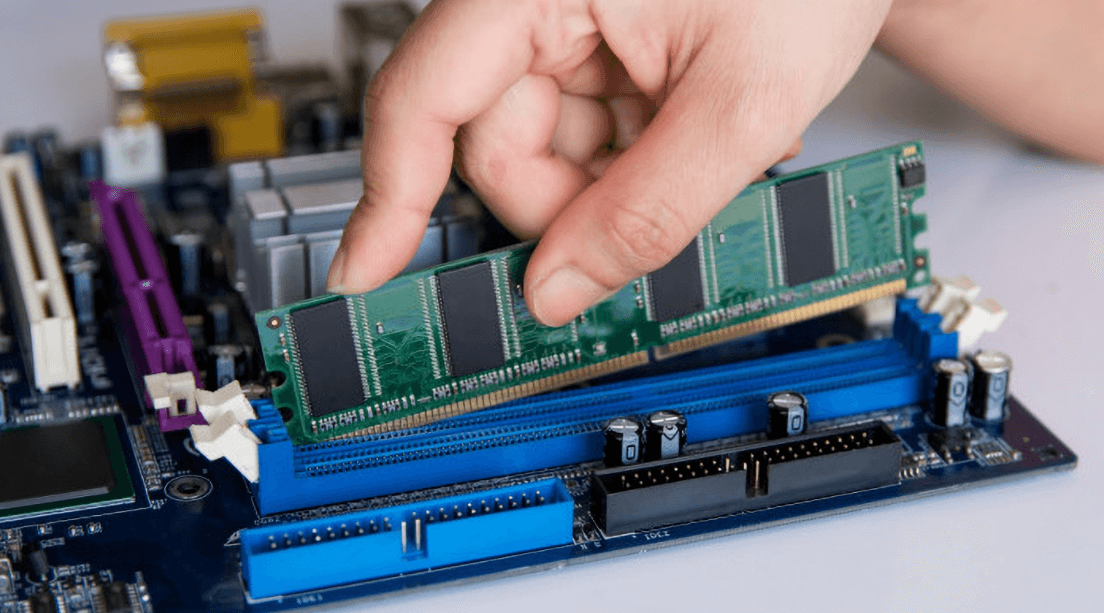
Physical memory refers to the actual RAM sticks, often called DIMMs, that you insert into your motherboard. These memory modules come in various capacities, like 8GB, 16GB, or even 32GB, and different types, such as DDR4 and the newer DDR5. Understanding the type and amount of RAM your system currently uses, and what your motherboard supports, is a vital first step before you start planning on upgrading your PC’s RAM.
Assessing Your Current Needs
Before you get excited about upgrading RAM, it’s really helpful to take a moment to assess your current computing habits and determine if a RAM upgrade is truly what your system needs. Understanding how you use your computer and what might be limiting its system performance will guide you to make the most informed decision about upgrading your PC’s RAM.
Do You Need More RAM?
Many users wonder if they truly need more RAM. The answer often depends on your specific usage and the amount of memory you need for optimal performance. If you find your computer struggling with everyday tasks, or if you’re experiencing slowdowns when running multiple applications simultaneously, then it might be time to buy RAM for a memory upgrade. adding more RAM could be a fantastic solution. It’s one of the most effective things to consider when you want to boost overall responsiveness.
Identifying RAM Usage
To accurately identify your RAM usage, a great tool at your disposal is the Task Manager on Windows (or Activity Monitor on macOS). Head over to the Performance tab and observe the Memory section. This will give you a real-time snapshot of how much RAM your applications are consuming, helping you decide if your current RAM capacity, whether it’s 8GB, 16GB, or even 32GB, is enough or if a RAM upgrade is imminent.
Signs You Need to Upgrade
There are several clear signs that indicate you need to upgrade your RAM. You might notice this if your current memory capacity is insufficient for your tasks.
- Your computer frequently lags, experiences stuttering, or takes a long time to switch between applications.
- Your hard drive light is constantly active, even when you’re not actively saving files, which could mean your system is relying too heavily on virtual memory on your SSD.
These are strong indicators signaling a clear need for an upgrade.
Choosing the Right Type of RAM
Once you’ve determined that upgrading the RAM is the right step for you, the next crucial phase involves choosing the correct spec of RAM to ensure maximum compatibility and performance. This isn’t just about picking the biggest capacity; it’s about ensuring compatibility with your existing hardware and optimizing for the best possible system performance in your PC building journey. Let’s explore the key factors to consider before upgrading.
Different Types of RAM
The world of Random Access Memory offers various types, with DDR4 and the newer DDR5 being the most common for modern motherboards. Each generation, like DDR4, offers different speeds and characteristics. It’s really important to know which type your motherboard supports, as an incorrect type of RAM will simply not function, making your exciting memory upgrade journey a bit frustrating.
Understanding DIMM and SO-DIMM
When you’re looking at RAM sticks, you’ll encounter two main physical forms: DIMM and SO-DIMM. DIMMs are the standard memory modules typically found in desktop PCs, characterized by their longer size. SO-DIMMs, on the other hand, are smaller and specifically designed for laptops and other compact systems. Knowing which form factor your computer uses is essential for ensuring your new RAM physically fits into the available slot.
Compatibility with Motherboard
Compatibility with your motherboard is perhaps the most critical aspect of choosing new RAM, especially when considering the spec for your memory upgrade. Your motherboard dictates not only the type of RAM it supports (e.g., DDR4 or DDR5) but also the maximum amount of RAM, the number of available RAM slots, and even the supported RAM speed. Consulting your motherboard’s manual or the manufacturer’s website will provide all the necessary specifications, including details about the memory controller, to ensure a seamless RAM upgrade.
Evaluating RAM Speed and Capacity
How Much RAM Should You Upgrade To?
Deciding how much RAM you need to upgrade to can feel like a big decision, but it largely depends on what you use your computer for. For casual browsing and basic tasks, 8GB might suffice. However, if you’re multitasking with several applications, playing games, or doing creative work, jumping to 16GB or even 32GB will provide a much smoother experience and significantly boost your system’s performance. It’s one of the most impactful things to consider for a substantial RAM upgrade.
Understanding RAM Speed and Its Impact
Beyond just the amount of RAM, understanding RAM speed is also crucial for optimizing your computer’s performance. RAM speed, measured in MHz, dictates how quickly your memory module can process data. Faster RAM can significantly improve your CPU’s access to data, leading to snappier application loading and overall better responsiveness, particularly when you have a higher amount of memory. While compatibility with your motherboard is key, selecting a higher speed within your system’s capabilities, often enabled through XMP profiles on Intel systems, can provide a noticeable performance boost.
Dual-Channel vs. Single-Channel RAM
When planning on upgrading your RAM, a really important aspect to consider is whether your system is running in single-channel or dual-channel mode. Dual-channel configurations, where RAM sticks are installed in specific, matching slots, allow your memory controller to access data simultaneously from two memory modules, effectively doubling the memory bandwidth. This often leads to a significant increase in system performance compared to a single-channel setup, especially in tasks that are CPU-intensive or graphics-heavy, so it’s a wise thing to consider for any RAM upgrade.
Final Considerations Before Upgrading
Budgeting for Your RAM Upgrade
Budgeting for your RAM upgrade is an important step to ensure you get the best value without overspending. RAM prices can vary based on capacity, speed, and brand. It’s helpful to set a realistic budget and then explore options that offer the best balance of price and performance for your specific needs, especially regarding memory capacity. Remember, a RAM upgrade is an investment in your computer’s longevity and efficiency, making it one of the most worthwhile things to consider.
Graphics Card Considerations
When considering a RAM upgrade, it’s also worth thinking about how it interacts with your graphics card, especially if you have an integrated GPU that shares system memory. While dedicated graphics cards have their own video RAM, integrated graphics rely on your computer’s RAM. Adding more RAM or opting for faster RAM can directly benefit the performance of integrated graphics, enhancing gaming and multimedia experiences, making it a valuable thing to consider for your overall system performance.
Installation and Configuration Tips
Installing new RAM sticks might seem daunting, but it’s generally a straightforward process. Always ensure your computer is powered off and unplugged before starting any memory upgrade. Gently open your PC case, locate the RAM slots on your motherboard, and firmly press the new RAM modules into place until the clips secure them. After installation, your system should automatically detect the new RAM. For optimal performance, especially with faster RAM, remember to enable the XMP profile in your BIOS settings to ensure your RAM runs at its advertised speed, completing your seamless RAM upgrade journey.