
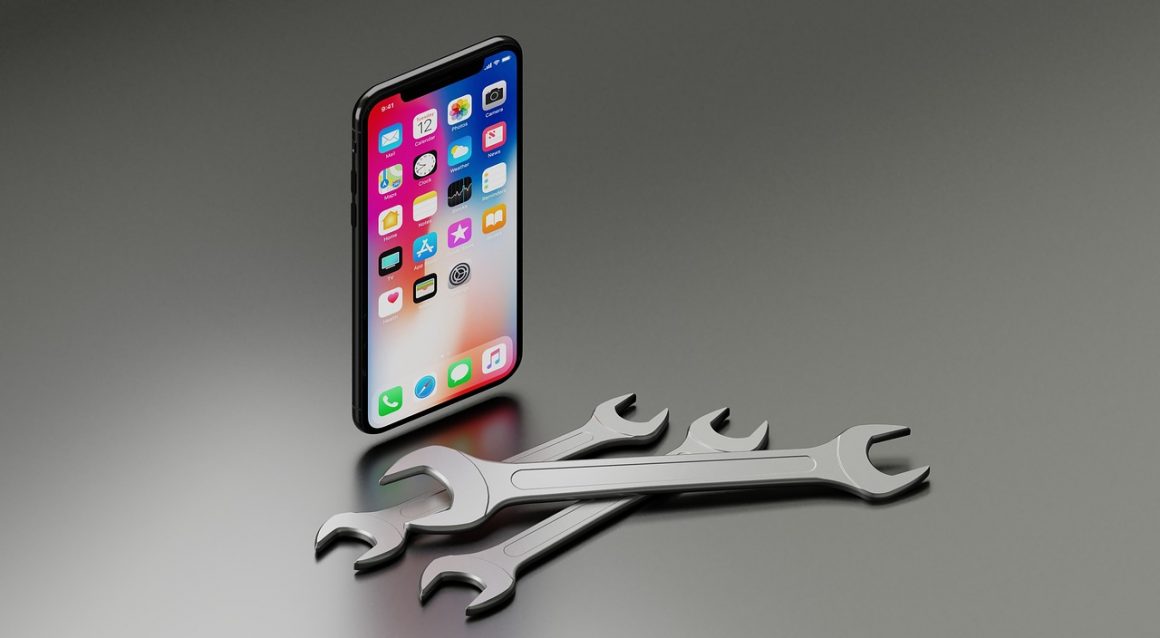
If your Apple iPhone is acting up, you’re not alone. This friendly guide walks iPhone users through 8 common iPhone problems and their solutions so you can fix the problem without stress. We’ll help you troubleshoot calmly, protect battery life, and reduce e-waste by avoiding unnecessary replacements. Let’s keep your iOS device happy, healthy, and running smoothly together.
Understanding Common iPhone Problems
From battery drain to an iPhone stuck on the Apple logo, many common issues share simple roots like software glitches, worn chargers, or dusty charging ports. Knowing when to restart, update iOS, or reset network settings can quickly fix everyday hiccups. We’ll explore how connectivity, apps, and battery health interact so you can troubleshoot confidently and avoid a repair shop visit unless truly needed.
Overview of Common iPhone Issues
Among eight common iPhone problems, you’ll often see battery drainIf you’re experiencing iPhone not charging, iPhone overheating, and Wi‑Fi or Bluetooth connectivity troubles, these problems persist for many users. Others include a black screen, an unresponsive touch screen or Home button, Face ID failures, and being stuck on the Apple logo, which are common causes and solutions for iPhone issues. Many iPhones also face App Store glitches, notification delays, and screen issues tied to iOS version or software update timing, which may require screen repair.
| Category | Here are some examples of common problems with your iPhone and their practical solutions. |
|---|---|
| Power & Performance | If you’re facing battery drain, iPhone not charging, or iPhone overheating, consider updating to the latest iOS version. |
| Connectivity | Wi‑Fi or Bluetooth troubles |
| Display & Input | black screen, unresponsive touch screen or Home button |
| System & Software | Face ID failures, stuck on Apple logo, App Store glitches, notification delays, screen issues tied to iOS version or update timing |
Identifying Problems as an iPhone User
Start by noting when the common problem appears: after a software update, a new app, or using a specific charger, especially if you have an old iPhone. Check if the Apple logo appears and freezes, if the iPhone screen is black but vibrates, or if the SIM or router change broke Wi‑Fi. Look at battery health and background apps; go to settings to turn off Background App Refresh, test the charging port, and confirm network settings. Before deeper steps, check if the iPhone home button is functioning properly.
The Importance of Troubleshooting
Thoughtful troubleshooting helps fix issues fast, saves money, and reduces e-waste, making it essential to explore all potential solutions. Simple actions—restart, force restart, reset network settings, or update iOS—often restore stability. If it still doesn’t work, you’ll know when an iPhone repair or repair shop is wise, especially if screen repair is needed. Clear steps preserve your iPhone battery, protect data, and keep your device reliable and fun to use.
Battery-Related Issues
Battery life worries top the list of common iPhone problems, but many have simple fixes that protect your iPhone battery and the planet. As an iPhone user, start with gentle steps: restart iOS, check battery health, and review apps causing drain. If a software update recently installed, watch for software glitches. Clean the charging port safely, verify the charger, and reset network settings if connectivity keeps your phone awake.
| Issue/Action | What to Do |
|---|---|
| Battery drain | Restart iOS, check your passcode, and ensure your SIM card is functioning correctly, as these are potential solutions for connectivity issues. battery health, review apps causing drain |
| After updates | Watch for software glitches |
| Charging or connectivity issues can often be resolved by checking the battery and ensuring the charger is functioning properly. | Clean the charging port, verify the charger, reset network settings |
Common Causes of Battery Drain
Rapid battery drain often traces to background activity, a weak Wi‑Fi or Bluetooth link, or a screen issue keeping the iPhone screen active. Turn off Background App Refresh, trim notifications, and manage location services. Poor router range, a flaky SIM, or iOS version bugs can nudge iPhones to work overtime. Check for App Store auto-downloads, misbehaving apps, and Face ID attention features that spike usage when unresponsive, and consider deleting unused apps to improve performance.
| Possible Cause | Action |
|---|---|
| Background activity can lead to excessive battery drain and may require installing the latest software upgrades for optimal performance. | Turn off Background App Refresh; trim notifications |
| Location and connectivity (Wi‑Fi/Bluetooth, poor router range, flaky SIM) | Manage location services; check network strength, SIM status, and ensure compatibility with your apps. |
| Screen staying active | Review settings that keep the display on |
| iOS version bugs or misbehaving apps | Identify problematic apps; review updates and behavior |
| Auto-downloads and Face ID attention features | Check App Store auto-downloads; review Face ID attention settings |
Troubleshooting iPhone Battery Problems
To troubleshoot kindly and effectively, start simple: hold the side button and restart. If the common issue returns, update iOS, review battery health analytics, and reset network settings to calm connectivity loops. Calibrate by charging to 100% and letting it rest, ensuring that no apps are running in the background. Inspect the charging port for lint, and try an official charger. If it still doesn’t work, note patterns—notifications, bluetooth, or wi-fi use—before considering an iphone repair or repair shop.
Fixing iPhone Not Charging Issues
When iphone not charging appears, don’t panic. First, test another cable and charger, then gently clean the charging port. Try a force restart by quickly pressing and releasing the volume up button, then the volume down button, and hold the side button until the Apple logo appears. Disable cases that trap heat to prevent iphone overheating. If the apple iphone is stuck on low power or the charge is unresponsive, update to the latest iOS version and reset. Seek repair only if persistent.
Screen and Touch Issues
Screen issues can feel scary, but many have quick solutions that save time and e-waste. Whether it’s a black screen, an unresponsive touch screen, or a quirky home button, start with a restart and careful observation. Check for software update prompts, recent apps, or drops causing common problem symptoms. Keep your data safe, fix the problem calmly, and celebrate small wins as you troubleshoot with honesty and care.
Dealing with Black Screen Problems
If the iPhone screen is black but you sense life—vibrations, sounds—try releasing the volume up button to see if it responds. force restart: volume up button, volume down button, then hold the side button until the apple logo appears. This often clears software glitches. If iphone stuck on the Apple logo, Connect to a computer for iOS recovery and check if your SIM card is properly inserted.. Inspect for damage, remove accessories, and verify charger and cable. When it still doesn’t work, note timing around any software update or App Store install that may have caused problems with your iPhone.
Fixing Overheating iPhone Screen
An overheating screen may signal heavy apps, bright display, or poor ventilation. Pause gaming/streaming, lower brightness, and remove the case to prevent your old iPhone from overheating.. Turn off Wi‑Fi, Bluetooth, or hot-spot temporarily to reduce load. Restart to clear runaway processes and check iOS version updates for fixes, ensuring you are using the current iOS version. Charging while navigating can intensify heat; use a cooler surface and a quality charger. Persistent warmth alongside drain suggests diagnostics or a caring repair shop visit.
Resolving Touchscreen Responsiveness Issues
When the touch screen feels unresponsive, clean it gently and dry your hands. Restart iOS, remove problematic apps, and consider pressing and holding the power button for a reset if issues persist. screen protectors, and check touch/accessibility settings. Update via App Store and system update. If the home button or Face ID misreads, re-register. Connectivity loops can lag input—reset network settings to stabilize wi-fi and bluetooth. If taps lag or freeze repeatedly, consider professional iphone repair support.
Connectivity Problems
Connectivity hiccups are among the most common iphone problems and their solutions are often gentle and green. As an iphone user, start simple: restart, confirm the router works, and reset network settings if wi-fi or bluetooth feel unresponsive. Check battery health, because battery drain from constant reconnects can snowball. Clean the charging port with compressed air, verify your charger, and review notification sync that might loop if the SIM or iOS version changed; check for any issues related to battery drain. hardware issues.
Troubleshooting Wi-Fi Connection Issues
When wi-fi drops, try a quick restart, then toggle Wi‑Fi off and on. Forget the network, rejoin, and reset network settings To clear a common issue, consider checking your iPhone camera settings to ensure they aren’t affecting performance. Move closer to the router and check if other iphones connect. Update iOS to patch software glitches and turn off Background App Refresh temporarily to cut drain; if problems persist, a force restart may help. If it still doesn’t work, test another network to isolate the common problem before visiting a caring repair shop.
Fixing Bluetooth Connectivity Problems
Bluetooth can be shy. Toggle Bluetooth, then hold the side button to restart and refresh caches; this may resolve issues with your iPhone randomly crashing. Remove and re-pair accessories to resolve compatibility issues that may arise after an update. in Settings, ensuring they’re charged and near the apple iphone. Update ios and the accessory firmware, and reset network settings to rebuild stacks. If audio stutters, reduce interference by disabling wi-fi briefly. Check battery life, because low iPhone battery draining triggers drops, and consider installing the latest software upgrades to optimize performance. When pairing remains unresponsive, test with another device to fix the problem thoughtfully.
Addressing General Connectivity Issues
For mixed connectivity worries, scan basics: is the sim seated, the router online, and the ios version current? Restart, then reset network settings to clear persistent loops that cause battery drain. Check App Store sync, notification delivery, and iCloud status; these factors can impact how apps run in the background. Clean the charging port and remove bulky cases that impact antennas, easing iphone overheating during searches. If it still doesn’t work, note times the apple logo appears after freezes and consider friendly iphone repair advice.
Unique iPhone Issues
Some common iphone problems feel extra personal to iphones. If your apple iphone shows a black screen, iphone stuck on the apple logo, or a quirky home button, take a breath and consider visiting the apple store. Start with a restart, mindful resets, and safe updates. When you can’t fix, a transparent repair shop can help—no pressure, just honest steps that respect your time, wallet, and zero e‑waste values.
Resolving iPhone Stuck on Apple Logo
If the iphone is stuck on the apple logo, try a force restart: volume up button, volume down button, then hold the side button until the apple logo appears. If unresponsive, connect to a computer for recovery, updating iOS without erasing when possible. Disconnect accessories, clean the charging port, and confirm the charger. Software update glitches can trigger this common problem; if it still doesn’t work, seek iphone repair that explains options clearly.
Understanding iPhone Lag and Performance Issues
Lag often traces to software glitches or sync loops that drain battery life, which can sometimes be fixed by deleting unused apps. Restart first, review storage, close heavy apps, and turn off Background App Refresh for a while. Update ios and apps via App Store, and check battery health—aging batteries can throttle performance. Reset network settings if connectivity stalls touch screen responses. Watch for iphone overheating, which slows iphones. If the common issue persists, a caring repair shop can test hardware gently.
Fixing Face ID Recognition Problems
When face id feels unresponsive, clean sensors, remove cases or screen protectors, and scan in good light. Restart to refresh processes, then update ios. Re‑enroll Face ID, adding an alternate appearance. Ensure the touch screen and home button aren’t conflicting with gestures. If notifications wake the iphone screen Repeatedly adjust settings to reduce loops and battery drain, and consider potential solutions like installing the latest updates. Should recognition remain a common issue, reset settings or visit an honest iphone repair specialist for a calm fix.