
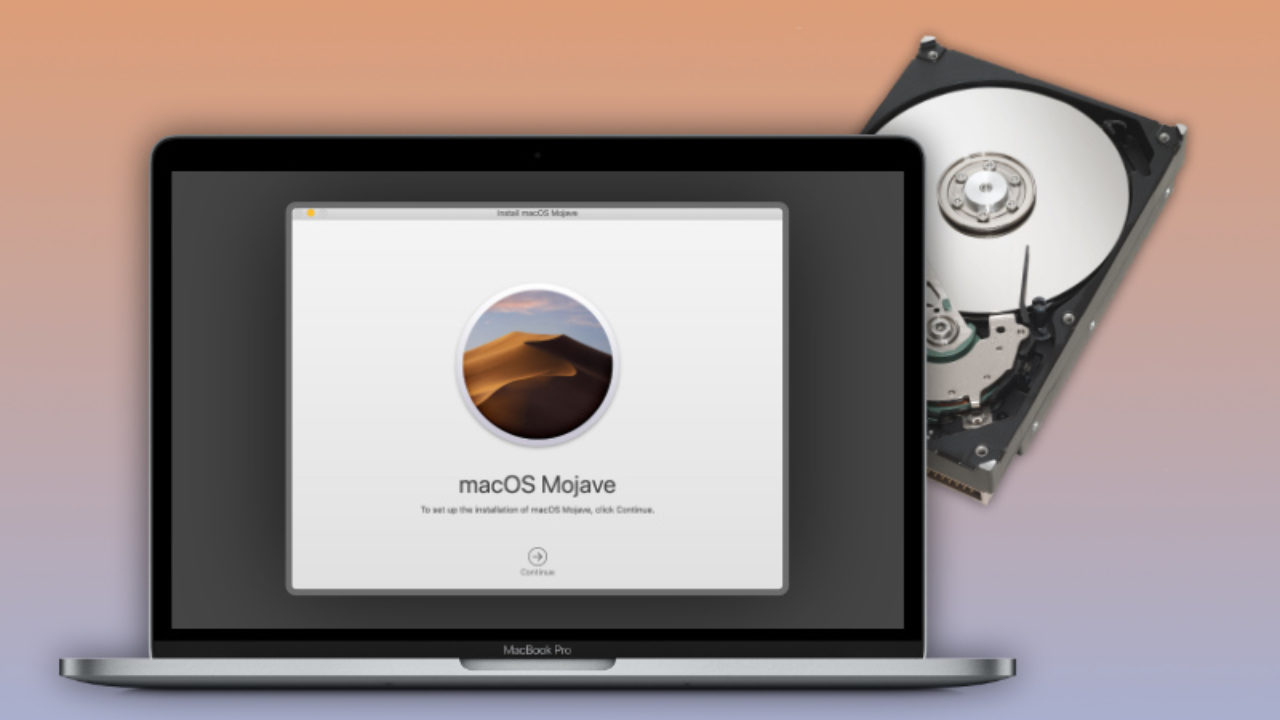
Welcome to your comprehensive guide on how to replace the hard drive in your MacBook Pro. Whether you’re looking to boost your system’s speed, increase storage capacity, or simply repair a failing component, this guide will walk you through each step of the hard drive replacement process. Replacing the old hard drive with a new one, or even upgrading to an SSD, can breathe new life into your beloved computer, and this guide is designed to make the process as smooth as possible, laying a strong base for your hard drive replacement.
Introduction to MacBook Pro Hard Drive Replacement
This guide offers an introduction to performing a hard drive replacement on your MacBook Pro. Many users find themselves needing to replace their hard drive due to various reasons, and understanding the process is the first step to building a solid base for their upgrade. From gathering the necessary tools to backing up your data, we’ll cover the essentials to ensure a successful hard drive replacement. This guide is designed for those who want to take control and upgrade or repair their machine themselves, providing a solid base for DIY enthusiasts.
Understanding the Need for a Hard Drive Replacement
There are several reasons why you might need a hard drive replacement for your MacBook Pro. Over time, hard drives can become slower, leading to frustrating delays when booting up or loading applications. Another common reason is a complete hard drive failure, which can result in data loss and an unusable computer. If you’re experiencing frequent crashes, unusual noises from the drive, or persistent errors, it might be time to consider a hard drive replacement. Recognizing the need is crucial for maintaining the performance and longevity of your MacBook Pro.
Benefits of Upgrading to an SSD
When considering a hard drive replacement, many users choose to upgrade to an SSD (Solid State Drive) instead of installing a new hard drive. The benefits of an SSD are significant, including much faster boot times, quicker application loading, and improved overall system responsiveness. SSDs are also more durable and less prone to failure compared to traditional hard drives, providing a reliable base for data storage. The speed increase alone makes the upgrade worthwhile, and you’ll enjoy a snappier, more efficient computing experience.
Compatibility with MacBook Pro 13 Models
This guide is specifically tailored to be compatible with MacBook Pro 13 models, with considerations for unibody designs. While the general process remains similar across different models, there might be slight variations in the placement of components and the tools required. Always double-check your specific model’s specifications and use an iFixit repair guide, if available, to ensure compatibility and create a strong base for your installation.
Preparing for the Hard Drive Replacement
Tools Required for Drive Replacement
Here’s what you’ll need before you begin replacing the hard drive in your Macbook Pro. Make sure you have the following tools ready:
- A precision screwdriver set is essential for handling the small screws.
- A spudger or plastic opening tool will help you gently pry open the Macbook Pro without damage.
Having these tools available will make the replacement process smoother and safer, establishing a solid base for your project.
Backing Up Your Data Before Removal
Prior to beginning the hard drive replacement, backing up your data is non-negotiable. You never know what might happen during the procedure, so safeguard your important files by creating a backup. Use Time Machine, a cloud storage service, or clone your hard drive to an external drive. Ensuring your data is safe means you can proceed with the hard drive replacement with peace of mind, knowing you can restore everything onto the new drive and maintain a secure base for your information.
Safety Precautions During the Process
Safety is paramount when performing computer repairs, especially during a hard drive replacement. To ensure a secure process, it’s important to take a few key precautions, such as establishing a reliable base for your tools and environment:
- Disconnecting the battery connector to prevent electrical accidents is a crucial step to create a safe base for your work.
- Working in a well-lit environment and utilizing an anti-static wrist strap to shield the Macbook Pro’s delicate parts from electrostatic discharge.
These steps will minimize potential damage and contribute to a successful and safe hard drive replacement.
Steps to Remove the Existing Hard Drive
Opening Your MacBook Pro Unibody
The first step in removing the old hard drive is to open your Macbook Pro unibody. Use the appropriate screwdriver to remove the screws on the bottom case. Once the screws are out, carefully use a plastic opening tool to pry the case open. Work slowly and gently around the edges to avoid causing any damage to the case or internal components. Having the case open gives you access to the hard drive for the hard drive replacement.
Locating the Hard Drive
Once the Macbook Pro is open, the next step is to locate the hard drive. It is usually located on one side of the computer, often near the battery or logic board. The hard drive is typically secured with a bracket and screws. Take a moment to familiarize yourself with its position and how it is connected. Review the layout to ensure you know how to remove it safely without disturbing other components.
Carefully Lifting the Drive Out
Here’s how to remove the hard drive after locating it: Carefully remove the screws holding the bracket. Then, you’ll need to:
- Disconnect any cables or connectors attached to the drive.
- Gently lift the hard drive out of its bay, being cautious not to force anything, to maintain a safe base for your components.
If the drive feels stuck, double-check for any remaining screws or clips. Once free, you can proceed with installing a new hard drive or upgrading to an SSD, to boost system speed. Do not pull, holding the drive.
Installing the New Hard Drive
Preparing the New SSD for Installation
Before you install a new hard drive in your Macbook Pro, particularly if you’ve chosen to upgrade to an SSD, take a moment to prepare the new drive. Unpack the new hard drive and inspect it for any physical damage. If you’re switching to an SSD, be sure to handle it with care to avoid static discharge. Having the new hard drive ready ensures a smooth transition during the hard drive replacement process, forming a solid base for your upgrade.
Securing the New Drive in Place
Now it’s time to secure the new drive in place. Carefully position the new hard drive or SSD into the empty drive bay. Align the screw holes and use the screws you removed from the old hard drive to secure the new one, ensuring a firm base for the drive. Make sure the drive sits snugly and does not move around, as this will create a stable base for optimal performance. Proper installation ensures the new hard drive or SSD functions correctly within your Macbook Pro unibody.
Closing Your MacBook Pro
After the new hard drive is securely installed, it’s time to close up your Macbook Pro. Gently align the bottom case with the upper case. Ensure all edges are properly aligned before you begin reinserting the screws. Use the correct screwdriver to avoid stripping the screw heads. Once all screws are back in place, your Macbook Pro is physically ready for the next steps to continue the repair.
Post-Replacement Steps
Formatting the New Hard Drive
With the new hard drive installed, you’ll need to format it to establish a stable base for your data. Power on your Macbook Pro and boot into macOS Recovery mode. From there, use Disk Utility to format the new hard drive. Choose the appropriate file system (usually APFS for SSDs or HFS+ for hard drives) and give your drive a name. This formatting process ensures the new hard drive is ready for data and applications.
Restoring Data from Backup
Once the new hard drive is formatted, it’s time to restore your data from the backup you created before the hard drive replacement. If you used Time Machine, boot into Recovery mode and select the option to restore from a Time Machine backup. Follow the on-screen prompts to select your backup and restore your files. Restoring from a backup ensures you don’t lose any important documents or settings.
Testing the New Drive Functionality
After restoring your data, take the time to thoroughly test the functionality of the new drive. Launch frequently used applications, transfer some files, and monitor the system’s performance to ensure a strong base for your workflow. If you upgraded to an SSD, you should notice a significant improvement in speed and responsiveness. Testing the new drive ensures it’s working correctly and that you can enjoy the benefits of the hard drive replacement.