

If your laptop feels sluggish, it’s often about the type of hard disc inside! Feeling the "zero e-waste spirit"? Let's dive in. HDDs are your roomy but slower pantry shelves, while super-fast SSDs are like a perfectly organized spice rack. Understanding the difference helps you make smart choices for your tech and our beautiful planet.
Table of Contents
- Getting to Know the Main Types of Hard Discs
- How HDD, SSD, and Hybrid Drives Actually Work
- Interfaces and Form Factors That Shape Real Performance
- Speed, Capacity, and the Trade-Offs You Actually Feel
- Warning Signs of Failure and How Data Recovery Fits In
- What Hard Disc Type Means for Trade-In and Zero E-Waste
- Choosing the Right Hard Disc and Letting It Live Longer
- Frequently Asked Questions About Hard Disc Types
Getting to Know the Main Types of Hard Discs
Welcome to the wonderful world of storage! When you're looking to upgrade, repair, or trade in a device, you'll meet a few key players. Don't worry, we'll keep it simple and jargon-free. Think of your computer like a kitchen:
Here is how each one breaks down:
HDD (Hard Disk Drive)
- Best for: Storing lots of photos, videos, and backups without breaking the bank.
- Typical speed range: 50–200 MB/s depending on its spin speed.
- Common form factor: 3.5-inch and 2.5-inch.
SSD (Solid State Drive)
- Best for: Making your computer feel brand new! Perfect for your operating system and apps.
- Typical speed range: 500 MB/s for standard ones; up to 3,500 MB/s+ for the speed demons (NVMe).
- Common form factor: 2.5-inch and a tiny stick called M.2.
SSHD (Hybrid Drive)
- Best for: A happy middle ground! A budget-friendly way to get a little speed boost without losing lots of storage space.
- Typical speed: A mix—it has a small, fast part for your common tasks.
- Common form factor: 2.5-inch.
NVMe M.2 Drive
- Best for: Power users, like video editors and serious gamers, who need top-tier speed.
- Typical speed: A blazing 1,500–7,000 MB/s!
- Common form factor: M.2 (looks like a stick of gum).
External Portable Drives
- Best for: Backing up your precious memories and taking your files on the go.
- Speed depends on what's inside (SSD or HDD) and how it connects (like USB 3.2 or Thunderbolt).
Enterprise Versus Consumer Storage
- Enterprise drives are built for the 24/7 hustle of servers, focusing on pure durability.
- Consumer drives are perfect for our everyday tech, balancing cost and performance.
Choosing the right hard disc is all about matching your needs: how much space you need, how fast you want it to be, and how long you need it to last.
Quick Guide to the Main Types of Hard Discs
Here is a snapshot of each storage type so you can compare at a glance:
| Type | Best For | Typical Speed Range | Common Form Factor |
|---|---|---|---|
| HDD | Backups, mass storage | 50–200 MB/s | 3.5", 2.5" |
| SSD (SATA) | Everyday laptops, boot drive | ~500 MB/s | 2.5" |
| NVMe / M.2 | Gaming, content creation | 1,500–7,000 MB/s | M.2 |
| SSHD | Budget speed boost | Variable | 2.5" |
| External | On-the-go backups | Depends on interface | Portable enclosure |
This table is a handy reference, but the real fun is understanding how they work! Let's unpack what makes each one tick, what to do when they act up, and how your choice can help us build a zero e-waste world together with myhalo.
How HDD, SSD, and Hybrid Drives Actually Work
Ever wondered what's going on inside your device? Think of a hard drive like a tiny, magical record player. How it finds and plays your digital "songs" (your files!) depends entirely on its type, and the differences are what make your computer feel zippy or sluggish.
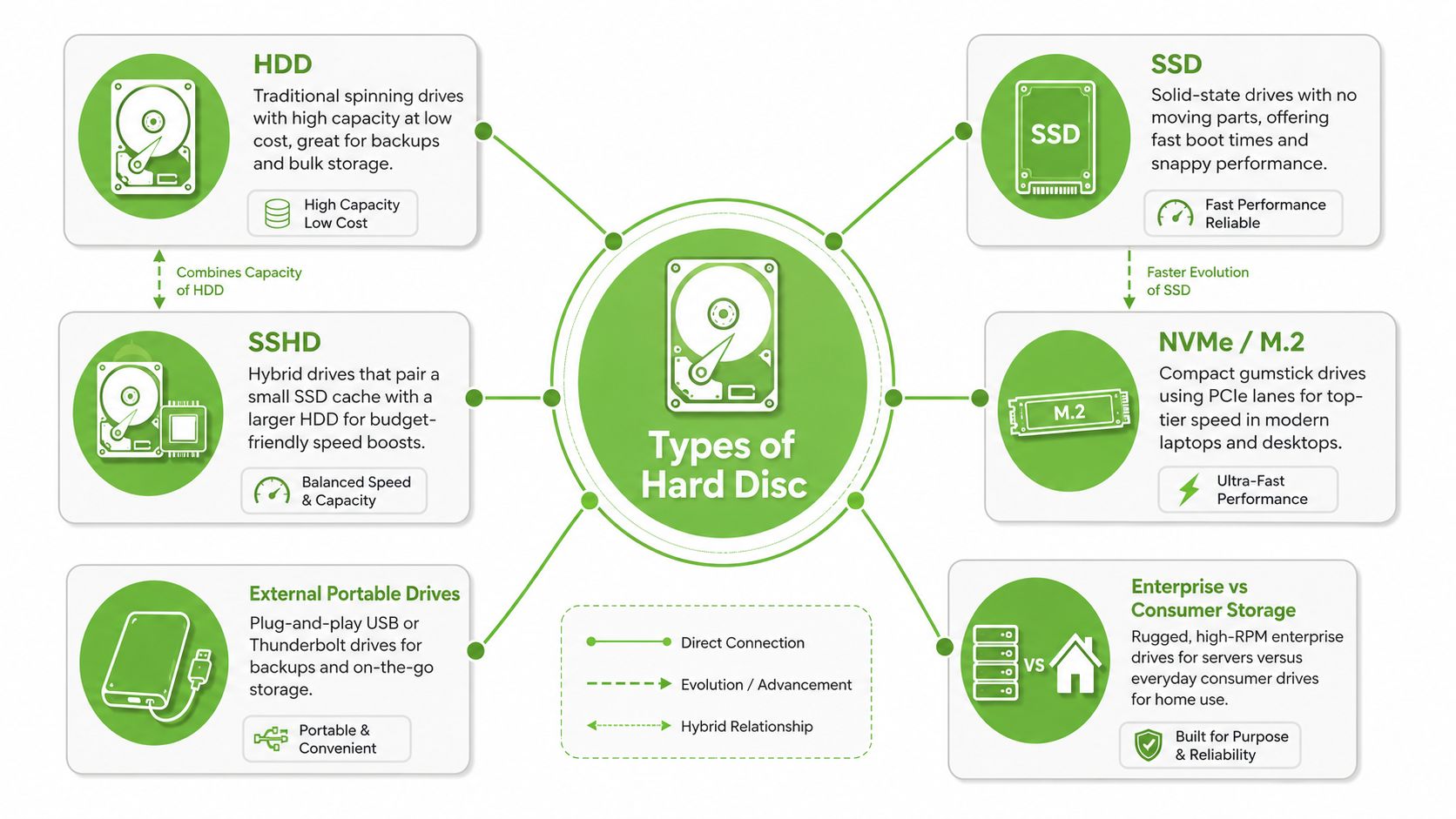
This awesome infographic maps out the main types of hard discs and helps you match them to your needs. The main takeaway? It's a trade-off between space, speed, and cost. The hybrid SSHD sits right in the middle, giving you a taste of both worlds!
How Hard Disk Drives (HDDs) Work
An HDD is basically a tiny record player. Shiny platters spin around while a super-precise arm reads data from them. How fast it works depends on how fast those platters spin!
The speed is measured in RPM (Revolutions Per Minute). 5400 RPM drives are quiet and energy-efficient, great for budget laptops and backups, but they feel a bit slow. A 7200 RPM drive is snappier, making it a solid choice for desktops where you want a bit more pep. The downside? Because it has moving parts, finding lots of small files can take a moment, which is why starting up your computer on an old HDD can feel like it takes forever.
How Solid State Drives (SSDs) Work
If an HDD is a record player, an SSD is a giant wall of lockers that all open at once. It uses flash memory, like a huge USB stick, and has zero moving parts. This means access is almost instant! Your computer boots up in seconds, apps open right away, and you spend less time waiting.
Standard (SATA) SSDs are already a massive leap, reaching speeds around 500 MB/s. But the real speedsters are NVMe SSDs, which can hit thousands of megabytes per second because they have a direct line to your computer's brain.
- NVMe / M.2 explained
- This is that little "gumstick" drive. It's super compact and uses a special connection (PCIe) for lightning-fast speeds.
- Perfect for heavy-duty tasks like video editing or gaming where every second counts.
Once you experience the snappy feel of an SSD, it's really hard to go back to a spinning drive!
How Hybrid Drives (SSHDs) Bridge the Gap
An SSHD is a clever combo! It pairs a small, fast SSD cache (usually 8GB to 32GB) with a large, traditional spinning platter. Your most-used files get stored on the fast part for quick access, while everything else lives on the big platter. This gives you a nice performance boost without the higher cost of a large SSD, making it a great budget-friendly upgrade.
Enterprise vs Consumer Drives
Not all drives are made equal! Consumer drives are perfect for our everyday laptops and desktops. Enterprise drives are the heavy-lifters, built for 24/7 action in servers and data centers where they can't ever take a break. They're tougher but also louder and more expensive. For a deeper dive into the cost side, check out how enterprise hard drives reduce costs.
🌿 The myhalo Promise: Your Tech Journey, Simplified
When you bring a device to us, our caring team first checks the drive type. This helps us know the best way to help you, whether it's a repair, a data rescue mission, or getting it ready for a new life.
We believe that joining the zero e-waste movement should feel good and be completely effortless. Through our Safe data guarantee, your privacy is perfectly protected, while our Declutter your e-clutter program makes recycling your old devices completely convenient, safe, and responsible.
Quick Comparison: Drive Types at a Glance
| Drive Type | Speed | Moving Parts | Best For |
|---|---|---|---|
| HDD (5400 RPM) | Slow | Yes | Budget storage, backups |
| HDD (7200 RPM) | Moderate | Yes | Desktops, external drives |
| SATA SSD | Fast | No | Everyday laptops and PCs |
| NVMe M.2 | Very Fast | No | Gaming, creative work |
| SSHD | Mixed | Yes | Budget laptops needing a boost |
| Enterprise HDD/SSD | Varies | Varies | Servers, NAS, 24/7 workloads |
Signs of Failure to Watch For
Catching a problem early can save your precious files! Here are some friendly warnings from your tech:
- Clicking or grinding sounds from an HDD—this is a cry for help from its moving parts.
- Frequent freezing or stuttering that won't go away.
- "Bad sectors" popping up in health checks.
- Files disappearing or folders getting corrupted on an SSD.
- File transfers that are suddenly super slow.
If you notice any of these, it's time to back up your data immediately and take a pause. Don't worry, we're here to help!
Interfaces and Form Factors That Shape Real Performance
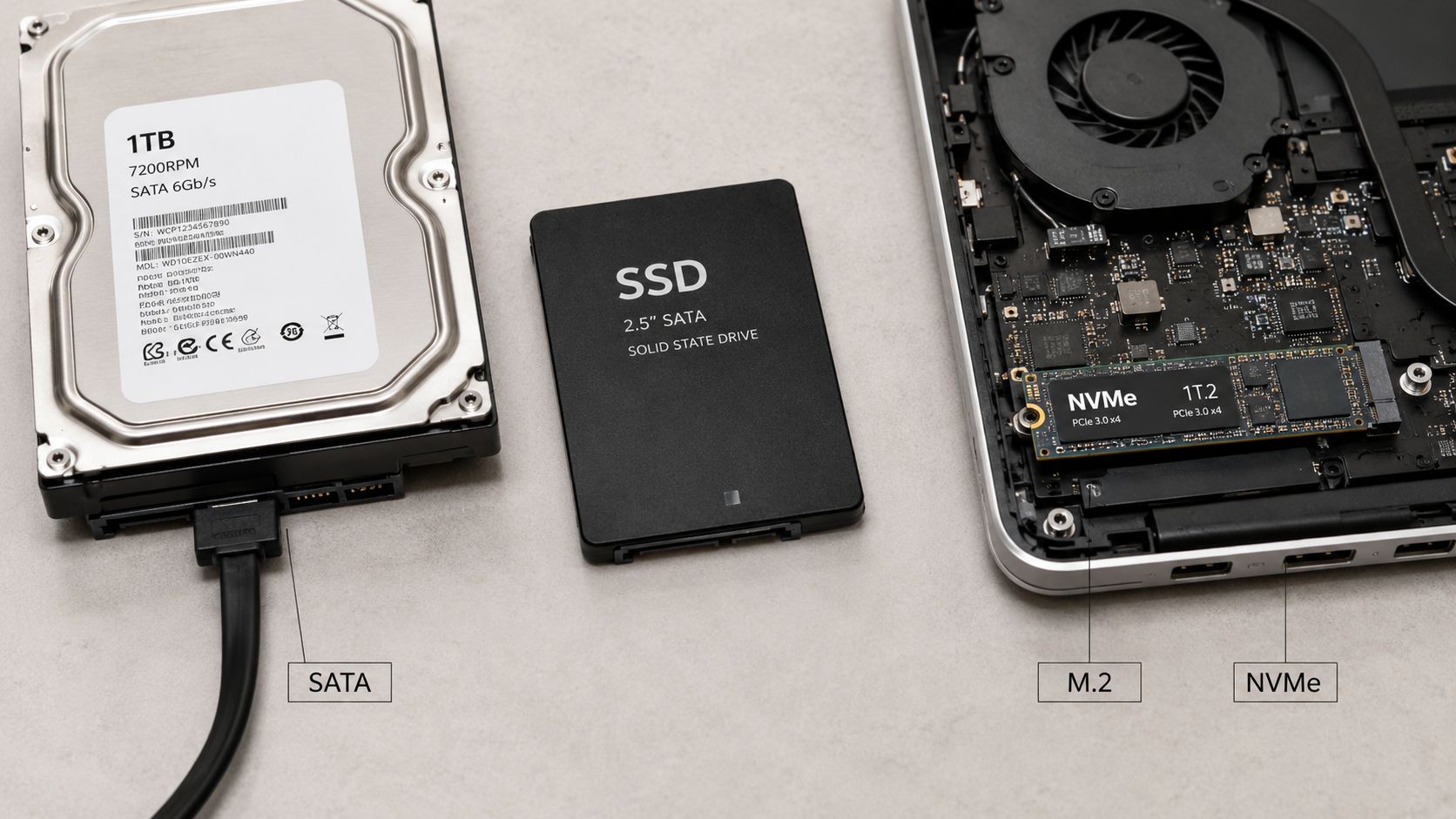
The Connectors and Shapes You'll Actually Encounter
Let's make this simple! SATA is the most common connector you'll find in laptops and desktops across Singapore. Think of it as a reliable two-lane road. It's why SATA SSDs are wonderfully fast for everyday use, even though they max out around 500 MB/s.
M.2 is that slim, gumstick-sized drive that slots right onto the main board. Here’s the fun part: M.2 is just the shape. It can be a "SATA" M.2 (fast) or an "NVMe" M.2 (super-duper fast!). When it's NVMe, it's like having your own six-lane expressway for data!
NVMe is the special language that lets M.2 drives unleash their true speed. It drops delays and boosts speeds into the thousands of MB/s, perfect for video editors and anyone who hates waiting.
The shape (form factor) and the connector (interface) work together to give you that zippy performance.
Enterprise connectors like SAS and U.2 are built for the non-stop world of data centers, ensuring everything runs smoothly around the clock.
What This Means for Trade-In and Refurbishment
The physical shape of a drive matters a lot for giving it a second life!
- Physical fit: A 2.5-inch drive needs a 2.5-inch spot. It's that simple!
- Interface match: You can't plug a SATA drive into a PCIe slot and hope for the best. They need to speak the same language.
- Heat and power: High-performance drives sometimes need better cooling, which older systems might not have.
How to Check What You Have
- Look up your device's specs online or check the BIOS/UEFI settings.
- If you're upgrading, make sure the new drive is the right size and has the right connector.
- When you trade in, remember that devices with speedy NVMe drives often get higher offers!
How myhalo Handles Drive Evaluation
At myhalo, we're all about giving tech a second chance! The drive's form factor helps us decide the best path forward—reuse, parts harvesting, or responsible recycling. Our Declutter your e-clutter program makes this whole process safe and simple. For more help, check out our guide on the differences between a desktop and a laptop hard drive on the myhalo blog!
Speed, Capacity, and the Trade-Offs You Actually Feel
Think of a 5400 RPM HDD as a slow-and-steady kettle—it gets the job done, but it takes its sweet time. A 7200 RPM HDD is more like your everyday car, quicker and reliable for most trips. And those super-fast 10,000–15,000 RPM enterprise drives? They're race cars for servers, built for pure speed.
For a creative spirit editing video, a SATA SSD means the timeline scrubs smoothly. On an old HDD, you'd get annoying pauses. For a student, an SSD can turn boot-up time from minutes into seconds, giving them more time to actually study!
Key Capacity Versus Cost Points to Remember
- HDDs are still the champions for storing massive amounts of data cheaply.
- SSDs win for responsiveness. They're perfect for your operating system and current projects.
- NVMe M.2 drives are for those who need top-tier speed for big file transfers.
Performance and Everyday Feel
"If your device feels slow, it's usually because of 'latency'—the little waits. SSDs get rid of those waits!"
- Boot and app launch: SSDs make everything feel instant.
- Large file work: HDDs are okay for streaming, but SSDs make editing and exporting so much faster.
- Mixed use: SSHDs give budget laptops a nice little speed kick by caching your favorite files.
Practical Trade-Off Checklist
- Need tons of cheap storage for archives? Go for an HDD (and always have a backup!).
- Want a snappy, fun computer for daily use? An SSD for your main drive is the way to go.
- Are you a pro creator or a heavy multitasker? An NVMe M.2 drive will make your workflow feel like a dream.
The myhalo Perspective
At myhalo, we want you to have a great tech experience! We recommend matching your drive to what you do every day. And when it's time for an upgrade, our instant-quote trade-in helps you get value from your old tech. Our Save Data and Safe Data teams are here to help, whether you need to recover precious files or make sure your old data is securely erased.
Warning Signs of Failure and How Data Recovery Fits In
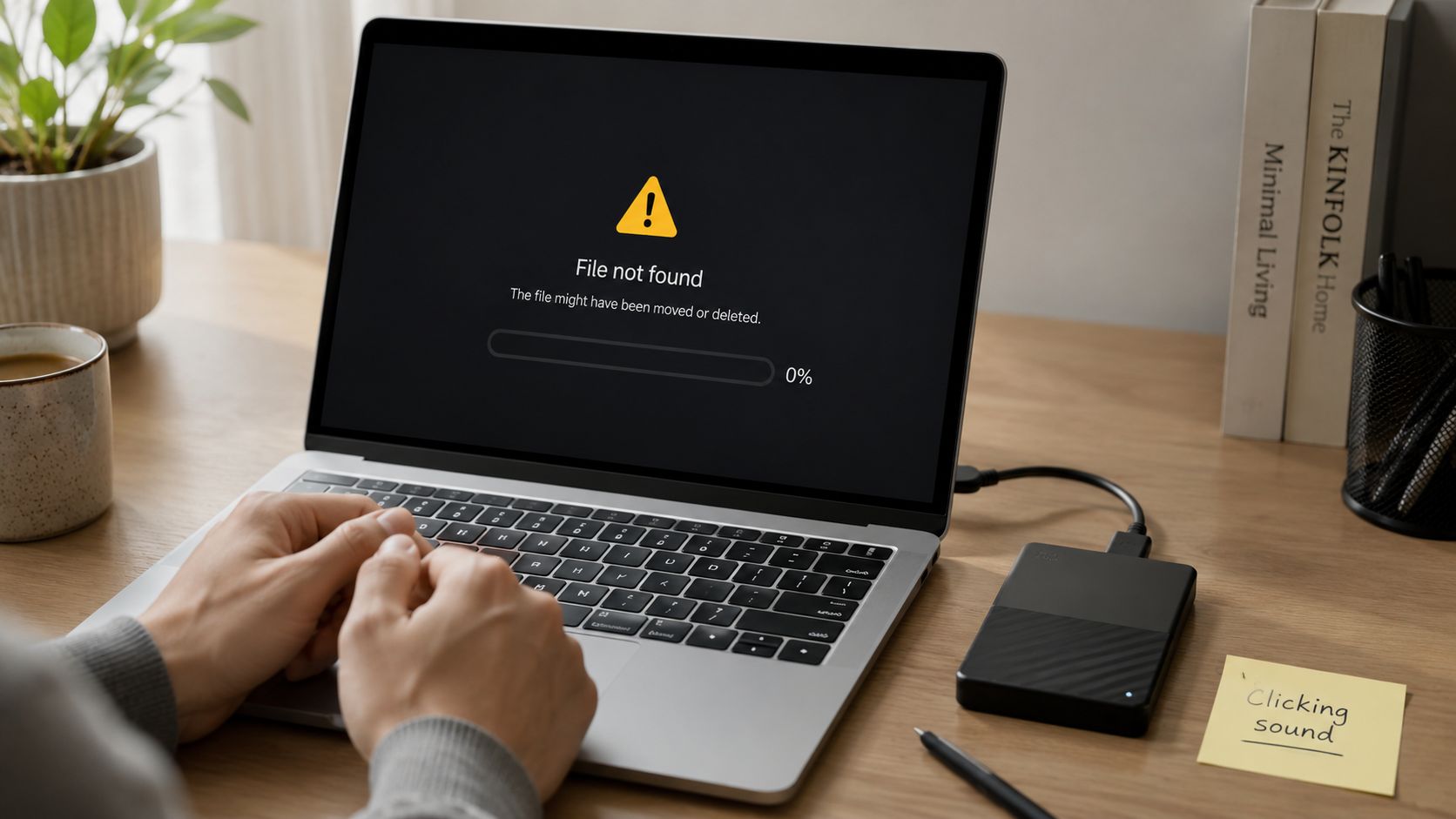
There's nothing quite like that heart-sinking feeling when you hear a weird click from your computer or see your files vanish. It's personal, we get it! The best thing to do is stay calm and act early—it gives you the best shot at getting everything back.
Hard drives (HDDs) are usually noisy when they're in trouble. If you hear clicking or grinding, that's a clear mechanical warning. It's like the drive is telling you its moving parts are struggling.
SSDs, being the quiet types, often fail silently. You might see corrupted files, find that folders have disappeared, or your computer might just refuse to start one day.
- A clicking HDD is a major red flag. Power it off immediately to prevent more damage.
- Slow files or constant freezing could mean bad sectors are popping up.
- A sudden Blue Screen of Death or random file corruption can point to a deeper problem.
How Symptoms Differ Between Drive Types
Because HDDs have moving parts, their problems are often physical and noisy. SSDs are all-electronic, so their issues are more about data errors or sudden failures.
Key insight: Spotting the problem early greatly improves your chances of data recovery and can save you from expensive repairs.
- Stop using the drive right away! This prevents new data from writing over your lost files.
- If you can, make a "clone" or "image" of the drive. A pro can work from this copy safely.
- When you reach out for help, tell the specialist exactly what you saw and heard.
- For HDDs, recovery often involves careful mechanical repairs to read the platters.
- For SSDs, it's more like digital detective work, sometimes needing special tools to read the memory chips directly.
Practical Next Steps and When to Get Help
When your precious photos, schoolwork, or business files are at risk, getting professional help is a caring and smart choice. myhalo’s Save data service is here to help! Our team provides expert diagnosis and recovery with your privacy as our top priority. Acting fast gives you the best chance of success.
Read also: Learn more about Hard Drive Data Recovery When Your Computer Will Not Boot And You Need Your Files.
- Back up your files regularly to avoid future stress.
- If you hear strange noises, power down immediately.
- Contact a specialist before you try any risky repair software.
We're here to guide you through the Save data process with care and expertise.
What Hard Disc Type Means for Trade-In and Zero E-Waste
When a device is ready for a new chapter, the type of hard disc inside plays a huge role! An older device with a spinning HDD might be better suited for parts harvesting, while a device with a zippy NVMe or SATA SSD is perfect for refurbishment and often gets a higher trade-in value.
This is where our vision of a zero e-waste world comes to life! By making smart choices, we can give our tech a longer, happier life.
Why Drive Type Changes Data Handling
- HDDs: To securely erase data, they need to be overwritten multiple times. For super-sensitive data, physical destruction is sometimes necessary.
- SSDs: They need a special "secure erase" command. Just deleting files isn't enough, as bits of data can linger.
- SSHDs: These hybrids need a two-step approach to make sure both the fast cache and the big platter are wiped clean.
🌿 The myhalo Promise: Protecting your privacy is our priority. Our Safe data program ensures your information is handled with the utmost care, no matter the drive type.
Practical Trade-In Differences
1. How Much It's Worth
- Laptops with NVMe drives usually get higher trade-in offers.
- Older machines with HDDs might be valued more for their parts or an upcycle credit.
2. The Refurbishment Journey
- SSD devices are fantastic candidates for our ReLoved certified resale program.
- HDD devices might have their useful components harvested to repair other devices.
3. Secure Erasure You Can Trust
- For businesses, we provide data destruction certificates that meet compliance standards, giving you total peace of mind.
How myhalo Supports Zero E-Waste
- We always choose repair, parts harvesting, and resale over sending things to a landfill.
- Our Safe data program guarantees secure, documented data destruction for all trade-ins.
- By choosing the right path for each device, we extend its life and make a positive splash for our environment.
Quick Actions You Can Take
- Check your device's drive type before getting a quote. It helps!
- Always ask for a data destruction certificate when disposing of old work devices.
- Even if the resale value is low, consider recycling through myhalo to ensure every part is given a chance at a new life.
Ready to feel lighter and do good? Learn more about our friendly trade-in options in our guide on Trade In Singapore and Responsible Buyback at myhalo.
Choosing the Right Hard Disc and Letting It Live Longer
Choosing the right hard disc is all about matching it to your life! Everyday users want a snappy computer for browsing and photos. Gamers need lightning-fast load times. Creators need the power to edit huge files without a hiccup. And small businesses need something reliable and secure. Let's find your perfect match!
Quick Scenario Checklist
- Everyday user
- Pick: A SATA SSD for your main drive, maybe with an extra HDD for all your photos.
- Benefit: A super-fast computer for daily tasks and plenty of affordable storage.
- Gamer
- Choose: An NVMe M.2 drive for your games.
- Benefit: Say goodbye to long loading screens!
- Content creator
- Opt for: A big NVMe drive or a mix of NVMe and HDD.
- Benefit: Smooth editing and tons of space for your projects.
- Small business
- Use: Reliable enterprise-grade SSDs.
- Benefit: 24/7 dependability and peace of mind.
Think of it like your closet: you have your favorite everyday outfits, and then you have that special outfit for big occasions. Your drives can work the same way!
Practical Care Tips
- Back up, back up, back up! Keep copies of your important files in at least two different places.
- Keep an eye on your drive's health with SMART tools. If you see warnings, it might be time for a change.
- Hear a weird noise? Power down your HDD right away. Don't risk it!
- For SSDs, try not to fill them up completely. Leaving about 20% free space helps them stay fast and healthy.
Responsible End of Life
If your device just needs a small fix, repairing it is always better than replacing it. It saves you money and helps our planet!
When a drive has truly reached the end of its journey, make sure your data is protected with secure erasing or physical destruction. Never just toss it in the trash!
myhalo’s Declutter your e-clutter, Safe data, and Save data programs make all of this easy, convenient, and completely stress-free. Want to give an old laptop a new lease on life? Check out our guide on How To Upgrade Your Laptop With An SSD!
Ready to act? Let's work together to repair, recover, or recycle with care.
Frequently Asked Questions About Hard Disc Types
Which hard disc type is best for everyday laptops?
For most of us, a SATA SSD is the perfect choice for your main drive. It makes your computer feel super fast and responsive! If you have a lot of photos and videos, you can pair it with a traditional HDD for extra storage space. It’s the best of both worlds!
How likely is data recovery from a failed SSD?
It’s a bit trickier than with old-school HDDs. SSDs can fail silently and often need special tools for recovery. It's definitely not impossible, but it can be more complex. That's why regular backups are your best friend!
How do I know which type of drive is inside my device?
On Windows, you can use the Device Manager or a simple command ("wmic diskdrive get model,mediaType"). On a Mac, head to About This Mac > System Report. Physically, a 2.5-inch metal box is usually an HDD or SATA SSD, while a little circuit board that looks like a stick of gum is an M.2 drive.
What signs tell me a drive is failing?
For HDDs, listen for any clicking, grinding, or loud spinning noises. For SSDs, watch out for corrupted files, boot errors, or a sudden slowdown. If you notice anything strange, it's time to back up immediately!
Does trade-in value change based on hard disc type?
Yes, it absolutely does! Devices with faster SSDs, especially NVMe drives, usually get higher trade-in offers. They're more desirable for a second life. But don't worry, even older HDD machines have value through our buyback and parts programs!
What are the practical next steps if I'm unsure what to do?
- Back up your precious files to another drive or the cloud. Do it now, don't wait!
- Take note of any strange behavior to share with a technician.
- Use myhalo's instant quote to see how you can recycle, sell, or trade in your device securely and responsibly.
At the end of the day, it's all about finding the right balance for your needs. At myhalo, we're here to help make sure your tech gets a responsible and happy second life.
Ready to feel lighter and do good? Let's clear out those old devices together! Check out our Declutter your e-clutter program today and see how convenient it is to make a positive splash for our environment.