
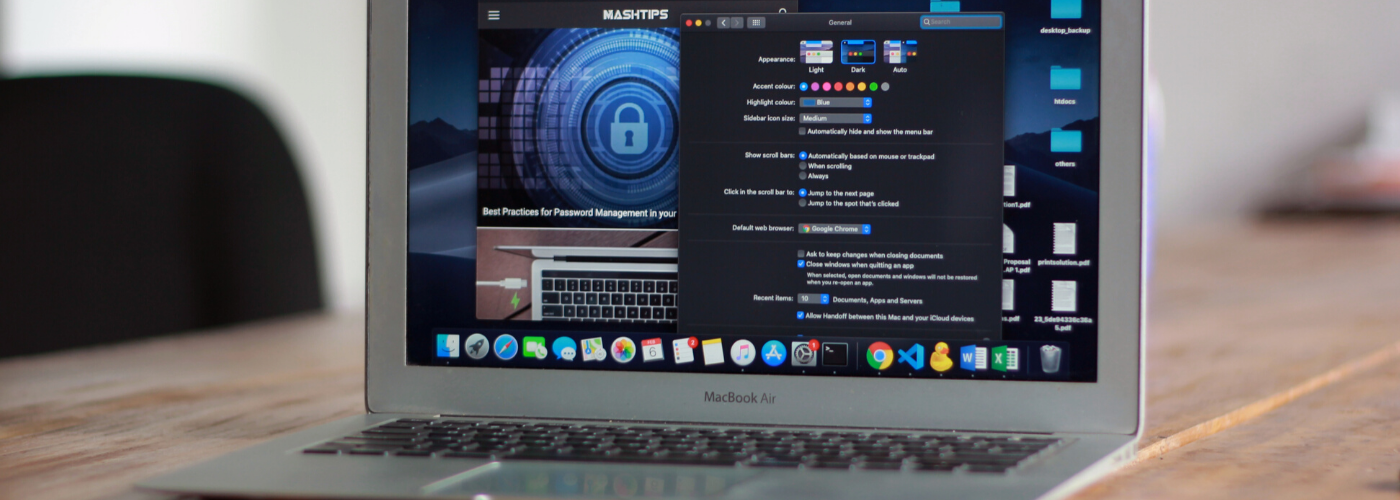
Thinking about buying a second-hand MacBook? You’re in the right place. We’re here to make it simple, friendly, and honest, so you can buy a used Mac with confidence and a smile. From the serial number to battery health and every port, we’ll guide you through the key things to check before buying, so your used MacBook feels like a smart, sustainable win. Whether you’re looking to buy a used MacBook Air or a MacBook Pro, we’ll help you inspect the laptop with care, avoid surprises, and enjoy a pre-owned device that works beautifully with macOS.
Understanding the Used MacBook Market
The market for used MacBooks is thriving, with more people buying a second-hand MacBook to save money and reduce e‑waste. You’ll find second hand options from individuals, refurbish shops, and retailers buying from a reputable source matters. Before you buy used, learn model years, m1 vs Intel chips, typical SSD sizes, and the going prices for MacBook Air and MacBook Pro. Always verify the serial number and warranty on Apple’s check coverage page, and review system information to confirm specs. Plan to inspect for dents, dead pixels, and test every key and port, paying attention to any wear and tear.. Honest checks mean happier Macs.
Why Buy a Used MacBook?
Choosing a used MacBook or a second-hand Mac brings great value and a lighter footprint Check the display on the planet. You can buy a MacBook that runs macOS smoothly, often with premium build quality, at a fraction of a new MacBook price. Many used MacBooks have low battery cycle count, clean SSD health, and still qualify for service or coverage. When buying second-hand, you also support a circular economy that reduces e‑waste. With the right things to check—battery health, activation lock status, firmware password, and iCloud account removal—you can buy a used MacBook that feels dependable and delightful.
Popular Models: MacBook Air vs. MacBook Pro
When you buy a used Mac, the MacBook Air suits everyday tasks with whisper-quiet performance, especially the m1 Air. It’s light, efficient, and a smart second-hand pick. The MacBook Pro shines for power users—photo, video, and code feel faster, and ports may be more versatile on some generations. Compare SSD sizes, RAM, display quality, and confirm chip/graphics in About This Mac. For either model, review battery cycle count, battery health, and run a quick hardware test before buying a secondhand MacBook.
Current Trends in Second-Hand MacBooks
Right now, used MacBooks with Apple silicon, especially m1 MacBook Air and MacBook Pro, are hot picks thanks to strong performance and battery life. Buyers increasingly want factory-reset devices, no iCloud activation lock, and verified serial numbers, with honest condition notes like minor dent or light wear. Many sellers refurbish units, sharing battery cycle count and SSD health in system information. Check Apple’s coverage page for remaining warranty and ensure no firmware password; inquire about purchasing a used device., and confirm ports work. As more macs enter the market, buying second-hand becomes easier, greener, and more affordable.
Key Things to Check When Buying a Second-Hand MacBook
When buying a second-hand MacBook, a few thoughtful things to check can turn a used Mac into a joyful, reliable companion. Match the serial number on Apple’s check coverage page and verify specs in About This Mac. Inspect the laptop for a dent, dead pixel, and test every port and every key, ensuring you check the screen condition. Check battery health and cycle count, ensure no firmware password, and confirm iCloud is signed out with activation lock off; also, copy the serial number for verification. These friendly checks keep your Mac journey simple and green.
| Area | What to Check when buying from someone. |
|---|---|
| Identity & Specs | Match the serial number on Apple’s check coverage page; verify specs in About This Mac |
| Physical & Function | Inspect for a dent, dead pixel; test every port and every key |
| Security & Accounts | Ensure no firmware password; confirm iCloud is signed out with activation lock off |
| Battery | Check battery health and cycle count |
Inspecting the Physical Condition
Begin with a calm, careful inspection of the MacBook exterior. Look for dents, cracks, hinge issues, and screen problems like dead pixels or brightness flaws. Gently test every key and trackpad click. Plug in accessories to each port, including USB-C, headphone jack, and HDMI or adapters on a MacBook Pro or MacBook Air. Listen for unusual fan noise on older used MacBooks, and check that speakers sound clean. Peek at the SSD storage in System Information to confirm capacity. Honest, hands-on checks help you buy a used MacBook that feels loved and ready.
| Area | What to Check |
|---|---|
| Exterior & Display | Dents, cracks, hinge issues, dead pixels, brightness flaws |
| Input & Ports | Every key, trackpad clicks, USB-C, headphone jack, HDMI/adapters |
| Audio & Cooling | Unusual fan noise, clean speaker sound |
| Storage | SSD capacity in System Information |
Checking Battery Health and Cycle Count
Battery health and cycle count are crucial when buying a second-hand macbook, so open About This Mac, then system information to check the battery. Review the battery cycle count and overall condition rating; lower cycles usually mean a longer life ahead. On an m1 mac or other used apple macbook, compare the cycle count against Apple’s typical thresholds. Run on battery for a bit to see if the laptop holds charge steadily, and confirm the charger works at the port. These are key things to check before buying because a healthy battery saves money, keeps macOS humming, and makes your pre-owned mac a daily delight.
Evaluating the Activation Lock Status
Ensure Activation Lock is off and iCloud is signed out when buying second-hand. Ask the seller to perform a factory reset and show activation status during setup. Confirm there’s no firmware password blocking boot or Recovery. Match the serial number shown in setup with the one on the chassis and Apple’s check coverage page for peace of mind. This quick step protects you from surprise locks and lets you buy used with confidence.
| Check | What to do |
|---|---|
| Activation & iCloud | Verify Activation Lock is off and the seller is signed out of iCloud; request a factory reset and view activation status during setup. |
| Security & Serial | Confirm there’s no firmware password; match the serial number in setup with the device chassis and Apple’s check coverage page. |
Technical Aspects to Verify
When buying a second-hand MacBook, slow down and lovingly verify the technical bits that make a mac feel magical every day. Confirm specs in About This Mac and double-check SSD, RAM, battery health, and serial in System Information. Gently test every key, each port, camera, speakers, Wi‑Fi, Bluetooth, and the microphone. Look for a dent, loose hinge, or screen flicker and scan for a dead pixel. These are the friendly things to check before buying so your used macbook or macbook pro boots cleanly, runs macOS smoothly, and brings joy without surprises.
Performing a Hardware Test
Run Apple Diagnostics Run an Apple hardware test to scan memory, logic board, and sensors, noting any reference codes. While you’re there, perform a calm manual inspect: check the battery by unplugging to see stable power, test the fans by stressing the CPU, and verify the SSD writes and reads snappily. On an m1 mac or used apple macbook, confirm there’s no firmware password blocking Recovery. These practical things to check give you a clearer picture of a second-hand macbook’s health before you buy a used device.
Checking for Dead Pixels
Display quality shapes your daily joy, so Run full‑screen color tests (white, black, red, green, blue) to spot dead or bright pixels; it’s essential to check the display thoroughly.. Slowly scan the screen edge to edge, and tilt the laptop to catch faint pixel issues or light bleed. On a macbook air or macbook pro, also verify uniform brightness and smooth scaling in macOS. If you spot an issue, use it to discuss price or request a repair when buying a second-hand. Pair this with a close inspect for a dent on the lid or bezel, and confirm the serial number matches the check coverage page.
Understanding the Actual Age of the Device
Use the serial number to find the model year and warranty on Apple’s check coverage page. Cross-check battery cycle count and overall battery health in system information; a lower cycle count usually signals gentler use. Review SSD lifetime indicators if available, and compare macOS support for that model. Ask if the seller performed a factory reset to clear an icloud account and activation lock status. These honest, simple things to check help you buy a used macbook that feels pre-owned yet dependable for years.
Warranty and Return Policies
Even when you buy used, a safety net feels wonderful. Before buying a second-hand MacBook, consider running the Apple hardware test. Ask about warranty coverage, return windows, and who handles repairs for a refurbished MacBook.. Verify the serial number on the check coverage page to see any remaining Apple warranty or AppleCare. If buying from a reputable refurbish shop, confirm their guarantee and what it includes: battery, SSD, keyboard, ports, or a dead pixel policy. Clear, caring policies protect your budget, reduce waste, and keep more macs in happy hands, not landfills. These are crucial things to check when buying to keep your second hand experience breezy and kind.
Importance of Warranty When Buying Used
Warranty brings peace of mind and protects against unexpected faults after you’ve done your careful inspect steps, from hardware test to check the battery. If the used macbook still has Apple coverage, great—service is simple. If not, ask the seller for a store warranty that includes the SSD, logic board, keyboard, and battery health. Confirm if repairs use genuine parts and how claims work. For a macbook pro or macbook air, this small safety layer turns buying a second-hand into a confident choice, protecting you and extending the life of a lovely pre-owned laptop.
Return Policies for Second-Hand Purchases
Read and understand the return window, fees, and condition requirements before you buy a macbook. Ensure activation lock is off and the icloud account is removed before you take it home, so returns stay simple. If buying from a reputable seller, ask for a written policy covering hidden defects like a failing port, unexpected pixel issue, or battery cycle count far higher than stated. Clear returns encourage responsible buying second-hand and help more used macbooks find the right owner.
What to Do if You Encounter Issues
Document issues and contact the seller within the return window. Include photos or screenshots from About This Mac and system information, including serial number, battery health, and cycle count. If activation lock status changes or a firmware password appears, request immediate help to reset the device. For hardware hiccups like a noisy fan, flaky port, or dead pixel, share diagnostics results. Most reputable sellers will repair, replace, or refund. Your honest approach helps resolve hiccups kindly and keeps our zero e-waste community thriving.