
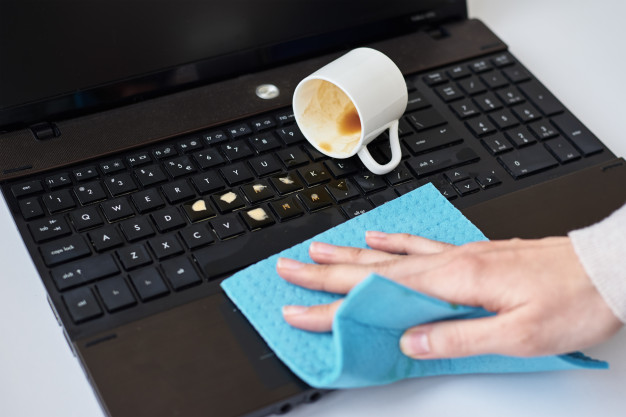
Spilled water on your laptop can feel scary, but a calm, quick response can save your laptop and reduce water damage. We’re here to help you act fast with friendly, honest steps that protect the components of your laptop and give your device the best chance. Water and electronics don’t mix, but with a caring approach—If your laptop gets wet, unplug, avoid using it, and handle the wet laptop gently to prevent liquid damage.—you’ll support repair options and reduce e-waste while keeping things simple and stress-free.
Understanding Laptop Water Damage
When water on a laptop reaches an internal component, it can cause a short circuit or start corrosion that slowly harms the motherboard and keyboard. A water spill might seem small, but liquid on your laptop can travel under keys and into delicate areas, increasing the chances of internal damage. Whether it’s a macbook or a PC, laptop water damage depends on how much spilled liquid entered and how fast you act. Drying thoroughly for at least 24 to 48 hours and seeking water damage repair can save your laptop from lasting harm.
How Water Spills on Your Laptop Occur
Most spills on your laptop happen in everyday moments: a glass of water near the keyboard, a coffee cup by the trackpad, or condensation dripping onto a macbook in a backpack. Water spills on your laptop can also occur when the laptop is powered during meals or meetings, or when you move quickly with an open drink. Even tiny splashes count, especially when considering the extent of the damage to your laptop’s internal components. as a water spill, because water on your laptop keyboard can seep inside and quietly reach internal areas before you notice.
The Risks of Water Damage
Water damage can cause immediate short circuits, but the hidden risk is corrosion that builds over time on the motherboard and other internal parts. If the laptop is still powered after a spill, current can arc across connections and worsen laptop water damage. Even after it seems dry, residue from a spill may keep harming components of your laptop. That’s why we recommend you avoid using it, act fast, and consider professional repair to prevent deeper, costly failures.
Signs of Water Damage in Laptops
Look for these common signs of potential laptop issues and water damage. If you observe any of the following signs of liquid damage, take caution and act promptly:
- Unresponsive keyboard keys or sticky keys from a spilled liquid
- Flickering display or visible moisture under the screen
- Unexpected shutdowns or a laptop that refuses to boot
- Distorted audio, crackling sounds, or fans running loudly
- Green or white residue on ports indicating corrosion
If the laptop is powered but unstable, press and hold to shut down, unplug, and place the laptop upside to drain.
Immediate Actions to Take After a Spill
When there’s a water spill, act fast and be gentle. Water and electronics don’t mix, so take immediate steps to protect the device:
- Unplug the laptop immediately, avoid using it, and keep the wet laptop still.
- If the laptop is powered, press and hold the power button to shut it down, and ensure that you dry your laptop thoroughly before turning it back on.
- Place the laptop upside to help drain spilled liquid away from internal components like the motherboard and keyboard.
These calm steps give the laptop the best chance and can prevent worsening water damage.
Unplugging Your Laptop
Unplug right away to prevent a short circuit, especially if there is much water involved.. If your laptop is still on, press and hold the power button to shut it down safely, then disconnect the charger and any accessories. Do not turn it back on to “check” it—avoid using the device until it’s fully dry. Keeping water on a laptop energized increases corrosion risk on the internal parts. A quick, honest shutdown helps laptop water damage repair later and supports environmentally friendly decisions that reduce e-waste.
Removing the Battery
If your laptop has a removable battery, remove the battery gently after powering down. This lowers the chance of current flowing across a damp internal component and causing further water damage. For a macbook or models without easy access, do not pry; leave the battery in place and focus on drying. If you’re unsure, a trusted computer repair service can help assess the damage. Keeping power disconnected gives laptop repair services the best path to water damage repair without compounding corrosion or shorts.
Drying the Laptop Components
After you disconnect power, place the laptop upside on a clean, absorbent surface so liquid on your laptop can drain away from the keyboard and motherboard. Let it air-dry for at least 24 to 48 hoursPatience here can save your laptop from much water damage. Resist heat guns or hairdryers that push moisture deeper. A gentle, room-temperature breeze is okay, especially for drying out any small spill. Once dry, do not turn it back on if you still suspect water on your laptop keyboard—Seek professional water damage repair to ensure that your laptop back is restored properly. to protect internal parts.
Preventing Future Water Spills on Your Laptop
Prevention is kinder to your laptop and the planet, especially when taking immediate action to avoid spills. Since water and electronics don’t mix, build simple habits that keep liquids away from the keyboard and motherboard. Use sealed bottles instead of an open glass of water, close drinks before you move, and act fast to wipe tiny splashes. If a laptop is powered, keep liquids off the table. These honest, small routines give the laptop the best chance to avoid corrosion, short circuits, and costly water damage repair.
Best Practices for Laptop Care
Adopt daily care that makes spills on your laptop less likely. Keep beverages to one side, never above the keyboard, and always unplug and move the drink before you stand. Close the lid when you step away, so spilled liquid cannot enter an internal component. If your laptop has a removable battery, learn where it is so you can remove the battery quickly after a water spill. Regularly clean ports, and avoid using your macbook or PC near sinks or plants that drip.
Using Protective Accessories
Protective accessories create a friendly safety net if you spill water. These simple add-ons are affordable, support laptop water damage prevention, and may save your laptop from repairs, especially if you use a microfiber cloth to dab away any small spill. Consider these options:
- A snug keyboard cover helps block liquid on your laptop keyboard.
- A hard-shell case and sleeve reduce pathways for a spill to reach the motherboard.
- Choose a water-resistant backpack for commutes.
- Use a raised laptop stand that keeps cups below the device.
- A desk mat can catch a water spill before it spreads.
Creating a Spill-Free Zone
Designate a spill-free zone where beverages stay out of reach of the laptop. Keep the drink on a separate side table, use lidded bottles, and place the laptop upside in a stand when you tidy the desk. Add cable management so a snag doesn’t topple a glass of water. Encourage housemates or coworkers to follow the same routine. Clear rules help avoid using liquids near devices, reducing the chance that water spills on your laptop and protecting internal parts long-term, especially if you shut it down immediately.
What to Do If Damage Occurs
If a water spill happens, stay calm and act fast. Unplug the laptop immediately, press and hold the power button to shut it down, and place the laptop upside to drain. Do not turn it back on to test it; avoid using the wet laptop for at least 24 to 48 hours. If your laptop is still damp or unstable, a repair shop can assess internal corrosion and short circuit risks, especially if the liquid has caused significant liquid damage. This careful approach supports sustainable, successful laptop water damage repair.
When to Seek Professional Help
Seek professional help immediately if you notice water damage to your laptop’s components. when the laptop is powered but behaving oddly, you notice moisture, or keys and ports fail after drying. If spilled liquid was sugary or salty, internal corrosion can accelerate, so contact laptop repair services quickly. If you cannot remove the battery or safely open a macbook, don’t pry—leave it closed and dry. A trusted repair service can inspect each internal component, perform cleaning, and advise whether water damage repair gives your laptop the best chance to recover.
Assessing Repair Costs
Repair costs The extent of damage depends on how far liquid on your laptop traveled and which components of your laptop were affected, especially if the liquid was much water. A cleaning for mild laptop water damage is usually less than replacing a keyboard or motherboard. Honest shops will explain parts, labor, and whether the laptop may need future service due to corrosion risks. Ask for a written estimate and a timeline, typically after diagnostics and drying for at least 24 to 48 hours. Compare with the device’s value to save your laptop wisely.
Data Recovery Options
Even if hardware faces water damage, your data may still be recoverable if you take immediate action. If the laptop won’t boot, do not turn it back on repeatedly; this can worsen a short circuit. Professionals can remove the drive, connect it externally, and copy files safely, ensuring your laptop’s data is preserved. For a macbook with soldered storage, specialized laptop repair services can attempt board-level access after water damage repair. Keep backups going forward, and consider cloud sync so water spills on your laptop never threaten precious photos, projects, or memories, even if your laptop seems to be functioning normally.