
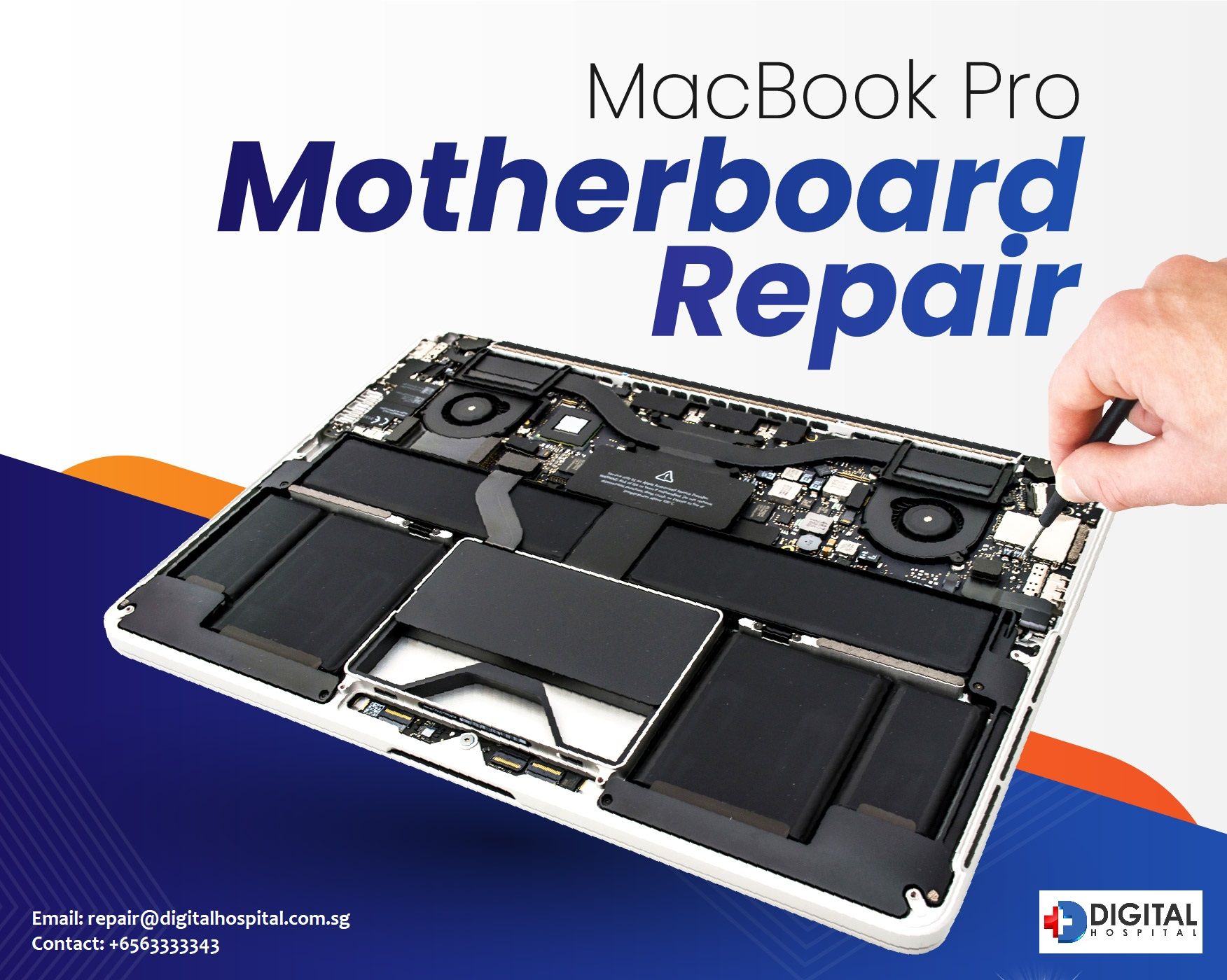
Your MacBook is a friendly workmate, but even the best laptops hit a few bumps. In this guide, we’ll explore common MacBook problems and how to fix them with simple, caring steps that put your comfort first. Whether you use an Apple MacBook, MacBook Pro, or newer Apple Silicon Macs, we’ll help you troubleshoot calmly, avoid e-waste through mindful care, and restore a smooth user experience. From startup problems to Wi‑Fi hiccups, you’ll find honest, down-to-earth advice, plus when to contact Apple Support or a trusted service provider if the problem persists.
Why Common Mac Problems Happen
Many common MacBook issues come from a few common causes: outdated macOS, conflicting login items, demanding third-party apps, or a misbehaving startup disk. Battery problems and unexpected battery drain can stem from background tasks you can spot in Activity Monitor on your MacBook Pro laptops. Connectivity issues may appear after macOS updates or software updates that need a restart. On newer Apple Silicon models, external devices can also interrupt startup. Being aware of these patterns makes troubleshooting steps easier, more eco-friendly, and less stressful—helping macbook users fix issues early and avoid unnecessary macbook repair.
First Safe Steps to Troubleshoot
Start with gentle fixes that protect your data and time. Try restarting your MacBook—restarting your MacBook clears minor glitches and is often the fastest fix. If your laptop feels unresponsive, force quit the app, then reopen it. Disconnect external devices to rule out conflicts. Open System Settings to review login items and remove anything you don’t need. Update macOS to ensure the latest stability improvements land on your MacBook models. These small, honest steps help many common problems disappear, and they keep you moving without stress or waste.
When Your MacBook Won’t Start Up
If your MacBook won’t turn on or is stuck at the Apple logo, don’t worry—there are a few straightforward steps you can try. Start by making sure the charger is connected and give the battery a few minutes to charge.
Then, work through these steps in order:
- Try Safe Mode to isolate issues that may be caused by extensions or login items.
- If problems continue, open Recovery and run Disk Utility to repair the startup disk.
- For persistent errors, reinstall macOS without erasing your data.
- On Apple Silicon Macs, follow the on-screen prompts in Recovery.
- If the issue still persists, contact Apple Support or a certified service provider.
Boosting Battery Life and Solving Battery Drain
Battery problems can be frustrating, but small changes make a big difference. In Activity Monitor, check energy impact and quit power-hungry apps. In System Settings, enable optimized battery charging and review background refresh permissions. Dim the display slightly, and turn off Wi‑Fi or Bluetooth when unnecessary to ease battery drain. Keep macOS updates installed for power management refinements. If a MacBook battery drains quickly even after these fixes, reset SMC on Intel-based MacBook Pro models, or simply restart on Apple Silicon MacBook models. When health metrics are low, discuss MacBook repair or replacement options with a caring service provider.
Fixing Wi‑Fi and Connectivity Issues
Connectivity issues often vanish with a quick restart of your MacBook and router. Forget and rejoin the network, then update macOS to ensure the latest wireless improvements. Check login items and third-party security or VPN apps that might block connections. If speeds crawl, test in Safe Mode to see if the issue is software-related. For stubborn cases, create a new network location in System Settings, or reset router settings carefully. Keep external devices unplugged during tests to avoid interference. If the problem persists across networks, Apple Support can help diagnose hardware-related macbook issues.
Startup Issues
Troubleshooting Startup Problems
When a MacBook won’t start or stalls at the Apple logo, take a deep breath and try a few gentle troubleshooting steps that protect your data and time. Begin with a restart; restarting your MacBook can clear a surprising number of common Mac problems. If the laptop is unresponsive, force quit any frozen app and disconnect external devices that could block the startup disk from loading. Here’s a simple sequence to follow:
- Restart the MacBook, and if needed, force quit any frozen app.
- Disconnect external devices that might interfere with the startup disk.
- After you can log in, open System Settings to review login items and remove third-party tools that auto-launch.
- Start Recovery and run Disk Utility to repair the startup disk.
- After boot, check Activity Monitor for issues like runaway background tasks.
- Keep macOS and software updates current to prevent recurring issues.
- For Intel models, perform a careful SMC reset; for Apple Silicon Macs, follow on-screen guidance.
- If these steps don’t resolve the issue, contact Apple Support or a trusted service provider.
These actions can help resolve startup problems on MacBook Pro laptops while minimizing risk to your files and time.
How to Use Safe Mod
Safe Mode is a simple, low-stress way to troubleshoot startup problems and common MacBook issues without risking your files. Follow these troubleshooting techniques to start in Safe Mode:
- On Apple Silicon Macs: Shut down, press and hold the power button until Options appears, choose your startup disk, then hold Shift and click Continue in Safe Mode.
- On Intel MacBook Pro models: Restart and hold Shift at the chime.
In Safe Mode, certain login items are disabled, some third-party extensions are blocked, and a quick check of your startup disk is performed, making it easier to spot a common issue. Once in, open Activity Monitor to find processes that cause battery drain or an unresponsive feel, and remove unnecessary login entries in System Settings on your MacBook Air. Test Wi‑Fi and connectivity issues to see if they improve, then restart normally to exit Safe Mode. If your Mac starts fine in Safe Mode but not otherwise, you likely found software-related problems you can fix by updating macOS or removing conflicting tools.
Reinstalling macOS as a Solution
When gentle fixes don’t resolve stubborn startup issues, a reinstall macOS can offer a clean, caring reset without erasing your data. For Apple Silicon Macs, shut down, hold the power button, select Options, then Reinstall macOS; for Intel laptops, start in Recovery with Command-R. This approach refreshes macOS system files, often clearing common problems caused by damaged components, outdated software updates, or conflicted login items. Before you begin, charge your MacBook, connect reliable wi-fi, and back up if possible—honest, eco-friendly habits that protect your time and reduce e-waste. After reinstall, update macOS fully, review System Settings for login cleanup, and check Activity Monitor to confirm everything feels smooth. If a macbook won’t turn on at all or reinstalling doesn’t fix the issue, reach out to Apple Support or a local service provider for diagnosis and macbook repair. We’re here to help macbook users restore a great user experience with minimal fuss.
Performance Problems
When your macbook feels slow or unresponsive, it’s usually caused by a few common issues we can troubleshoot gently. Heavy third-party apps, crowded login items, or background tasks can strain a laptop and drain battery life, particularly on Apple products. Open Activity Monitor to spot processes using high CPU or memory, then fix the slowdown by quitting what you don’t need. In System Settings, review login items and reduce auto-start apps that load at startup and touch the startup disk. Keep macOS updates and software updates installed to improve the overall user experience on Apple MacBook and MacBook Pro models. If the problem persists, try Safe Mode to isolate conflicts, or perform a restart to clear temporary glitches. On Intel Macs, an SMC reset may help; on Apple Silicon Macs, a normal restart often does the trick. These caring, eco-friendly troubleshooting steps limit e-waste and keep macbook users moving with confidence.
Dealing with the Beach Ball of Death
The spinning beach ball is your macbook’s way of saying it’s busy—let’s help it relax. First, wait a moment to see if the task completes, then open Activity Monitor to identify a common issue like a runaway process. If a single app is the culprit, save your work and force quit that app to restore a smooth user experience. Check login items that may stack up after startup, and remove unneeded third-party helpers in System Settings. Restarting your MacBook clears temporary caches and often resolves common mac problems without fuss. If the beach ball returns, boot into Safe Mode to disable extensions and test performance; update macOS and apply software updates for stability fixes. Persistent hangs after these troubleshooting steps may suggest disk errors—run Disk Utility to check the startup disk. Should the problem persist, reach out to Apple Support or a caring service provider to discuss macbook repair options that prioritize sustainability.
Identifying Unresponsive Apps
When an app stops responding on your MacBook Pro or Apple Silicon laptop, a little detective work goes a long way. Start by opening Activity Monitor and sorting by CPU, Memory, or Energy to spot unresponsive tasks and battery drain culprits on your Apple devices. Look for common causes such as outdated versions, incompatible plugins, or too many login items piling on at startup. Try a gentle fix first: close other apps, then save and quit the stuck one. If the app repeatedly freezes, boot into Safe Mode to test whether third-party extensions are involved. Update macOS, install software updates for the app, and check the developer’s notes for known macbook issues. Consider removing and reinstalling the app or, if system files seem affected, plan to reinstall macOS without erasing data. These honest troubleshooting steps help macbook users avoid frustration and reduce e-waste while keeping performance smooth and friendly.
Force Quitting Applications
If your macbook is frozen by a stubborn app, force quit is a safe, swift way to regain control. Press Option-Command-Escape to open Force Quit, select the unresponsive app, and click Force Quit; you can also right-click the icon in the Dock. Afterward, restart the laptop to clear temporary glitches, then reopen only what you need. Visit System Settings to trim login items so fewer third-party tools launch at startup and stress the startup disk. Open Activity Monitor to confirm the runaway process is gone and check for other common problems. Keep macOS updates current to strengthen stability on both Intel and Apple Silicon Macs, and consider an SMC reset on MacBook Pro models if freezes continue. If the problem persists across apps on your Apple devices, run Disk Utility to verify your disk, or try Safe Mode to isolate conflicts. For ongoing hangs, Apple Support or a trusted service provider can guide next steps, including thoughtful macbook repair.
Battery Life Concerns
Battery life on a MacBook is precious, and small habits can gently extend it without stress or waste. Many common macbook problems that cause battery drain come from common causes like too many login items, third-party helpers running in the background, or outdated macOS. Start with simple troubleshooting steps: dim the display, shorten sleep timers, and turn off wi-fi and Bluetooth when you don’t need them. Open Activity Monitor to spot apps with high energy impact and quit or force quit anything unresponsive. In System Settings, review login items to prevent heavy tools from auto-launching at startup, which can lead to performance issues on MacBook Air. Keep macOS updates and software updates current to benefit from power management fixes on both Apple Silicon Macs and Intel MacBook Pro models. If the problem persists after a restart, consider an SMC reset on Intel laptops, or just restart on Apple Silicon. These honest, eco‑minded moves help MacBook users fix battery problems while protecting the user experience across all Apple devices.
Understanding MacBook Battery Issues
When a MacBook battery feels like it drains too fast, think of it as a friendly nudge to check what’s running. Background processes, misbehaving login items, and demanding third-party apps are common problems for MacBook models, especially after major macOS updates. Open Activity Monitor and sort by Energy to find a common issue like a browser tab or cloud sync using the CPU nonstop. Connectivity issues can also sip power, so pause heavy uploads, and disconnect external devices you don’t need. In System Settings, enable optimized charging and review app permissions that refresh in the background. Restarting your MacBook clears temporary glitches; if the problem persists on Intel MacBook Pro models, try an SMC reset to recalibrate power behavior. For Apple Silicon Macs, a normal restart usually helps. Keep an eye on your startup disk with Disk Utility if the laptop feels unresponsive, and update macOS to ensure the latest efficiency improvements land gently on your Apple MacBook.
Running Apple Diagnostics for Battery
Apple Diagnostics offers a calm, clear way to troubleshoot macbook battery concerns before you consider macbook repair. First, shut down the laptop and disconnect external devices to avoid confusing results. For Apple Silicon, press and hold the power button until Options appears, then follow the on‑screen steps to start diagnostics; on Intel Macs, turn on the MacBook and immediately hold D. The tool checks hardware and can flag common macbook issues like a failing battery or sensor. Note any reference codes and, if a problem persists, share them with Apple Support or a trusted service provider for honest guidance and problems and their solutions. After diagnostics, restart and open Activity Monitor to double‑check for software‑based battery drain, then install macOS updates and software updates. If results suggest hardware trouble or your macbook won’t turn maintain charge, discuss repair options with care. This transparent approach helps macbook users fix issues early and reduce e‑waste.
Managing Login Items to Improve Battery Life
Login items can quietly turn a fresh startup into a busy morning rush, reducing battery life without you noticing. Open System Settings, head to Login Items, and gently trim anything you don’t need to launch at startup—especially third-party sync tools, menu bar helpers, and background updaters. Each removed item lightens the load on your startup disk, improves performance, and helps fix battery problems. After cleanup, restart to apply changes and check Activity Monitor for improvement. If an app keeps re‑adding itself, update macOS and the app; many common mac problems fade after software updates. You can also test in Safe Mode to see whether a stubborn helper is the common issue behind ongoing battery drain. For Intel macs, consider an SMC reset if power behavior still seems off; Apple Silicon models usually need only a restart. If the problem persists, reach out to Apple Support or a caring service provider to discuss next steps with minimal fuss.