
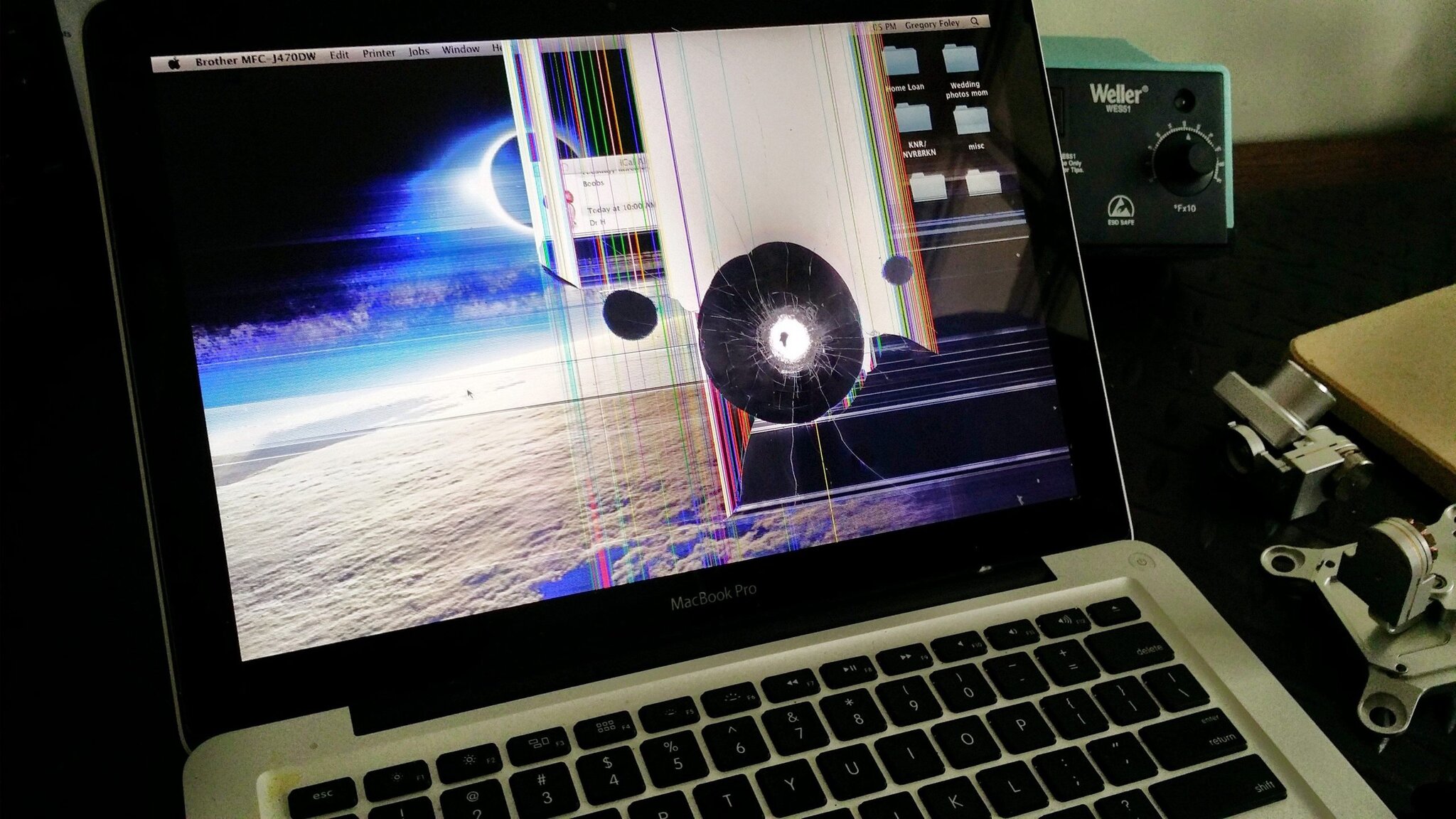
Your Mac is more than a laptop—it’s a daily companion. When a macbook screen takes a hit, we’re here to help with friendly, reliable repair options that keep waste low and peace of mind high. Whether it’s a macbook pro, macbook air, or a new macbook, our caring approach and expert guidance make screen repair simple, transparent, and better for you and the planet.
Understanding MacBook Screen Damage
A macbook display is a finely tuned assembly of lcd layers, cables, and hardware designed for the retina display brilliance Apple is known for. Damage can happen suddenly or build up over time. From a cracked screen to a subtle flicker, each symptom tells a story about your device. Knowing what’s going on helps you choose a fix, replacement, or repair service that fits your needs and warranty.
Common Causes of Broken MacBook Screens
Most broken macbook screens stem from accidental drops, pressure in a backpack, or a keyboard imprint. A tugged cable, battery swelling, or a bump near the display assembly can also shatter glass or stress the macbook lcd. Even a trusted MacBook Pro model can suffer damage from heat, hinge strain, or a DIY attempt gone wrong, highlighting the need for a skilled technician.
Signs Your MacBook Screen Needs Repair
Persistent flicker, lines, ghosting, dim corners, cracks, or black spots indicate screen or LCD damage that may be linked to faulty components. If opening the lid changes brightness, a cable may be failing. When the image is fine on an external monitor, the issue is likely in the screen assembly, not the logic board.
Types of Damage: Cracks, Flickers, and More
Cracked screen glass may still show an image, but spreading lines often follow. LCD bleed, dead pixels, color bands, flicker, or total blackouts point to panel, cable, or backlight issues that can affect MacBooks. Some macs need a full screen replacement; others only a cable or assembly swap. An expert technician can troubleshoot and suggest honest, sustainable solutions.
Repair Options for MacBook Screens
Every mac and laptop is unique, so we offer repair options that fit your device, budget, and timeline. From quick screen repair to a full screen replacement, we help you choose a fix that protects your data and the planet. Our approach prioritizes sustainable parts, clear pricing, and trustworthy guidance.
DIY Troubleshooting for MacBook Pro and Air
Before repair, try reset NVRAM, test with an external display, and inspect carefully for cracks or loose cables. Power down the macbook, handle the display carefully, and look for a crack, flicker, or dim zones. If the MacBook LCD shows damage, avoid pressure that could shatter the fragile glass.
| Action | Purpose/Note |
|---|---|
| Reset NVRAM | Initial troubleshooting before repair |
| Test with external display | Check if the issue is with the internal LCD |
| Inspect for cracks or loose cables | Look for crack, flicker, or dim zones |
| Power down and handle carefully | Avoid pressure that could shatter the glass |
When to Seek Professional Repair Services
Get professional help if cracks spread, the display flickers, or brightness changes with lid movement. A technician can confirm whether a cable swap, assembly fix, or full macbook screen replacement is needed. Choose repair service providers who use quality replacement parts, explain service fees, and stand by the work.
Apple Service and Warranty Considerations
AppleCare or warranty can reduce costs for eligible faults; accidental damage usually has fees. Third‑party work can affect coverage. We’ll help you review apple’s terms, compare provider options, and decide a solution that respects your macbook’s warranty and your budget.
Screen Replacement Process
When a broken screen needs more than a quick fix, we follow a careful, eco‑minded process. From diagnosis to replacement, your macbook stays safe while we protect the logic board and battery. Clear steps, clean tools, and tested parts ensure a reliable, like‑new professional MacBook retina display.
Choosing the Right Replacement Screen for Your MacBook
Match model, year, size, and retina specs exactly. We source compatible display assembly units or panels with trusted replacement parts, balancing cost and quality. If your new macbook or new macbook pro needs OEM‑grade clarity, we’ll confirm the exact assembly, cable layout, and brightness profile before we replace anything.
Step-by-Step Guide to Screen Replacement
After safe shutdown, we disconnect power and carefully open the macbook. The technician removes the bottom cover, isolates the battery, and unclips the display and camera cables to address any faulty connections. The damaged assembly is replaced, cables reconnected, hardware secured, and the system tested before closure.
Expert Tips for a Successful Replacement
Protect the battery and logic board from static, track screws, avoid over‑torque, and verify cable seating. Use gentle heat for adhesive, recalibrate brightness, then run diagnostics and color checks. Recycle broken parts responsibly for a low‑waste repair of your professional MacBook.
| Action | Purpose |
|---|---|
| Use gentle heat for adhesive | Ease component removal |
| Recalibrate brightness; run diagnostics and color checks | Verify proper display performance |
Cost Factors in MacBook Screen Repair
Costs depend on model, display assembly type, and DIY vs professional service. A macbook pro with retina or True Tone often needs a full assembly, raising part prices. Labor, service fees, and apple service policies also influence the final budget.
Comparing DIY vs. Professional Repair Costs
DIY can seem cheaper, but parts quality, tool expenses, and risk to the battery or logic board add hidden costs. A professional service includes diagnostics, warranty on work, and safe handling. If a flicker or crack returns, a trusted provider saves you a second fix.
Understanding Warranty and AppleCare Coverage
AppleCare may lower replacement costs; accidental damage usually has deductibles, and third‑party work can affect coverage. We help you compare apple service with independent repair options so your device and wallet both feel cared for.
Long-Term Value of Proper Repairs and Replacements
Quality parts and expert assembly prevent recurring issues, protect resale value, and reduce e‑waste. A careful swap that aligns the LCD, cable, and hinges prevents a recurring flicker or shatter, which are often due to manufacturing issues. Paying a bit more now often means fewer repairs later.
Maintaining Your MacBook Screen
Gentle habits keep a macbook display bright and your computer safe. Handle the screen with two hands, avoid lid pressure, and keep debris off the keyboard. Smart care protects the retina display, extends hardware life, and reduces the chance you’ll need another screen repair or replacement.
Preventive Measures to Avoid Future Damage
Close the macbook before moving it, never place items on the keyboard, and store it in a padded sleeve. Keep liquids away to protect the screen assembly and battery. Avoid extreme heat that stresses cables and the lcd. These small steps help prevent a broken macbook screen and keep your macbook pro screen crystal clear.
| Action | Reason/Benefit of choosing a skilled technician for repairs. |
|---|---|
| Close the MacBook before moving it to protect its fragile components. | Prevents screen damage and keeps the display safe |
| Never place items on the keyboard of your professional MacBook to prevent damage. | Avoids pressure on the screen that could cause cracks |
| Store it in a padded sleeve | Adds protection against bumps and scratches |
| Keep liquids away | Protects the screen assembly and battery |
| Avoid extreme heat | Prevents stress on cables and the LCD |
Regular Maintenance Tips for MacBook Screens
Use a microfiber cloth with screen‑safe cleaner, and watch for early signs like flicker or dim zones. Check after travel for a loose cable. Tighten any accessible screw only if specified in guides, and schedule periodic troubleshooting with a technician for an honest, friendly health check.
Using Protective Accessories for Your MacBook
A fitted sleeve, cushioned case, screen protector, and stand reduce impact and prevent keyboard contact. A gentle cover guards the assembly during commutes. Choose reliable accessories from service providers you trust to avoid poor‑fit gear that can shatter or stress the screen.