
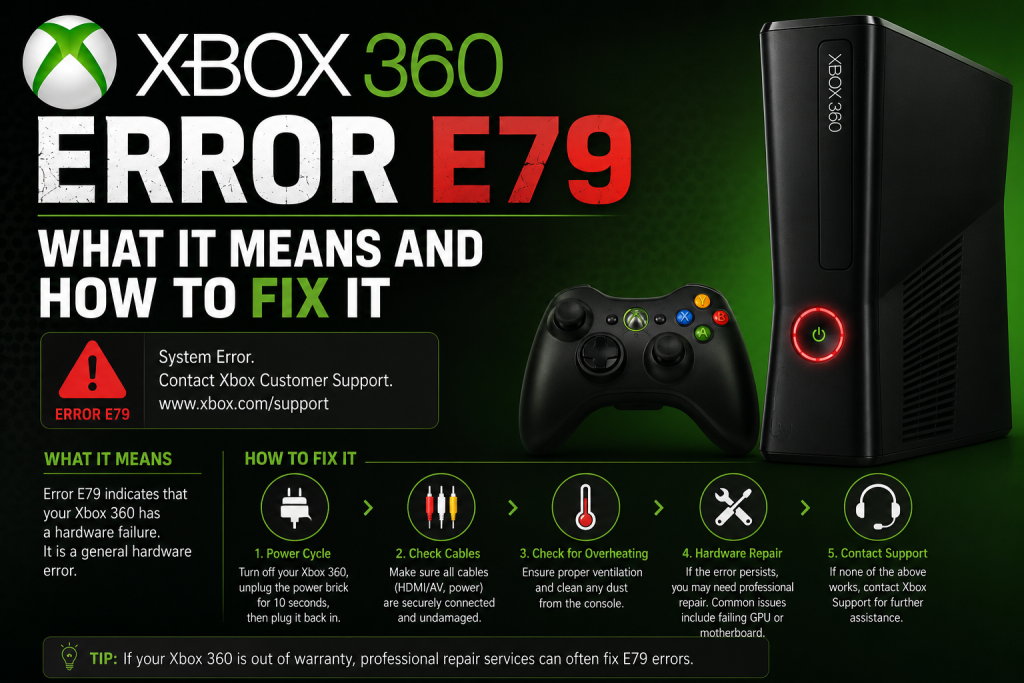
We know how frustrating it feels when your xbox 360 slim flashes a red light just as you’re ready for gaming. This guide helps you calmly diagnose the E79 error, protect your data, and find a practical fix without causing extra damage or e-waste. With friendly steps and caring tips, we’ll explore what’s wrong, understand the cause, and find a solution that reduces waste and gets your console smiling again.
Understanding the E79 Error
The E79 error is a boot failure where the console can’t load the dashboard and may show a single red LED. Often linked to nand flash and motherboard components, this error code can appear after an update or when a corrupted file system prevents proper booting. Our goal is to solve it thoughtfully, protect your data, and avoid unnecessary damage or e-waste.
What is the E79 Error Code?
E79 signals a security or file system problem during boot (often referencing 1033) involving NAND, HDD detection, or southbridge checks related to your 250GB drive. The xbox 360 checks nand data, the hard drive, and key components like the southbridge chip when starting. If the nand is corrupt, the hdd isn’t detected, or a component fails a test, the console freezes, shows a red light, and stops before the dashboard, leaving a reference like 1033 on screen.
Common Causes of the E79 Error
Top causes: corrupted NAND, corrupted HDD file system, or motherboard issues (e.g., southbridge/cold joints). Several hardware and connection problems can trigger the error. Common contributors include:
- Hardware faults such as a cold joint under the southbridge, southbridge-related issues, or a damaged resistor on the board
- Storage and connection problems like a failing HDD or USB device, or a loose drive connection
- Software-related conflicts, including an Xbox 360 update
- Less common causes such as RAM faults, power supply irregularities, or faulty USB ports
Symptoms of the Red Ring of Doom
Key symptoms: one red light, freeze during boot, failure to reach dashboard, on-screen E79, which may indicate issues with your 250GB HDD. You might notice the controller connects but video never appears, or the console restarts and loops. Disc loading won’t progress, and the button presses do little. Compared to e75 or classic rrod, e79 leans toward nand, hdd, or southbridge issues identified during system checks.
Video Solutions for the E79 Error
Sometimes the easiest way to fix an xbox 360 slim issue is to see it done. Video walk-throughs bring the error code to life, turning confusing info into clear steps you can follow. Stick to safe sources (Xbox Support and trusted creators) that start with simple checks: power, HDD reseat, and USB removal. With friendly guidance, you can solve whats wrong, protect the console, and avoid unnecessary repair damage.
Step-by-Step Video Guides
Prioritize videos that begin with non-invasive checks before any advanced repair. Choose guides that move from simple diagnostics to more complex procedures. For example:
- Start with basic checks: test the power supply, remove the hard drive, and boot the console without USB devices.
- Review clear explanations of the E79 error and error E79 reference 1033.
- Follow safe steps: clean contacts with isopropyl alcohol, reseat the 250GB HDD, and inspect the board.
- Only then consider advanced topics like NAND flash checks, southbridge reflow warnings, or diagnosing a corrupted file system, with reminders about when to seek Microsoft or Xbox support.
Visual Indicators of the E79 Error
Identify E79 by a single red light, blank screen after controller sync, and failure to load the dashboard. You’ll see how the controller syncs while the screen stays blank, how the ring pattern differs from e75 or rrod, and how the console reacts to a button press. Clear shots of the error code, e 79 on-screen reference, and the timing of the boot sequence give you confidence to pinpoint the cause and choose a safe solution.
Community Videos: Real-Life Fixes
Common wins: swap in a known-good 250GB HDD, remove corrupt USB devices, and roll back recent updates when possible. Real owners share fixes like swapping a known-good hard drive, removing a corrupt usb, or undoing a recent update to restore boot. Some demonstrate gentle board inspections to spot a damaged resistor, a cold joint under the southbridge, or southbridge causing problems that may affect the 250GB HDD. Others warn against risky solder or reflow on the chip without tools, which could damage your 250GB storage. These honest stories help you repair smartly, protect your nand, and keep gaming.
Resolving the E79 Error Code
Let’s gently walk through a friendly plan to fix the e79 error on your xbox 360 slim. We’ll start with safe checks to find the cause, then move toward a practical solution that protects your console, data, and planet. Expect clear steps covering the hard drive, usb ports, power supply, and nand flash hints. If the southbridge or motherboard shows faults, seek professional repair rather than attempting risky reflow/solder.
DIY Fixes for Xbox 360 Slim
Start simple: power cycle, remove all USBs, reseat/clean the HDD, test with a known-good drive, and verify the power supply. Begin by powering off, unplugging the console, and removing every USB device, then test booting the console. Below are the basic steps to follow:
- Power off the console, unplug it, and disconnect all USB devices, then attempt a boot.
- Reseat the hard drive (HDD) and clean its contacts with isopropyl alcohol.
- Test with a known-good drive to rule out a corrupted file system or corrupt data.
- Check the power supply light, controller sync, and video cable.
- If the dashboard loads without the HDD, back up your data, then reformat the drive.
Avoid DIY reflow or solder on southbridge/NAND.
When to Seek Professional Help
If E79 (ref 1033) persists after basic steps, contact Xbox/Microsoft-authorized service. Symptoms like a freeze during boot, red ring patterns, or hints of a corrupted nand or motherboard fault suggest deeper repair. A cold joint under the southbridge, southbridge causing problems, or a damaged resistor can require micro-solder skill. Contact xbox support or microsoft-authorized centers via the website for an honest, warranty-respecting solution.
Preventive Measures for Future Errors
Keep it cool, stable, and backed up: ventilation, surge protection, safe shutdowns, and regular HDD checks. Prevention is a caring gift to your console and the environment. Keep the xbox 360 slim well-ventilated to protect chips, ram, and the board from heat damage. Use a surge protector for power supply stability to protect your 250GB hard drive. Safely eject usb drives, avoid sudden shutdowns, and let updates finish before pressing a button. Regularly back up saves to USB, especially if you have a 250GB hard drive. Skip aggressive reflow tricks; instead, schedule gentle cleanings and periodic hdd tests so small errors never become big problems.
Security Concerns Related to the E79 Error
E79 often reflects failed integrity/security checks during boot due to corrupt NAND/HDD data. While gaming pauses, your info matters. A failing hard drive, unstable update, or broken component can interrupt integrity checks and stop the dashboard. Treat this error code as a friendly prompt to protect data, review what’s installed, and confirm the console’s boot process remains trustworthy before diving back into disc play and fun sessions.
Data Loss Risks with the E79 Error
Risk: corrupted saves/profiles if the console repeatedly freezes or is power-cycled. When the console halts at boot, saves on the HDD or USB risk corruption, particularly if your storage is a 250GB model. A corrupted file system, bad sectors, or nand flash issues can scramble profiles and settings. Repeated freeze cycles, rrod-like restarts, or forced power-offs increase damage. If you see error e79 or e 79 reference 1033, pause and avoid formatting until backups are safe. Honest rule: if the drive clicks, shows missing games, or fails tests, prioritize copying data from your 250GB drive immediately.
Backing Up Your Xbox 360 Data
As soon as you can reach the dashboard, back up saves and profiles to a clean USB (preferably two) from your 250GB hard drive. As soon as the dashboard loads—even once—copy critical saves and profiles to a clean usb. Use multiple usb drives to reduce risk, verifying files after transfer. If the hard drive seems unstable, back up in small batches from your 250GB storage. Visit the official Xbox support website or trusted YouTube video guides for step-by-step backup tips specifically for your 250GB hard drive. After securing data, you can reformat the hdd, reinstall updates, and test boot stability. This caring routine keeps what you love safe.
Protecting Your Console from Future Errors
Good habits prevent E79: airflow, dust control, patient updates, periodic HDD tests, and professional repairs over risky reflows. To shield against future E79, maintain cool airflow, dust the vents, and keep the motherboard stress-free, especially if using a 250GB HDD. Avoid stacking the console on soft surfaces, and give the power supply room to breathe. Install updates with patience—don’t interrupt boot or press a button mid-install. Periodically test the hdd, and retire failing drives before they corrupt saves. Skip speculative reflow or solder fixes; professional repair beats risk. With mindful habits, your Xbox 360 enjoys long, happy gaming, especially with a reliable 250GB hard drive.